How I Let My AI Assistant Deploy Docker Apps With a Single Message
How to create a docker-deploy skill for your AI assistant so it can install and configure Docker apps on your VPS using Caddy and Docker Compose, all from a chat message.
I got tired of SSH-ing into my VPS every time I wanted to try a new Docker app. Install this, write a compose file, add the Caddy config, restart, check if it works. The same steps every single time.
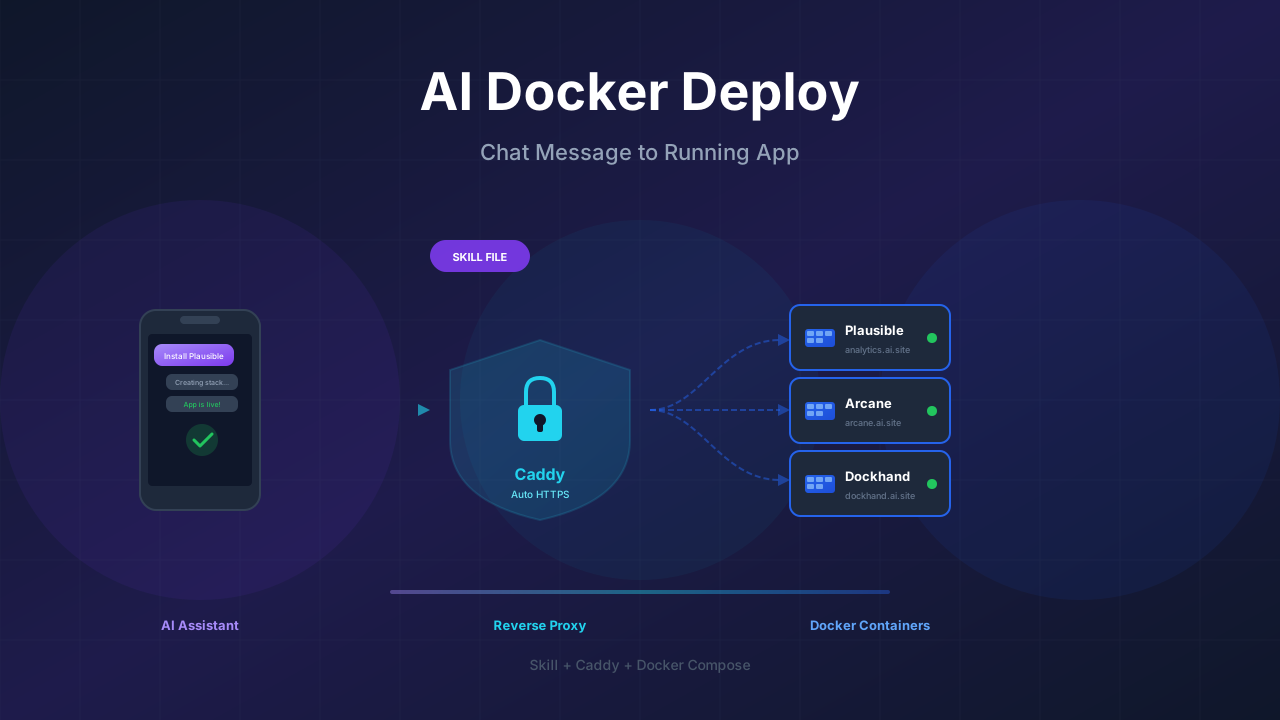
So I built a skill for my AI assistant. Now I open Telegram (or Discord, or Slack) and type something like “install Plausible Analytics on my server.” The assistant creates the folder, writes the compose file, updates Caddy for HTTPS, starts everything, and checks if the app responds. I don’t touch the terminal at all.
This article walks through the setup that makes this work and gives you the skill file you can drop into your own AI assistant.
What you need before starting
This setup has five pieces that need to be in place before the skill does anything useful:
- A VPS (I use Hetzner CX22 at about $4.50/month)
- Docker and Docker Compose installed on the VPS
- Caddy running as a Docker container for reverse proxy and automatic HTTPS
- A wildcard DNS record pointing
*.yourdomain.comto your server IP - A directory structure for your Docker stacks (like
/home/user/docker-apps)
If you already have all five, skip ahead to the skill file. If not, I’ll cover each one.
Hetzner VPS DigitalOcean $100 Free Vultr $100 FreeThe VPS
Any Linux VPS works. I’ve been using Hetzner for years because it’s cheap and the network is solid. A CX22 with 2 vCPUs and 4GB RAM handles Caddy plus a dozen Docker apps without issues. Ubuntu 24.04 is my go-to.
If you’re new to VPS hosting, the Hetzner cloud review covers what you get and how to set one up. Or use a mini PC as home server if you’d rather keep everything local.
Install Docker
If Docker isn’t on your server yet:
curl -fsSL https://get.docker.com -o get-docker.sh
sh get-docker.sh
Full walkthrough: Install Docker & Docker-compose for Ubuntu.
Set up Caddy as your reverse proxy
Caddy handles HTTPS automatically. No certbot, no renewal crons, no nginx config files. It gets certificates from Let’s Encrypt on its own and renews them before they expire.
I run Caddy as a Docker container inside the same directory structure where all my apps live.
Create the directory structure
mkdir -p /home/$USER/docker-apps/caddy
cd /home/$USER/docker-apps/caddy
Docker Compose for Caddy
Create a docker-compose.yml in the caddy directory:
services:
  caddy:
    image: caddy:2-alpine
    container_name: caddy
    restart: unless-stopped
    ports:
      - "80:80"
      - "443:443"
      - "443:443/udp"
    volumes:
      - ./Caddyfile:/etc/caddy/Caddyfile
      - ./data:/data
      - ./config:/config
    networks:
      - caddy

networks:
  caddy:
    external: true
Create the Docker network
All your apps will connect to this shared network so Caddy can reach them:
sudo docker network create caddyCreate the Caddyfile
Create a Caddyfile in the same folder. Start with a placeholder:
# Apps will be added here by the AI assistant or manuallyStart Caddy
cd /home/$USER/docker-apps/caddy
sudo docker compose up -d
Caddy is running. Any app you add later just needs an entry in this Caddyfile and a connection to the caddy network.
Set up wildcard DNS
You need a DNS record that sends all subdomains to your server. In your domain registrar or DNS provider (Cloudflare, etc.), add an A record:
| Type | Name | Value | TTL |
|---|---|---|---|
| A | * | YOUR_SERVER_IP | Auto |
If your domain is example.com, this means anything.example.com will resolve to your VPS. Caddy then handles routing each subdomain to the right container.
Cloudflare users
If you use Cloudflare, you can proxy the wildcard record (orange cloud) but you’ll need to configure Caddy to work with Cloudflare’s SSL mode. The simplest setup is to use “DNS only” (grey cloud) and let Caddy handle certificates directly.
The directory convention
Every app gets its own folder under /home/$USER/docker-apps/. The structure looks like this after a few apps:
/home/user/docker-apps/
  caddy/
    docker-compose.yml
    Caddyfile
    data/
    config/
  plausible/
    docker-compose.yml
    .env
  arcane/
    docker-compose.yml
    .env
  dockhand/
    docker-compose.yml
    .env
This keeps everything predictable. The AI assistant knows where to put files, and you know where to find them when you need to look at something manually.
What the AI assistant does with all this
With the infrastructure in place, you can tell your AI assistant to deploy apps. I’ve installed Arcane and Dockhand this way. For context on those, I wrote a comparison of the two.
The assistant follows the same workflow every time:
- Creates a new folder under
/home/user/docker-apps/app-name/ - Writes a
docker-compose.ymlwith local./volume paths (no named volumes) - Puts passwords and API keys in a
.envfile, not hardcoded in the compose file - Updates the Caddyfile in
/home/user/docker-apps/caddy/with a new subdomain block - Starts the containers with
sudo docker compose up -d - Reloads Caddy to pick up the new config
- Runs a curl against the subdomain to confirm the app responds
It works because there’s a skill file that tells the assistant exactly how this server is set up and what rules to follow. Without the skill, the assistant would guess at paths, might use named volumes, might skip the reverse proxy, or put secrets directly in the compose file.
The skill file
This is the file that teaches your AI assistant how your server works. You need to change two things in it before using it:
- The path - replace
/home/dragos/docker-appswith your actual path - The domain - replace
*.ai.bitdoze.comwith your wildcard domain
Change the path and domain
The skill below uses my setup as an example. You need to replace /home/dragos/docker-apps with your own path (like /home/youruser/docker-apps) and *.ai.bitdoze.com with your actual wildcard domain.
Create the skill file in your assistant’s skills directory. The location depends on which AI assistant you use:
- OpenClaw:
~/.openclaw/workspace/skills/docker-deploy/SKILL.md - Custom Agno bot:
workspace/skills/docker-deploy/SKILL.md - OpenCode/Claude Code:
.agents/skills/docker-deploy/SKILL.md
The skill file itself:
---
name: docker-deploy
description: >-
  Use this skill when deploying or modifying Dockerized apps on this server.
  It enforces server-specific constraints: Docker is installed with Caddy,
  commands that change system/runtime state should be run with sudo, app
  stacks live in /home/dragos/docker-apps, Caddy lives in
  /home/dragos/docker-apps/caddy, wildcard DNS *.ai.bitdoze.com points to this
  server for subdomain routing, and Docker Compose files should use local ./
  paths instead of named volumes.
---

# Docker + Caddy Server Rules

Apply these rules for all deployment, operations, and setup tasks on this server.

## Environment facts
- Docker is installed and available.
- Caddy is installed and managed from `/home/dragos/docker-apps/caddy`.
- Docker app projects must be placed under `/home/dragos/docker-apps`.
- Wildcard DNS `*.ai.bitdoze.com` points to this server and should be used for app subdomains.

## Permission model
- Use `sudo` for commands that manage Docker runtime/services, networking, filesystem locations requiring elevation, or system-level setup.
- Prefer explicit commands that can be audited and repeated.

## Compose placement and style
- Prefer Docker Compose-based deployments.
- Place each app in its own folder under `/home/dragos/docker-apps/<app-name>`.
- Keep compose and related app files together in the app folder.
- Do not use named volumes for app data/config in compose files.
- Use local relative paths (`./...`) in the location where the compose file is created.

## Caddy integration
- Route apps through Caddy using subdomains under `*.ai.bitdoze.com`.
- Keep Caddy config changes under `/home/dragos/docker-apps/caddy`.
- When adding a new app, include the target hostname and upstream container/service mapping.

## Expected workflow
1. Create app directory in `/home/dragos/docker-apps/<app-name>`.
2. Add `docker-compose.yml` with services and `./...` path mappings.
3. Add/update Caddy config in `/home/dragos/docker-apps/caddy` for `<app>.ai.bitdoze.com`.
4. Run required Docker/Caddy commands with `sudo`.
5. Validate service health and public routing.
6. Run curl to see if the new app is up on port or subdomain.
7. Place sensitive data into `.env` file not in compose directly like passwords and hashes.

## Guardrails
- Reject plans that place apps outside `/home/dragos/docker-apps`.
- Reject plans that use named Docker volumes for persistent files.
- Reject plans that bypass Caddy when public HTTP(S) access is required.
- Place sensitive data into `.env` file not in compose directly like passwords and hashes.
Replace these values with your own:
| Placeholder | Your value |
|---|---|
/home/dragos/docker-apps | Your apps directory path |
*.ai.bitdoze.com | Your wildcard domain |
dragos | Your username |
For example, if your user is john and your domain is apps.johndoe.com:
/home/dragos/docker-appsbecomes/home/john/docker-apps*.ai.bitdoze.combecomes*.apps.johndoe.com
How the skill works in practice
Once the skill file is in place, the assistant reads it whenever you ask about deploying something. Here’s what a real conversation looks like:
Me: “Install Uptime Kuma on my server”
The assistant then:
# 1. Creates the directory
sudo mkdir -p /home/dragos/docker-apps/uptime-kuma

# 2. Writes the .env file (passwords go here, not in compose)
# Creates /home/dragos/docker-apps/uptime-kuma/.env

# 3. Writes docker-compose.yml with local paths
# Creates /home/dragos/docker-apps/uptime-kuma/docker-compose.yml
The compose file looks something like:
services:
  uptime-kuma:
    image: louislam/uptime-kuma:1
    container_name: uptime-kuma
    restart: unless-stopped
    volumes:
      - ./data:/app/data
    networks:
      - caddy

networks:
  caddy:
    external: true
Notice ./data instead of a named volume. That’s what the skill enforces.
Then it updates the Caddyfile:
uptime-kuma.ai.bitdoze.com {
    reverse_proxy uptime-kuma:3001
}
And starts everything:
cd /home/dragos/docker-apps/uptime-kuma
sudo docker compose up -d
cd /home/dragos/docker-apps/caddy
sudo docker compose exec caddy caddy reload --config /etc/caddy/Caddyfile
curl -I https://uptime-kuma.ai.bitdoze.com
The whole thing takes maybe 30 seconds. I just watch the messages roll in.
Why the guardrails matter
Without the skill, AI assistants make reasonable but inconsistent choices. They might:
- Put app data in
/opt/or/var/or wherever they feel like - Use Docker named volumes, which makes backups harder (you have to dig around in
/var/lib/docker/volumes/) - Skip the reverse proxy and expose ports directly
- Hardcode passwords in the compose file where they show up in
docker inspect - Forget to check if the app actually started
The guardrails in the skill prevent all of this. If the assistant tries to create a compose file with a named volume, the skill tells it not to. If it tries to expose a port directly without going through Caddy, the skill says no.
This is the difference between having an assistant that can deploy apps and having one that deploys apps the way you want.
Managing deployed apps
After a few deployments, you’ll want to check on things. Some useful commands:
# See all running containers
sudo docker ps

# Check logs for a specific app
sudo docker logs uptime-kuma --tail 50

# Restart an app
cd /home/$USER/docker-apps/uptime-kuma
sudo docker compose restart

# Update an app to latest image
cd /home/$USER/docker-apps/uptime-kuma
sudo docker compose pull
sudo docker compose up -d

# Remove an app completely
cd /home/$USER/docker-apps/uptime-kuma
sudo docker compose down
cd ..
rm -rf uptime-kuma
# Also remove the Caddyfile entry
For managing containers through a web UI instead of terminal, check out Arcane or Dockhand. I wrote about which one to choose if you’re deciding between them. You can even ask your AI assistant to install either one using this same skill.
If you want automatic container updates, Tugtainer handles that without needing to rebuild compose stacks.
Which AI assistant to use
Any AI assistant that supports skills or system prompts can use this file. I’ve tested it with:
- OpenClaw running on the same VPS, chatting through Telegram. It has direct shell access to the server, so it runs the Docker commands itself.
- A custom Agno bot on Discord with shell tools enabled. Same idea, different chat platform.
- OpenCode/Claude Code connected via SSH. Works if you prefer coding tools over chat bots.
The OpenClaw setup is the most hands-off. You message it on Telegram from your phone, and it does everything on the server without you opening a terminal. The setup guide covers installation.
For building your own bot from scratch, the Agno bot guide walks through the whole thing, including Discord integration, memory, and team agents.
Extending the skill
The skill file is just markdown. You can add rules as your setup grows. Some things I’ve added to mine over time:
- A backup section that tells the assistant to create a
backup.shscript in each app folder - Database defaults (use PostgreSQL over MySQL when the app supports both)
- Resource limits for containers (
deploy.resources.limitsin compose) - A monitoring rule that adds all new apps to my Uptime Kuma instance automatically
You can also ask the assistant to update the skill itself. “Add a rule that all new apps should include a healthcheck in the compose file” works fine. It reads the skill, adds the rule, and follows it from then on.
The bigger picture
This setup turns a VPS into something you manage through conversation. The server still runs Docker and Caddy like any normal setup. The difference is that your AI assistant knows the rules and follows them consistently.
I’ve deployed about 15 apps this way over the past few weeks. Some I kept, some I tried for an hour and removed. The speed of trying things is what changed. When installing an app takes 30 seconds of typing a message instead of 10 minutes of writing compose files, you try more things.
The prerequisites take maybe an hour to set up if you’re starting from zero. After that, every deployment is a chat message.
Frequently asked questions
Does the assistant need root access?
It needs to run Docker commands with sudo. If your user is in the docker group, you can modify the skill to drop the sudo requirement, but I prefer keeping it explicit.
Can I use Nginx or Traefik instead of Caddy?
Yes, but you’d need to rewrite the Caddy-specific parts of the skill. Caddy is the simplest option because it handles certificates automatically without extra configuration. If you already run Traefik, adapt the skill to use labels instead of Caddyfile entries.
What if the assistant messes something up?
Every app is isolated in its own folder. If something goes wrong, docker compose down in that folder stops it, and removing the folder cleans it up. The worst case is a broken Caddyfile entry, which you fix by editing one file.
Can multiple assistants share the same skill?
Yes. The skill describes server conventions, not assistant-specific behavior. Put the same file in each assistant’s skill directory and they’ll all follow the same rules.
Does this work on ARM servers (Raspberry Pi)?
The skill itself is architecture-agnostic. Whether the Docker images you deploy have ARM builds is a separate question. Most popular self-hosted apps publish multi-arch images now.