How to Block Ads, Malware & Stop ISP Tracking with NextDNS and AdGuard Home
Learn how to protect your entire network from ads, malware, and ISP tracking using encrypted DNS solutions. Complete guide for NextDNS (cloud) and self-hosted AdGuard Home with Docker and Dockge integration.
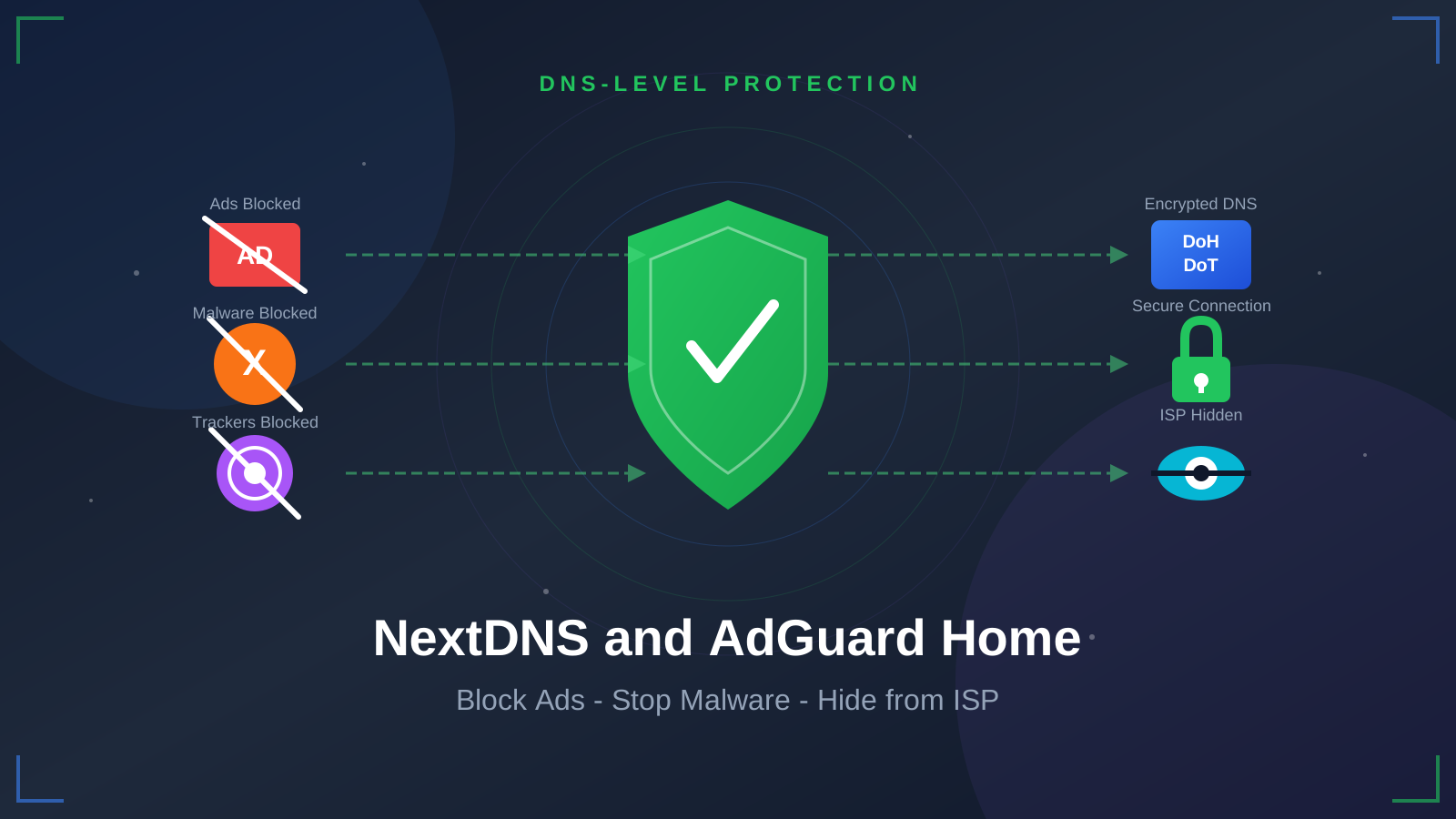
Every time you visit a website, your device sends a DNS query that reveals what you’re browsing. Your ISP logs these queries, advertisers track you across sites, and malicious domains can slip through. Protecting your network at the DNS level makes sense.
In this guide, I’ll show you how to protect your network from:
- Ads that slow down your browsing
- Malware and phishing domains
- ISP tracking of your online activity
I’ll cover two approaches: NextDNS (a cloud-based service) and AdGuard Home (a self-hosted solution you run yourself). Either way, you’ll get encrypted DNS that keeps your browsing private.
If you’re interested in other privacy-focused self-hosted solutions, check out How to Self-Host SearXNG — Privacy-Focused Metasearch Engine for a private search engine you can run yourself.
What is DNS and Why It Matters for Your Privacy
Understanding DNS
DNS (Domain Name System) translates domain names into IP addresses. When you type google.com, DNS finds the corresponding IP address like 142.250.80.46 that computers understand.
The problem: traditional DNS isn’t encrypted. This means:
| Privacy Risk | What Happens |
|---|---|
| ISP Monitoring | Your internet provider sees every website you visit |
| Data Collection | DNS queries can be logged, sold, or shared with third parties |
| Man-in-the-Middle Attacks | Attackers can intercept and modify DNS responses |
| No Ad Blocking | Standard DNS servers resolve all domains, including ad servers |
How DNS-Level Protection Works
DNS-level protection handles these issues in two ways:
-
Encrypted DNS Protocols:
- DNS-over-HTTPS (DoH): Encrypts DNS queries using HTTPS on port 443
- DNS-over-TLS (DoT): Encrypts DNS queries using TLS on port 853
- DNS-over-QUIC (DoQ): A newer protocol with better performance
-
DNS Filtering: Instead of resolving requests to known ad servers, trackers, or malware domains, a filtering DNS server returns a null response. This blocks the content before it reaches your device.
Why DNS-Level Blocking is Superior
Browser-based ad blockers only work in one application. DNS-level blocking protects your entire network, including smart TVs, IoT devices, gaming consoles, and mobile apps that don’t support traditional ad blockers.
Option 1: NextDNS (Cloud-Based Solution)
NextDNS is a cloud-based DNS service with encrypted DNS and filtering capabilities. It works well if you want protection without managing servers.
Try NextDNS FreeWhat is NextDNS?
NextDNS is a DNS resolver that sits between your devices and the internet. When your device makes a DNS query, NextDNS:
- Receives the encrypted request
- Checks it against your blocklists
- Blocks ads, trackers, and malware domains
- Returns the result (or blocks it) via encrypted connection
Your ISP only sees encrypted traffic to NextDNS servers, so they can’t see which websites you’re visiting.
Key Features of NextDNS
- Ad Blocking: Blocks ads across devices and apps using blocklists
- Malware & Phishing Protection: Threat intelligence blocks dangerous domains
- Tracker Blocking: Stops cross-site tracking from data collectors
- Parental Controls: Blocks adult content, gambling, social media, and more
- Analytics Dashboard: Shows what’s blocked and which devices are querying
- Encrypted DNS: Supports DoH, DoT, and DoQ protocols
- No Logging Option: Configure zero-logs for privacy
- Cross-Platform: Works on devices, routers, and operating systems
NextDNS Pricing
| Plan | Queries/Month | Price | Best For |
|---|---|---|---|
| Free | 300,000 | $0 | Individual users, testing |
| Pro | Unlimited | $1.99/month | Families, power users |
| Business | Unlimited | Custom | Organizations |
300,000 queries sounds like a lot, but a household with multiple devices can exceed this. Check your usage in the dashboard.
Setting Up NextDNS
Step 1: Create Your NextDNS Account
- Visit NextDNS and click Try it now
- Create a free account with your email
- You’ll receive a unique Configuration ID (looks like
abc123)
Step 2: Configure Your Blocklists
Navigate to the Security tab and enable:
- Threat Intelligence Feeds: Blocks known malware domains
- Google Safe Browsing: Leverages Google’s threat database
- Cryptojacking Protection: Blocks cryptocurrency mining scripts
- DNS Rebinding Protection: Prevents DNS rebinding attacks
- IDN Homograph Attacks Protection: Blocks look-alike domains
Navigate to the Privacy tab and enable:
- Blocklists: Add popular lists like:
- OISD (comprehensive)
- AdGuard DNS filter
- Steven Black’s Unified Hosts
- Native Tracking Protection: Block OS-level tracking (Apple, Windows, etc.)
Step 3: Configure Your Devices
Method 1: Per-Device Configuration
NextDNS provides apps for all major platforms:
- Windows/Mac: Download the official NextDNS app
- iOS: Download from App Store or use the DNS profile
- Android: Download from Play Store or configure Private DNS
Method 2: Router Configuration (Recommended)
For network-wide protection, configure NextDNS on your router:
- Access your router’s admin panel (usually
192.168.1.1) - Find DNS settings (often under WAN or Internet settings)
- Replace existing DNS servers with NextDNS addresses:
# NextDNS DNS-over-HTTPS endpoint (replace abc123 with your ID)
https://dns.nextdns.io/abc123

# Or use the dedicated IPv4 addresses from your dashboard- For DNS-over-TLS (if your router supports it):
# DoT hostname
abc123.dns.nextdns.io
Step 4: Verify Your Setup
- Visit test.nextdns.io
- It should show “Congratulations! You are using NextDNS”
- Check the Logs tab in your dashboard to see queries
NextDNS Privacy Settings
For maximum privacy, configure these settings in the Settings tab:
| Setting | Recommended Value | Purpose |
|---|---|---|
| Logs | Disabled or 1 hour | Minimize data retention |
| Block Page | Disabled | Don’t reveal what’s blocked |
| Anonymized EDNS | Enabled | Hide your IP from upstream |
| Cache Boost | Enabled | Faster responses |
NextDNS Pros and Cons
Pros:
- No server to manage
- Works immediately
- Good mobile app support
- Regular blocklist updates
- Generous free tier
Cons:
- You trust a third party
- Free tier has query limits
- Less customization than self-hosted
- Depends on NextDNS infrastructure
Option 2: Self-Hosted AdGuard Home
If you want control over your DNS infrastructure, AdGuard Home is an open-source ad and tracker blocker you can run on your own hardware.
Try Hetzner Cloud for Self-HostingIf you’re wondering whether self-hosting is right for you, read Why You Need a Home Server in 2026 for an overview of the benefits.
What is AdGuard Home?
AdGuard Home is a free, open-source DNS server with ad blocking, tracker blocking, and parental controls. It runs on your server (VPS, home server, or Raspberry Pi) and acts as your network’s DNS resolver.
Key Features of AdGuard Home
- Network-Wide Blocking: Protects devices on your network automatically
- Custom Filtering Rules: Create your own rules or import blocklists
- Encrypted DNS Server: Serves DoH, DoT, and DoQ to your clients
- DHCP Server: Optionally replaces your router’s DHCP for control
- Query Logs: Detailed analytics of DNS queries
- Per-Client Settings: Different rules for different devices
- Parental Controls: Safe search and adult content blocking
- Dashboard: Web UI for configuration and monitoring
Prerequisites
Before installing AdGuard Home, you’ll need:
- A Server: This can be:
- A VPS from providers like Hetzner (see our Hetzner Cloud Review)
- A home server or Mini PC
- A Raspberry Pi
- Docker Installed: Follow our guide to install Docker if needed
- Basic Terminal Knowledge: Ability to run commands via SSH
- A Domain (Optional): For accessing the dashboard remotely with HTTPS
For a comprehensive list of applications you can run alongside AdGuard Home, check out Best 100+ Docker Containers for Home Server.
Setup Option 1: Docker Compose (Standalone)
This method is ideal for servers where you want direct access to AdGuard Home without a reverse proxy.
Step 1: Create Project Directory
Connect to your server via SSH and create a directory for AdGuard Home:
mkdir -p ~/adguard-home
cd ~/adguard-home
Step 2: Create Docker Compose Configuration
Create a docker-compose.yml file:
nano docker-compose.ymlAdd the following configuration:
services:
  adguardhome:
    image: adguard/adguardhome:latest
    container_name: adguardhome
    restart: unless-stopped
    ports:
      # DNS ports - required for DNS resolution
      - "53:53/tcp"
      - "53:53/udp"
      # Admin panel
      - "3000:3000/tcp"
      # DNS-over-HTTPS (optional)
      - "443:443/tcp"
      - "443:443/udp"
      # DNS-over-TLS (optional)
      - "853:853/tcp"
      # DNS-over-QUIC (optional)
      - "853:853/udp"
      - "8853:8853/udp"
      # DHCP server (optional, only if replacing router DHCP)
      # - "67:67/udp"
      # - "68:68/udp"
    volumes:
      - ./work:/opt/adguardhome/work
      - ./conf:/opt/adguardhome/conf
    cap_add:
      - NET_ADMIN
Port 53 Conflicts
Many Linux systems run systemd-resolved which uses port 53. If you get a port conflict error, you’ll need to disable it:
sudo systemctl stop systemd-resolved
sudo systemctl disable systemd-resolved
sudo rm /etc/resolv.conf
echo "nameserver 8.8.8.8" | sudo tee /etc/resolv.conf
Step 3: Launch AdGuard Home
Start the container:
docker compose up -dCheck that it’s running:
docker compose psYou should see the adguardhome container with status Up.
Step 4: Complete Initial Setup
- Open your browser and navigate to
http://YOUR_SERVER_IP:3000 - Follow the setup wizard:
- Set the Admin Web Interface to listen on all interfaces, port 3000
- Set the DNS Server to listen on all interfaces, port 53
- Create your admin username and password
- Click Next to complete the setup
After setup, the admin panel will be available at http://YOUR_SERVER_IP:3000 (or port 80 if you configured it that way).
Setup Option 2: Dockge Deployment
Dockge provides a beautiful web interface for managing Docker Compose stacks. This method is perfect if you’re already using Dockge or want an easier way to manage your containers.
If you haven’t installed Dockge yet, follow our guide: Dockge Install - Portainer Alternative for Docker Management
Step 1: Access Dockge Dashboard
- Open your Dockge web interface (typically
http://YOUR_SERVER_IP:5001) - Click the + Compose button in the top right
Step 2: Create New Stack
- Give your stack a name:
adguardhome - In the compose editor, paste the following:
services:
  adguardhome:
    image: adguard/adguardhome:latest
    container_name: adguardhome
    restart: unless-stopped
    ports:
      - "53:53/tcp"
      - "53:53/udp"
      - "3000:3000/tcp"
      - "443:443/tcp"
      - "443:443/udp"
      - "853:853/tcp"
      - "853:853/udp"
      - "8853:8853/udp"
    volumes:
      - ./work:/opt/adguardhome/work
      - ./conf:/opt/adguardhome/conf
    cap_add:
      - NET_ADMIN
Step 3: Deploy the Stack
- Click the Deploy button
- Dockge will pull the image and start the container
- You can monitor the logs in real-time in the Dockge interface
Step 4: Complete Setup
Navigate to http://YOUR_SERVER_IP:3000 and complete the initial setup wizard as described in the standalone method above.
The advantage of using Dockge is that you can easily:
- View logs in real-time
- Stop, start, and restart the container
- Edit the compose file and redeploy
- Monitor resource usage
Configuring AdGuard Home
Once AdGuard Home is running, configure it for optimal protection.
Adding Blocklists
- Go to Filters → DNS blocklists
- Click Add blocklist → Choose from list
- Recommended blocklists to enable:
| Blocklist | Purpose |
|---|---|
| AdGuard DNS filter | General ad blocking |
| AdAway Default Blocklist | Mobile ad blocking |
| OISD Blocklist | Comprehensive blocking |
| Steven Black’s List | Unified hosts with extensions |
| Phishing Army | Phishing protection |
| Malware Domain List | Malware protection |
- Click Apply after adding lists
Configuring Upstream DNS (Privacy)
To prevent your queries from being visible to your ISP, configure encrypted upstream DNS:
- Go to Settings → DNS settings
- In Upstream DNS servers, add encrypted resolvers:
# Cloudflare DoH
https://cloudflare-dns.com/dns-query

# Quad9 DoH (with malware blocking)
https://dns.quad9.net/dns-query

# Google DoH
https://dns.google/dns-query- Enable Parallel requests for faster resolution
- Under Bootstrap DNS servers, add:
9.9.9.9
1.1.1.1
8.8.8.8- Click Apply
Why Encrypted Upstream DNS Matters
Even though AdGuard Home is running on your network, it still needs to query upstream DNS servers. By using DNS-over-HTTPS (DoH), these queries are encrypted—your ISP cannot see which domains you’re resolving.
Enabling AdGuard Home’s Own Encrypted DNS Server
To protect devices outside your home network, you can enable DoH/DoT on AdGuard Home itself:
- Go to Settings → Encryption settings
- Enable encryption
- Enter your domain name (requires valid SSL certificate)
- Configure certificate paths or use Let’s Encrypt
This allows you to use your own AdGuard Home instance as an encrypted DNS server from anywhere in the world.
Additional Security Settings
Navigate to Settings → General settings and enable:
- Use AdGuard browsing security web service: Blocks malware and phishing
- Use AdGuard parental control web service: Optional, for family protection
- Safe search: Forces safe search on popular search engines
Connecting Devices to AdGuard Home
Option 1: Router Configuration (Recommended)
Configure your router to use AdGuard Home as the DNS server:
- Access your router’s admin panel
- Find DNS settings (usually under DHCP or LAN settings)
- Set the primary DNS to your AdGuard Home server’s IP address
- Set secondary DNS to the same IP (or leave blank)
- Save and reboot the router
Now all devices on your network automatically use AdGuard Home.
Option 2: Per-Device Configuration
For individual devices, change DNS settings to point to your AdGuard Home server:
Windows:
- Open Network & Internet settings
- Click on your network → Properties
- Under DNS server assignment, click Edit
- Set to Manual and enter your AdGuard Home IP
macOS:
- System Preferences → Network
- Select your connection → Advanced → DNS
- Add your AdGuard Home IP address
iOS:
- Settings → Wi-Fi → tap your network
- Scroll down to DNS → Configure DNS → Manual
- Add your AdGuard Home IP
Android:
- Settings → Network & Internet → Private DNS
- Select “Private DNS provider hostname”
- Enter your AdGuard Home DoT hostname (requires encryption setup)
AdGuard Home Pros and Cons
Pros:
- Control over your data
- No query limits
- No subscription fees
- Customizable
- Can serve as encrypted DNS server
- Local processing for faster responses
- Open source
Cons:
- Requires server maintenance
- Setup is more complex
- You handle updates
- Needs reliable hardware/hosting
- You handle security
For additional server security, consider implementing CrowdSec to Secure Your VPS alongside AdGuard Home.
NextDNS vs AdGuard Home: Comparison
| Feature | NextDNS | AdGuard Home |
|---|---|---|
| Setup Difficulty | Easy (5 min) | Moderate (30 min) |
| Cost | Free tier / $1.99/mo | Free (server costs apply) |
| Query Limits | 300k free / unlimited paid | Unlimited |
| Data Location | NextDNS servers | Your server |
| Maintenance | None (managed service) | You manage updates |
| Customization | Good | Excellent |
| Offline Access | No (requires internet) | Yes (for local network) |
| Mobile Apps | Official apps available | Third-party clients |
| Privacy | Trust NextDNS | Complete control |
| Best For | Beginners, mobile users | Privacy enthusiasts, homelabs |
Which Should You Choose?
Choose NextDNS if:
- You want quick setup
- You don’t want to manage infrastructure
- You need protection on mobile devices outside home
- You’re okay with a managed service
Choose AdGuard Home if:
- You want control over your DNS
- You have a home server or VPS
- You don’t want third-party involvement
- You enjoy self-hosting
Or use both. Many users run AdGuard Home at home and use NextDNS as the upstream encrypted DNS.
Get Started with NextDNSBest Practices for DNS Security
- Always use encrypted DNS: Use DoH, DoT, or DoQ instead of unencrypted DNS
- Regularly update blocklists: Set AdGuard Home to auto-update lists daily
- Monitor query logs: Check for unusual activity or blocked threats
- Backup your configuration: Export AdGuard Home settings regularly
- Use strong admin passwords: Protect your DNS dashboard
- Keep software updated: Update AdGuard Home and Docker regularly
- Consider redundancy: Run a secondary DNS server for reliability
- Test your setup: Use dnsleaktest.com to verify
If you’re running Docker containers, make sure to also read How to Fix Docker Bypassing Firewall to ensure your security configurations aren’t being circumvented.
Conclusion
Protecting your network at the DNS level blocks ads, prevents malware infections, and stops ISP tracking. Both NextDNS and AdGuard Home work well:
- NextDNS offers a cloud-based approach for beginners and mobile users
- AdGuard Home gives you control and privacy if you prefer self-hosting
You’ll notice:
- Faster browsing: No more loading ads and trackers
- Better security: Malware and phishing domains get blocked
- More privacy: Your ISP can’t see your DNS queries
- Network-wide protection: Every device benefits, including smart TVs and IoT devices
Whether you choose NextDNS or AdGuard Home, you’re making your internet experience more private and secure.
Try Hetzner Cloud for Self-HostingRelated Articles: