How to Update Docker Compose Stacks in Dokploy
Learn how to update Docker Compose applications in Dokploy using the latest tag or pinned versions. Manual updates and automated solutions with Tugtainer.
When you deploy Docker Compose apps in Dokploy, you eventually need to update them. Whether it’s for security patches, bug fixes, or new features, knowing the right way to update matters. This guide covers the two main approaches—manual SSH updates and automated solutions.
New to Dokploy? Start with our installation guide. For deploying your first app, see How To Deploy A Docker Compose App in Dokploy.
Why bother with updates?
Old container images sit there with known vulnerabilities. Regular updates give you:
- Security patches - CVE fixes for discovered vulnerabilities
- Bug fixes - Issues the maintainers finally resolved
- New features - Capabilities added since your last deployment
- Compatibility - Keeping up with API changes and dependencies
Backup before updates
Have backups ready before you start. Our Dokploy backups guide shows how to set them up.
Option A: Using the latest tag
When your compose file uses latest tags, you have two update methods.
Method 1: Manual SSH update
Connect to your server and pull the new images manually.
Step 1: SSH into your server
ssh username@your-vps-ipStep 2: Find your application directory
Dokploy stores compose files here:
cd /etc/dokploy/compose/[app-name]-[random-suffix]/codeFor example:
cd /etc/dokploy/compose/myapp-a1b2c3d/codeStep 3: Pull the latest images
docker compose pullThis grabs the newest versions of all images using the latest tag.
Step 4: Reload in Dokploy
- Open Dokploy dashboard
- Go to your project
- Click General tab
- Hit Reload
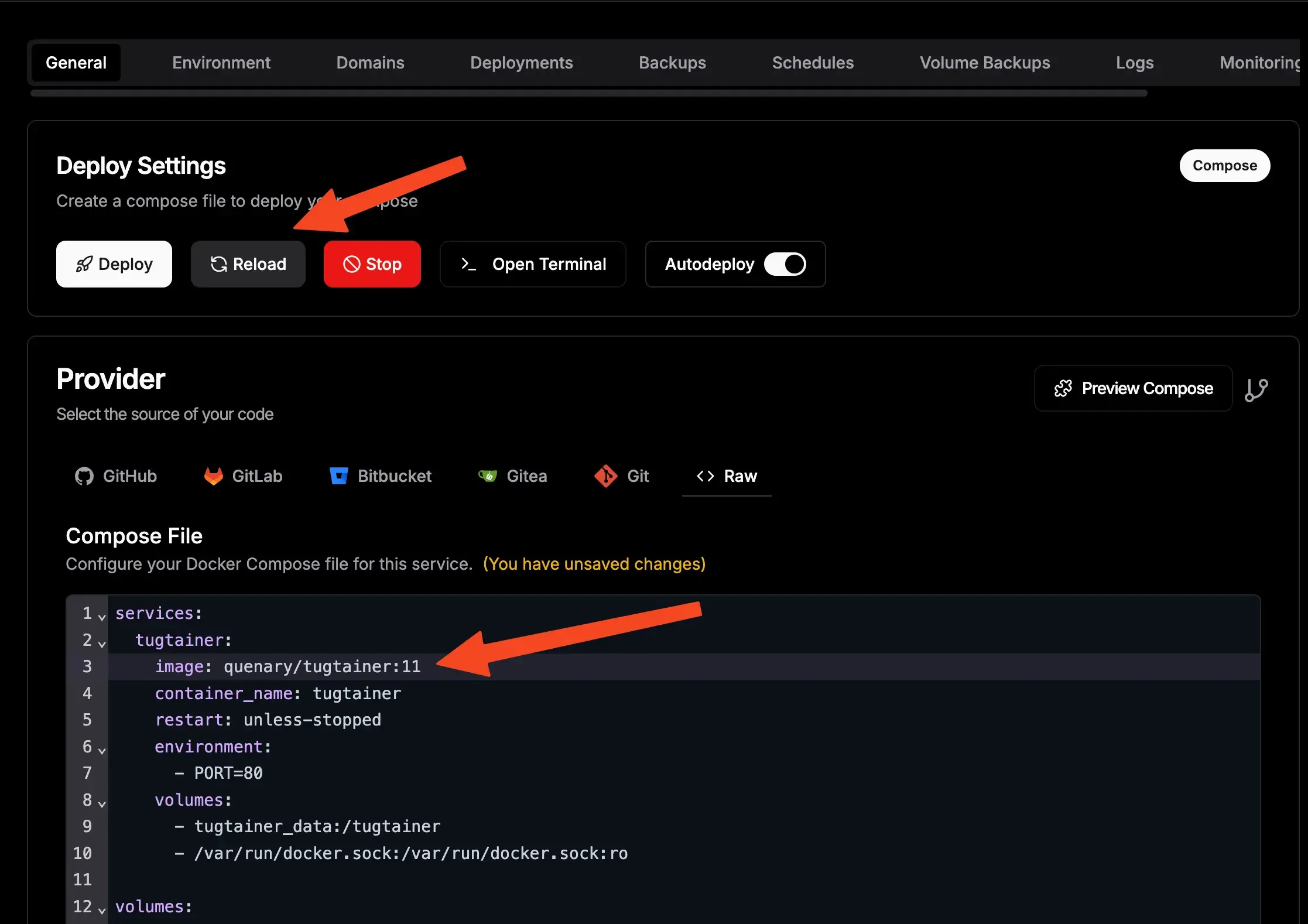
The reload recreates containers with fresh images while keeping your volumes intact.
Method 2: Automated updates with Tugtainer
Tugtainer is a self-hosted tool that watches your containers and handles updates automatically. No more SSH sessions just to pull new images.
What Tugtainer gives you:
- Web interface - Manage everything from a browser
- Scheduled checks - Automatically polls for new images
- Smart ordering - Updates containers in the right sequence
- Notifications - Alerts via Discord, Telegram, Slack, or email
- Multi-server - One interface for multiple hosts
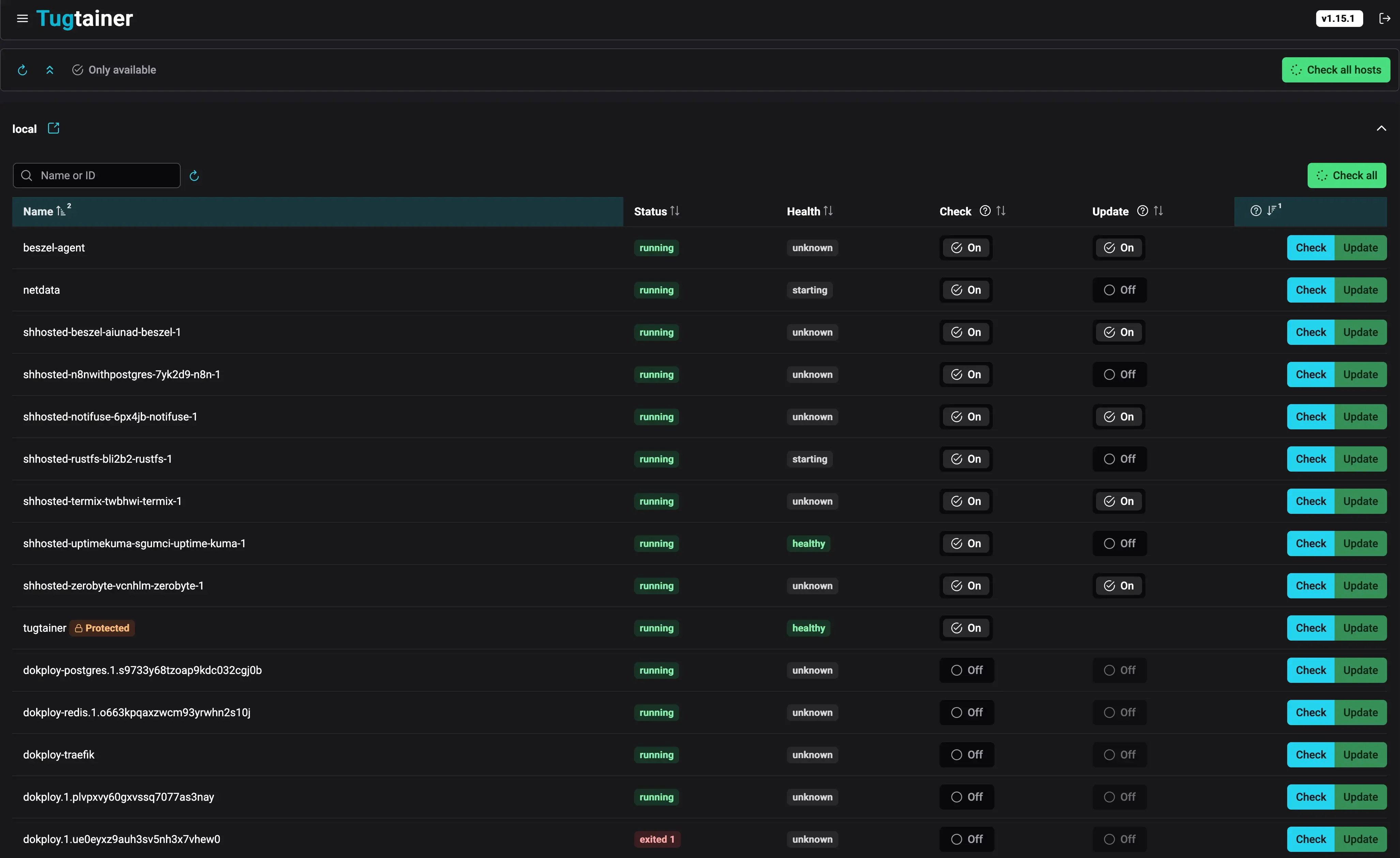
Set it up once, and Tugtainer handles the rest. You can enable full auto-updates or just get notified when new versions appear. I use it on my own servers—it beats SSHing in every time an update drops.
Tugtainer setup guideOption B: Using pinned versions
If you specify exact versions (like image: postgres:16-alpine instead of latest), the update workflow changes slightly.
Updating pinned versions
Step 1: Edit your compose file in Dokploy
- Go to your project in the Dokploy UI
- Click General tab
- Find the Raw section
- Change the image version
Example:
image: flowiseai/flowise:1.0.0Becomes:
image: flowiseai/flowise:1.1.0
Step 2: Save
Click Save to store the change.
Step 3: Reload
Click Reload to apply it. Dokploy pulls the new version and recreates the container.
Why pin versions?
Pinned versions let you control exactly what runs in production. You decide when to upgrade, and you know what changed. latest tags can surprise you with breaking changes.
Best practices for updates
Test before production
Never push updates straight to production without checking them first:
- Use a staging environment - Mirror your production setup somewhere safe
- Read the changelogs - Know what you’re getting into
- Verify compatibility - Make sure your config still works
When to update
- Security patches - Apply these as soon as you’ve tested them
- Feature updates - Schedule during your maintenance windows
- Major versions - Plan these carefully, test thoroughly
Rolling back
When an update breaks something:
- Revert the compose file (for pinned versions) or pull the old image
- Click Reload in Dokploy to go back
- Check the logs to see what went wrong
If you followed our backup guide, you can restore data if needed.
Related guides
Dokploy installation Deploy Docker Compose apps Deploy TanStack Start Deploy Python with uv Configure backups Tugtainer auto-updaterFinal thoughts
There are two main ways to handle updates in Dokploy. latest tags are convenient but need either manual SSH work or a tool like Tugtainer. Pinned versions give you control—you decide exactly when and what to update.
Pick what works for you:
- Manual SSH for simple setups with occasional updates
- Tugtainer for hands-off automation across multiple apps
- Pinned versions when stability matters most
Keep your apps updated, keep backups ready, and you’ll avoid most self-hosting headaches.