Fish Shell Abbreviations vs Aliases - What's the Difference?
Fish Shell has both abbreviations and aliases. This guide explains how each works, when to use which, and why abbreviations are usually the better choice.
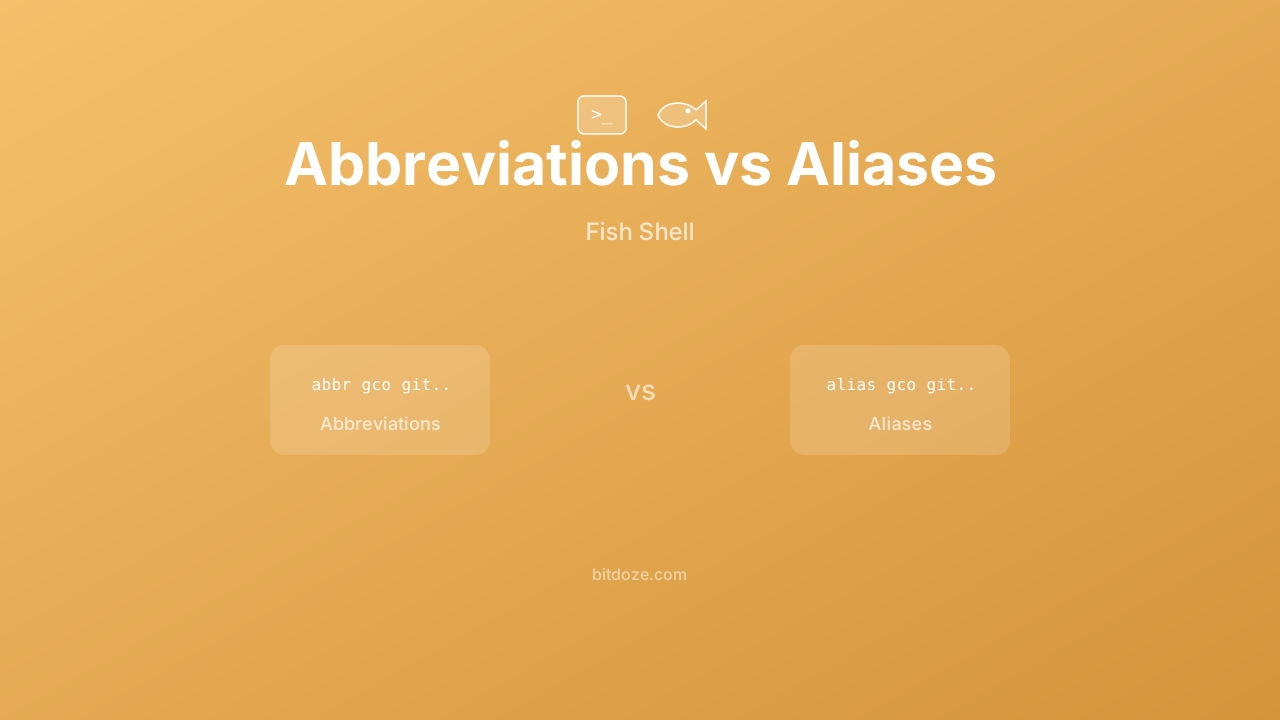
If you’re coming to Fish from Bash or Zsh, you probably set up aliases for frequently-used commands. Fish has aliases too, but it also has something called abbreviations, and they work differently in a way that matters.
I switched all my aliases to abbreviations after using Fish for about a week, and I think most people should do the same. Here’s why.
What are aliases in Fish?
An alias in Fish works the same as in other shells. You define a shortcut that expands to a longer command:
alias gs="git status"
alias ll="ls -la"
alias dc="docker compose"
When you type gs and press enter, Fish runs git status. In your command history, it saves gs, not git status.
Fish actually implements aliases as wrapper functions. When you run alias gs="git status", Fish creates a function called gs that runs git status. You can verify this with:
type gs
# Output: gs is a function with definition
# function gs --wraps='git status' --description 'alias gs=git status'
#   git status $argv
# end
To make aliases persistent, add them to ~/.config/fish/config.fish or a file in ~/.config/fish/conf.d/.
What are abbreviations?
Abbreviations look similar when you define them:
abbr -a gs git status
abbr -a ll ls -la
abbr -a dc docker compose
The difference is what happens when you use them. Type gs and press space or enter, and Fish replaces gs with git status on the command line before running it. You see the full git status text, and that’s what goes into your history.
This is a text-expansion system, not a command wrapper. Your abbreviation triggers, the text on your command line changes, and then whatever’s on the line gets executed.
Why abbreviations are usually better
Your history stays readable
With aliases, your history is full of short codes. Someone looking at gs in your history (or you, six months later) has to remember what gs means. With abbreviations, the history shows git status because that’s what actually ran.
This also means Ctrl+R history search works with the real commands. Search for “git status” and you’ll find it, even though you typed gs.
Other people can read your screen
If you share your terminal (pair programming, screen recordings, tutorials), abbreviations show the real commands. Nobody has to decode your personal shorthand.
You can edit before running
After an abbreviation expands, the full text is on your command line and you can modify it. Type gs, press space (it expands to git status), then add --short at the end. With aliases, you can’t easily insert flags into the middle of the aliased command.
No function overhead
Aliases create wrapper functions. Abbreviations don’t, they’re pure text replacement. The difference is tiny in practice, but abbreviations are conceptually simpler.
When to use aliases instead
Aliases are still useful in a few cases:
When you need to wrap command arguments. If your shortcut needs to manipulate arguments in ways that go beyond text replacement, a function makes more sense:
# This needs to be a function, not an abbreviation
function mkcd
    mkdir -p $argv[1] && cd $argv[1]
end
When you need default flags on existing commands. If you want ls to always use --color=auto, an alias works:
alias ls="ls --color=auto"You could do this with an abbreviation, but the expansion would be visible every time, which gets noisy for commands you run constantly.
When you want a completely different command name that doesn’t need to show its expansion. Some people prefer keeping their shortcuts opaque.
Abbreviation features
Fish abbreviations have gotten more powerful over time, especially in Fish 4.x. Here are the options worth knowing.
Position: command vs. anywhere
By default, abbreviations only expand when they’re in command position (the first word on the line):
abbr -a gs git status        # only expands as a command
abbr -a -p anywhere L "| less"   # expands anywhere on the line
The L abbreviation lets you type cat file.txt L and it expands to cat file.txt | less.
Command-specific abbreviations
Since Fish 4.0, abbreviations can be restricted to specific commands:
abbr -a --command git co checkout
abbr -a --command git br branch
abbr -a --command docker ps "ps --format 'table {{.Names}}\t{{.Status}}'"
Now co only expands to checkout when the command on the line is git. Type co on its own and nothing happens.
This is great for git workflows. You can type git co and have it expand to git checkout without polluting the global abbreviation namespace.
Regex abbreviations
You can use regular expressions to match abbreviation triggers:
abbr -a --regex '.+\.txt' --position command --function vim_editThis would match any word ending in .txt and run it through a custom function. The Fish docs have more examples of this.
Cursor placement with —set-cursor
You can control where the cursor ends up after expansion:
abbr -a gcm --set-cursor "git commit -m '%'"Type gcm, press space, and it expands to git commit -m '' with your cursor between the quotes. The % marker (the default) gets removed and the cursor lands there.
Function-based abbreviations
For dynamic expansions, you can point an abbreviation at a function:
function last_history_item
    echo $history[1]
end
abbr -a !! --position anywhere --function last_history_item
This recreates Bash’s !! (last command) feature. Type sudo !! and it expands to sudo <your-last-command>.
Managing abbreviations
abbr                   # list all abbreviations (output is re-usable as commands)
abbr --list            # list abbreviation names only
abbr --erase gs        # remove an abbreviation
abbr --rename gs gst   # rename an abbreviation
Saving abbreviations
The recommended approach is to put your abbr -a commands in a config file:
# ~/.config/fish/conf.d/abbreviations.fish
abbr -a gs git status
abbr -a ga git add
abbr -a gc git commit
abbr -a gp git push
abbr -a gd git diff
abbr -a gl git log --oneline
abbr -a dc docker compose
abbr -a dcu docker compose up -d
abbr -a dcd docker compose down
abbr -a k kubectl
You can also dump your current abbreviations to a file:
abbr > ~/.config/fish/conf.d/abbreviations.fishThis saves them in a format that Fish can source directly.
My abbreviation setup
Here’s what I actually use:
# Git
abbr -a gs git status
abbr -a ga git add
abbr -a gaa git add --all
abbr -a gc git commit
abbr -a gcm --set-cursor "git commit -m '%'"
abbr -a gp git push
abbr -a gl git log --oneline
abbr -a gco git checkout
abbr -a gd git diff
abbr -a gb git branch

# Docker
abbr -a dc docker compose
abbr -a dcu docker compose up -d
abbr -a dcd docker compose down
abbr -a dcl docker compose logs -f
abbr -a dps docker ps

# Navigation
abbr -a -p anywhere L "| less"
abbr -a -p anywhere G "| grep"

# System
abbr -a sa sudo apt
abbr -a sai sudo apt install
If you’re setting up Fish for the first time, check my Fish Shell installation guide. For plugins that complement abbreviations, see best Fish Shell plugins and tools. And for a broader look at Fish compared to other shells, read Fish Shell vs Bash vs Zsh or the focused Fish vs Zsh comparison. You might also want to explore Fish’s autocomplete and suggestions, which pair well with abbreviations.