Fish Shell Autocomplete & Suggestions Guide
How Fish Shell's autosuggestions and tab completions work, how to configure them, and how to write your own custom completions.
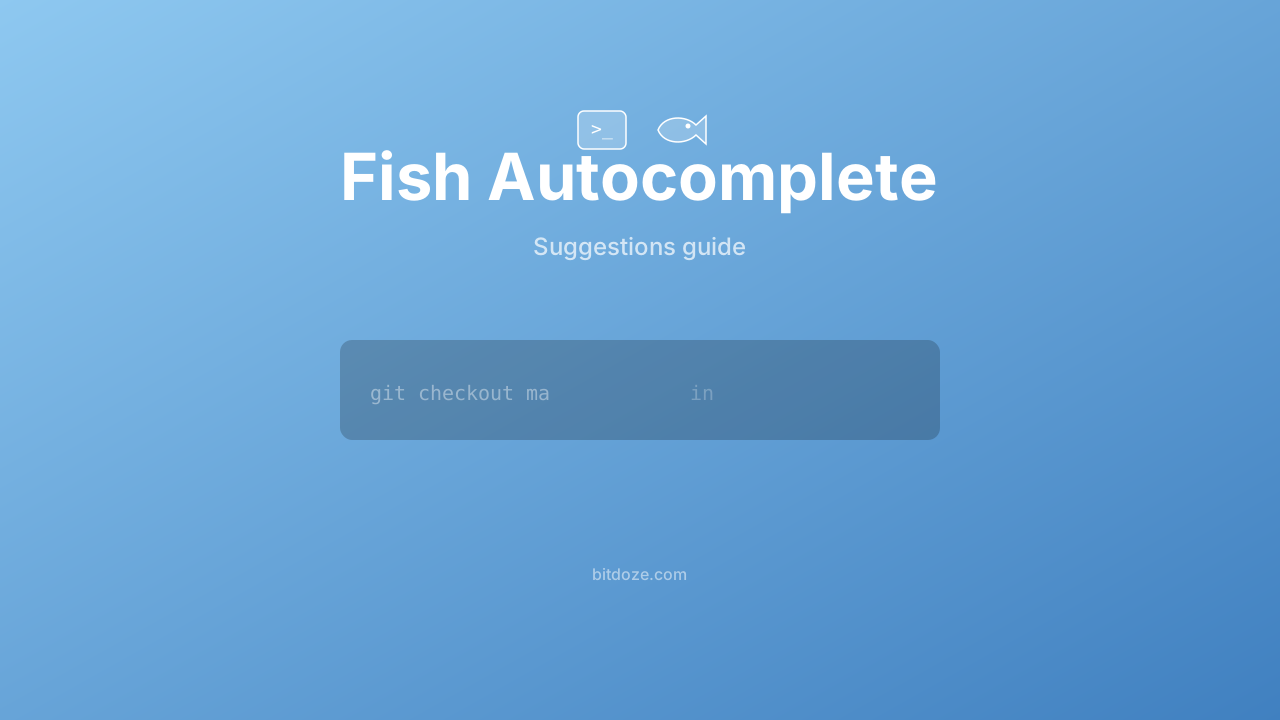
The first thing people notice when they open Fish is the autosuggestions. You start typing and gray text appears after your cursor, predicting what you want. It feels like the shell can read your mind. Compared to Bash or Zsh, where you need plugins for anything like this, Fish just does it from a fresh install.
This guide covers how both systems work — autosuggestions (the gray inline predictions) and tab completions (the menu that appears when you press Tab) — and how to configure and extend them.
Autosuggestions
Autosuggestions are the grayed-out text that appears as you type. Fish pulls these from two sources: your command history and available completions (file paths, command names, etc.). History matches take priority, so the more you use a command, the faster it appears as a suggestion.
How to accept suggestions
- Right arrow — accept the entire suggestion
- Alt+Right arrow (or
Alt+F) — accept one word at a time - Ctrl+F — same as right arrow, accept the full suggestion
- Keep typing — ignore the suggestion entirely
Accepting word by word is useful when the suggestion is close but not exactly what you want. If Fish suggests git commit -m "fix auth bug" and you want git commit -m "fix login flow", press Alt+Right three times to accept git commit -m and then type your own message.
How Fish ranks suggestions
Fish picks suggestions based on:
- Commands from your history that match what you’ve typed so far, most recent first
- File paths and completions that match the current context
If you’ve run docker compose up -d twenty times this week, typing do will almost certainly suggest that full command.
Disabling autosuggestions
Some people find them distracting. Turn them off:
set -g fish_autosuggestion_enabled 0Add that to ~/.config/fish/config.fish to make it permanent.
Tab completions
Press Tab and Fish shows possible completions in a pager-style menu below your command line. Each completion comes with a description, so you’re not guessing what -v does for a particular command.
How to navigate the completion menu
- Tab — open completions, or cycle forward through them
- Shift+Tab — cycle backward
- Arrow keys — navigate the completion list
- Enter — select the highlighted completion
- Ctrl+S — open a search prompt within the completion menu (useful when there are many results)
Where completions come from
Fish pulls completions from several sources:
Man pages. Fish parses man pages in the background and generates completions for command flags and options. This is why rsync -- followed by Tab shows you every rsync flag with descriptions, right out of the box.
Built-in completions. Fish ships with hand-written completion scripts for hundreds of commands: git, docker, ssh, systemctl, apt, brew, npm, and many more. These are stored in Fish’s data directory (usually /usr/share/fish/completions/).
Custom completions. You can write your own. More on this below.
File paths. Fish completes file and directory names by default when no other completions match.
Forcing file completion
Sometimes Fish’s smart completions hide file paths. Press Alt+E (or Alt+O on some systems) to explicitly complete a file path, bypassing the programmed completions.
Writing custom completions
This is where Fish’s completion system gets interesting. You can add completions for your own scripts, internal tools, or commands that don’t have good completions yet.
Completion files go in ~/.config/fish/completions/ and are named after the command: mycommand.fish for the command mycommand.
Basic example
Say you have a script called deploy that takes subcommands staging, production, and rollback:
# ~/.config/fish/completions/deploy.fish

# Disable file completions (deploy doesn't take filenames)
complete -c deploy -f

# Add subcommands
complete -c deploy -a "staging production rollback" -d "Deployment target"

# Add flags
complete -c deploy -s v -l verbose -d "Verbose output"
complete -c deploy -s d -l dry-run -d "Show what would happen without doing it"
Now deploy followed by Tab shows your three subcommands, and deploy -- shows the two flags.
Context-aware completions
Completions can be conditional. Use -n (condition) to show certain completions only in certain contexts:
# Only show these when no subcommand has been given yet
complete -c deploy -n "not __fish_seen_subcommand_from staging production rollback" \
    -a "staging production rollback"

# Only show branch names after "deploy staging"
complete -c deploy -n "__fish_seen_subcommand_from staging" \
    -a "(git branch --format='%(refname:short)')" -d "Git branch"
The __fish_seen_subcommand_from helper function checks whether any of the given words have appeared in the command line. Fish ships with several helper functions like this — look through /usr/share/fish/completions/git.fish for a real-world example.
Completions with dynamic data
The -a flag accepts command substitutions:
# Complete running Docker container names
complete -c myapp -l container \
    -a "(docker ps --format '{{.Names}}')" \
    -d "Container name"

# Complete from a config file
complete -c myapp -l profile \
    -a "(cat ~/.myapp/profiles | string split \\n)" \
    -d "Config profile"
The command inside () runs every time you press Tab, so the completions stay up to date.
Tuning completion behavior
Completion colors
Fish colors the completion pager based on these variables:
set fish_color_search_match --background=yellow  # highlighted match
set fish_pager_color_completion normal             # regular completion text
set fish_pager_color_description grey              # description text
set fish_pager_color_prefix cyan --underline       # matched prefix
You can also set these through fish_config in the browser interface.
Completion performance
Man page parsing happens in the background when Fish starts. If you install new programs and their completions don’t appear, run:
fish_update_completionsThis regenerates completions from man pages. It takes a few seconds.
Case sensitivity
Tab completion in Fish is case-insensitive by default. Type doc and it matches both Documents/ and docker. If you type an uppercase letter, Fish switches to case-sensitive matching for that completion.
Autosuggestions vs tab completions
These are two separate features that people sometimes confuse:
| Autosuggestions | Tab completions | |
|---|---|---|
| Trigger | Automatic as you type | Press Tab |
| Display | Gray text after cursor | Menu below command line |
| Source | History + completions | Completions only |
| Accept | Right arrow / Ctrl+F | Enter / Tab |
| Shows options | One suggestion at a time | All matching options |
They work together. Autosuggestions give you quick history recall without stopping. Tab completions give you a browseable list when you need to explore options.
Comparing with Zsh and Bash
In Zsh, you get similar autosuggestions with the zsh-autosuggestions plugin. Zsh’s compinit completion system is powerful but needs configuration. Fish’s advantage is that all of this works without setup.
Bash has basic tab completion through readline and bash-completion. It works for simple cases but doesn’t generate completions from man pages and shows no descriptions.
If you want to set up Fish from scratch, see my Ubuntu installation guide or the macOS setup guide. For plugins that improve Fish completions further, like fzf.fish for fuzzy searching, check best Fish Shell plugins.