Fish Shell History & Persistence Guide
How Fish Shell handles command history including searching, deleting, merging across sessions, the history file, and tips for keeping a clean history.
Fish’s history is one of those features that works so well you rarely think about it. Commands are saved automatically, shared across sessions (with some caveats), and searchable through multiple methods. But there are things worth knowing about how it works under the hood, especially if you care about keeping your history clean or syncing it across machines.
Where the history file lives
Fish stores history in:
~/.local/share/fish/fish_historyIt’s a plain text file with timestamps. Each entry looks something like:
- cmd: git commit -m "fix auth"
  when: 1708784400
The file grows over time. Fish doesn’t have a hard limit on history size like Bash does (HISTSIZE). By default, Fish keeps 256,000 entries (or about 16 MB of history). In practice, you’ll never hit this unless you script history additions.
Searching history
Arrow keys
The simplest method. Press the up arrow to cycle through previous commands. If you’ve typed something first, the up arrow only shows commands that start with what you typed.
Type git and then press up arrow — Fish cycles through your git commands only. This is prefix-based history search.
Ctrl+R (reverse search)
Press Ctrl+R and start typing. Fish searches your history for commands containing what you typed, using glob syntax. Type git*fix and it matches commands containing “git” followed later by “fix”.
Navigate results with the arrow keys or keep typing to narrow the search. Press Enter to run the selected command, or Escape to cancel.
If you have fzf.fish installed, Ctrl+R opens an fzf-powered interactive search instead, which is even better.
The history command
For more precise searching:
# Search for commands containing "docker"
history search docker

# Search by prefix
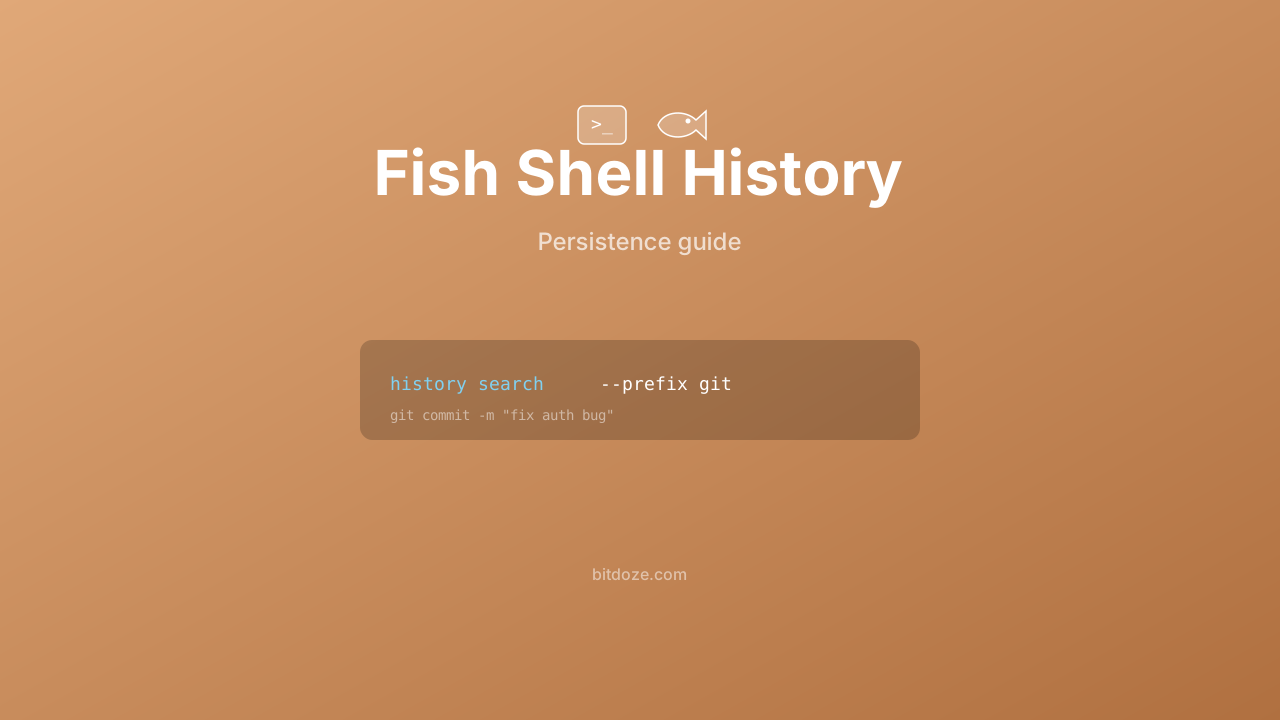
history search --prefix "git commit"

# Exact match
history search --exact "git push origin main"

# Show timestamps
history search --show-time docker

# Limit results
history search --max 10 docker

# Case-sensitive search
history search --case-sensitive Docker
By default, history search is case-insensitive and sorts newest first. Add --reverse to flip the order.
Deleting history entries
Sometimes you run a command with a typo, or accidentally put sensitive data on the command line. Fish lets you clean up.
Interactive deletion
history delete dockerThis searches for commands matching “docker” and shows you the matches. You can enter specific entry numbers to delete, a range, or all to remove every match.
Exact deletion
history delete --exact --case-sensitive "docker login -p my_secret_password"This removes that one specific command without prompting.
Deleting with the sponge plugin
The sponge plugin automatically removes commands that fail (non-zero exit code) from your history. Install it with:
fisher install meaningful-ooo/spongeI find this useful because it keeps mistyped commands and failed experiments out of my autosuggestions.
Controlling what goes into history
The fish_should_add_to_history function
Fish 4.0 added a hook that lets you control which commands get saved. Define this function to filter history entries:
# ~/.config/fish/functions/fish_should_add_to_history.fish
function fish_should_add_to_history
    # Don't save commands that start with a space
    string match -qr '^\s' -- $argv[1]; and return 1

    # Don't save short commands
    test (string length -- $argv[1]) -lt 3; and return 1

    # Don't save commands containing sensitive patterns
    string match -qr 'password|secret|token|api.key' -- $argv[1]; and return 1

    return 0
end
Return 0 to save the command, 1 to skip it.
Leading space to skip history
The function above demonstrates a common pattern: prefixing a command with a space to keep it out of history. This mimics the HISTCONTROL=ignorespace behavior from Bash. Fish doesn’t do this by default — you need the fish_should_add_to_history function.
History across multiple sessions
Fish handles multi-session history differently from Bash. Each Fish session keeps its own in-memory history and writes to the shared history file. Here’s how it works:
- When you run a command, it’s added to the current session’s history and written to disk.
- Other running sessions don’t see the new command immediately.
- New sessions that start after the command was saved will see it.
history mergeforces the current session to load commands from all other sessions.
Merging history
history mergeThis imports history from other Fish sessions into the current one. Useful if you ran something in another terminal tab and want to access it with Ctrl+R or arrow-key search.
Some people add this to a keybinding:
bind \em 'history merge; commandline -f repaint'Now Alt+M merges and repaints the prompt.
Clearing history
# Clear everything (with confirmation)
history clear

# Clear only the current session's history
history clear-session
clear-session is useful when you’ve been experimenting and don’t want those commands polluting your history, but you want to keep everything from before.
Saving history manually
history saveThis forces an immediate write to disk. Fish auto-saves periodically, but this ensures nothing is lost if the shell crashes.
Appending commands without running them
history append "some command I want to remember"This adds the command to history without executing it. Useful for bookmarking commands you want to find later with Ctrl+R.
History file format and backup
The history file is easy to back up and portable between machines:
cp ~/.local/share/fish/fish_history ~/fish_history_backupTo restore:
cp ~/fish_history_backup ~/.local/share/fish/fish_history
history merge
If you manage dotfiles across machines, you can symlink or sync the history file. Just be aware that concurrent writes from multiple machines could cause conflicts — merge manually if needed.
Useful history tips
Use abbreviations instead of relying on history. If you use a command every day, add it as an abbreviation instead of hunting for it in history every time.
Search within results. When the Ctrl+R search shows too many results, add more characters or use glob patterns. git*main narrows better than just git.
Combine with fzf. The fzf.fish plugin replaces the built-in Ctrl+R with a fuzzy search that’s much faster to browse. It shows a preview and supports multi-select.
Delete patterns. If you changed a password and accidentally typed the old one in a command, history delete --prefix "mysql -p" cleans it up fast.
Related guides
- Fish Shell autocomplete and suggestions — history powers autosuggestions
- Best Fish Shell plugins — fzf.fish and sponge for better history
- Fish Shell functions guide — create fish_should_add_to_history
- Install Fish Shell on Ubuntu — getting started
- Fish Shell on macOS — Mac setup guide