How to Set Up Starship Prompt with Fish Shell
A step-by-step guide to installing and configuring Starship prompt in Fish Shell, with preset themes, custom modules, and Nerd Font setup.
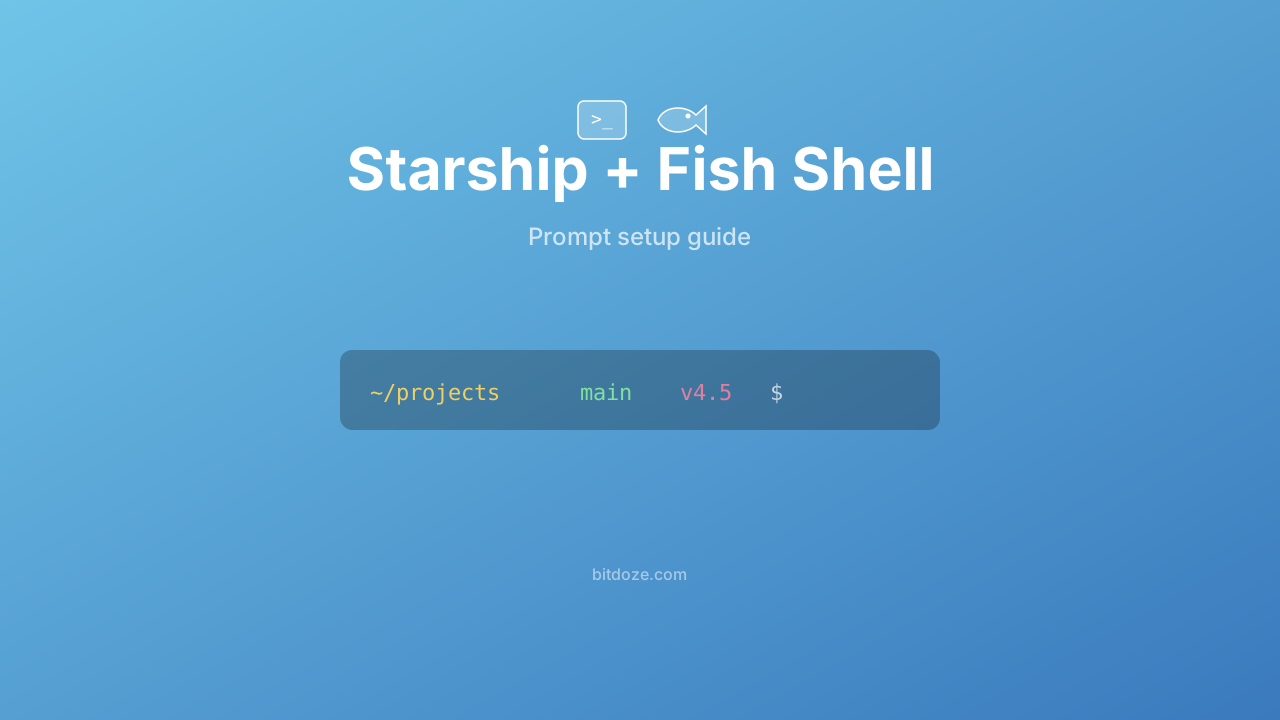
Starship is a cross-shell prompt written in Rust. It works with Fish, Zsh, Bash, PowerShell, and others, so you can use the same prompt configuration regardless of which shell you’re in. I’ve been running it with Fish Shell and it pairs well. Starship is fast, the configuration is a single TOML file, and it shows you the information you actually need (git branch, language versions, command duration) without cluttering the prompt.
I previously wrote a guide on Starship with Ghostty and Zsh. The Fish setup follows the same principles but the init line goes in a different config file.
Prerequisites
You need Fish Shell installed. If you don’t have it yet, follow my Fish Shell installation guide for Ubuntu.
You also need a Nerd Font. Starship uses special glyphs for icons, and without a Nerd Font they show up as broken boxes.
Install a Nerd Font
I recommend MesloLGS Nerd Font. On Ubuntu:
# Download and install
mkdir -p ~/.local/share/fonts
cd ~/.local/share/fonts
curl -fLO https://github.com/ryanoasis/nerd-fonts/releases/latest/download/Meslo.tar.xz
tar -xf Meslo.tar.xz
fc-cache -fv
On macOS with Homebrew:
brew install font-meslo-lg-nerd-fontAfter installing, set the font in your terminal emulator’s settings. In Ghostty, add this to your config:
font-family = MesloLGS Nerd FontFor other terminals (WezTerm, Alacritty, kitty, etc.), check their docs for the font configuration option.
Install Starship
The recommended install method:
curl -sS https://starship.rs/install.sh | shOr use a package manager:
# Ubuntu/Debian (via snap)
snap install starship

# macOS
brew install starship

# Cargo
cargo install starship --locked
Verify:
starship --versionAdd Starship to Fish
Add one line to your Fish config:
# ~/.config/fish/config.fish
starship init fish | source
That’s it. Open a new terminal or run source ~/.config/fish/config.fish and you should see the Starship prompt.
Placement matters
Put the starship init fish | source line at the end of your config.fish, after any other configuration. This makes sure Starship loads last and can properly set up the prompt.
Choose a preset
Starship ships with several presets that change the look of your prompt. You can browse them at starship.rs/presets.
Apply a preset:
starship preset tokyo-night -o ~/.config/starship.tomlPopular presets:
- Tokyo Night - dark theme with purple/blue tones
- Catppuccin - pastel-colored theme, several variants (Mocha, Macchiato, Latte)
- Nerd Font Symbols - replaces text labels with Nerd Font icons
- Bracketed Segments - wraps each module in brackets
- Plain Text - no special characters, works without Nerd Fonts
Try a few. The preset command overwrites your starship.toml, so you might want to back up any custom configuration first.
Configure Starship
Starship reads its configuration from ~/.config/starship.toml. If the file doesn’t exist, Starship uses sensible defaults.
Here’s a practical configuration that shows relevant information without clutter:
# ~/.config/starship.toml

# General settings
format = """
$directory\
$git_branch\
$git_status\
$nodejs\
$python\
$rust\
$golang\
$docker_context\
$cmd_duration\
$line_break\
$character"""

# Don't add a blank line between prompts
add_newline = false

[directory]
truncation_length = 3
truncate_to_repo = true

[git_branch]
format = "[$symbol$branch]($style) "
symbol = " "

[git_status]
format = '([$all_status$ahead_behind]($style) )'

[nodejs]
format = "[$symbol($version)]($style) "
symbol = " "

[python]
format = "[$symbol($version)]($style) "
symbol = " "

[rust]
format = "[$symbol($version)]($style) "
symbol = " "

[golang]
format = "[$symbol($version)]($style) "
symbol = " "

[docker_context]
format = "[$symbol$context]($style) "
symbol = " "

[cmd_duration]
min_time = 2_000
format = "[$duration]($style) "

[character]
success_symbol = "[❯](green)"
error_symbol = "[❯](red)"
What each section does
format controls which modules appear and in what order. Only modules listed here are shown.
directory shows the current path. truncation_length = 3 means you see at most 3 parent directories. truncate_to_repo = true shows the full path from the git repo root.
git_branch and git_status show your branch name and whether you have uncommitted changes, ahead/behind counts, etc.
Language modules (nodejs, python, rust, golang) only appear when you’re in a project that uses that language. They detect this by looking for package.json, pyproject.toml, Cargo.toml, and similar files.
cmd_duration shows how long the last command took, but only if it took more than 2 seconds. Useful for noticing slow commands.
character shows a green ❯ on success and a red ❯ after a failed command.
Starship vs Tide
If you’re using Fish, you have two solid prompt options:
| Starship | Tide | |
|---|---|---|
| Works with | Fish, Zsh, Bash, etc. | Fish only |
| Configuration | TOML file | Interactive wizard |
| Async rendering | No (but fast enough) | Yes |
| Installation | Separate binary | Fisher plugin |
| Nerd Font needed | Yes (for most presets) | Yes |
| Customization | Edit starship.toml | tide configure + variables |
Pick Starship if you use multiple shells and want one prompt config, or if you prefer editing a config file directly.
Pick Tide if you only use Fish and want async rendering with a wizard-based setup. Install Tide with Fisher:
fisher install IlanCosman/tide@v6
tide configure
I cover Tide and other Fish tools in best Fish Shell plugins and tools. For a full comparison of all Fish prompt options including Tide, Pure, and Hydro, see my Fish Shell themes and prompts guide.
Both are good. I use Starship because I sometimes drop into Zsh or Bash on different machines and want the same prompt everywhere.
Advanced configuration
Right-side prompt
Starship supports a right prompt that appears on the right edge of your terminal:
# In starship.toml
right_format = """$time"""

[time]
disabled = false
format = "[$time]($style)"
time_format = "%H:%M"
This shows the current time on the right side. Fish’s right prompt support works well with this.
Custom modules
You can define custom modules that run shell commands:
[custom.fish_version]
command = "fish --version | string split ' ' | tail -1"
when = "true"
format = "[fish $output]($style) "
style = "cyan"
This would show your Fish version in the prompt. Useful for debugging or showing project-specific info.
Per-directory configuration
Starship doesn’t have per-directory config, but you can achieve something similar with Fish’s conf.d system. Create a function that sets STARSHIP_CONFIG based on the current directory:
# ~/.config/fish/conf.d/starship-dir.fish
function __check_starship_config --on-variable PWD
    if test -f .starship.toml
        set -gx STARSHIP_CONFIG (pwd)/.starship.toml
    else
        set -e STARSHIP_CONFIG
    end
end
Now any directory with a .starship.toml file will use that configuration instead of the global one.
Troubleshooting
Icons show as boxes or question marks. You need a Nerd Font installed and selected in your terminal. Check the Prerequisites section above.
Prompt is slow. Starship is generally fast, but some modules (particularly git status in very large repos) can be slow. Disable them:
[git_status]
disabled = true
Starship not loading. Make sure starship init fish | source is in your config.fish and that starship is in your $PATH. Run which starship to verify.
Further reading
- Fish Shell vs Bash vs Zsh - complete shell comparison
- Fish Shell vs Zsh - focused comparison
- Install Fish Shell on Ubuntu - getting Fish set up
- Fish Shell macOS setup - install and configure Fish on Mac
- Best Fish Shell plugins and tools - Fisher, Tide, fzf.fish, and more
- Fish Shell abbreviations vs aliases - text expansion in Fish
- Fish Shell themes and prompts - compare Tide, Starship, Pure, and Hydro
- Fish Shell syntax highlighting - how Fish highlights your commands
- Fish Shell autocomplete and suggestions - Fish’s completion system
- Starship and Ghostty setup guide - if you also want a modern terminal emulator
- Ghostty Terminal guide - full Ghostty setup and configuration