Fish Shell Syntax Highlighting Guide
How Fish Shell's built-in syntax highlighting works, how to customize colors for commands, errors, paths, and strings, plus theme management.
One of the reasons I switched from Zsh to Fish was syntax highlighting. In Zsh, you need the zsh-syntax-highlighting plugin and some configuration to get commands colored as you type. In Fish, it’s built in and works from the first time you open the shell.
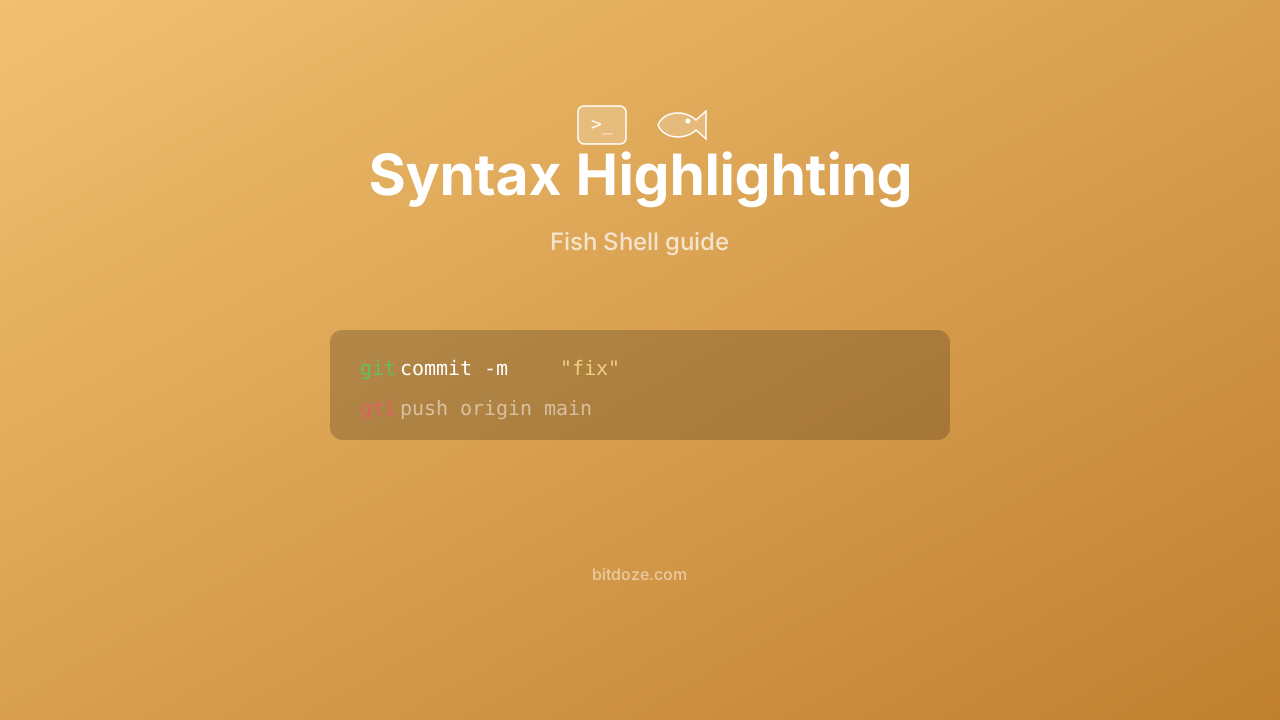
Fish highlights your command line in real time. Valid commands appear in one color, invalid commands in red, strings get their own color, file paths that exist are underlined. You catch typos before hitting Enter. No plugins, no setup.
This guide covers how it works and how to customize the colors.
What Fish highlights
Fish colors different parts of the command line based on their meaning:
| Element | What it looks like (default) | Variable |
|---|---|---|
| Valid commands | Blue | fish_color_command |
| Invalid commands | Red | fish_color_error |
| Parameters/arguments | Cyan | fish_color_param |
| Options (flags starting with -) | Cyan | fish_color_option |
| Quoted strings | Yellow | fish_color_quote |
| Redirections (>, >>, |) | Cyan | fish_color_redirection |
| Valid file paths | Underlined | fish_color_valid_path |
| Comments (# …) | Grey | fish_color_comment |
| Escape sequences (\n, \t) | Cyan | fish_color_escape |
| Autosuggestions | Grey | fish_color_autosuggestion |
| Selection (vi visual mode) | White on blue | fish_color_selection |
| Search matches | Yellow background | fish_color_search_match |
The most useful part: command validation happens as you type. Type gti instead of git and it immediately turns red. You don’t need to run the command to know something’s wrong.
Customizing colors
Using the web interface
The quickest way:
fish_configThis opens a browser-based tool where you can click on colors and see a live preview. Under the “Colors” tab, you can modify each syntax element individually. When you’re happy, click “Set Theme” and the changes apply immediately.
Using set_color variables
For command-line configuration:
# Make commands green instead of blue
set -U fish_color_command green

# Make errors bold red
set -U fish_color_error red --bold

# Make strings orange
set -U fish_color_quote bryellow

# Make autosuggestions dimmer
set -U fish_color_autosuggestion 555 --dim

# Underline valid paths with a specific color
set -U fish_color_valid_path --underline cyan
Using set -U (universal) saves the setting permanently across all Fish sessions. Using set -g (global) only lasts for the current session.
Available colors
Fish supports named colors and hex codes:
Named colors: black, red, green, yellow, blue, magenta, cyan, white, and their bright versions (brred, brgreen, etc.)
Hex colors: Three or six digit hex codes like f60 or ff6600
Modifiers: --bold, --dim, --italics, --underline, --reverse, --strikethrough
Background: --background=color sets the background color
Examples:
set -U fish_color_command 5fd700           # bright green (hex)
set -U fish_color_error ff0000 --bold      # bold red
set -U fish_color_quote ff8700 --italics   # italic orange
set -U fish_color_comment 6c7086 --dim     # dim grey
Built-in themes
Fish ships with several color themes. List them:
fish_config theme showApply one:
fish_config theme choose draculaPopular built-in themes:
- default — the standard Fish colors
- dracula — dark theme with purple/pink tones
- catppuccin-mocha — pastel dark theme
- catppuccin-latte — pastel light theme
- nord — cool blue tones
- solarized-dark and solarized-light
- tomorrow and tomorrow-night
- base16-** — several Base16 variants
Since Fish 4.4, Catppuccin themes are also included.
To save the theme permanently:
fish_config theme choose dracula
fish_config theme save
Applying themes across all sessions
If you have multiple Fish sessions running and want them all to update:
# Add this to config.fish first:
function apply-my-theme --on-variable=my_theme
    fish_config theme choose $my_theme
end

# Then set the universal variable from any session:
set -U my_theme dracula
All running sessions pick up the change automatically.
Custom theme from scratch
If you want full control, set every variable explicitly. Here’s an example minimal dark theme:
# ~/.config/fish/conf.d/my-theme.fish
set -U fish_color_normal normal
set -U fish_color_command 5fd700          # green
set -U fish_color_keyword 5fd700
set -U fish_color_quote ff8700            # orange
set -U fish_color_redirection 87d7ff      # light blue
set -U fish_color_end 87d7ff
set -U fish_color_error ff5f5f --bold     # bold red
set -U fish_color_param 87d7ff
set -U fish_color_option 87d7ff
set -U fish_color_comment 6c7086          # grey
set -U fish_color_selection --background=3a3a5c
set -U fish_color_operator ff87d7         # pink
set -U fish_color_escape ff87d7
set -U fish_color_autosuggestion 555555
set -U fish_color_valid_path --underline
set -U fish_color_cwd 5fd7ff
set -U fish_color_cwd_root red
set -U fish_color_user 87d7ff
set -U fish_color_host normal
set -U fish_color_host_remote ff8700
set -U fish_color_status red
set -U fish_color_cancel -r
set -U fish_color_search_match --background=555555
Pager (completion menu) colors
The tab completion pager has its own set of colors:
set -U fish_pager_color_completion normal           # completion text
set -U fish_pager_color_description grey             # description text
set -U fish_pager_color_prefix cyan --underline      # matched prefix
set -U fish_pager_color_progress white --background=cyan  # progress bar
set -U fish_pager_color_selected_background --background=3a3a5c
These are separate from the command-line syntax colors. The pager colors control what you see when you press Tab and browse completions.
How syntax highlighting differs from Zsh and Bash
Bash has no syntax highlighting at all. What you type is plain text until you run it.
Zsh needs the zsh-syntax-highlighting plugin. It works well once installed, but it’s an external dependency you have to manage. Zsh-syntax-highlighting supports custom highlighter patterns, which Fish doesn’t need because its built-in system covers more ground.
Fish does it natively. The highlighting is part of the shell itself, runs on every keystroke, and validates commands against your PATH in real time. There’s nothing to install and nothing that can fall out of date.
This is one of the core arguments for Fish over Zsh — features like this work out of the box.
Troubleshooting
Colors look wrong — your terminal may not support 256 colors or true color. Check with:
set_color ff8700; echo "This should be orange"; set_color normalIf it’s not orange, your terminal needs a different color mode setting. Most modern terminals (Ghostty, iTerm2, WezTerm, Alacritty) support true color by default.
Colors reset after restart — you’re probably using set -g instead of set -U. Global variables don’t persist. Use universal (-U) for permanent color settings.
Theme not applying to all sessions — fish_config theme save only saves to new sessions. Use the --on-variable pattern described above to update running sessions.
Related guides
- Fish Shell themes and prompts — Tide, Starship, Pure prompt themes
- Fish Shell autocomplete guide — pager colors affect completions
- Fish Shell vs Zsh — built-in highlighting vs zsh-syntax-highlighting plugin
- Enable syntax highlighting in Zsh — if you also use Zsh
- Install Fish Shell on Ubuntu — getting started
- Fish Shell on macOS — Mac setup guide