Fish Shell Themes - Best Prompts (Tide, Starship, Pure)
A comparison of Fish Shell prompt themes including Tide, Starship, Pure, and Hydro. How to install each one and pick the right prompt for your workflow.
Fish comes with a usable default prompt, but most people swap it out for something with more information — git branch, command duration, language versions, that kind of thing. I’ve tried most of the popular options and settled on a favorite, but the right choice depends on what you value.
This guide covers the four main prompt options for Fish, including built-in themes, and how to install each one.
Built-in Fish themes
Before you install anything, Fish has its own theme system. Run:
fish_config theme showThis prints available color themes directly in your terminal. To apply one:
fish_config theme choose dracula
fish_config theme save
For prompts specifically:
fish_config prompt show
fish_config prompt choose informative
fish_config prompt save
Fish ships with about a dozen prompt styles: default, informative, classic, disco, simple, and others. These are light on features (no async rendering, no language detection), but they load instantly and need no external dependencies.
You can also run fish_config without arguments to open a browser-based configuration tool where you can preview everything visually.
Tide
Tide is the most feature-rich Fish-native prompt. It’s what Powerlevel10k is to Zsh — async rendering, a configuration wizard, and deep git integration.
Install Tide
You need Fisher first:
fisher install IlanCosman/tide@v6Then run the configuration wizard:
tide configureThe wizard walks you through:
- Powerline style vs. plain text
- One-line or two-line prompt
- Icon style (Nerd Font required for icons)
- Colors and spacing
It takes about 30 seconds and gives you a prompt that looks polished without manual editing.
What Tide shows
By default, Tide displays:
- Current directory (smart truncation to the shortest unique prefix)
- Git branch and status (untracked, modified, staged, ahead/behind)
- Command duration (for slow commands)
- Language versions (Node, Python, Rust, Go, etc.) when you’re in a relevant project
- Time, jobs, and exit status on the right prompt
Why Tide stands out
Async rendering. Tide runs git status and other slow operations in the background. Your prompt appears instantly, and the git info fills in a moment later. On large repos, this makes a real difference.
Smart directory truncation. Instead of showing ~/D/w/p/myapp, Tide truncates to the shortest unique prefix: ~/Doc/w/p/myapp (because D could be Downloads or Documents). Tab-completing the truncated path restores the full name.
Nerd Font recommended. Install MesloLGS NF for the best icon support. Without a Nerd Font, Tide falls back to text-only mode, which still looks fine.
Customizing Tide
After the wizard, tweak individual settings:
# Change which items appear on the left and right
set --universal tide_left_prompt_items pwd git newline character
set --universal tide_right_prompt_items status cmd_duration context jobs node

# Change git status symbols
set --universal tide_git_icon ""
Run set --universal | grep tide to see all Tide variables.
Starship
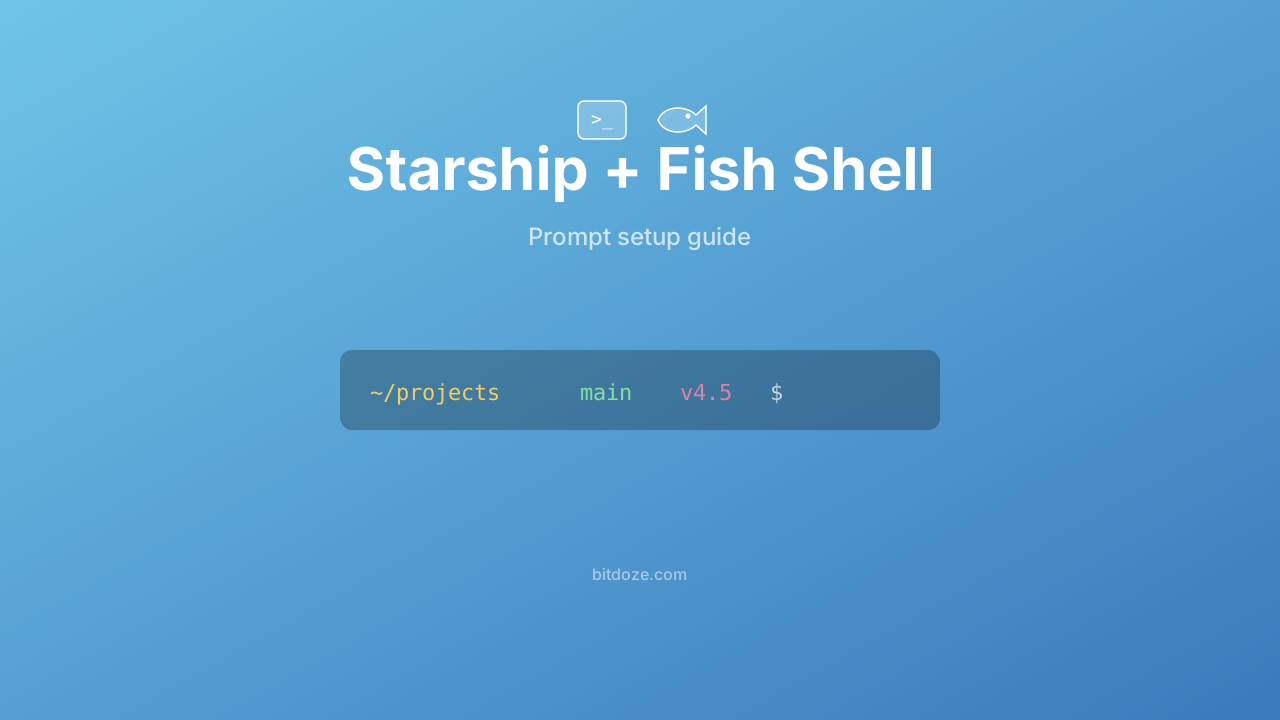
Starship is a cross-shell prompt written in Rust. It works with Fish, Zsh, Bash, PowerShell, and more. If you use multiple shells or want to share a prompt config with teammates on different shells, Starship is the practical choice.
Install Starship
curl -sS https://starship.rs/install.sh | shAdd to your Fish config:
# ~/.config/fish/config.fish
starship init fish | source
I have a dedicated guide on setting up Starship with Fish Shell with configuration examples and preset selection. If you’ve already set it up with Zsh (maybe following my Starship and Ghostty guide), the TOML config file carries over.
How Starship compares to Tide
Starship doesn’t have async rendering, but it’s fast enough that it rarely matters on normal-sized repos. The configuration is a single TOML file (~/.config/starship.toml) instead of universal variables, which some people find easier to version-control.
Starship also has presets: Tokyo Night, Catppuccin, Nerd Font Symbols, and others. Apply one with:
starship preset tokyo-night -o ~/.config/starship.tomlPure
Pure is a port of the popular Zsh Pure prompt. It’s minimal — just your directory, git branch, and a ❯ character that turns red after a failed command.
Install Pure
fisher install pure-fish/pureNo configuration wizard. It works immediately with sensible defaults.
What Pure shows
- Current directory
- Git branch and dirty/clean status
- Command duration (for long commands)
- Username and hostname over SSH
- Python virtualenv name when active
- The
❯prompt character
When to pick Pure
If you like a clean, quiet prompt that stays out of the way. Pure doesn’t show language versions or right-side information unless you enable them. It’s for people who want less on screen, not more.
Customizing Pure
Pure uses Fish variables for configuration:
set --universal pure_show_system_time true
set --universal pure_enable_single_line_prompt true
set --universal pure_show_jobs true
Hydro
Hydro is even more minimal than Pure. It’s made by Fisher’s author and shows git branch, command duration, and exit status. That’s about it.
Install Hydro
fisher install jorgebucaran/hydroHydro’s appeal is zero configuration and near-zero overhead. If you just want a git branch in your prompt without thinking about it, Hydro does that.
Comparison table
| Tide | Starship | Pure | Hydro | Built-in | |
|---|---|---|---|---|---|
| Async rendering | Yes | No | Partial | No | No |
| Config wizard | Yes | No | No | No | Web UI |
| Cross-shell | No (Fish only) | Yes | No (Fish only) | No (Fish only) | No |
| Config format | Universal vars | TOML file | Universal vars | Minimal | Web UI / vars |
| Nerd Font needed | Recommended | Recommended | No | No | No |
| Language versions | Yes | Yes | No | No | No |
| Git integration | Deep | Good | Basic | Basic | None |
| Setup time | 1 minute | 2-3 minutes | 30 seconds | 10 seconds | 30 seconds |
My recommendation
Tide if Fish is your only shell and you want the best-looking, most informative prompt with zero lag. The wizard makes setup easy.
Starship if you use multiple shells or want a TOML config file you can version-control. I covered this in depth in my Starship + Fish guide.
Pure if you prefer minimalism and a proven design (it’s been popular in the Zsh world for years).
Hydro if you want the absolute minimum viable prompt.
Built-in if you don’t want to install anything extra and the default prompts are good enough.
I personally use Starship because I switch between Fish and Zsh on different machines. If I only used Fish, I’d probably pick Tide.
Related guides
- Set up Starship with Fish Shell — full Starship configuration
- Best Fish Shell plugins — Tide, Fisher, and other tools
- Oh My Fish themes and plugins — OMF-specific themes
- Fish Shell syntax highlighting — customize colors beyond the prompt
- Install Fish Shell on Ubuntu — getting started
- Fish Shell on macOS — Mac-specific setup