Self-Host Your Git and CI/CD with Forgejo and Woodpecker CI
Set up a self-hosted GitHub alternative with Forgejo and CI/CD using Woodpecker CI. Full Docker Compose setup on a VPS.

14 min read
GitHub Actions is great until you look at the bill, hit rate limits, or realize your code runs on someone else’s servers. If you already self-host your apps on a VPS, hosting your own Git server and CI/CD pipeline is the next logical step. And it’s easier than you’d think.
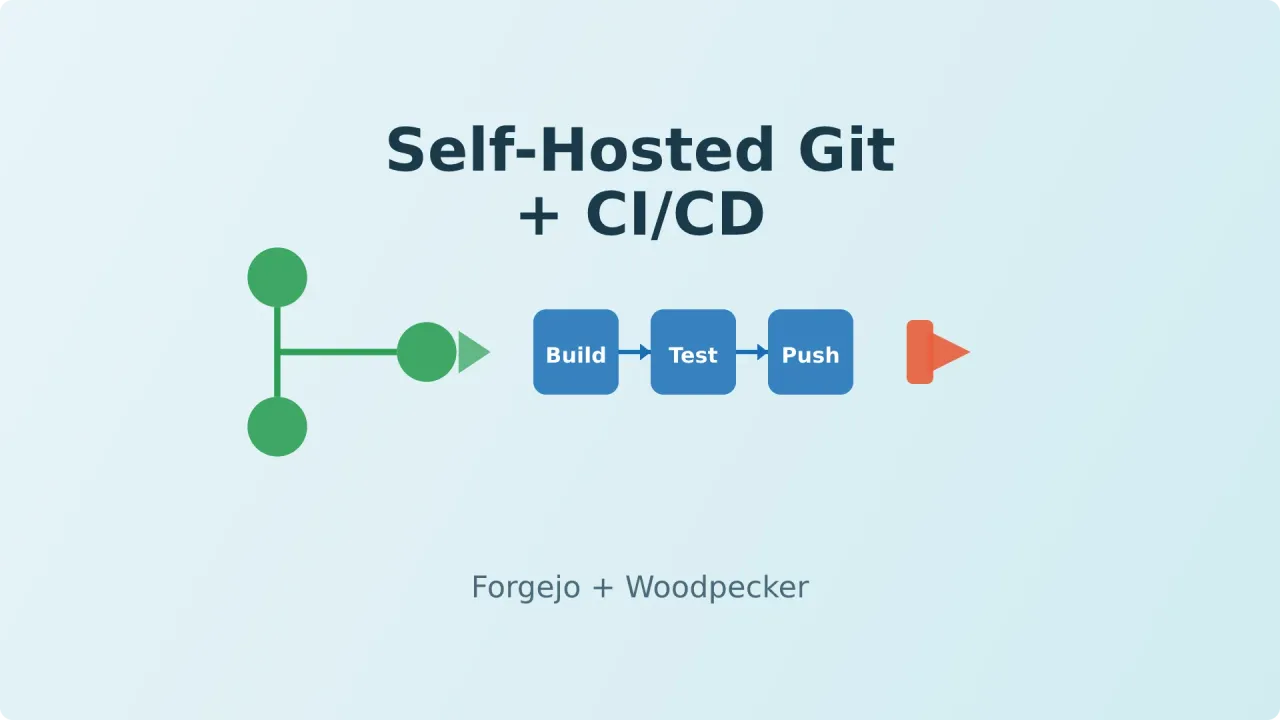
This guide walks through setting up Forgejo (a self-hosted Git forge) with CI/CD via Woodpecker CI. Forgejo handles your repos, issues, and pull requests. Woodpecker runs your builds, tests, and deployments. Together they replace GitHub and GitHub Actions.
Why not just keep using GitHub?
A few reasons people move:
- Cost control: GitHub Actions free tier runs out fast on private repos. Self-hosted runners help, but you’re still on GitHub’s infrastructure.
- Data ownership: Your code, issues, pull requests, and CI logs live on your server. No terms-of-service surprises.
- Offline/local development: A VPS in your region with no dependency on GitHub’s uptime.
- GitHub Actions lock-in: The more workflows you write, the harder it is to leave. Forgejo + Woodpecker keeps things portable.
That said, plenty of people mirror to GitHub for the social coding side. You can have both.
Forgejo vs Gitea: what’s the difference?
Forgejo forked from Gitea in October 2022 after a for-profit company took over the Gitea project (domains, trademark, everything). The community wasn’t consulted. An open letter was ignored. So they forked.
As of 2024, Forgejo is a hard fork – the codebases have diverged. Here’s where they differ:
| Forgejo | Gitea | |
|---|---|---|
| Governance | Non-profit (Codeberg e.V.) | For-profit company |
| License | Exclusively Free Software | Open Core (some proprietary features) |
| Developed on | Forgejo itself | GitHub |
| CI/CD tested with | Forgejo Actions | GitHub Actions |
| Security | Advance notice for all users | Advance notice for paying customers only |
| Federation | Working on ActivityPub support | No federation plans |
| End-to-end tests | Yes | No (as of mid-2025) |
| Migration from Gitea | Supported, same database schema | N/A |
Functionally, they’re very similar. Same UI, same config format, same Docker setup. If you’re starting fresh, go with Forgejo. If you’re already on Gitea and it works fine, migrating isn’t urgent – but it’s a one-command upgrade when you’re ready.
What you’ll need
- A VPS with at least 2 GB RAM (4 GB recommended if running CI/CD on the same machine). Hetzner or Hostinger work well.
- Docker and Docker Compose installed
- A domain name (or subdomain) pointed to your VPS
- Basic comfort with the terminal
VPS prices jumped across the board in 2026 — if you’re rethinking a rented box, see what changed and when a mini PC wins.
Single VPS is fine
Everything in this guide runs on one server. Forgejo, Woodpecker, and the CI runner can coexist on a 4 GB VPS without issues. You can always split them later.
Step 1: Install Forgejo
Create a directory for Forgejo and set up the Docker Compose file:
mkdir -p /opt/forgejo && cd /opt/forgejoDocker Compose
services:
  forgejo:
    image: codeberg.org/forgejo/forgejo:10
    container_name: forgejo
    environment:
      - USER_UID=1000
      - USER_GID=1000
      - FORGEJO__database__DB_TYPE=sqlite3
      - FORGEJO__server__DOMAIN=git.yourdomain.com
      - FORGEJO__server__ROOT_URL=https://git.yourdomain.com
      - FORGEJO__server__SSH_DOMAIN=git.yourdomain.com
      - FORGEJO__server__SSH_PORT=2222
      - FORGEJO__server__SSH_LISTEN_PORT=22
      - FORGEJO__service__DISABLE_REGISTRATION=true
      - FORGEJO__actions__ENABLED=true
    restart: unless-stopped
    volumes:
      - ./data:/data
      - /etc/timezone:/etc/timezone:ro
      - /etc/localtime:/etc/localtime:ro
    ports:
      - "3000:3000"
      - "2222:22"
A few things to note:
- SSH on port 2222: Forgejo’s built-in SSH server runs on 2222 so it doesn’t conflict with your system SSH on 22. You’ll clone repos with
ssh://git@yourdomain.com:2222/user/repo.git. - Registration disabled: You don’t want random people creating accounts on your Git server. Create accounts manually or re-enable registration briefly.
- SQLite: Fine for small teams and personal use. If you’re running 10+ users, switch to PostgreSQL.
Start Forgejo
docker compose up -dVisit https://git.yourdomain.com, complete the initial setup wizard, and create your admin account.
Reverse proxy with Nginx
If you’re running Nginx on the host (not in Docker), add a server block:
server {
    server_name git.yourdomain.com;

    location / {
        proxy_pass http://localhost:3000;
        proxy_set_header Host $host;
        proxy_set_header X-Real-IP $remote_addr;
        proxy_set_header X-Forwarded-For $proxy_add_x_forwarded_for;
        proxy_set_header X-Forwarded-Proto $scheme;
    }

    listen 443 ssl;
    ssl_certificate /etc/letsencrypt/live/git.yourdomain.com/fullchain.pem;
    ssl_certificate_key /etc/letsencrypt/live/git.yourdomain.com/privkey.pem;
    include /etc/letsencrypt/options-ssl-nginx.conf;
    ssl_dhparam /etc/letsencrypt/ssl-dhparams.pem;
}
Get the certificate first:
certbot --nginx -d git.yourdomain.comFirewall
Make sure ports 80, 443, and 2222 are open. If you’re using UFW:
sudo ufw allow 'Nginx Full'
sudo ufw allow 2222
Step 2: Install Woodpecker CI
Woodpecker is a standalone CI/CD server that connects to Forgejo via OAuth. It’s a community fork of Drone CI, maintained after Drone changed its license. Each pipeline step runs in its own Docker container, so your build environment is always clean and reproducible.
Create an OAuth application in Forgejo
- Go to Site Administration → Applications (or your user settings → Applications)
- Create a new OAuth2 application:
- Name: Woodpecker CI
- Redirect URI:
https://ci.yourdomain.com/authorize
- Save the Client ID and Client Secret
Docker Compose for Woodpecker
mkdir -p /opt/woodpecker && cd /opt/woodpeckerservices:
woodpecker-server:
image: woodpeckerci/woodpecker-server:v3
container_name: woodpecker-server
restart: unless-stopped
ports:
- "8000:8000"
volumes:
- woodpecker_data:/var/lib/woodpecker
environment:
- WOODPECKER_OPEN=false
- WOODPECKER_HOST=https://ci.yourdomain.com
- WOODPECKER_GITEA=true
- WOODPECKER_GITEA_URL=https://git.yourdomain.com
- WOODPECKER_GITEA_CLIENT=YOUR_CLIENT_ID
- WOODPECKER_GITEA_SECRET=YOUR_CLIENT_SECRET
- WOODPECKER_AGENT_SECRET=YOUR_RANDOM_SECRET
- WOODPECKER_DATABASE_DRIVER=sqlite3
- WOODPECKER_DATABASE_DATASOURCE=/var/lib/woodpecker/woodpecker.db
woodpecker-agent:
image: woodpeckerci/woodpecker-agent:v3
container_name: woodpecker-agent
restart: unless-stopped
depends_on:
- woodpecker-server
volumes:
- /var/run/docker.sock:/var/run/docker.sock
environment:
- WOODPECKER_SERVER=woodpecker-server:9000
- WOODPECKER_AGENT_SECRET=YOUR_RANDOM_SECRET
- WOODPECKER_MAX_WORKFLOWS=2
volumes:
woodpecker_data:Generate the agent secret:
openssl rand -hex 32Use the same secret for both WOODPECKER_AGENT_SECRET entries.
Docker socket access
The agent mounts /var/run/docker.sock, which gives it full access to the host’s Docker daemon. For a single-user VPS this is fine. For shared environments, look into rootless Podman or Kaniko.
Start it up:
docker compose up -dAdd an Nginx reverse proxy for ci.yourdomain.com the same way as Forgejo (proxy to port 8000).
Your first Woodpecker pipeline
Create .woodpecker.yml in the root of a Forgejo repo:
pipeline:
  build:
    image: node:20-alpine
    commands:
      - npm ci
      - npm run build

  test:
    image: node:20-alpine
    commands:
      - npm test
    depends_on:
      - build

  deploy:
    image: alpine:3.20
    commands:
      - apk add --no-cache openssh-client
      - ssh -o StrictHostKeyChecking=no deploy@yourserver "cd /var/www/myapp && git pull && ./build.sh"
    depends_on:
      - test
    when:
      branch: main
Each step runs in its own container. The deploy step only runs on the main branch.
Building and pushing Docker images
Woodpecker has a built-in Docker plugin:
pipeline:
  build-image:
    image: plugins/docker
    settings:
      repo: git.yourdomain.com/youruser/myapp
      registry: git.yourdomain.com
      tags:
        - latest
        - ${CI_COMMIT_SHA:0:8}
      username:
        from_secret: docker_username
      password:
        from_secret: docker_password
    when:
      branch: main
Add the secrets via the Woodpecker UI or CLI:
woodpecker-cli secret add \
  --repository youruser/myapp \
  --name docker_username \
  --value 'youruser'

woodpecker-cli secret add \
  --repository youruser/myapp \
  --name docker_password \
  --value 'your_token'
Step 3: Set up automatic deployments
Here’s a real-world pattern. Push code, Woodpecker runs tests, and if they pass, the app deploys to the same VPS.
The deploy workflow
The simplest approach: SSH into the server, pull the latest code, rebuild.
Same-server deploys
If Forgejo, CI, and your app all run on the same VPS, the SSH connection is just localhost. This seems redundant, but it keeps your workflow portable – change the SSH target to a different server and everything still works.
With Docker Compose apps
If your app runs in Docker Compose, the deploy script gets slightly fancier:
#!/bin/bash
cd /opt/myapp
git pull --force origin main
docker compose down
docker compose up -d --build
docker image prune -f
The --build flag rebuilds the image from the Dockerfile. docker image prune cleans up old images so they don’t eat disk space.
Zero-downtime deploys
For zero-downtime, you have a few options depending on your stack:
- Nginx upstream swap: Build the new container on a different port, test it, then switch the Nginx upstream and reload.
- Docker Compose with healthchecks: Define a healthcheck in your compose file. Docker won’t route traffic until the new container is healthy.
- Use Kamal: If you want zero-downtime deploys without writing scripts, Kamal handles this out of the box. It’s from the Basecamp/Rails team but works with any Docker app.
Step 4: Container registry (optional)
Forgejo has a built-in container registry. Enable it in app.ini:
[packages]
ENABLED=true
Then push images to git.yourdomain.com/youruser/myapp:tag from your CI pipeline. Woodpecker’s Docker plugin handles this out of the box.
This saves you from running a separate Docker registry or paying for Docker Hub.
Why Woodpecker over the alternatives?
Forgejo actually has a built-in CI system too (Forgejo Actions, compatible with GitHub Actions syntax). So why bother with a separate Woodpecker installation?
A few reasons:
- Dedicated UI: Woodpecker has its own web interface for monitoring builds, viewing logs, and managing secrets. It’s cleaner than cramming CI into the Forgejo UI.
- Matrix builds: Run the same pipeline across multiple versions of Node, Python, or whatever. Woodpecker handles this natively.
- Per-step resource limits: Cap CPU and memory per pipeline step so one build can’t starve the rest of your server.
- Multi-forge support: If you also have repos on GitHub or GitLab, Woodpecker can connect to all of them. You’re not locked to one Git provider.
- Plugin ecosystem: Woodpecker’s plugin system is purpose-built for CI/CD. Docker image builds, Slack notifications, S3 artifact uploads – all first-class.
If you’re coming from GitHub and just want to copy your .github/workflows files over with minimal changes, Forgejo Actions is the simpler path. But if you’re setting up CI/CD from scratch and want something robust, Woodpecker is the better tool.
Backing up your setup
Don’t skip this. Your Git server is the source of truth for all your projects.
#!/bin/bash
DATE=$(date +%Y-%m-%d)
BACKUP_DIR="/home/backups/forgejo"

# Stop Forgejo for a consistent backup
cd /opt/forgejo && docker compose stop

# Create compressed archive
tar -czf "$BACKUP_DIR/forgejo-$DATE.tar.gz" -C /opt/forgejo/data .

# Restart Forgejo
docker compose up -d

# Encrypt
gpg --encrypt --armor -r your@email.com \
  -o "$BACKUP_DIR/forgejo-$DATE.tar.gz.gpg" \
  "$BACKUP_DIR/forgejo-$DATE.tar.gz"

# Remove unencrypted backup
rm "$BACKUP_DIR/forgejo-$DATE.tar.gz"
Run this nightly via cron. Copy the encrypted backups off-server (rsync to a NAS, rclone to S3, whatever works for you).
For Woodpecker, back up the woodpecker_data volume the same way.
Putting it all together
Here’s what the full setup looks like on one VPS:
/opt/
├── forgejo/
│   ├── docker-compose.yml
│   └── data/                  # Forgejo data + SQLite DB
├── woodpecker/
│   ├── docker-compose.yml
│   └── ...
├── myapp/
│   ├── docker-compose.yml
│   └── ...
└── another-app/
    └── docker-compose.yml
Push to Forgejo → CI runs tests → deploys to the same server → Nginx serves it. Total cost: one VPS, around 7-15 EUR/month.
No GitHub bills. No Vercel surprises. Your code, your server, your rules.
Common gotchas
SSH port conflicts: Forgejo’s SSH runs on port 2222 by default. Make sure your firewall allows it and your clone URLs include the port.
Agent not picking up jobs: Check the agent logs with docker compose logs woodpecker-agent. Make sure the WOODPECKER_AGENT_SECRET matches between server and agent.
Docker socket permissions: If the CI runner can’t access Docker, make sure the container has /var/run/docker.sock mounted and the user has Docker permissions.
Disk space: CI runners generate a lot of Docker images over time. Add a cron job to prune old images:
0 3 * * * docker system prune -af --filter "until=72h"This removes unused images older than 3 days.