Introduction to MCP (Model Context Protocol) for Beginners
Learn what MCP (Model Context Protocol) is, how it works, and why it matters. Beginner's guide with setup instructions and Docker MCP integration.
If you’ve been using AI coding assistants, you’ve probably heard MCP mentioned. It’s worth understanding - once I got MCP working, my AI assistant became genuinely useful for things it couldn’t do before, like searching the web or querying my databases.
This guide covers what MCP actually is, how to set it up, and why Docker’s MCP Catalog makes the whole process much less painful than it used to be.
What You'll Learn
- What MCP (Model Context Protocol) is and how it works
- Why MCP is essential for modern AI development
- How to set up your first MCP servers
- Understanding Docker MCP Catalog and Toolkit
- Dynamic MCP management for efficient AI workflows
- Best practices for beginners
What is MCP (Model Context Protocol)?
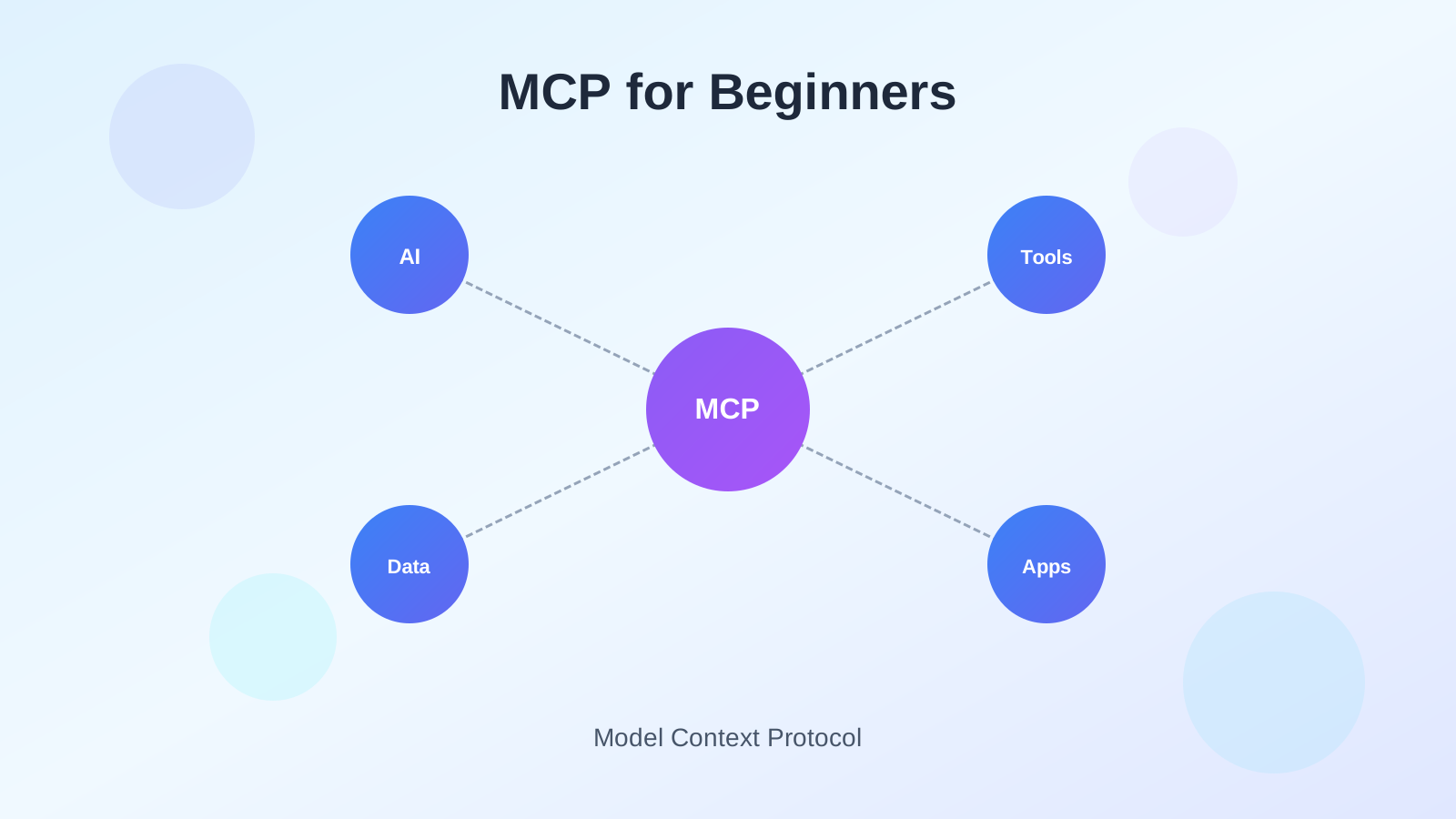
MCP (Model Context Protocol) is an open protocol from Anthropic that standardizes how AI models connect to external tools and data. Without it, AI models are stuck with their training data - they can’t search the web, access your database, or call APIs.
Before MCP existed, connecting an AI to external tools meant building custom integrations for each tool and each AI model. MCP fixes this by defining a standard protocol. Build one MCP server, and it works with Claude, Cursor, VS Code, or any other MCP-compatible client.
The USB analogy
MCP is like USB for AI tools:
- Before USB: Every device needed its own weird connector
- After USB: One port works with everything
Same idea here. Developers build MCP servers once, and they work with any AI client that supports the protocol.
How MCP Works
The MCP architecture consists of three main components:
| Component | Description | Examples |
|---|---|---|
| MCP Hosts | AI applications that want to use external tools | Claude Desktop, Cursor, VS Code, Windsurf |
| MCP Clients | Protocol handlers within the host application | Built into Claude, Cursor, etc. |
| MCP Servers | Services that provide tools and data access | BrightData MCP, GitHub MCP, Database MCP |
When you ask Claude to “search for the latest news about Docker,” here’s what happens:
- Claude (the host) recognizes it needs web search capability
- It connects to a web search MCP server through the MCP client
- The MCP server executes the search and returns results
- Claude processes the results and provides you with an answer
Why bother with MCP?
MCP solves real problems that make AI assistants frustrating to use:
1. Real-time data access
AI models only know what was in their training data. Ask about something that happened last week and they’re useless. MCP lets them:
- Search the web for up-to-date information
- Access live databases and APIs
- Retrieve current stock prices, weather, or news
- Interact with your local files and projects
2. Build once, use everywhere
Write an MCP server for GitHub access, and it works with Claude, Cursor, VS Code, Windsurf - any client that speaks MCP. No more maintaining separate integrations for each platform.
3. Actually useful capabilities
With MCP servers, your AI can:
- Execute code in sandboxed environments
- Query databases directly
- Interact with version control systems
- Automate browser tasks
- Access specialized APIs (Amazon, LinkedIn, GitHub, etc.)
4. Control over what AI can access
MCP gives you a structured way to grant permissions. The AI only gets access to tools you explicitly enable, credentials stay on your machine, and you can revoke access anytime.
Getting Started with MCP
If you’re new to AI programming, MCP might seem complicated. It’s not that bad once you set up your first server.
What you need
Before setting up MCP servers:
- An AI assistant that supports MCP (Claude Desktop, Cursor, VS Code with extensions)
- Node.js installed on your system (for most MCP servers)
- Basic familiarity with JSON configuration files
- Docker Desktop (recommended for the easiest setup)
MCP configuration basics
MCP servers are configured through JSON files. Here’s what one looks like:
{
  "mcpServers": {
    "server-name": {
      "command": "npx",
      "args": ["-y", "@package/mcp-server"],
      "env": {
        "API_KEY": "your-api-key"
      }
    }
  }
}
The key parts:
- command: How to start the server (
npxornodeusually) - args: What to pass to the command
- env: API keys and other secrets
Your first MCP server: Context7
Context7 is a good one to start with - it gives your AI access to current framework documentation instead of whatever was in its training data.
Setting up Context7 MCP
For Claude Desktop, add this to your claude_desktop_config.json:
{
  "mcpServers": {
    "context7": {
      "command": "npx",
      "args": ["-y", "@upstash/context7-mcp"]
    }
  }
}
Now when you ask about the latest React or Astro features, Claude actually knows what it’s talking about.
MCP servers worth installing
Here are the ones I’d start with:
1. Web search and scraping
For real-time web data, BrightData MCP works well. You get 5,000 free requests monthly, access to search engines, and structured data from 40+ platforms. It handles bot detection automatically.
2. Documentation
Context7 gives your AI current framework docs. Useful when you’re working with fast-moving frameworks where the AI’s training data is already outdated.
3. Browser automation
Playwright MCP lets your AI control a browser - navigate pages, fill forms, click buttons, take screenshots. Good for testing or scraping dynamic sites.
4. Databases
Database MCP servers let your AI query PostgreSQL, MySQL, or SQLite directly. Useful for generating reports or exploring data through conversation.
The problem with lots of MCP servers
MCP works great when you have 2-3 servers. But power users have ended up with hundreds of servers and thousands of tools. That creates problems:
Context window bloat
Every MCP server adds tool definitions to your AI’s context window. If you have 1,000 tools but only need 2 for a conversation, you’re wasting tokens loading stuff you’ll never use.
Trust issues
Who made this MCP server? Can you trust it with your API keys? There’s no real verification process for community servers.
Configuration headaches
Managing auth, updates, and configs for dozens of servers gets old fast. Something always breaks.
Token math
With many MCP servers, a huge chunk of your context window goes to tool definitions alone. Less room for your actual conversation.
Docker MCP Catalog and Toolkit
Docker built a solution: the MCP Catalog and Toolkit. It fixes most of the problems above.
The Catalog
A curated registry of verified MCP servers on Docker Hub. Pre-containerized, ready to use. Stripe, Elastic, Neo4j, New Relic - the popular ones are there. One-click setup.
The Toolkit
A management layer between your AI clients and MCP servers:
- Centralized management - One place to manage all your MCP servers
- Easy authentication - Authenticate once, use everywhere
- Client integration - Connect Claude, VS Code, Cursor, and more with one click
- Security - All servers run in isolated Docker containers
Setting it up
- Update Docker Desktop to version 4.48+
- Enable MCP Toolkit in settings (Beta Features)
- Browse the Catalog, add what you need
- Connect your AI clients
Your AI client talks to Docker, Docker manages the servers. You don’t deal with individual server configs anymore.
Dynamic MCP loading
This is the clever part. Instead of loading every tool definition at startup, Docker’s MCP Gateway lets AI agents discover and load tools only when needed.
How it works
The Gateway gives your AI these meta-tools:
| Tool | Purpose |
|---|---|
mcp_find | Search for MCP servers by name or description |
mcp_add | Add an MCP server to the current session |
mcp_remove | Remove an MCP server from the session |
So your AI starts with just these three tools. When it needs GitHub access, it searches for and loads the GitHub server. Context window stays clean.
Code Mode
The Gateway also lets AI agents write JavaScript that calls MCP tools directly:
- Token efficiency - The AI writes a custom tool once and reuses it
- Chaining tools - Combine multiple MCP tools into one workflow
- Sandboxed execution - Code runs safely in Docker containers
- State persistence - Data can be stored between tool calls
Example: GitHub to Notion
Say you want to search GitHub repos and save results to Notion. With Code Mode:
- AI writes JavaScript that calls both GitHub and Notion APIs
- Code runs in a sandboxed container
- AI gets a summary back, full results go to Notion
- No huge JSON payloads eating your context window
Way more efficient than the AI processing raw data from each tool separately.
Docker Hub MCP Server
Docker also released an MCP server for Docker Hub itself. Search for images, manage repos, all through natural language.
Setting it up
- Open MCP Toolkit in Docker Desktop
- Go to the Catalog tab
- Search for “Docker Hub”
- Click the plus icon to add it
- Enter your Docker Hub username and personal access token
Then you can ask things like “find the latest Node.js Alpine image” or “what’s the size of the official Python image” and get real answers.
Tips for getting started
Start with 2-3 servers. Context7 for docs, one web search server, maybe a database server. Add more as you actually need them.
Use Docker’s Toolkit if you can. It handles updates, credentials, and client configuration. Less stuff to break.
Know what you’re installing. Before adding an MCP server, understand what tools it provides and what data it can access.
Watch your token usage. If conversations feel limited, you probably have too many tools loaded. Use dynamic loading when available.
Use cases
Developers: Current framework docs, direct database queries, Git automation, browser-based testing.
Content creators: Real-time research, product data extraction, competitor monitoring. If you’re building AI affiliate websites, MCP servers like BrightData help you get actual product data.
Researchers: Academic database access, structured data collection, report generation from multiple sources.
MCP with different AI tools
GitHub Copilot: Has its own integrations, but you can add MCP through VS Code extensions. See the Copilot guide.
Cursor and Windsurf: Built-in MCP support. Configure in settings, access through chat.
Claude Code: Configure MCP in the config file. Amp Code and similar tools work the same way.
Open source LLMs: Many open source models work with MCP through compatible clients.
Security
MCP servers can access real systems with real credentials. A few things to keep in mind:
Use Docker. Containers isolate MCP servers from your system. If something goes wrong, cleanup is easy. See using Docker with AI CLI tools.
Don’t commit API keys. Use environment variables, don’t hardcode credentials in config files that might end up in Git.
Know what’s running. Periodically check which servers are active and what they can access. Remove servers you’re not using.
Free options
You don’t need to pay to try MCP:
- Context7 - Free docs access
- BrightData MCP - 5,000 free requests/month
- Playwright MCP - Free browser automation
- SQLite MCP - Free local database access
- Docker Desktop - Free for personal use
You can also use Claude and GPT for free through various platforms.
FAQ
Do I need to code to use MCP?
No. You copy a JSON config once, then interact through natural language. The AI handles the technical bits.
Is MCP only for developers?
No. Anyone who wants to extend AI capabilities can use it - content creators, researchers, data analysts. If you can benefit from web scraping, database access, or automation, MCP helps.
How is MCP different from ChatGPT plugins?
ChatGPT plugins only worked with OpenAI. MCP is an open protocol - build an MCP server once, it works with Claude, Cursor, VS Code, Windsurf, and anything else that supports the protocol.
Can I build my own MCP server?
Yes. Anthropic provides SDKs for building MCP servers. You need programming knowledge, but it’s not that complicated.
Do I need Docker?
No, but it makes things easier. Docker handles isolation, dependencies, and updates. Without it you manage all that yourself.
How many servers can I run?
No hard limit, but more servers means more tool definitions eating your context window. Use dynamic loading if available.
Wrapping up
MCP makes AI assistants actually useful for real work by connecting them to external tools and data. The protocol itself is straightforward - the complexity comes from managing many servers, which is why Docker’s Toolkit is worth using.
Start with 2-3 servers, use Docker if you can, and add more as you actually need them. Don’t install everything at once.
Get Started with Docker MCPRelated Resources
- AI Programming Beginners Guide - Complete guide to programming with AI assistance
- BrightData MCP Complete Guide - In-depth look at web scraping with MCP
- Docker/Podman AI CLI Safe Environment - Setting up secure AI development
- GitHub Copilot Complete Guide - Master AI-assisted coding
- Best Open Source LLMs - Alternatives to commercial AI models
- Use Claude and GPT for Free - Access premium AI models without cost
- Amp Code Free AI Coding Agent - Free alternative for AI coding