Pinchtab: Browser Control via HTTP for AI Agents
Pinchtab is a 12MB Go binary that gives any AI agent browser control over a plain HTTP API using accessibility trees. Zero config, framework-agnostic, and far cheaper than screenshots.
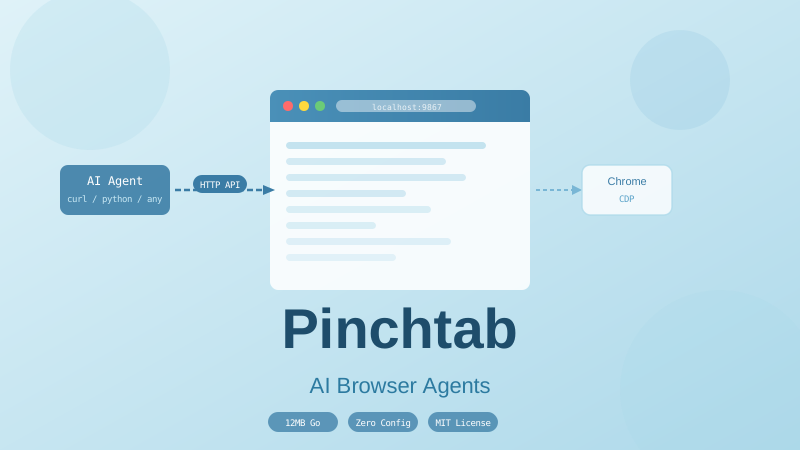
If you’ve tried giving an AI agent browser access, you already know the problem. Playwright MCP ties you to Node. Browser Use needs Python. OpenClaw’s browser backend only works inside its own ecosystem. Switch agents, or try to fire off a quick curl request to inspect a page, and you’re rewriting the integration from scratch.
Pinchtab takes a different approach: it’s just an HTTP server. A 12MB Go binary with no Node, no Python, no dependencies. It launches its own Chrome and exposes everything—navigation, clicks, form fills, screenshots, accessibility snapshots—through a plain REST API. Whatever agent you’re using speaks HTTP, and that’s the whole integration story.
Why accessibility trees over screenshots
Most people reach for screenshots first because it’s obvious: take a picture, send it to a vision model, done. The problem is cost. A 10-step task using screenshots runs about $0.06. The same task with accessibility trees costs around $0.015.
The real difference shows up at scale. Run that same task 1,000 times and screenshots cost $60; accessibility trees cost $15. Run a 50-page monitoring job:
| Method | ~Tokens | Est. cost |
|---|---|---|
| Screenshots (vision) | ~100,000 | $0.30 |
| Full a11y snapshot | ~525,000 | $0.16 |
Pinchtab ?filter=interactive | ~180,000 | $0.05 |
Pinchtab /text | ~40,000 | $0.01 |
Pinchtab’s /text endpoint pulls readable content at around 800 tokens per page using Mozilla’s Readability library (the same thing behind Firefox Reader View). That’s 5x cheaper than a full accessibility snapshot and 13x cheaper than screenshots. For read-heavy work, the difference compounds quickly.
There’s also a reliability argument. Vision models guess coordinates from pixels. Accessibility trees give you stable node refs (e0, e1, e2…) tied to the actual DOM elements. Click e5 and you hit the right button, regardless of how the page renders.
The full API
Pinchtab covers more than basic navigation and clicking:
| Method | Endpoint | Description |
|---|---|---|
GET | /health | Check if the server and Chrome are responsive |
GET | /tabs | List all open tabs with their IDs |
GET | /snapshot | Accessibility tree as JSON or text |
GET | /screenshot | JPEG screenshot with quality control |
GET | /text | Readable page text (Readability or raw innerText) |
POST | /navigate | Go to a URL in a tab |
POST | /action | Click, type, fill, press, focus, hover, select, scroll |
POST | /evaluate | Run arbitrary JavaScript |
POST | /tab | Open or close tabs |
POST | /tab/lock | Lock a tab for exclusive agent access |
POST | /tab/unlock | Release a tab lock |
POST | /cookies | Inject session cookies programmatically |
The /tab/lock endpoint is worth noting if you run multiple agents at once. One agent locks a tab, does its work, unlocks it. No competing writes to the same browser context.
Snapshot query parameters
The snapshot endpoint has several options that cut token usage significantly:
# Only interactive elements — ~75% fewer nodes
curl "localhost:9867/snapshot?filter=interactive"

# Compact one-line-per-node format — 56-64% fewer tokens than JSON
curl "localhost:9867/snapshot?format=compact"

# Only changes since the last snapshot
curl "localhost:9867/snapshot?diff=true"

# Limit to a specific section of the page
curl "localhost:9867/snapshot?selector=main"

# Cap output at roughly N tokens
curl "localhost:9867/snapshot?maxTokens=2000"
Combining filter=interactive with format=compact gives you the smallest possible payload for action-oriented tasks. Use diff=true for pages that update incrementally—polling a live dashboard, for example—so you’re only sending what actually changed.
Human-like actions
Beyond standard click and type, Pinchtab has humanClick and humanType actions that add realistic delays and movement patterns. Useful when you’re hitting sites with behavioral bot detection that watches interaction timing.
curl -X POST localhost:9867/action \
  -d '{"kind":"humanType","ref":"e12","text":"hello world"}'
Configuration
All configuration comes through environment variables:
| Variable | Default | Description |
|---|---|---|
BRIDGE_PORT | 9867 | HTTP port |
BRIDGE_TOKEN | (none) | Bearer token for auth |
BRIDGE_HEADLESS | false | Run Chrome without a window |
BRIDGE_STEALTH | light | light (webdriver patch) or full (canvas/WebGL/font spoofing) |
BRIDGE_PROFILE | ~/.pinchtab/chrome-profile | Chrome profile directory |
BRIDGE_STATE_DIR | ~/.pinchtab | State and session storage |
BRIDGE_BLOCK_IMAGES | false | Skip image downloads |
BRIDGE_BLOCK_MEDIA | false | Block images, fonts, CSS, video |
BRIDGE_NO_ANIMATIONS | false | Freeze CSS animations globally |
BRIDGE_TIMEOUT | 15 | Action timeout in seconds |
BRIDGE_NAV_TIMEOUT | 30 | Navigation timeout in seconds |
BRIDGE_TIMEZONE | (system) | Chrome timezone (e.g. America/New_York) |
CDP_URL | (none) | Connect to an existing Chrome instead of launching one |
CHROME_BINARY | (auto) | Path to Chrome or Chromium |
CHROME_FLAGS | (none) | Extra Chrome launch flags |
BRIDGE_BLOCK_MEDIA is the aggressive version—it skips everything except HTML and JavaScript. Useful for bulk scraping where page fidelity doesn’t matter. BRIDGE_NO_ANIMATIONS helps if you’re snapshotting pages mid-animation and getting inconsistent results.
You can also generate a config file if you prefer JSON over environment variables:
pinchtab config init   # creates ~/.pinchtab/config.json
pinchtab config show   # shows current effective config
Environment variables override the config file, so it works fine alongside Docker secrets or .env files.
Docker deployment
The simplest way to run Pinchtab on a server. Chrome needs seccomp=unconfined in a container, which is the main reason you’d want to isolate it from the rest of your stack.
Basic docker-compose setup
# docker-compose.yml
services:
  pinchtab:
    image: pinchtab/pinchtab:latest
    container_name: pinchtab
    restart: unless-stopped
    security_opt:
      - seccomp:unconfined
    mem_limit: 2g
    cpus: "2.0"
    environment:
      - BRIDGE_PORT=9867
      - BRIDGE_HEADLESS=true
      - BRIDGE_STEALTH=full
      - BRIDGE_TOKEN=${PINCHTAB_TOKEN}
      - BRIDGE_BLOCK_IMAGES=true
      - BRIDGE_NO_ANIMATIONS=true
    volumes:
      - pinchtab-data:/data
    ports:
      - "127.0.0.1:9867:9867"

volumes:
  pinchtab-data:
A few things to note here. The port binding 127.0.0.1:9867:9867 only exposes the service on localhost, not to the network. The memory limit matters: Chrome with a few tabs open will easily use 1-1.5GB. Setting BRIDGE_BLOCK_IMAGES=true helps keep memory usage lower if you’re doing content-only tasks.
Behind a Caddy reverse proxy
If you want to expose Pinchtab over HTTPS with a domain:
# docker-compose.yml
services:
  pinchtab:
    image: pinchtab/pinchtab:latest
    container_name: pinchtab
    restart: unless-stopped
    security_opt:
      - seccomp:unconfined
    mem_limit: 2g
    cpus: "2.0"
    environment:
      - BRIDGE_PORT=9867
      - BRIDGE_HEADLESS=true
      - BRIDGE_STEALTH=full
      - BRIDGE_TOKEN=${PINCHTAB_TOKEN}
      - BRIDGE_BLOCK_IMAGES=true
    volumes:
      - pinchtab-data:/data
    networks:
      - proxy

  caddy:
    image: caddy:2-alpine
    restart: unless-stopped
    ports:
      - "80:80"
      - "443:443"
    volumes:
      - ./Caddyfile:/etc/caddy/Caddyfile
      - caddy-data:/data
      - caddy-config:/config
    networks:
      - proxy

networks:
  proxy:
    driver: bridge

volumes:
  pinchtab-data:
  caddy-data:
  caddy-config:
# Caddyfile
pinchtab.yourdomain.com {
reverse_proxy pinchtab:9867
}Caddy handles TLS automatically. With BRIDGE_TOKEN set, requests need an Authorization: Bearer <token> header, so the API isn’t open to the public even with HTTPS.
curl -H "Authorization: Bearer $PINCHTAB_TOKEN" \
  https://pinchtab.yourdomain.com/health
Build from source vs prebuilt image
The official docker-compose.yml in the repo uses build: . which compiles from source. If you want the prebuilt image, use image: pinchtab/pinchtab:latest instead. Check the releases page for available tags.
Security concerns and mitigations
Pinchtab gives an AI agent full control of a real Chrome browser, including any accounts you’ve logged into through that browser. The README is direct about this: “Think of Pinchtab like giving someone your unlocked laptop.” Here’s what that means in practice and how to handle it.
No auth by default
Out of the box, Pinchtab accepts requests from anyone who can reach port 9867. On a shared network or a server with a public IP, that means anyone.
Mitigation: Always set BRIDGE_TOKEN. Once set, every request needs Authorization: Bearer <token> or it gets a 401. Treat this token like a password—generate something long and random, store it in an environment variable or secret manager, never hardcode it.
# Generate a token
openssl rand -hex 32
Pinchtab binds to all interfaces
By default, the server listens on 0.0.0.0, not just localhost. On a cloud server this means port 9867 is reachable from anywhere if your firewall allows it.
Mitigation: Either bind the port to localhost only (as shown in the docker-compose above with 127.0.0.1:9867:9867), or set a firewall rule that blocks external access to port 9867. Using a reverse proxy like Caddy or Nginx adds another layer and lets you handle TLS properly.
The Chrome profile holds live sessions
When you log into a site through Pinchtab’s Chrome window, that session persists in ~/.pinchtab/chrome-profile/. Cookies, saved passwords, auth tokens. An agent with API access can use those sessions to act as you on any site you’re logged into.
Mitigation:
- Use a dedicated Chrome profile with only the accounts your agents actually need
- Don’t log personal accounts (email, banking, social) into the Pinchtab profile unless you specifically need them automated
- Treat
~/.pinchtab/as sensitive and restrict file permissions:chmod 700 ~/.pinchtab - In Docker, use a named volume and avoid mounting it read-only (Pinchtab needs to write state), but don’t mount it somewhere accessible to other containers
The seccomp=unconfined requirement
Chrome needs a relaxed seccomp profile to run in a container. This is a real privilege: it removes a layer of kernel syscall filtering.
Mitigation: This is harder to fully mitigate without building a custom seccomp profile for Chromium. The practical approach is to isolate the Pinchtab container—don’t run it on the same network as containers with database access or other sensitive services. Keep it in its own network segment that only your agent service can reach.
Agent trust model
An agent with Pinchtab access can do anything a human with that browser can do. If your agent takes arbitrary instructions from users or external inputs, prompt injection is a real concern: a malicious website could include instructions in its content that trick the agent into taking unintended actions.
Mitigation:
- Scope what your agent is allowed to do. If it only needs to read pages, don’t give it action capabilities
- Log all
/actionand/navigatecalls so you can audit what happened - Consider running agents against a sandboxed profile with no real accounts for untrusted inputs
- Rate-limit your Pinchtab endpoint—add rate limiting in Caddy or Nginx if you’re exposing it to external agents
Don't skip the token
Running Pinchtab without BRIDGE_TOKEN on any internet-connected server is a serious risk. Anyone who finds the port has full browser control. Set the token before anything else.
A typical agent workflow
import httpx

BASE = "http://localhost:9867"
HEADERS = {"Authorization": "Bearer your-token"}

# Navigate to a page
httpx.post(f"{BASE}/navigate", json={"url": "https://example.com"}, headers=HEADERS)

# Get only interactive elements to keep tokens low
snapshot = httpx.get(f"{BASE}/snapshot?filter=interactive&format=compact", headers=HEADERS)
refs = snapshot.json()

# Click a button by its ref
httpx.post(f"{BASE}/action", json={"kind": "click", "ref": "e5"}, headers=HEADERS)

# Read the result
text = httpx.get(f"{BASE}/text", headers=HEADERS)
print(text.text)
Node refs are stable within a snapshot. After a click that loads a new page, take a fresh snapshot—refs on the new page are independent. For pages that update without a full load (React, Vue SPAs), use ?diff=true to see what changed rather than re-fetching the whole tree.
For multi-agent setups where several agents share a browser instance, use tab locking:
# Lock tab 1 for exclusive use
curl -X POST localhost:9867/tab/lock -d '{"tabId": 1}'

# ... do your work ...

# Release it
curl -X POST localhost:9867/tab/unlock -d '{"tabId": 1}'
When it fits well
Pinchtab is a good fit for agents that need to browse the web but don’t need to be tightly coupled to a browser testing framework. Specifically:
- Web scraping and content monitoring at any scale
- Form automation (sign-ups, data entry, multi-step workflows)
- Authenticated scraping after a one-time login setup
- Agents running in bash scripts, Go programs, or any language with HTTP support
- Setups where you want to switch between different agent frameworks without changing browser integration
It’s not the right tool for pixel-accurate visual testing (Playwright is better there), or for sites where the accessibility tree is sparse or unreliable. Some single-page apps built with custom components don’t expose much useful ARIA data, and a full screenshot becomes the more practical option.
Getting started
# Docker (easiest, no Chrome install needed)
docker run -d \
  -p 127.0.0.1:9867:9867 \
  --security-opt seccomp=unconfined \
  -e BRIDGE_TOKEN=your-secret-token \
  -e BRIDGE_HEADLESS=true \
  pinchtab/pinchtab:latest

curl -H "Authorization: Bearer your-secret-token" http://localhost:9867/health

# Build from source (requires Go 1.25+ and Chrome installed)
git clone https://github.com/pinchtab/pinchtab.git
cd pinchtab
go build -o pinchtab .
BRIDGE_HEADLESS=true BRIDGE_TOKEN=your-secret-token ./pinchtab
The GitHub repo has an OpenClaw skill that can install and configure Pinchtab automatically if you’re using an agent that supports skills.
Pinchtab is MIT licensed. Source on GitHub.