Why You Need a Home Server in 2026: Your Gateway to Digital Independence
Discover the compelling reasons to set up a home server in 2026. From AI workloads to data privacy, explore benefits, uses, and whether it's worth running your own server at home.
“Do I need a home server?” It’s a question I hear more often lately, and honestly, I get why. Between privacy headaches, cloud subscriptions that keep creeping up in price, and smart home devices everywhere, running your own server starts to make real sense. This guide covers what you can actually do with a home server and whether it’s worth the effort for your situation.
Here’s the thing: data privacy isn’t getting any better, cloud costs keep rising, and AI tools are now practical to run locally. People keep asking me, “Can I really run a server from home?” For most households with even basic tech comfort, the answer is yes.
Home servers aren’t just for hardcore techies anymore. You can run AI apps, stream media to any device, and keep your data on hardware you actually own.
What is a Home Server and Why Run a Server at Home?
A home server is a dedicated computer system that runs continuously in your home network, providing various services to connected devices. Unlike traditional computers used for daily tasks, home servers operate 24/7, offering centralized storage, media streaming, automation, and countless other functions.
Personal Experience
I’ve been running an Intel N100 mini PC as my home server for over a year now. It handles my Jellyfin media server for family movie nights and automatically backs up all our important files. The peace of mind knowing our memories are safely stored at home, plus the convenience of accessing our media library anywhere in the house, has been absolutely transformative.
It’s essentially your own cloud. You stop relying on Google, Dropbox, or Netflix for basic services and build something that works for you.
What Goes Into a Home Server
- CPU: The processor handling all the work
- RAM: Memory for running applications
- Storage: HDDs or SSDs where your data lives
- Network: Ethernet or Wi-Fi to connect devices
- Operating System: Usually Linux, managing everything
Running a server at home used to be a niche hobby. Now it’s practical and accessible. The hardware is cheap, the software is polished, and you don’t need to be a sysadmin to get started.
Do I Need a Home Server in 2026?
Whether you need a home server comes down to what you do online and how much you care about controlling your own data. If you stream a lot, handle sensitive files, or just want to stop paying for ten different cloud subscriptions, a home server moves from “nice to have” to “probably should get one.”
Signs You Should Get a Home Server
Digital Storage Needs
Tired of “storage full” notifications or paying monthly for iCloud, Google Drive, and Dropbox? A home server gives you as much storage as you’re willing to buy in hard drives, and you pay once.
Privacy and Security Concerns
If you don’t love the idea of Google scanning your documents or photos being used to train AI models, keeping everything local starts looking pretty good.
Smart Home Integration
Got a bunch of smart bulbs, thermostats, and cameras that barely talk to each other? A home server running Home Assistant can actually make them work together.
Media Consumption Habits
If you’ve got a media collection and a house full of devices that could play it, a home server turns that collection into your personal Netflix.
Here’s who benefits most:
- Families with gadgets everywhere: Multiple laptops, tablets, phones, and TVs
- Remote workers: Need secure file access and backups that actually work
- Photographers and video people: Storage space fills up fast
- Privacy-minded folks: Done with Big Tech’s data harvesting
- Smart home people: Want devices to work locally, not phone home constantly
- Gamers: Want private servers for friends
Do You Actually Need One?
| Scenario | What You Get | Priority |
|---|---|---|
| Multiple cloud subscriptions | One bill instead of many | High |
| Care about privacy | Your data stays yours | High |
| Smart home setup | Local control hub | High |
| Big media collection | Personal streaming | Medium |
| Work from home | Secure file access | Medium |
| Want to learn tech | Real skills practice | Medium |
| Just basic file sharing | Simple network storage | Low |
Benefits of Home Server: Why It’s Worth It
Home servers do more than store files. They replace multiple paid services and give you control you can’t get from the cloud.
Privacy and Security
The best reason to run a server at home: your data stays on your hardware. Not Google’s. Not Dropbox’s. Yours.
Privacy Protection
With a home server, you’re the only one with access to your data. No company scanning your files, no algorithms analyzing your photos, no third-party access period.
What you get:
- No third-party access: Your files aren’t being scanned or monetized
- Compliance: You control how data is handled for GDPR, HIPAA, or other requirements
- Encryption: Full-disk encryption keeps data safe even if someone steals the hardware
- Network isolation: Sensitive stuff never leaves your house
The Money You’ll Save
Cloud subscriptions add up fast. Hardware is a one-time purchase.
Cloud storage costs keep going up while mini PCs get cheaper and more capable.
| Service | Annual Cloud Cost | Home Server Option | 5-Year Savings |
|---|---|---|---|
| 2TB storage | $240 | $300 one-time | $900 |
| Streaming (3 services) | $540 | Self-hosted Jellyfin | $2,400 |
| VPN | $120 | Self-hosted WireGuard | $500 |
| Photo backup | $180 | Local Immich | $600 |
| Total | $1,080 | $300 | $4,400 |
- Ditch subscriptions: One hardware purchase replaces multiple monthly bills
- Cut streaming costs: Host your own media library
- Save bandwidth: Local content doesn’t use your internet cap
- Low power: Modern mini PCs use less energy than a light bulb
- Lasts years: Good hardware runs for 5+ years
Speed and Reliability
Local Network Speed
Local networks run at gigabit speeds (1000+ Mbps), way faster than most internet connections. 4K video streams instantly. Large files transfer in seconds.
You Control Uptime
Your server stays up as long as your power and internet do. No waiting for Netflix or Google to fix their outages.
Configure It Your Way
Want to run weird software? Optimize for specific tasks? Change any setting? On your own server, you can. No vendor restrictions.
Home Server Uses: What to Actually Do With It
Home servers can run all kinds of software. Here’s what people actually use them for.
Media and Entertainment
Personal Media Streaming
Jellyfin turns your movie and TV collection into a private Netflix. It organizes everything, downloads cover art and descriptions, and plays on any device. You can even stream remotely when you’re not home.
Music Streaming
Navidrome is basically self-hosted Spotify. Upload your music, stream it anywhere, keep your files.
Photo Backup
Immich auto-backs up photos from everyone’s phones, organizes them by face, and creates shared albums. Google Photos without the privacy concerns.
Game Servers
Host Minecraft, Counter-Strike, or other multiplayer servers for you and your friends. Low latency, full control.
Backups
- Scheduled backups: Copy files from all devices automatically
- Version history: Recover old versions of documents
- Remote sync: Copy critical stuff to another location
- Ransomware protection: Air-gapped backups malware can’t touch
Smart Home Control
- Home Assistant: One app for all your smart lights, thermostats, cameras
- Local control: Commands stay on your network, no internet needed
- Automations: “Goodnight mode” turns off lights, locks doors, sets temperature
- Privacy: Devices stop phoning home to manufacturer servers
AI Applications
Running AI at home is actually practical now. You can host:
- LLMs: ChatGPT-style chatbots via Ollama or LM Studio, completely private
- Image generation: Stable Diffusion for AI art, no API fees
- Voice transcription: Whisper for converting audio to text locally
- Security analysis: Object detection on your camera feeds
- Smart assistants: AI-powered Home Assistant integrations
Work and Productivity
| What You Need | Software | What It Does |
|---|---|---|
| File sync | Nextcloud, Syncthing | Your own Dropbox |
| Documents | OnlyOffice, Collabora | Edit together in real time |
| Projects | Kanboard, Wekan | Task management |
| Passwords | Bitwarden, Vaultwarden | Secure password storage |
| Notes | Joplin Server, TriliumNext | Knowledge base |
| Calendar | Radicale, Baikal | Contact and calendar sync |
Development Work
Testing environments: Separate containers or VMs for each project. No more clutter on your main machine.
CI/CD pipelines: Auto-run tests and deployments with GitLab CI or Jenkins.
Local databases: PostgreSQL, MySQL, MongoDB running locally for faster dev work.
Learning: Safe place to experiment with Docker and Kubernetes before production.
Skill Building
Running a server teaches you Linux, networking, Docker, and system admin. These are marketable skills.
Can I Run a Server from Home? Technical Requirements
Yes. The technology is there now. Mini PCs are cheap, software is user-friendly, and most internet connections can handle it.
What Internet You Need
Requirements are lower than you’d think.
| Server Type | Upload Speed | Notes |
|---|---|---|
| File sharing | 10+ Mbps | More users need more bandwidth |
| Media streaming | 25+ Mbps | 4K needs the higher end |
| Web apps | 5+ Mbps | Not much bandwidth needed |
| Game servers | 10+ Mbps | Latency matters more than speed |
| Backups | Flexible | Schedule them for off-hours |
Hardware Options
Mini PCs have made home servers accessible. No need for rackmount gear or server rooms.
Budget Setup ($200-400)
An Intel N100 mini PC handles files, media, and backups for most households. Best bang for your buck.
Mid-Range ($400-800)
AMD Ryzen systems handle multiple users, AI workloads, and heavier tasks. Still very power-efficient.
Professional ($800+)
Redundant storage, better networking, faster processors. For businesses or serious power users.
Power and Running Costs
Mini PCs use almost no power:
- Intel N100: 6-15 watts (less than an LED bulb)
- AMD Ryzen: 15-35 watts (laptop charger territory)
- Yearly electricity: $15-50 depending on your rates
Network Setup
You’ll need to configure a few things, but modern routers and software make it manageable.
- Static IP: Give your server a fixed address on your network
- Port forwarding: Access services from outside your home
- Dynamic DNS: Connect reliably even when your IP changes
- VPN: Secure way to access your network remotely
- Firewall: Block unwanted access attempts
Is a Home Server Worth It? Let’s Run the Numbers
Look at upfront cost versus ongoing savings. With cloud prices climbing, the math keeps getting better for home servers.
Two Real Examples
The Family Setup
Four people, bunch of devices. Currently paying:
- $15/month iCloud
- $45/month for Netflix, Disney+, etc.
- $10/month VPN
- Total: $70/month
$800 spent on a home server replaces all of that:
- Local storage instead of cloud
- Jellyfin for media
- Self-hosted VPN
- Automated backups
Break-even in 11 months. After that, you’re saving $840 per year.
The Remote Worker
Graphic designer with client files to protect. Needs:
- Reliable backups
- Fast access to big design files
- Secure sharing
Home server delivers:
- Nightly automated backups
- Gigabit speeds for large files locally
- No third-party services for sensitive client data
- Redundant drives so failures don’t mean data loss
The value here isn’t just money. It’s not losing client work.
Beyond the Money
You’ll break even in 1-2 years typically. But there are other benefits:
- Skills: Learn Linux, networking, Docker. Valuable stuff.
- Family: Everyone can access photos and videos easily
- Flexibility: Add new services whenever you want
- Independence: Stop relying on companies that can change terms or prices
The Downsides
Be honest about the risks:
Hardware Can Fail
Any computer can die. Keep backups, consider RAID, maybe have spare parts ready.
There's a Learning Curve
It’s gotten easier, but you still need to learn some things. Good news: documentation and communities are excellent.
You Need Power and Internet
No power or internet means no access when away from home. A UPS helps with short outages.
Getting Started
First Containers to Install
Once your hardware is ready, start with these:
- Jellyfin: Your Netflix replacement
- File Browser: Web file manager
- Duplicati: Automated backups
- Portainer: Manage your Docker containers
- Homepage: Dashboard for all your services
Check out our full guide on Docker containers for home servers for more options.
What Hardware to Buy
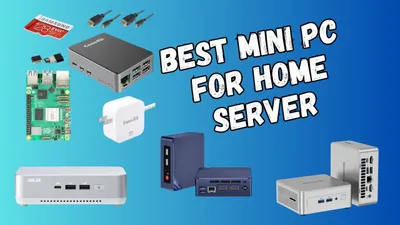
Our best mini PC for home server guide covers Intel N100 budget options up to high-performance AMD Ryzen systems.
Keeping It Running
Monitoring matters. Our server monitoring guide shows you the tools and techniques.
Monitoring
Catch problems before they break things. Monitor disk space, CPU, and memory at minimum.
Skills You’ll Build
| What You Learn | How You Use It | Why It Matters |
|---|---|---|
| Linux | Daily server tasks | IT jobs pay well |
| Networking | VPNs, routers | Essential for security work |
| Docker/Kubernetes | Container management | Every company uses this now |
| Automation | Scripts, CI/CD | DevOps careers |
| Security | Firewalls, certs | Relevant everywhere |
Future-Proofing Your Setup
What’s Coming
Edge Computing
Home servers will process more data locally, only sending what’s necessary to the cloud. Less latency, better privacy.
Better AI Hardware
New chips specifically for AI are coming. Faster voice recognition, image analysis, and automation on your local machine.
Security Improvements
Hardware security features, better encryption, automatic threat detection built into newer systems.
Decentralized Tech
Run blockchain nodes, crypto validators, or decentralized apps from home.
Plan for Growth
- Expandable storage: Can you add more drives later?
- Network capacity: Will your router handle more traffic?
- Power: Room for more hardware?
- Cooling: Heat management if you add components
- Software: Docker makes moving services easy
Legal and ISP Stuff
Check Your ISP
Most providers don’t mind personal servers but check your agreement. Commercial use or heavy traffic might violate terms.
Legal Basics
Personal servers are legal. Just remember:
- Business use might need permits depending on where you live
- Handling other people’s data has regulations
- Don’t pirate content on your media server
- Encryption software has export restrictions in some places
Real Limitations
Upload speed: Most home internet has slow uploads. Affects remote access.
Changing IP: Use dynamic DNS to connect reliably when your IP changes.
Power outages: UPS keeps you running through short ones.
Security Basics
Lock Down Your Network
Firewall: Use UFW or iptables. Only open ports you actually need.
VPN for remote access: Don’t expose admin interfaces to the internet. WireGuard or OpenVPN.
Updates: Keep everything current. Security patches matter.
Protect Your Data
Backup rule: 3 copies, 2 different media types, 1 offsite.
Encryption: Full-disk encryption (LUKS) for the server. Encrypt sensitive files.
Access: SSH keys instead of passwords. Multi-factor auth where possible.
Conclusion
The real question isn’t whether you can afford a home server. It’s whether you can keep paying rising cloud prices and tolerate companies mining your data.
A home server pays for itself within a year or two. After that, you save money every month. More importantly, you own your data. Your photos, documents, and media aren’t being scanned, analyzed, or monetized by anyone but you.
Start simple. A $200 mini PC running Jellyfin and file backups gets you started. Add services as you learn. The self-hosting community is active and helpful.
Your data deserves better than being someone else’s product.
Start Your Home Server JourneyCheck out our mini PC recommendations and Docker container guide to get started.