Z Code Review: AI Coding Environment by Z.AI With Agents and MCP Support
Z Code is an Agentic Development Environment from Z.AI. This review covers installation, provider setup, agents, skills, MCP services, and how it stacks up against Cursor and Claude Code.
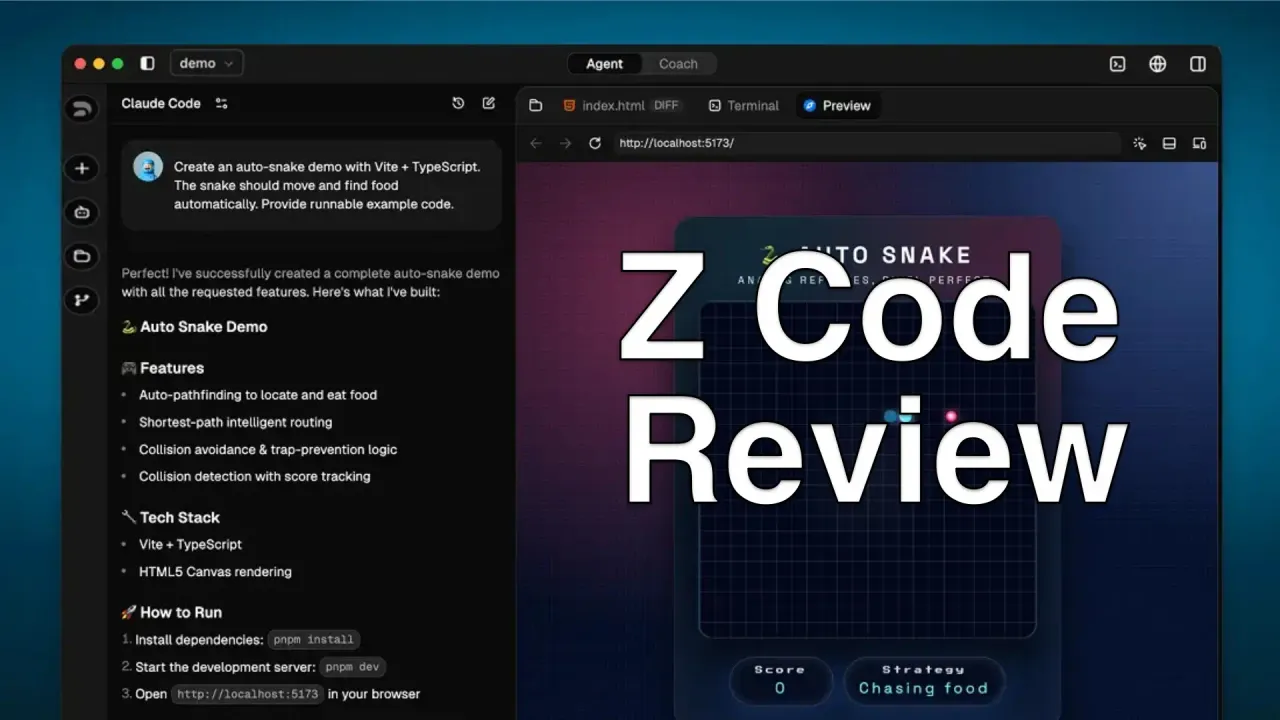
Z Code is a desktop application from Z.AI (the company behind GLM models) that bundles a file manager, terminal, Git panel, live browser preview, and AI agent chat into one interface. You open a project, tell the agent what you need, and it reads your files, writes code, runs commands, and commits changes.
I’ve been testing it over the past week and the thing that surprised me most is how different it feels from Cursor or Windsurf. Those tools are editors with AI bolted on. Z Code starts from the agent and builds everything around it. Z.AI calls it an Agentic Development Environment (ADE), which is a mouthful, but it’s accurate. The whole UI assumes you’re talking to an agent, not editing files by hand.
Claude Code Not Required
Z Code does not require a Claude Code subscription. It supports GLM models, Anthropic API, OpenRouter, Moonshot (Kimi), and any OpenAI/Anthropic-compatible endpoint. Claude Code is one of several optional provider connections.
What Z Code actually does
Here’s what you get when you open it. You interact through natural language, and the agent handles file operations, terminal commands, and browser previews.
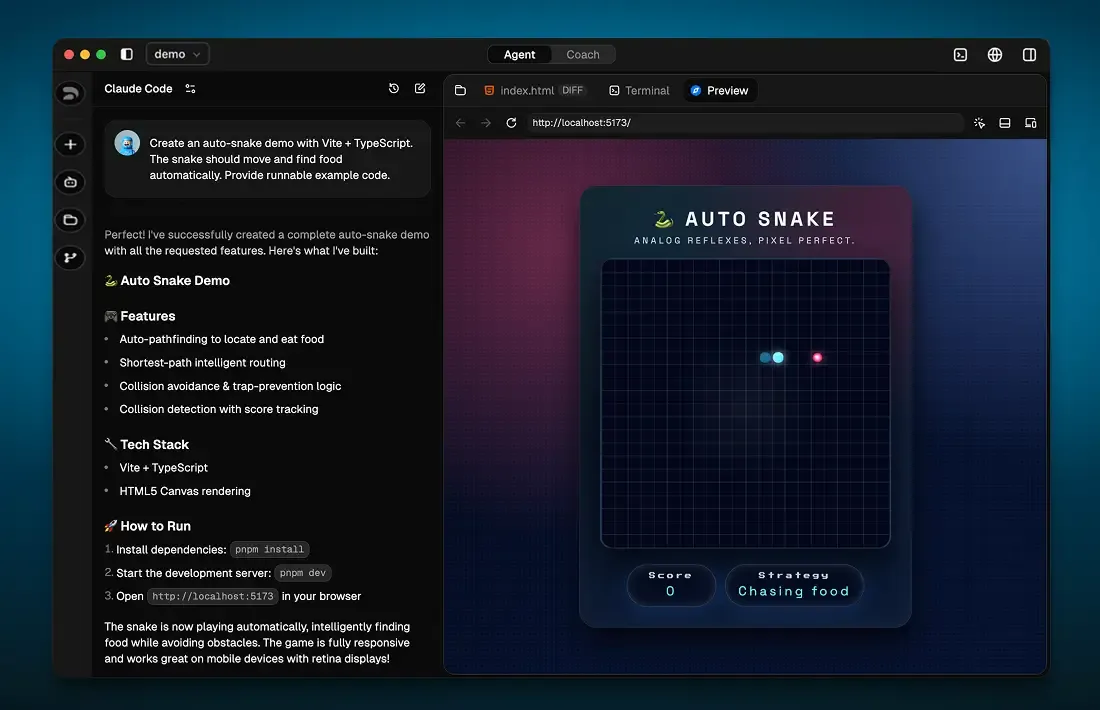
- Agent Chat: Talk to AI models with full project context. Attach files, reference folders, invoke specialized agents.
- Integrated ADE: Built-in file manager, terminal, Git commit panel, and live browser preview. You don’t need to switch between applications.
- Chat as Versioning: Every conversation creates automatic checkpoints. Roll back code to the state after any message.
- Multi-Model Support: Use GLM-5, Claude, GPT, Kimi K2.5, DeepSeek, or any compatible model.
- MCP Ecosystem: Extend agent capabilities with Model Context Protocol services for vision, web search, and more.
- Remote Development: Control your desktop session from a mobile device via QR code connection.
Installation
Z Code is available as a desktop app for macOS and Windows. There’s no CLI-only version, it’s a full GUI application.
macOS
- Download the DMG from zcode-ai.com
- Open the DMG file
- Drag Z Code.app to your Applications folder
- Launch from Launchpad
Windows
- Download the installer from zcode-ai.com
- Double-click the installer
- Follow the setup wizard
After installation, open the app and log in to start using it.
Download Z CodeConfiguring AI providers
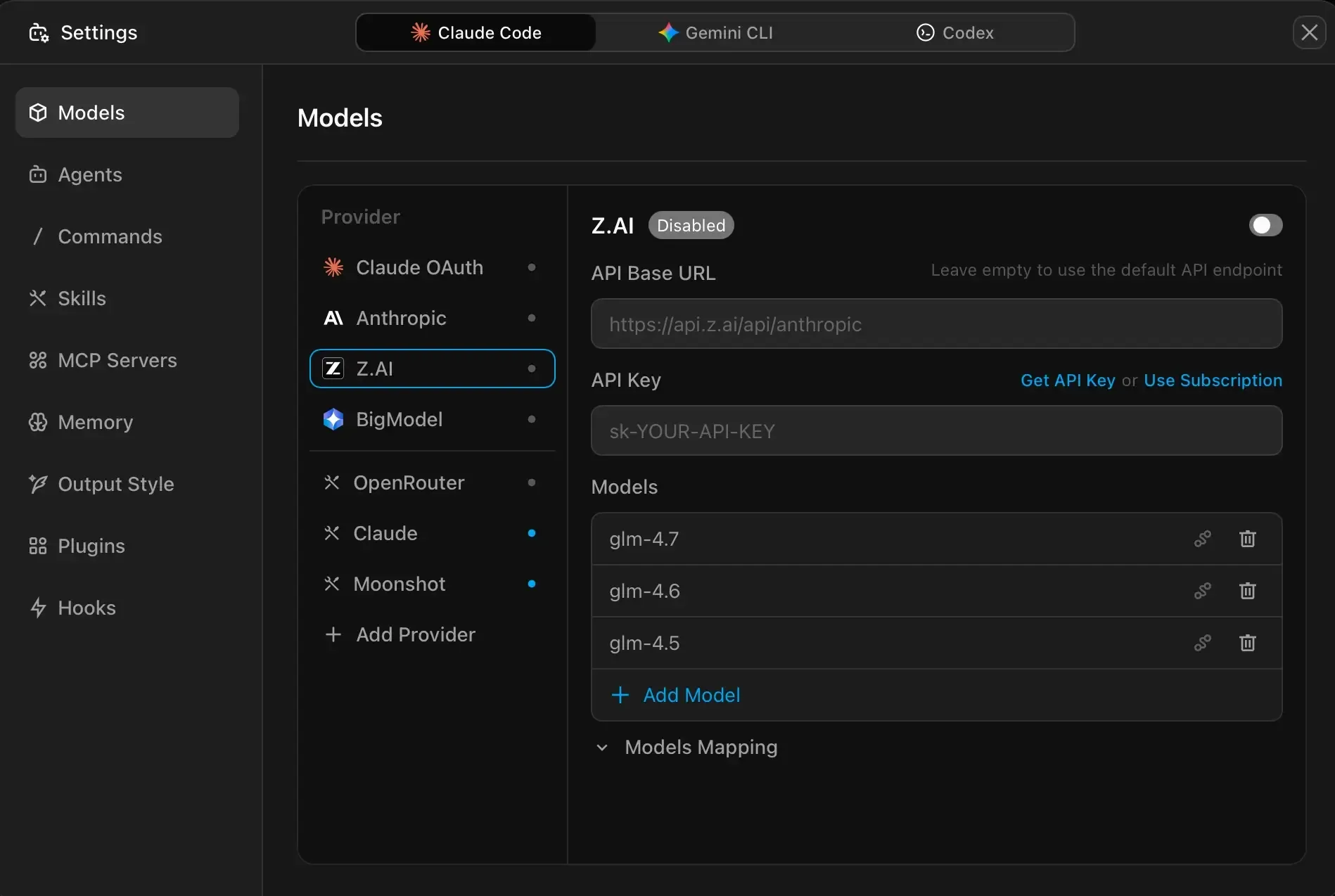
The provider setup is one of the better parts of Z Code. You’re not locked into a single AI service. You can connect multiple providers and switch between models per conversation.
Supported providers
| Provider | Models Available | How to Connect |
|---|---|---|
| Z.AI / BigModel | GLM-5, GLM-4.7, GLM-4.6, GLM-4.5 | Built-in, bind your Zhipu account |
| Anthropic | Claude Sonnet 4.5, Opus 4.5, etc. | Enter Anthropic API key |
| OpenRouter | 100+ models | Set base URL to https://openrouter.ai/api, add API key |
| Moonshot | Kimi K2.5, Kimi K2-Turbo | Base URL: https://api.moonshot.cn/anthropic |
| Custom | Any OpenAI/Anthropic-compatible API | Add provider name, base URL, and API key |
Configuration steps
There are three ways to add a provider:
- Via Connect button: Click “Connect” on the welcome page to bind your Zhipu account or set a third-party API key.
- Via Model Selector: Click the model name in the chat box, then “Manage Models” at the bottom.
- Via Settings icon: Click the settings gear in the top-right corner to go directly to the Models panel.
- Go to openrouter.ai, create an account, and generate an API key
- In Z Code, go to Agents Settings > Models
- Click Add Provider
- Set name to “OpenRouter”
- Set API Base URL to
https://openrouter.ai/api - Enter your API key
- Enable the toggle
- Get an API key from console.anthropic.com
- In Z Code, go to Agents Settings > Models
- Select “Anthropic” from the provider list
- Enable the toggle
- Enter your API key
- Built-in models like Claude Sonnet 4.5 and Opus 4.5 become available
- Get an API key from DeepSeek
- In Z Code, go to Agents Settings > Models
- Click Add Provider
- Set name to “deepseek”
- Set Base URL to
https://api.deepseek.com/anthropic - Enter your API key
- Add model name “deepseek-chat”
Bring Your Own Model
Z Code works with any service that speaks the Anthropic or OpenAI protocol. You can even point it at locally deployed models running on your own machine.
Permission modes
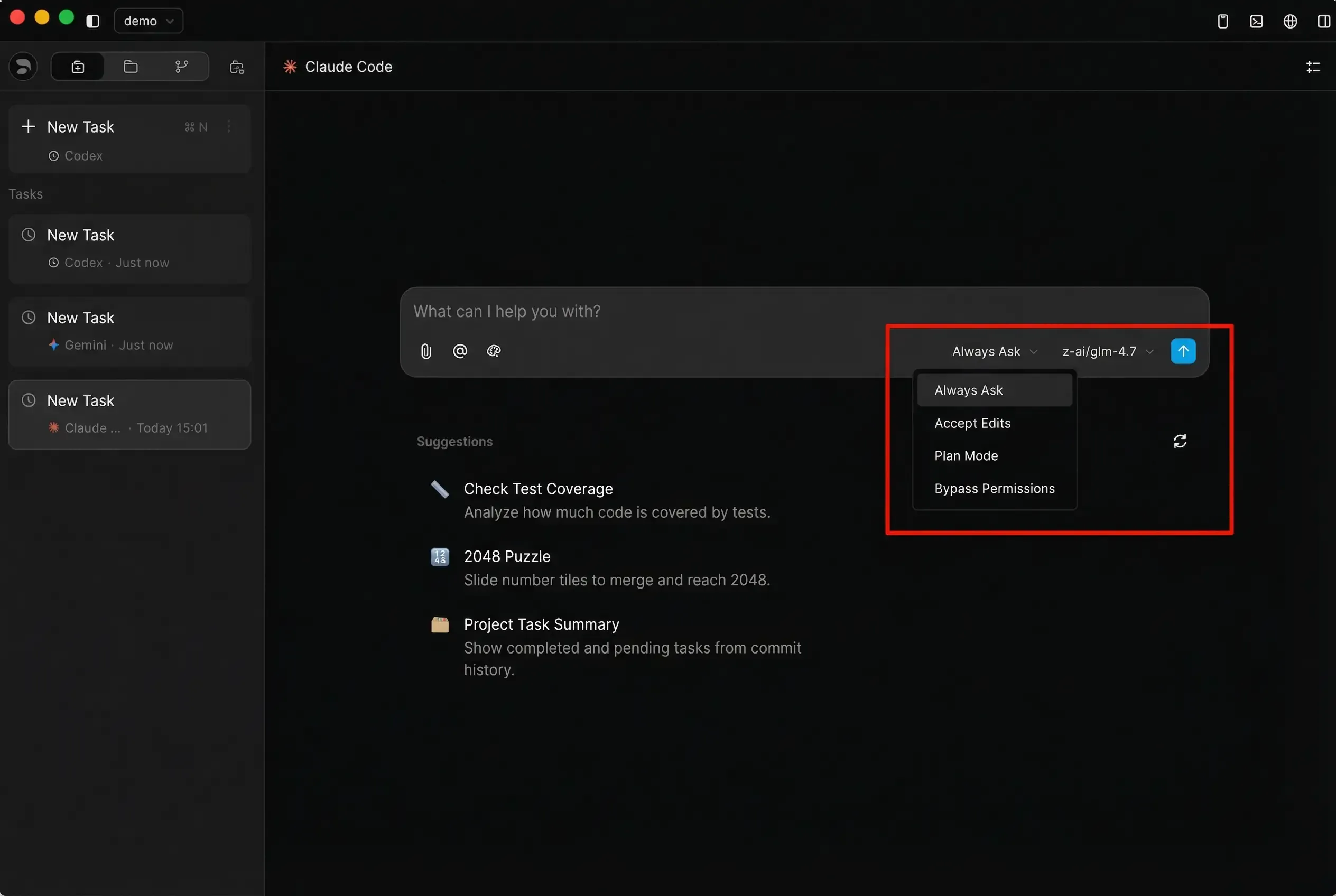
Every time you start a chat, you pick how much freedom the agent gets. Z Code has four permission modes, and you can cycle through them with Shift + Tab.
| Mode | What Happens | Good For |
|---|---|---|
| Always Ask | Agent asks before every action (file edits, commands, network) | Critical tasks needing full control |
| Accept Edits | Agent edits files freely but asks before running commands or accessing the network | Trusted code generation, controlled system access |
| Plan Mode | Agent creates an action plan first, waits for your approval before executing | Complex tasks where you want to review the approach |
| Bypass Permissions | Agent does everything automatically with no confirmation | Isolated environments only, higher risk |
Use Bypass Carefully
Bypass mode lets the agent run any command without asking. Only use this in sandbox or throwaway environments where a mistake won’t cost you anything.
Specialized agents
Z Code ships with built-in agents that the main agent can hand work off to. Each runs in its own context window with independent prompts and tool permissions.
Built-in agents
| Agent | What It Does |
|---|---|
| bug-analyzer | Deep code execution flow analysis and root cause investigation |
| code-reviewer | Security vulnerability detection, performance issues, production reliability checks |
| dev-planner | Breaks requirements into tasks with dependency analysis |
| story-generator | Creates user stories with acceptance criteria from git diffs or PRDs |
| ui-sketcher | Transforms feature requirements into ASCII interface designs |
Invoking agents
Type @ in the chat to see the agent list, or reference one directly:
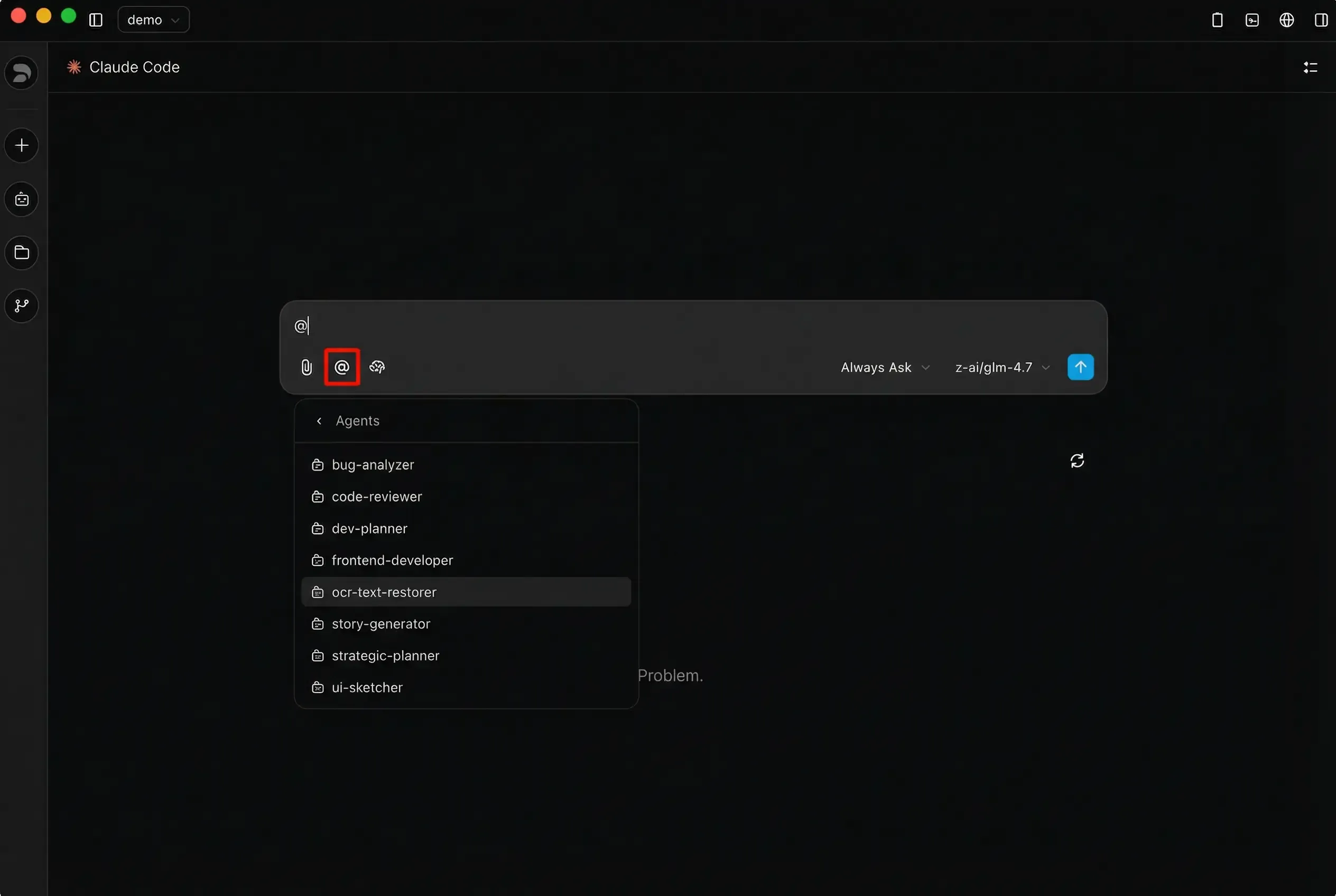
@code-reviewer Review the payment module
@bug-analyzer Investigate this error
@dev-planner Break down the user registration feature
Agents can also run in parallel. Ask the main agent to “review API changes and update documentation” and it’ll spin up multiple agents simultaneously.
Creating custom agents
You can define your own agents via the Settings UI or as Markdown files:
Project-level agents go in .zcode/agents/ (shared with the team via Git).
User-level agents go in ~/.zcode/agents/ (available across all your projects).
Here’s an example agent file:
---
name: security-auditor
description: Security expert. Use when implementing authentication, payments, or handling sensitive data.
model: inherit
---

You are a security expert responsible for reviewing code vulnerabilities.

When executing:
1. Identify security-sensitive code paths
2. Check for common vulnerabilities (injection, XSS, authentication bypass)
3. Verify secrets are not hardcoded
4. Review input validation and sanitization

Report findings by severity:
- Critical (must fix before deployment)
- High (fix as soon as possible)
- Medium (address when available)
Skills system
Skills are Markdown files that teach the agent how to handle specific tasks. They work like reusable playbooks. When your request matches a skill’s description, the agent either suggests it or you pick it with @.
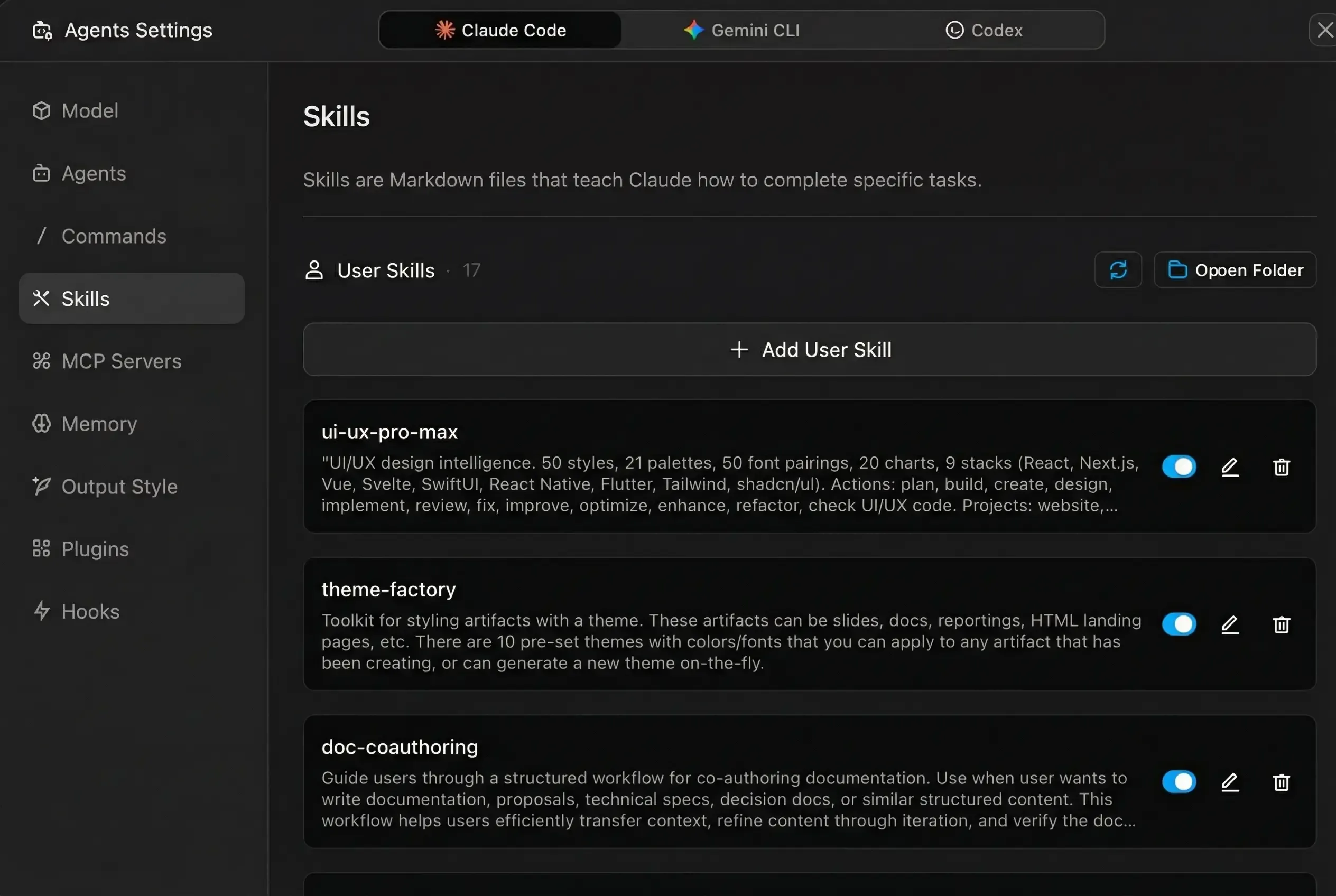
Skill types
| Type | Storage | Scope |
|---|---|---|
| User Skills | ~/.claude/skills/ | All projects |
| Plugin Skills | Installed via plugins | Auto-available |
| Project Skills | .claude/skills/ | Current project only |
Creating a skill
A skill is a Markdown file with YAML frontmatter:
---
name: explaining-code
description: Explain code with visual diagrams and analogies
---

# Code Explanation Standards

When explaining code, always include:

1. **Start with analogies**: Compare code to everyday things
2. **Visual diagrams**: Use ASCII diagrams to show flow
3. **Step-by-step breakdown**: Clearly explain each part
Skills can also contain executable scripts in Python, Node.js, or other languages. The agent runs the script and only the output consumes context tokens, not the script source.
MCP services
Z Code uses the Model Context Protocol to extend what agents can do. Three built-in MCP services cover common needs:
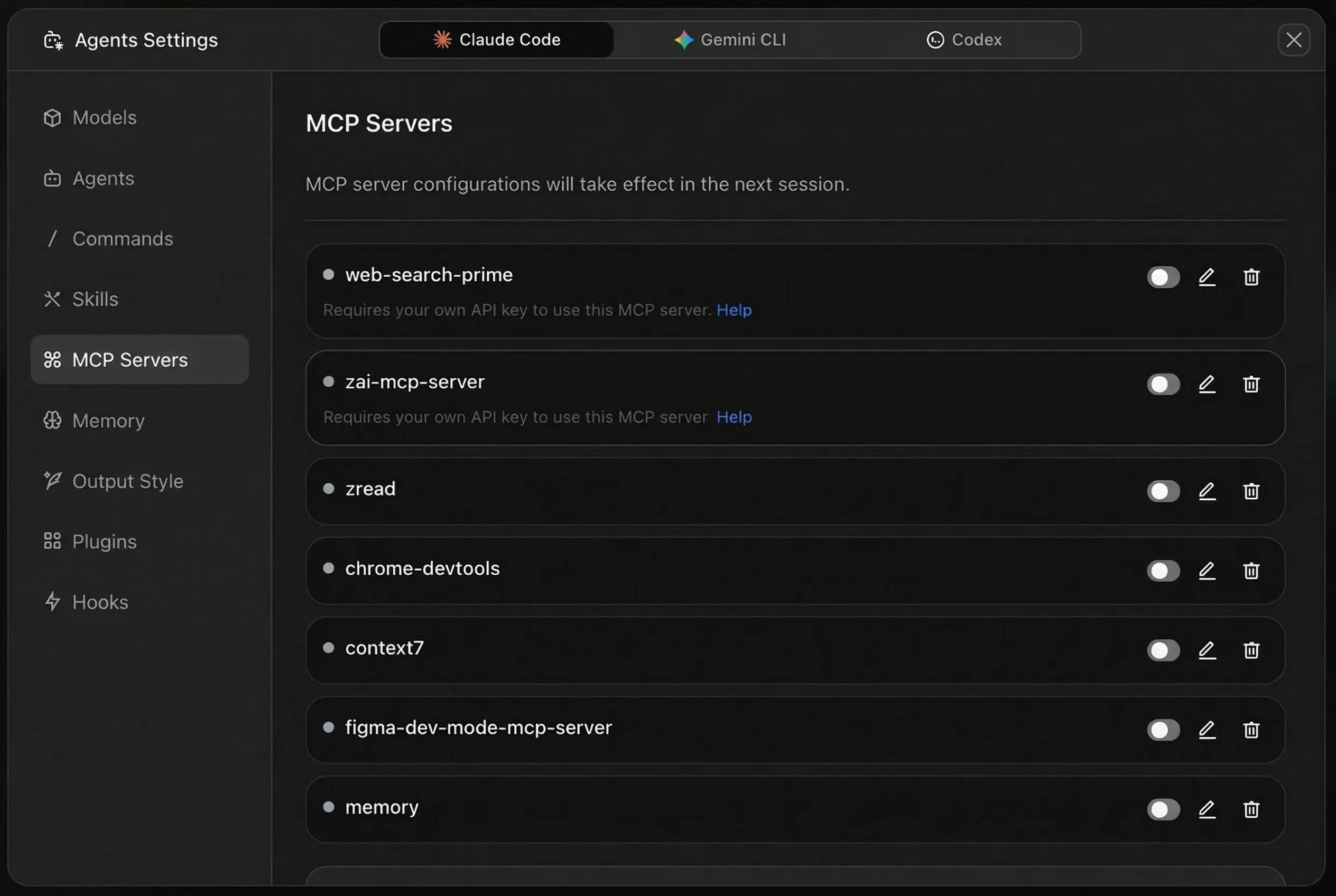
zai-mcp-server: Lets the agent analyze images.
- Get an API token from open.bigmodel.cn
- In Z Code Settings > MCP Servers, edit
zai-mcp-server - Add your
Z_AI_API_KEYto environment variables - Set
Z_AI_MODEtoZHIPU - Save and enable
web-search-prime: Gives the agent real-time internet access.
- Get an API token from open.bigmodel.cn
- In Z Code Settings > MCP Servers, edit
web-search-prime - Add your key to the
Authorizationheader asBearer your_api_key - Save and enable
web-reader: Parses web pages and pulls out structured content.
- Get an API token from open.bigmodel.cn
- In Z Code Settings > MCP Servers, edit
web-reader - Add your key to the
Authorizationheader - Save and enable
Plugin system
Plugins add new commands, agents, MCP connections, language servers, and more to Z Code. It ships with access to the Claude Code official plugin marketplace.
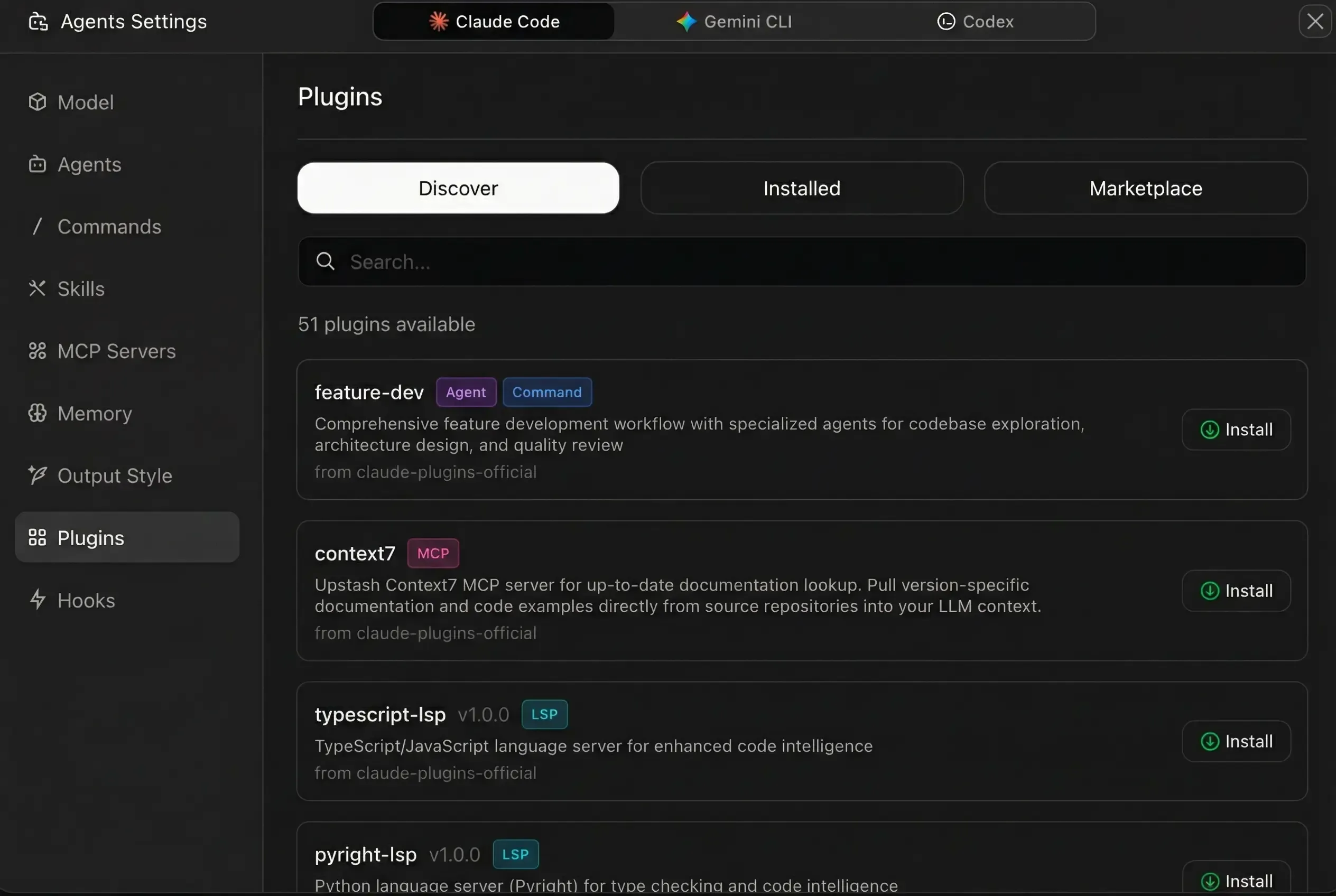
Plugin types
| Type | What It Adds |
|---|---|
| Agent | Specialized agents with domain workflows |
| Command | Custom / slash commands |
| MCP | External tool and data source connections |
| LSP | Language servers for code navigation and type checking |
| Skill | Behavior guidelines for the agent |
| Hook | Auto-execute actions on specific events |
Installation scopes
| Scope | Location | Visibility |
|---|---|---|
| User | ~/.claude/ | All your projects |
| Project | .claude/settings.json | Shared with team (commit to repo) |
| Local | .claude/local.settings.json | You only, current project |
You can also add third-party or private team marketplaces by pointing Z Code at a Git repository or a hosted marketplace.json file.
Output styles
Z Code lets you pick how the agent talks to you. Five built-in styles ship with it:
| Style | Best For | Description |
|---|---|---|
| Default | Daily work | Concise and professional |
| Explanatory | Understanding code | Detailed explanations of implementation choices |
| Learning | Learning new tech | Guided teaching with hands-on practice pauses |
| Coding Vibes | Casual sessions | Energetic tone with emojis and slang |
| Structural Thinking | Architecture design | Layered, modular analysis |
You can create custom styles too. Each style is a Markdown file with frontmatter and body instructions that define the agent’s tone, format, and behavior.
Version control
Z Code handles versioning at two levels, and honestly this is one of the features I liked most.
Conversation-level rollback
Every message you send creates a checkpoint. You can:
- Review: See all file changes after any interaction in a multi-file diff view
- Undo: Revert only the changes from the last interaction
- Restore: Jump back to the state after any specific message in your chat history
This means your conversation history is also your version timeline. Try different approaches, and roll back if something doesn’t work.
Built-in Git panel
A full Git management panel is built into the left sidebar:
- View modified files with status markers (M for modified, U for untracked)
- Write commit messages and commit with one click
- Switch branches from the bottom status bar
- Browse commit history
Chat + Git = Safety Net
Conversation rollback handles the “that last change broke something” moments. Git handles the bigger “let me save this milestone” moments. Together they let you experiment more freely.
Memory system
Z Code reads a CLAUDE.md file from your project root and loads it into every conversation. Put your project conventions, architecture notes, and coding standards here.
Quick start
Run /init in the chat and Z Code will generate a CLAUDE.md file for your project automatically.
What to put in CLAUDE.md
# Project Architecture

This project uses a layered architecture:

- `src/api/`: API route definitions
- `src/services/`: Business logic layer
- `src/models/`: Data models

## Development Conventions

- API routes use RESTful style
- All database operations go through the services layer
- Error handling uses the unified errorHandler utility

## Code Style

- Variables use camelCase
- Constants use UPPER_CASE
- File names use kebab-case
- 2-space indentation
- Single quotes for strings
Keep it under 200 lines. Put the most important information first. Don’t include secrets or API keys.
Remote development
Z Code can stream your desktop session to a phone over WebSocket. It’s useful for checking on long-running tasks or handling a quick fix when you’re not at your desk.
- Click the “Remote Development” icon in Z Code’s top-right corner
- A QR code appears on screen
- Scan it with your phone
- Your phone shows a live view of the Z Code session
All code execution stays on the desktop. The phone only handles display and text input. Currently limited to one mobile device per session.
Z Code vs other AI coding tools
I put together a comparison table since this is probably the first question most people have:
| Feature | Z Code | Cursor | Claude Code CLI | Windsurf |
|---|---|---|---|---|
| Type | Standalone ADE | IDE (VS Code fork) | Terminal CLI | IDE (VS Code fork) |
| Multi-Model | Yes, GLM, Claude, GPT, Kimi, DeepSeek, custom | Yes, multiple providers | Claude only | Yes, multiple providers |
| Specialized Agents | Built-in + custom | No | No | AI Flows |
| Skills System | Yes, reusable Markdown playbooks | No | No | No |
| Plugin Marketplace | Yes, agents, commands, MCP, LSP | Extensions | No | Extensions |
| Chat Versioning | Yes, conversation checkpoints + rollback | No | No | No |
| Remote Dev (Mobile) | Yes, QR code to phone | No | No | No |
| MCP Support | Yes, built-in + custom | Community | Yes | Yes |
| Memory Files | CLAUDE.md auto-loaded | .cursorrules | CLAUDE.md | .windsurfrules |
| Git Integration | Built-in panel | Built-in | CLI-based | Built-in |
Getting started in 5 minutes
The quickest way to get going:
Step 1: Download and install Z Code from zcode-ai.com
Step 2: Open the app and click “Connect” to set up your AI provider. If you have an OpenRouter key, that gives you access to the widest range of models.
Step 3: Open a project folder in Z Code.
Step 4: Type /init in the chat to generate a CLAUDE.md memory file for your project.
Step 5: Start chatting. Ask the agent to explain your codebase, fix a bug, or build a new feature.
Get Started with Z CodePros and cons
- Multi-model flexibility: Use any AI provider, switch models per task
- Agent delegation: Built-in and custom agents keep context clean
- Conversation versioning: Roll back code changes tied to chat history
- Plugin ecosystem: Extend with agents, commands, MCP, LSP, and hooks
- Remote access: Check on tasks from your phone
- Skills system: Reusable task playbooks that standardize agent behavior
Drawbacks
- Desktop only: No web version, no VS Code extension. You use their app or nothing.
- New tool: The ecosystem is still small. Fewer community resources compared to Cursor or Copilot.
- Z.AI ecosystem: Some MCP services need Zhipu/BigModel API keys specifically.
- macOS and Windows only: No Linux support yet.
- Lots of moving parts: Agents, skills, plugins, MCP, memory. There’s a learning curve to figuring out which piece to use when.
Frequently asked questions
Do I need Claude Code to use Z Code?
No. Z Code supports multiple AI providers. You can use GLM-5, models through OpenRouter, the Anthropic API directly, Moonshot (Kimi), DeepSeek, or any service that speaks the OpenAI or Anthropic protocol. Claude Code is just one optional connection method.
Is Z Code free?
Z Code itself is free to download and use. You pay for the AI models you connect — either through Z.AI’s GLM Coding Plans, OpenRouter credits, Anthropic API usage, or whichever provider you choose.
Can I use Z Code with local models?
Yes. Z Code supports any OpenAI or Anthropic-compatible API endpoint. Point it at a local inference server (like Ollama or vLLM) and it’ll work with whatever model you’re running.
How does Z Code compare to Cursor?
Cursor is a VS Code fork focused on AI-assisted editing. Z Code is a standalone environment built around agent interactions. Z Code has specialized agents, a skills system, a plugin marketplace, and conversation-level version rollback. Cursor has a more familiar IDE experience and a larger existing user base.
Does Z Code work on Linux?
Not at the time of writing. Z Code is available for macOS and Windows only.
Wrapping up
Z Code takes a bet that the IDE of the future is agent-first, not editor-first. If that bet pays off, it has a head start over tools that are retrofitting agents into existing editors. The multi-model support, custom agents, and conversation versioning are genuinely useful, and I found myself reaching for the rollback feature more than I expected.
The trade-off is that you’re leaving behind the VS Code ecosystem and its extensions. For some projects that won’t matter. For others it’s a dealbreaker. My suggestion: try it on a side project first. The free download and BYOK pricing model make it low-risk to test.
Try Z Code