Fish Shell on macOS - Complete Setup Guide
How to install and configure Fish Shell on macOS with Homebrew, set it as default, configure iTerm2 or Ghostty, and set up essential tools.
macOS ships with Zsh as the default shell (Apple switched from Bash back in 2019). Fish isn’t included, but it’s a single Homebrew command away. I run Fish on both my Mac and Linux machines, and the experience is nearly identical on both — which is one of the things I like about it.
This guide covers the full macOS setup: installation, making Fish your default shell, terminal emulator configuration, and the essential tools I install alongside it.
Install Fish with Homebrew
If you don’t have Homebrew yet:
/bin/bash -c "$(curl -fsSL https://raw.githubusercontent.com/Homebrew/install/HEAD/install.sh)"Install Fish:
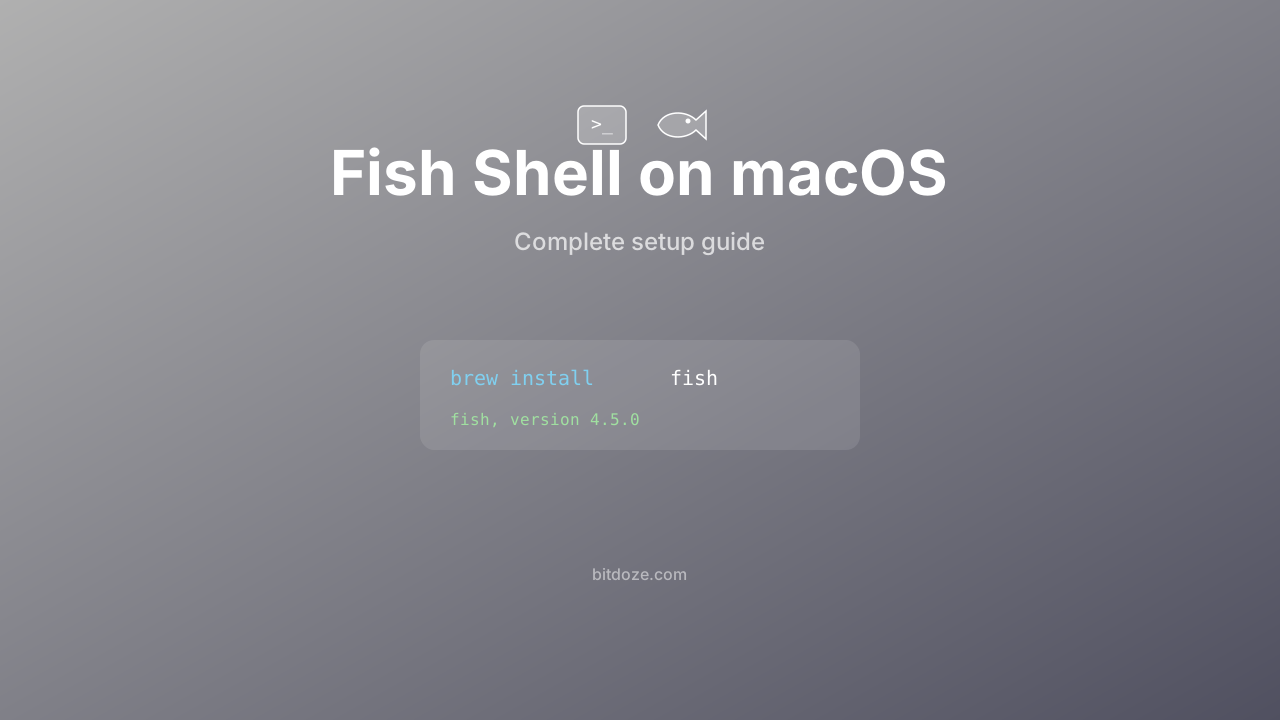
brew install fishCheck the version:
fish --versionYou should see fish, version 4.5.0 or newer. Homebrew keeps Fish up to date — run brew upgrade fish periodically.
Try Fish without switching
Type fish in your current terminal to start a Fish session. Play around with autosuggestions (just start typing and watch the gray suggestions appear), tab completion, and syntax highlighting. Type exit to go back to Zsh.
Set Fish as your default shell
macOS requires the shell to be listed in /etc/shells before you can set it as default. Homebrew installs Fish to /opt/homebrew/bin/fish (Apple Silicon) or /usr/local/bin/fish (Intel).
# Find your Fish path
which fish

# Add it to allowed shells
echo (which fish) | sudo tee -a /etc/shells

# Set as default
chsh -s (which fish)
Open a new terminal window. You should be in Fish.
To switch back to Zsh later: chsh -s /bin/zsh.
Keep Zsh around
macOS system scripts sometimes expect Zsh or Bash. Don’t remove them. Fish replaces your interactive shell, not the system scripting layer.
Terminal emulator setup
Fish works in any terminal, but your font matters. Fish’s completion pager and many prompt themes use special characters that need a Nerd Font.
Install a Nerd Font
brew install font-meslo-lg-nerd-fontThen set it as your terminal’s font. Here’s how for the popular options:
Ghostty
Add to ~/.config/ghostty/config:
font-family = MesloLGS Nerd Font
font-size = 14
Ghostty is a fast, GPU-accelerated terminal. I have a full Ghostty setup guide if you want to explore its features.
iTerm2
Go to Preferences → Profiles → Text → Font and select “MesloLGS NF”. Set the size to your preference (I use 14).
Also worth enabling in iTerm2:
- Preferences → Profiles → Terminal → Shell Integration — gives you click-to-select command output
- Preferences → General → Selection → Applications in terminal may access clipboard — so Fish’s copy operations work
Alacritty
In ~/.config/alacritty/alacritty.toml:
[font]
size = 14

[font.normal]
family = "MesloLGS Nerd Font"
WezTerm
In ~/.wezterm.lua:
config.font = wezterm.font("MesloLGS Nerd Font")
config.font_size = 14.0
I have a WezTerm setup guide that covers integration with zoxide and tmux.
Basic Fish configuration
Create your config file:
mkdir -p ~/.config/fish
nano ~/.config/fish/config.fish
A practical starting config for macOS:
# ~/.config/fish/config.fish

# Homebrew (Apple Silicon)
fish_add_path /opt/homebrew/bin
fish_add_path /opt/homebrew/sbin

# Common paths
fish_add_path ~/bin
fish_add_path ~/.local/bin

# Suppress the greeting
set -g fish_greeting

# Editor
set -gx EDITOR "code --wait"  # or vim, nvim, etc.

# Homebrew completions
if test -d (brew --prefix)"/share/fish/completions"
    set -p fish_complete_path (brew --prefix)/share/fish/completions
end
if test -d (brew --prefix)"/share/fish/vendor_completions.d"
    set -p fish_complete_path (brew --prefix)/share/fish/vendor_completions.d
end
The Homebrew completions block is important — without it, you miss tab completions for Homebrew-installed commands.
Install essential tools
Here’s my standard set of companion tools for Fish on macOS:
brew install fisher      # plugin manager (or install via curl)
brew install starship    # cross-shell prompt
brew install zoxide      # smarter cd
brew install eza         # modern ls replacement
brew install fzf         # fuzzy finder
brew install bat         # better cat with syntax highlighting
brew install fd          # better find
brew install ripgrep     # better grep
Set up Fisher
If you installed Fisher via Homebrew, it’s ready. Otherwise:
curl -sL https://raw.githubusercontent.com/jorgebucaran/fisher/main/functions/fisher.fish | source && fisher install jorgebucaran/fisherInstall Fish plugins
fisher install PatrickF1/fzf.fish     # fuzzy search integration
fisher install jorgebucaran/autopair.fish  # auto-close brackets
fisher install meaningful-ooo/sponge  # remove failed commands from history
See my best Fish Shell plugins guide for the full list.
Set up Starship (or Tide)
For Starship, add to config.fish:
starship init fish | sourceFor Tide instead:
fisher install IlanCosman/tide@v6
tide configure
I compared these and other prompts in Fish Shell themes — best prompts. I also have a dedicated Starship + Fish guide.
Set up zoxide
Add to config.fish:
zoxide init fish | sourceNow use z instead of cd: z projects jumps to your projects directory. Full guide in my zoxide article.
Set up eza aliases
# ~/.config/fish/conf.d/eza.fish
abbr -a ls eza
abbr -a ll "eza -la --icons --git"
abbr -a lt "eza -la --icons --tree --level=2"
macOS-specific abbreviations
# ~/.config/fish/conf.d/macos.fish

# Quick Look from terminal
abbr -a ql "qlmanage -p"

# Open current directory in Finder
abbr -a finder "open ."

# Flush DNS
abbr -a flushdns "sudo dscacheutil -flushcache; sudo killall -HUP mDNSResponder"

# Show/hide hidden files in Finder
abbr -a showhidden "defaults write com.apple.finder AppleShowAllFiles -bool true && killall Finder"
abbr -a hidehidden "defaults write com.apple.finder AppleShowAllFiles -bool false && killall Finder"
I cover abbreviations vs aliases in detail in Fish Shell abbreviations vs aliases.
Node.js version management
The Bash-based nvm doesn’t work in Fish. Use nvm.fish instead:
fisher install jorgebucaran/nvm.fish
nvm install lts
set --universal nvm_default_version lts
Full walkthrough in my NVM with Fish Shell guide.
Common macOS issues
Homebrew PATH not working
On Apple Silicon Macs, Homebrew installs to /opt/homebrew/ instead of /usr/local/. Make sure your config.fish has:
fish_add_path /opt/homebrew/bin
fish_add_path /opt/homebrew/sbin
Put these at the top of your config file.
Environment variables from .zshrc missing
Fish doesn’t read .zshrc or .bash_profile. Move your environment variables to config.fish using set -gx:
set -gx JAVA_HOME (/usr/libexec/java_home)
set -gx ANDROID_HOME ~/Library/Android/sdk
fish_add_path $ANDROID_HOME/platform-tools
SSH agent not forwarding
macOS’s SSH agent works with Fish, but you may need to load your keys:
# ~/.config/fish/conf.d/ssh.fish
if status is-interactive
    ssh-add --apple-use-keychain ~/.ssh/id_ed25519 2>/dev/null
end
Related guides
- Fish Shell vs Bash vs Zsh — comparison of all three shells
- Fish Shell vs Zsh — since you’re probably switching from Zsh on Mac
- Install Fish on Ubuntu — if you also use Linux
- Fish Shell history guide — manage and search your command history
- Starship and Ghostty setup — modern terminal + prompt combo
- Ghostty Terminal guide — full Ghostty setup for Mac