How to Setup Ollama with Open-Webui using Docker Compose
Learn how to Setup Ollama with Open-WebUI using Docker Compose and have your own local AI
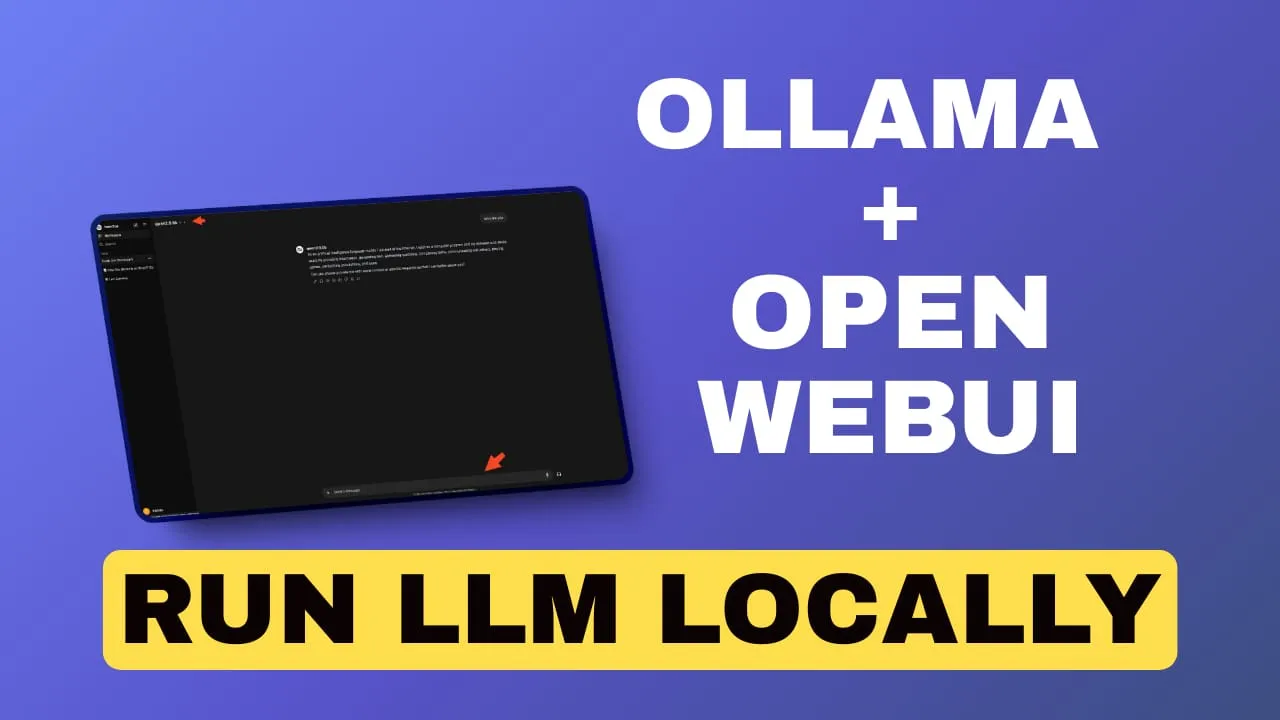
Ollama is one of the most popular tools for running AI models locally. It makes deploying and interacting with large language models (LLMs) on your own hardware straightforward. Paired with Open-WebUI, you get a full local AI setup that works well enough to replace cloud-based options for many use cases. Here’s what these tools are and how to set them up.
What is Ollama?
Ollama is an open-source project (now at v0.17+) that makes running large language models simple. It supports hundreds of models and runs them locally on your machine with a lightweight interface.
- Local Execution: Run AI models on your own hardware, keeping your data private.
- Easy Installation: One-line install to get started.
- Model Management: Download, run, and manage different LLMs without complex setup.
- API Integration: RESTful API for connecting with other applications.
- Cross-Platform Support: Available for macOS, Linux, and Windows.
- Resource Efficiency: Optimized for consumer-grade hardware.
Running models locally means your data stays on your machine. It also cuts latency, which matters for applications that need fast responses or handle sensitive information.
What is Open-Webui
While Ollama works fine from the command line, most people prefer a visual interface. That’s where Open-Webui comes in.
Open-Webui (now at v0.8+) is a web-based interface that works with multiple AI providers. You interact with AI models through your browser. Besides Ollama, it connects to Anthropic, OpenAI, and other compatible APIs, and you can enable or disable individual connections.
Key features of Open-Webui:
- Multi-Provider Support: Connect to Ollama, OpenAI, Anthropic, and other compatible APIs from a single interface.
- Model Selection: Easily switch between different LLMs available through your connected providers.
- Chat Interface: Engage in conversations with AI models in a familiar chat-like environment.
- Voice Dictation: Use voice input to interact with models hands-free.
- Memory Management: Built-in memory for agents to retain context across conversations.
- OAuth & Authentication: Secure access with OAuth support and user management.
- Prompt Templates: Save and reuse common prompts to streamline interactions.
- History Management: Keep track of past conversations and easily reference or continue them.
- Export Options: Save conversations or generated content in various formats for further use or analysis.
How to Set up Ollama and openWebUI with Docker Compose
If you are interested to see some free cool open source self hosted apps you can check toolhunt.net self hosted section.
In this section we are going to see how we are going to set up Ollama and Open-Webui.
1. Prerequizites
Before you begin, make sure you have the following prerequisites in place:
- VPS where you can host Ollama, you can use one from Hetzner You can use a VPS to have ollama installed but performances will not be that good. In our test we are using a 8 CPUs 16 GB RAM and is bearly moving. Best will be to have a GPU powered system or use a Mini PC as Home Server
- Traefic with Docker set up, you can check: How to Use Traefik as A Reverse Proxy in Docker or Traefik FREE Let’s Encrypt Wildcard Certificate With CloudFlare Provider
- Docker and Dockge installed on your server, you can check the Dockge - Portainer Alternative for Docker Management for the full tutorial.
2. Docker Compose
CPU Only
services:
  openWebUI:
    image: ghcr.io/open-webui/open-webui:main
    container_name: openwebui
    hostname: openwebui
    networks:
      - traefik-net
    restart: unless-stopped
    volumes:
      - ./open-webui-local:/app/backend/data
    labels:
      - "traefik.enable=true"
      - "traefik.http.routers.openwebui.rule=Host(`openwebui.domain.com`)"
      - "traefik.http.routers.openwebui.entrypoints=https"
      - "traefik.http.services.openwebui.loadbalancer.server.port=8080"
    environment:
      OLLAMA_BASE_URLS: http://ollama:11434

  ollama:
    image: ollama/ollama:latest
    container_name: ollama
    hostname: ollama
    networks:
      - traefik-net
    volumes:
      - ./ollama-local:/root/.ollama
networks:
  traefik-net:
    external: true
This is adding the open-webui and adds it to traefik network, is not exposing any port to outside.
- traefik.enable=true: Enables Traefik for this service.
- traefik.http.routers.openwebui.rule=Host(openwebui.domain.com): Routes traffic to this service when the host matches openwebui.domain.com.
- traefik.http.routers.openwebui.entrypoints=https: Specifies that this service should be accessible over HTTPS.
- traefik.http.services.openwebui.loadbalancer.server.port=8080: Indicates that the service listens on port 8080 inside the container.
Ollama is also downloaded but is not exposing again no port.
Docker Compose NVIDIA GPU
Before we get to the Docker Compose setup, you need the NVIDIA Container Toolkit installed. This is what lets Docker containers use your GPU.
You install it like this:
curl -fsSL https://nvidia.github.io/libnvidia-container/gpgkey | sudo gpg --dearmor -o /usr/share/keyrings/nvidia-container-toolkit-keyring.gpg \
 && curl -s -L https://nvidia.github.io/libnvidia-container/stable/deb/nvidia-container-toolkit.list | \
sed 's#deb https://#deb [signed-by=/usr/share/keyrings/nvidia-container-toolkit-keyring.gpg] https://#g' | \
sudo tee /etc/apt/sources.list.d/nvidia-container-toolkit.list
sudo apt-get update
sudo apt-get install -y nvidia-container-toolkit

# Configure NVIDIA Container Toolkit
sudo nvidia-ctk runtime configure --runtime=docker
sudo systemctl restart docker

# Test GPU integration
docker run --gpus all nvidia/cuda:11.5.2-base-ubuntu20.04 nvidia-smi
Compose File for Nvidia :
services:
  openWebUI:
    image: ghcr.io/open-webui/open-webui:main
    container_name: openwebui
    hostname: openwebui
    networks:
      - traefik-net
    restart: unless-stopped
    volumes:
      - ./open-webui-local:/app/backend/data
    labels:
      - "traefik.enable=true"
      - "traefik.http.routers.openwebui.rule=Host(`openwebui.my.bitdoze.com`)"
      - "traefik.http.routers.openwebui.entrypoints=https"
      - "traefik.http.services.openwebui.loadbalancer.server.port=8080"
    environment:
      OLLAMA_BASE_URLS: http://ollama:11434

  ollama:
    image: ollama/ollama:latest
    container_name: ollama
    hostname: ollama
    deploy:
      resources:
        reservations:
          devices:
            - driver: nvidia
              capabilities: ["gpu"]
              count: all
    networks:
      - traefik-net
    volumes:
      - ./ollama-local:/root/.ollama
networks:
  traefik-net:
    external: true
The most critical part of this setup for AI performance is the GPU configuration in the Ollama service:
deploy:
  resources:
    reservations:
      devices:
        - driver: nvidia
          capabilities: ["gpu"]
          count: all
This configuration ensures that Ollama has access to all available NVIDIA GPUs on your system. According to NVIDIA’s benchmarks, GPU acceleration can provide up to 100x faster inference times compared to CPU-only setups for certain AI models.
Docker Compose AMD GPU
For AMD GPUs that support ROCm, the Docker Compose setup is almost identical to the NVIDIA version. The main difference is the image tag.
The only diffference here is to use the correct image:
image: ollama/ollama:rocm3. Start the Docker Compose file
docker compose up -d4. Access the Open WebUI
Now you can access the Open WebUI app, to do that you just need to use the domain you have set in the compose file. You will be promted to create a user and a password and you will do that. After you create the user and pasword you can alter the docker-compose file and update everything by adding :
ENABLE_SIGNUP: false

## run
docker compose up -d --force-recreate
5. Pulling a Model
After we access the Open WebUI we will need to pull a model and use it. Depending on your server’s hardware, you can choose the model that fits best.
Ollama supports hundreds of models. Here are some of the best options available today:
-
Qwen3: Alibaba’s latest generation models with sizes from 0.6B to 235B, supporting thinking mode and tool use out of the box.
-
Gemma 3: Google’s most capable open model with vision support, available in sizes from 270M to 27B.
-
DeepSeek-R1: Open reasoning model with chain-of-thought thinking capabilities, available from 1.5B to 671B parameters.
-
Llama 3.2: Meta’s efficient small models at 1B and 3B parameters with tool use support, great for lightweight deployments.
-
Phi-4: Microsoft’s state-of-the-art 14B parameter model with strong reasoning and coding capabilities.
-
Qwen2.5-Coder: Code-specific model optimized for development tasks, available from 0.5B to 32B parameters.
These models cover a wide range of use cases from coding and reasoning to vision and general conversation.
To do that you go to Admin Panel - Settings - Models - Pull a model from Ollama.com
For a small server qwen3:0.6b or gemma3:1b is the way to go.

6. Using Open-WebUI
After you can go ahead and start using the Open-WebUI, you choose the model and start communicating.

Conclusions
That’s all it takes to get Ollama and OpenWebUI running with Docker Compose. You end up with a local AI setup where your data stays on your machine, latency is minimal, and you have a clean web interface to work with.
Ollama handles the model management side while OpenWebUI gives you the browser-based interface. Whether you’re running it on a GPU-powered workstation or a modest server, it’s a practical way to experiment with LLMs locally.
If you want to explore more Docker containers for your home server, including other AI tools, check out our guide on Best 100+ Docker Containers for Home Server.