Dockge Install - Docker Compose Manager for Self-Hosting
How to install Dockge with Docker Compose: a lightweight web UI to manage docker-compose stacks. Covers console security, multi-agent setup, and updates.

24 min read
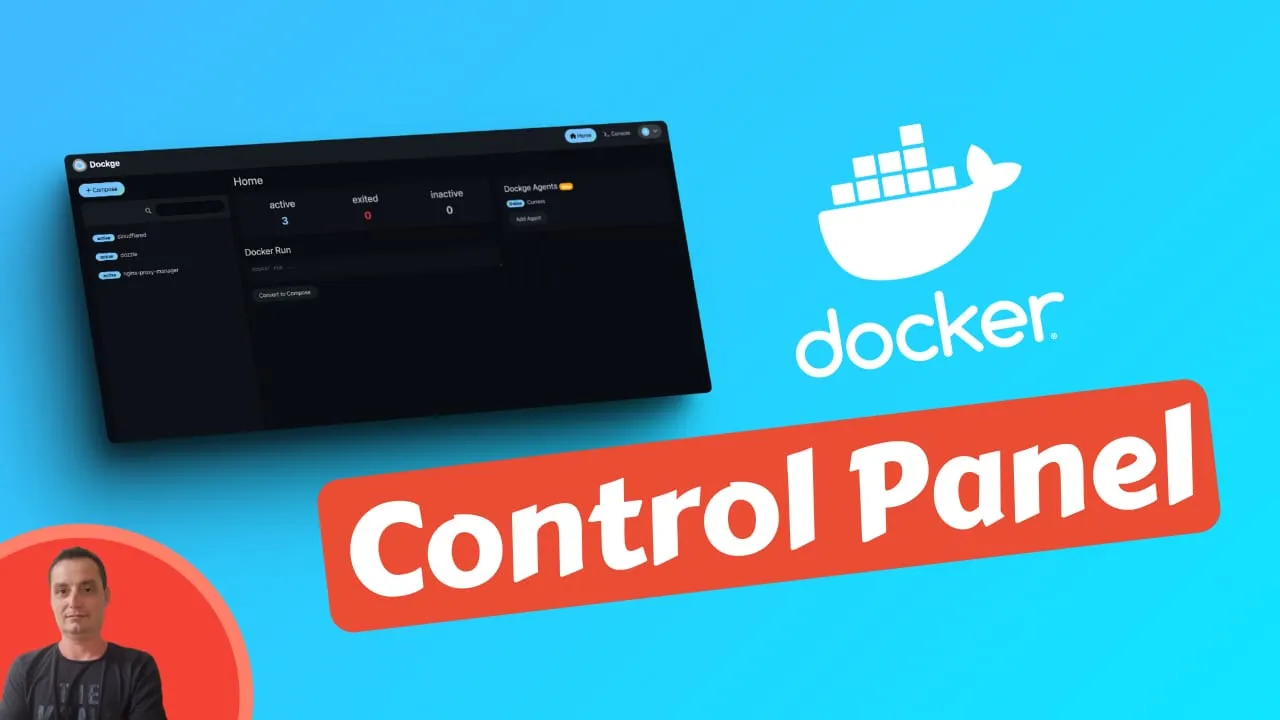
I first wrote about Dockge back in 2024, and two years later it’s still my go-to compose UI. This Dockge install guide covers the current 1.5.x release: the Docker Compose setup, the console security change a lot of people trip over, multi-agent, and how to expose the UI without getting burned. Dockge is a lightweight docker compose manager. You write or paste a compose file, click deploy, and the files stay on disk. Where other Docker management UIs keep piling on features, Dockge stayed focused on that one job.
Dockge is built by Louis Lam, the same developer behind Uptime Kuma. It has more than 24,500 GitHub stars. Multi-agent support landed in v1.4.0 back in January 2024, and v1.5.0 (March 2025) was a security release that disabled the host console by default. Both matter for this install, so I cover them below.
If you’re looking at Docker management UIs in general, I wrote a comparison of Portainer alternatives that covers Dockge alongside Arcane, Dockhand, UsulNet, and Komodo.
Affiliate Disclosure
Some links in this guide are affiliate links. If you buy through them, we may earn a small commission at no extra cost to you. This helps us keep testing and updating these recommendations.
What Dockge does (and doesn’t do)
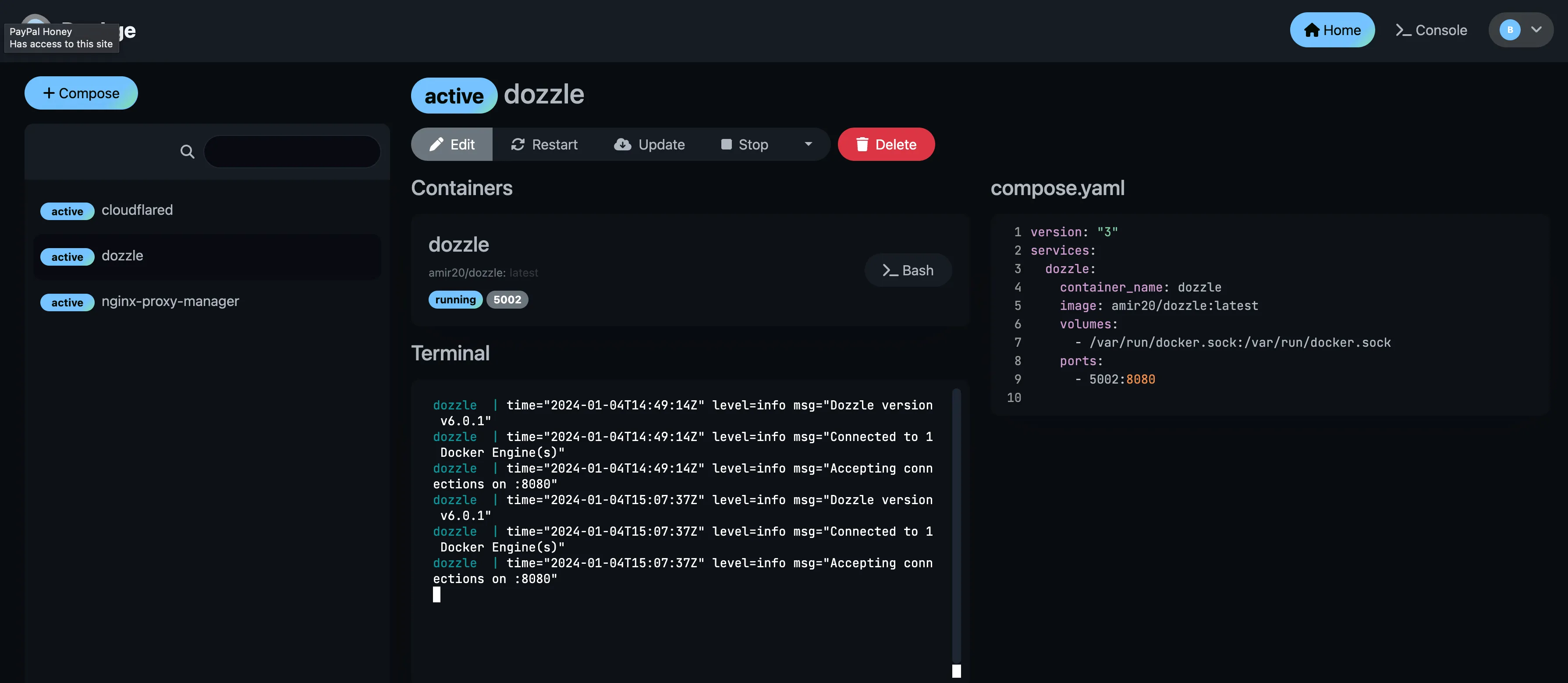
Dockge is a compose-file manager. You write or paste a docker-compose YAML, click deploy, and that’s it. All your compose files stay on disk in the directory you choose. Nothing gets locked in a database. You can still run docker compose up -d from the terminal and Dockge picks up the changes.
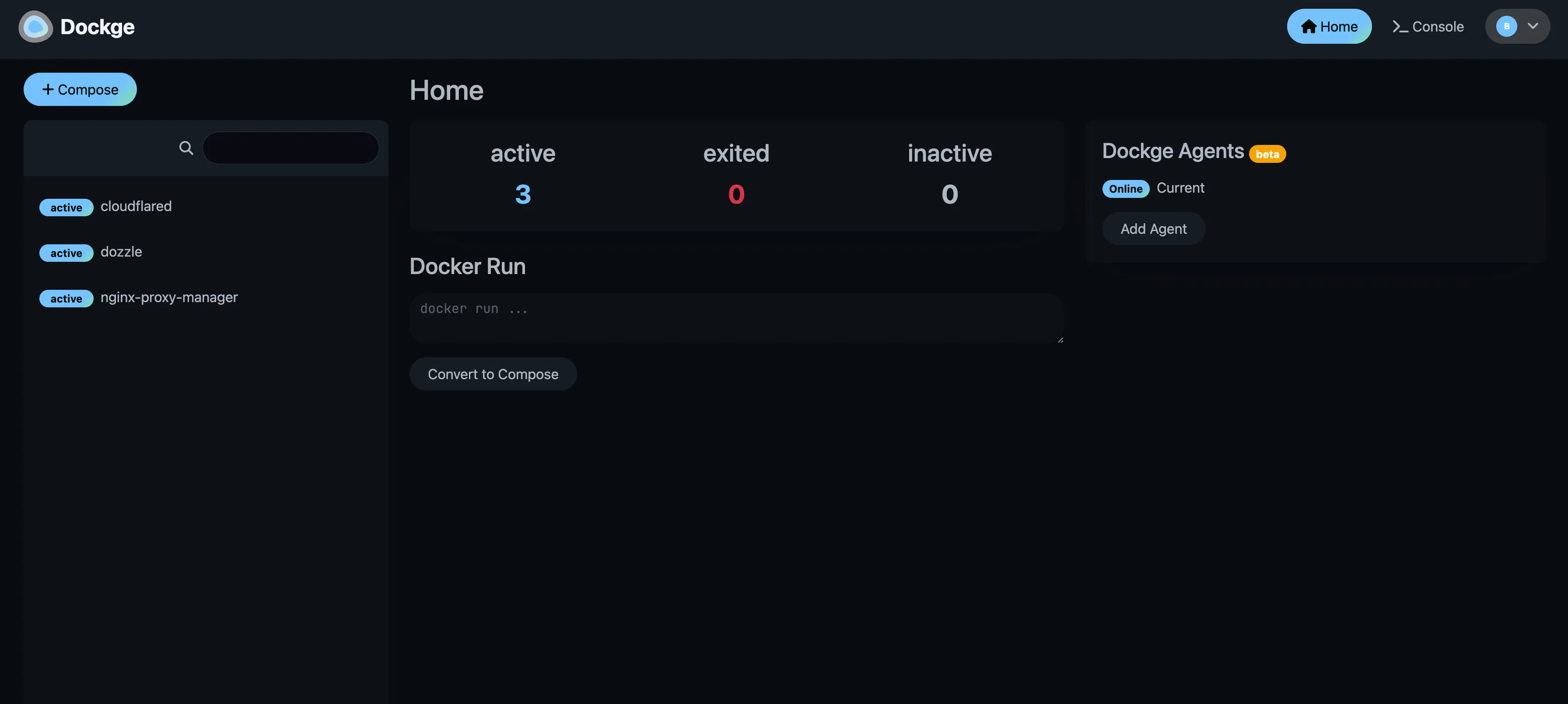
Here’s what you get:
- Create, edit, start, stop, restart, and delete compose stacks from a web UI
- Interactive compose.yaml editor with real-time validation
- Web terminal for exec-ing into running containers (works out of the box)
- Host Console for running commands on the server itself (off by default since 1.5.0, see below)
- Real-time progress tracking for image pulls and stack operations
- Convert docker run commands into compose YAML
- Multi-agent support (since v1.4.0) for managing stacks on remote Docker hosts
- File-based storage, your compose files live on disk in standard format
What Dockge doesn’t have: vulnerability scanning, RBAC, OIDC/SSO, a REST API, GitOps, or auto-updates. If you need any of those, check out Arcane (GitOps + API), Dockhand (security scanning + auto-updates), or UsulNet (everything in one binary). My Arcane vs Dockhand comparison covers the differences between those two.
For monitoring your server resources alongside Dockge, take a look at server monitoring tools.
This video was recorded before Dockge 1.5.0. The host Console button visible in the recording is now hidden unless you enable it.
Dockge in 2026: the state of the project
Before you install anything, set expectations. Dockge is not abandoned, but it is quiet on the stable channel. Here are the facts as of October 2026, pulled from the GitHub API, Docker Hub, and the source tree:
| Date | What happened |
|---|---|
| Jan 2024 | v1.4.0 ships multi-agent support (PR #200) |
| Mar 30, 2025 | v1.5.0 ships. Host console disabled by default, bundled Compose 2.34.0 |
| Mar 31, 2025 | Security advisory GHSA-7vx4-hf96-mqq6 published (fixed in 1.5.0) |
| Dec 2025 | Big batch of merges: CodeMirror editor, global .env editor, themes |
| Jan 2026 | Automated nightly image builds merged (PR #915) |
| Apr 2026 | Resource stats, container buttons, agent friendly names, PUID/PGID merged |
| Oct 2026 | nightly image still rebuilding. 1.6.0 milestone open, not shipped |
So: 24,500+ stars, 850+ forks, last stable release 1.5.0 in March 2025 (about 19 months ago), last repo activity as recent as October 2026, and a nightly tag that gets rebuilt continuously. Development happens in bursts. That’s the honest picture.
My default is still louislam/dockge:1. A slow-moving stable channel is fine for a tool that sits between you and docker compose. If you want a project with faster release momentum, look at Arcane or the other options in the Portainer alternatives write-up.
Version pinning
louislam/dockge:1 currently resolves to 1.5.0-era code. It will move to 1.6.0 when that release ships, which is exactly why the major-version pin is the right one.
Prerequisites
- A Linux server, VPS or local hardware
- Debian/Raspbian Bullseye or newer (Buster is not supported)
- Docker 20+ or Podman (on Debian:
apt install podman-docker) - Architecture: amd64, arm64, or armv7 (Raspberry Pi included)
- No Windows support
Dockge bundles its own Docker client and Compose binary inside the image (1.5.0 ships Compose 2.34.0), so host-side Compose v2 is convenient but not a hard requirement. Docker 20+ on the host is.
On cost: a $5-10/month VPS runs Dockge and a handful of stacks fine. If you’re rethinking rented boxes entirely, a $200-400 mini PC is the one-time-cost alternative and VPS prices jumped across the board in 2026. See what changed and when a mini PC wins. I use Hetzner and Hostinger for VPS hosting.
Hetzner VPS Hostinger VPS DigitalOcean $100 Free Vultr $100 FreeOr use a Mini PC as home server like a compact mini PC such as the ASUS DC510. If your /opt/stacks directory will outgrow the system disk, add a new drive and mount it permanently before you start deploying stacks.
Install Docker
If Docker isn’t installed yet, the official convenience script is the shortest correct path. It detects your distro and sets up the right repository:
curl -fsSL https://get.docker.com | sh
sudo usermod -aG docker $USER
Log out and back in (or run newgrp docker) so the group membership takes effect. Podman users can skip this and install podman-docker instead.
Verify it worked:
docker version && docker compose versionBoth commands should print a version. If docker version says permission denied on /var/run/docker.sock, the group membership hasn’t kicked in yet. Re-login and try again. Full walkthrough with ARM notes: Install Docker & Docker-compose for Ubuntu.
Install Dockge with Docker Compose
I use the README layout: /opt/dockge for the Dockge app itself, /opt/stacks for the compose stacks it manages. Keeping them separate means you can back up or move your stacks without touching Dockge’s own data.
All examples pin louislam/dockge:1. That tracks the latest stable major release without jumping to nightly. If you want the nightly features today, see the nightly channel section.
Quick install
The fastest way to get Dockge running:
mkdir -p /opt/stacks /opt/dockge
cd /opt/dockge

curl https://raw.githubusercontent.com/louislam/dockge/master/compose.yaml --output compose.yaml

docker compose up -d
That downloads the compose file, creates the stack directory, and starts Dockge.
Verify before you open the browser:
docker compose ps        # state should be "running"
docker compose logs --tail=20
Then open http://your-server-ip:5001 and confirm the first-login screen renders. If the container exits immediately, read the logs. If you get port is already allocated, something else owns 5001: ss -tlnp | grep 5001 tells you what.
Custom install
If you want to change the port or stacks directory, use the generator URL:
mkdir -p /opt/stacks /opt/dockge
cd /opt/dockge

curl "https://dockge.kuma.pet/compose.yaml?port=5001&stacksPath=/opt/stacks" --output compose.yaml

docker compose up -d
Change port and stacksPath to whatever you need. Or just create the compose file manually:
services:
  dockge:
    image: louislam/dockge:1
    restart: unless-stopped
    ports:
      - 5001:5001
    volumes:
      - /var/run/docker.sock:/var/run/docker.sock
      - ./data:/app/data
      - /opt/stacks:/opt/stacks
      # Needed if your stacks pull from private registries:
      # - /root/.docker/:/root/.docker
    environment:
      - DOCKGE_STACKS_DIR=/opt/stacks
The commented /root/.docker mount is what lets Dockge authenticate against private registries when it pulls images for your stacks. Uncomment it only if you need it, and remember that it hands Dockge your registry credentials.
Stacks path must match
The left and right side of the stacks volume mount must be identical. If your stacks live at /opt/stacks, mount it as /opt/stacks:/opt/stacks, not /opt/stacks:/some/other/path. Compose files use relative paths, and they break if the paths don’t match inside and outside the container.
Here is where everything lives after this install:
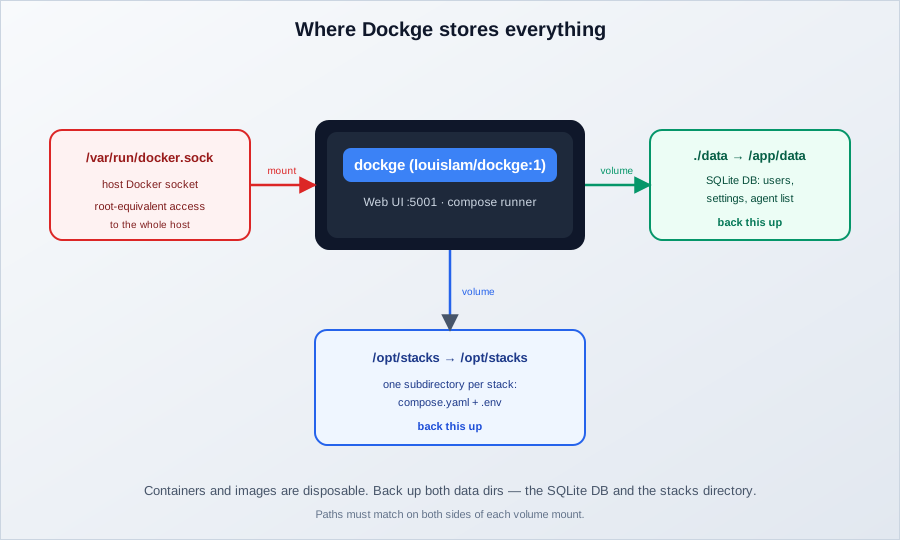
Containers and images are disposable. The two green boxes in that diagram are not. The Backing up Dockge section covers how to protect them.
Stack file ownership (PUID/PGID)
If you want stack files owned by a non-root user, you can set PUID and PGID:
    environment:
      - DOCKGE_STACKS_DIR=/opt/stacks
      # Stack file ownership. Both required, no-op if only one is set.
      - PUID=1000
      - PGID=1000
PUID/PGID is nightly-only
This was merged in April 2026 (PR #83) and is only in the nightly image. On stable 1.5.0 these two variables do nothing. Both must be set for it to work.
First login
Open http://your-server-ip:5001 in your browser. Dockge prompts you to create your admin account on first visit. After that, you land on the main dashboard where you can start deploying compose stacks.
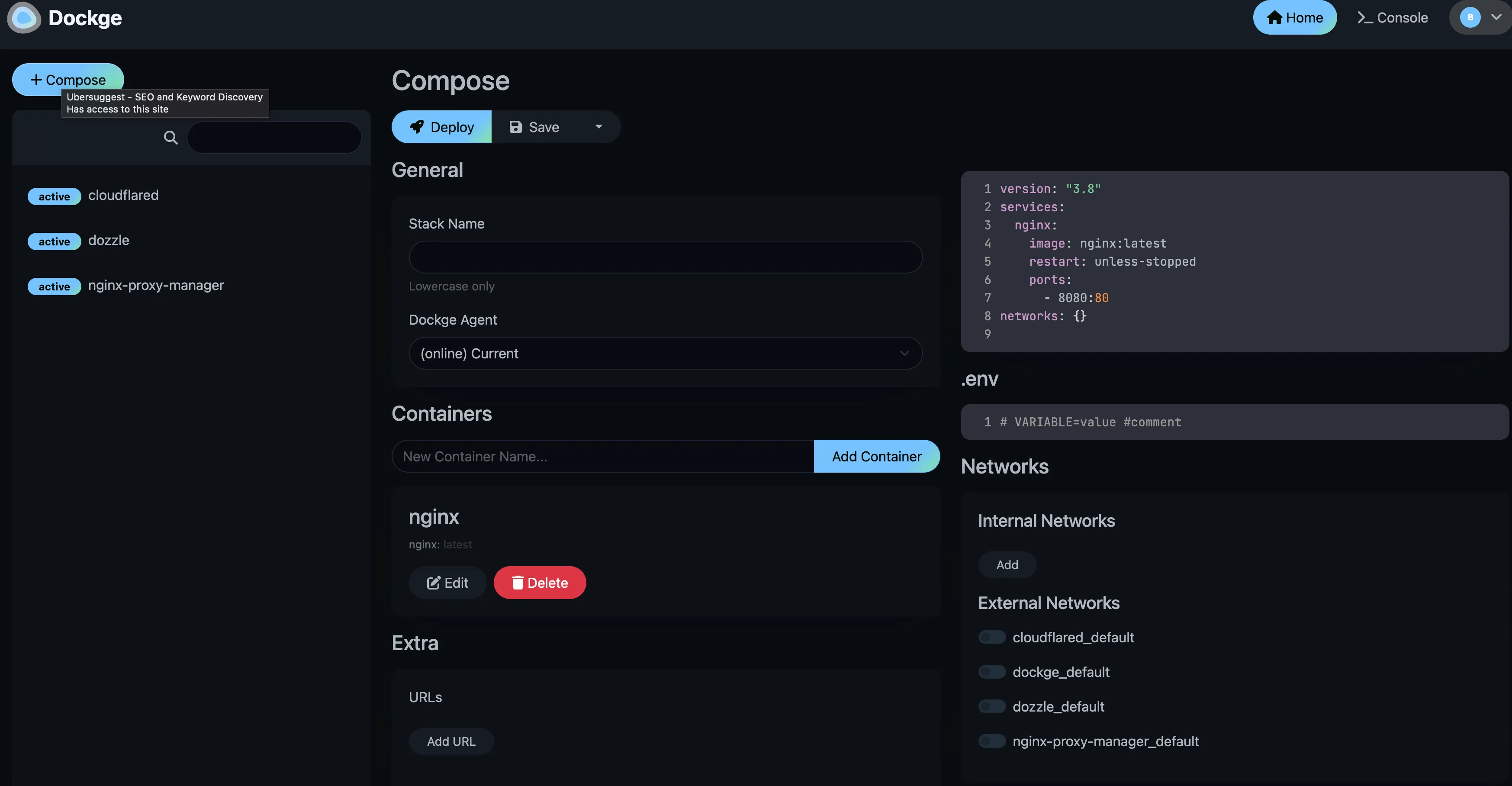
The success gate for this install is simple: an empty stack list and a working “create compose stack” button. If you see that, Dockge is healthy.
Enable the Dockge console (and why it’s off by default)
This is the change that catches people after an upgrade. Since 1.5.0, the Dockge Console is disabled by default. If you upgrade from 1.4.x and the Console tab disappears, that is not a bug.
Two different terminals exist in Dockge and they are not the same thing:
- The container terminal (exec into a running container) works out of the box. No configuration needed.
- The Console is a host shell. It runs commands on the server itself, with a limited command allowlist in the UI.
The Console ships disabled because of GHSA-7vx4-hf96-mqq6, a HIGH severity advisory published March 31, 2025. In Dockge 1.4.2 and older, shell metacharacters (&&, |, backticks) bypassed the Console command allowlist and gave arbitrary command execution as root. It was fixed in 1.5.0 by turning the feature off unless you ask for it.
If you want the Console back on 1.5.0 or newer:
    environment:
      - DOCKGE_STACKS_DIR=/opt/stacks
      # Optional: enable the host Console (terminal) in the UI.
      # Disabled by default since 1.5.0 for security. Requires 1.5.0+.
      - DOCKGE_ENABLE_CONSOLE=true
Recreate the container after editing:
cd /opt/dockge
docker compose up -d
Verify: the Console entry appears in the UI. Remove the variable and recreate again to turn it back off.
This is a root shell
Enabling the Console gives any logged-in Dockge user a root shell on the host. On a single-admin homelab box that is a reasonable trade. On anything shared or internet-facing, leave it off and use SSH instead.
Secure Dockge before exposing it
Dockge mounts /var/run/docker.sock. That socket is root-equivalent on the host. Anyone with a Dockge login can start a privileged container and own the box. Treat the Dockge login like a root password.
docker.sock is root-equivalent
Do not publish port 5001 raw to the internet. On top of that, Docker published ports bypass UFW rules entirely, so your firewall may give you a false sense of safety. See Docker published ports bypass UFW firewall rules for why, and how I secured my Docker server with UFW after the BSI report for the full hardening pass I run on new servers.
Options ranked for a solo operator:
| Option | Effort | Exposure |
|---|---|---|
| LAN / Tailscale / WireGuard only | Low | None public. My default for homelab |
| Cloudflare Tunnel + Cloudflare Access | Low | None public, zero-trust auth in front |
| Reverse proxy + TLS + auth | Medium | Public, gated. Config below |
Raw :5001 on a public IP |
None | Full blast radius. Don’t |
Cloudflare Tunnel plus Cloudflare Access is free at homelab scale. You do not need a paid WAF to run a personal compose UI.
Hardening checklist:
- Put TLS and authentication in front of Dockge (reverse proxy, Tunnel + Access, or VPN)
- Keep the host Console off unless you actually need it
- Keep the
:1image pin and update deliberately, not on a cron - Back up the data dir and the stacks directory (see below)
- Do not reuse your Dockge admin password anywhere else
- If you must expose the port directly, firewall it properly and know that Docker will punch through UFW
Updating Dockge
Pull the latest image and restart:
cd /opt/dockge
docker compose pull && docker compose up -d
Your data and stacks are preserved since they live in mounted volumes. The :1 pin currently tracks 1.5.0-era code, so routine updates stay inside that major version.
Verify the new image is actually running:
docker compose images
docker compose logs --tail=20
Then load the UI. If something breaks, rollback is boring on purpose: docker compose down, re-pin the previous tag or digest in your compose file, docker compose up -d. Your SQLite database and stacks were never touched.
After a few update cycles, old images pile up on disk. Clean up old Docker images after pulling updates to reclaim the space.
Nightly channel
If you want the 1.6.0-era features now (CodeMirror editor, global .env editor, per-stack resource stats), switch to the nightly image:
services:
  dockge:
    image: louislam/dockge:nightly
    restart: unless-stopped
    # ...
Nightly has no stability guarantees
The nightly image is auto-built from master. It can break, and there is no semver contract on it. If you need reproducibility, pin by digest: louislam/dockge@sha256:….
My rule: stay on :1 for anything you care about, run nightly on a lab box if you want to play. If a nightly build eats your compose editor, the rollback is the same as above.
Reverse proxy setup
For SSL and a proper domain, put a reverse proxy in front of Dockge. WebSocket support is required for the real-time updates and terminals. Without it the UI loads and then freezes.
Nginx
server {
    listen 443 ssl http2;
    server_name dockge.yourdomain.com;

    ssl_certificate /path/to/cert.pem;
    ssl_certificate_key /path/to/key.pem;

    location / {
        proxy_pass http://127.0.0.1:5001;
        proxy_http_version 1.1;
        proxy_set_header Upgrade $http_upgrade;
        proxy_set_header Connection "upgrade";
        proxy_set_header Host $host;
        proxy_set_header X-Real-IP $remote_addr;
        proxy_set_header X-Forwarded-For $proxy_add_x_forwarded_for;
        proxy_set_header X-Forwarded-Proto $scheme;
    }
}
Traefik
Add labels to the Dockge service in your compose file:
labels:
  - "traefik.enable=true"
  - "traefik.http.routers.dockge.rule=Host(`dockge.yourdomain.com`)"
  - "traefik.http.routers.dockge.entrypoints=websecure"
  - "traefik.http.routers.dockge.tls.certresolver=letsencrypt"
  - "traefik.http.services.dockge.loadbalancer.server.port=5001"
Full Traefik setup: How to use Traefik as a reverse proxy in Docker. For wildcard SSL certificates with Dockge and Traefik, see Traefik wildcard certificate setup.
Cloudflare Tunnels
Point a tunnel at http://localhost:5001. SSL and WebSocket handling are automatic. No ports to open on your server. This is my preferred setup for homelab use. Put Cloudflare Access in front of it and you get authentication for free at this scale.
Want to keep everything self-hosted? Pangolin is a self-hosted alternative to Cloudflare Tunnels that covers the same ground with your own VPS.
I also have a guide on setting up Dockge with CloudPanel if you’re using that panel.
Verify the proxy before you move on:
curl -I https://dockge.yourdomain.comYou want a 200 (or 302 to login) over TLS. Then open the UI and watch a live log line arrive without refreshing. If logs never update, the WebSocket upgrade headers are missing. If you get a 502, the upstream port is wrong or Dockge isn’t running.
Multi-agent setup
Since v1.4.0 (January 2024), Dockge can manage stacks on remote Docker hosts. You run a Dockge agent on each remote machine, and they all show up in the main Dockge UI. The browser only talks to the primary instance. The primary proxies every action to the agents over their agent connection.
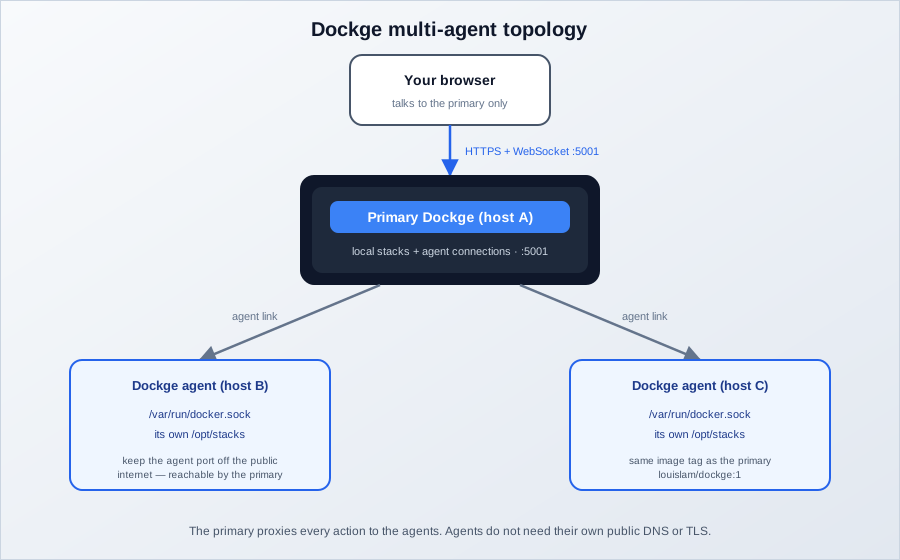
On the remote machine, deploy the agent:
services:
  dockge-agent:
    image: louislam/dockge:1
    restart: unless-stopped
    ports:
      - 5001:5001
    volumes:
      - /var/run/docker.sock:/var/run/docker.sock
      - ./data:/app/data
      - /opt/stacks:/opt/stacks
    environment:
      - DOCKGE_STACKS_DIR=/opt/stacks
Then in your main Dockge instance, go to the agents page and add the remote host by its address and port. Stacks from that host appear in your dashboard alongside your local stacks.
Do not expose agent ports publicly
Agents do not need public DNS or TLS. The primary reaches them, the browser does not. Keep agent ports on a private network, behind a VPN, or firewalled so only the primary can connect.
Verify: remote stacks show up on the primary dashboard after you add the agent, and you can start/stop a stack on the remote host from the primary UI. If the agent is unreachable, check firewall and DNS first. If the agent connects but its stacks are missing, the agent’s DOCKGE_STACKS_DIR is wrong. Same mismatch rule as the primary.
One nightly-only nicety: agent friendly names were merged in April 2026 (PR #414) but are not in stable yet.
Dockge environment variables
Everything Dockge reads from the environment, verified against the source tree (October 2026):
| Variable | What it does | Notes |
|---|---|---|
DOCKGE_STACKS_DIR |
Directory holding your compose stacks, one subdirectory per stack | Set this explicitly. Must match the volume mount |
DOCKGE_PORT |
Port the web UI listens on | Default 5001 |
DOCKGE_HOSTNAME |
Bind address for the web UI | Optional |
DOCKGE_DATA_DIR |
Where the SQLite DB lives (users, settings, agents) | Default /app/data in the container |
DOCKGE_ENABLE_CONSOLE |
Enables the host Console in the UI | Off by default since 1.5.0 |
DOCKGE_HIDE_LOG |
Hides Dockge’s own log output in the UI | Optional |
DOCKGE_SSL_CERT |
TLS certificate path if Dockge terminates TLS itself | Usually leave this to your reverse proxy |
DOCKGE_SSL_KEY |
TLS private key path | Same |
DOCKGE_SSL_KEY_PASSPHRASE |
Passphrase for the TLS key, if it has one | Same |
PUID / PGID |
Owner for stack files on save | Nightly / 1.6.0 only. Both required |
Not in the docs
DOCKGE_ENABLE_CONSOLE and PUID/PGID behave differently between 1.5.0 stable and master. The table flags this per row. There is no DOCKGE_ENDPOINTS variable, despite what some write-ups claim.
These values live in your compose file or a .env next to it. Don’t commit either one to a public repo. The global .env editor that lands in 1.6.0 will make this more convenient, but the rules don’t change: for anything sensitive, see Docker Compose secrets and their secure alternatives.
Dockge vs Portainer and other Docker managers
Dockge vs Portainer is the comparison most people ask about. Portainer is a full Docker management platform: RBAC, teams, registry management, edge agents, a real API. Dockge is a compose file manager with a login. If you need multi-user access with roles, Portainer wins. If you want a thin UI over compose files on one box or a handful of boxes, Dockge is less to run and less to break. They share no state, so there is no migration path between them.
Where Dockge sits next to the newer tools:
| Dockge | Arcane | Dockhand | |
|---|---|---|---|
| Focus | Compose UI | Full Docker mgmt | Security-focused |
| Complexity | Minimal | Medium | Medium |
| Vuln scanning | No | No | Yes |
| OIDC/SSO | No | Yes | Yes |
| GitOps | No | Yes | Webhooks |
| Auto-updates | No | No | Yes + rollback |
| API | No | REST | REST |
| License | MIT | BSD-3-Clause | BSL 1.1 |
Dockge is the right tool when you don’t need all the extras. It fits homelab and single-host setups where you just want to see your stacks, check logs, and restart things when they break. When you need GitOps and API access, Arcane is the better fit.
For a full comparison of all the options, see my Portainer alternatives article.
Backing up Dockge
Two directories hold everything that is hard to replace:
./data(mounted at/app/data): Dockge’s SQLite database, users, settings, agent list/opt/stacks(or whateverDOCKGE_STACKS_DIRpoints at): your compose files and each stack’s.env- Both, on a schedule, off the box
Images are not part of this. They get re-pulled from the registry on restore. Only configs and the Dockge database matter.
A simple pattern that works: tar the two directories on a cron job and ship the tarball to S3-compatible object storage. A few GB of object storage per month is pocket change compared to re-creating a stack set from memory. If you want the bucket to look like a local directory, mount an S3 bucket as a filesystem on a VPS.
Restore is the reverse: copy the directories back, docker compose up -d, and confirm you can still log in. The data directory restores your users and agents, the stacks directory restores your compose files. They restore independently.
Do a test restore once after you set this up. A backup you have never restored is a hope, not a backup.
Troubleshooting
Dockge can't see existing compose stacks
Your stacks need to be in the directory you configured with DOCKGE_STACKS_DIR. Each stack should be in its own subdirectory with a compose file. Dockge only picks up files named compose.yaml, docker-compose.yaml, or docker-compose.yml. Anything else is invisible to it. The directory structure should look like:
/opt/stacks/
├── myapp/
│   └── compose.yaml
├── another-app/
│   └── docker-compose.yml
Also make sure the volume mount paths match on both sides, as mentioned in the install section.
WebSocket errors or UI not updating
Your reverse proxy isn’t forwarding WebSocket connections. For Nginx, you need:
proxy_http_version 1.1;
proxy_set_header Upgrade $http_upgrade;
proxy_set_header Connection "upgrade";
Permission denied on Docker socket
The container needs access to the Docker socket. Make sure the user running Docker has the right permissions:
sudo usermod -aG docker $USERThen log out and back in, or restart the Docker daemon.
Console missing after updating to 1.5.0
By design, not a bug. The host Console is disabled by default since 1.5.0 because of a security advisory. Set DOCKGE_ENABLE_CONSOLE=true if you want it back, as covered in the console section. Container exec terminals still work without any variable.
PUID/PGID seems to do nothing
On stable 1.5.0 it does nothing. That feature is nightly/1.6.0 only, and both variables must be set. See the environment variables table.
Port 5001 already in use
Find the offender:
ss -tlnp | grep 5001Either stop that service or change the left side of the port mapping in Dockge’s compose file, for example 5002:5001, and hit http://your-server-ip:5002 instead.
What’s next for Dockge
These features are merged to master and visible in the nightly image, but not in any stable tag. Master’s package.json still reads 1.5.0, so none of this is released yet:
| Feature | PR | Merged |
|---|---|---|
| CodeMirror YAML editor | #786 | Dec 2025 |
Global .env editor + usage in docker operations |
#387 | Dec 2025 |
| Theme options in settings | #575 | Dec 2025 |
| Terminal clipboard + arrow-key navigation | #822, #637 | Dec 2025 |
| Automated nightly image builds | #915 | Jan 2026 |
| Improved stack list UI with agents | #800 | Apr 2026 |
| PUID/PGID stack file ownership | #83 | Apr 2026 |
| Agent friendly names | #414 | Apr 2026 |
| Container control buttons | #649 | Apr 2026 |
| Per-stack CPU/RAM stats | #700 | Apr 2026 |
Stable is quiet. Development is not dead. The day 1.6.0 ships, :1 users get all of this in one normal update. If you want a Docker management UI with faster release churn right now, the Portainer alternatives comparison covers the active options.
Related articles
Docker management UIs
- Best Portainer alternatives in 2026 - five Docker management UIs compared
- Install Arcane - Docker manager with GitOps and REST API
- Install Dockhand - security-focused Docker manager with scanning
- Arcane vs Dockhand - side-by-side comparison
- Install UsulNet - all-in-one Docker management platform
- Best self-hosted panels - server management panels compared
Running and securing Dockge
- Dockge with CloudPanel - using both tools together
- BSI security report: securing my Docker server - the hardening pass I run on new servers
- Fix Docker bypassing the firewall - why published ports ignore UFW
- Traefik reverse proxy for Docker - reverse proxy setup
- Traefik wildcard certificate - wildcard SSL with Traefik and Dockge
- Pangolin instead of Cloudflare Tunnels - self-hosted tunnel option
Ops and storage
- Best Docker containers for home server - what to run with Dockge
- Clean up Docker images and disk - reclaim space after updates
- Docker Compose secrets - handling sensitive env vars properly
- Mount an S3 bucket as a filesystem - cheap bucket-backed volumes for your stacks
- Server monitoring tools - monitoring your Docker host
- Mini PC as home server - hardware for a home lab