PicoClaw Setup Guide: Go Binary AI Assistant on $10 Hardware
Step-by-step guide to installing PicoClaw on a Linux VPS or single-board computer with MiniMax M2.5, GLM-5, Discord integration, and Brave Search. Covers config, providers, memory, and Docker deployment.
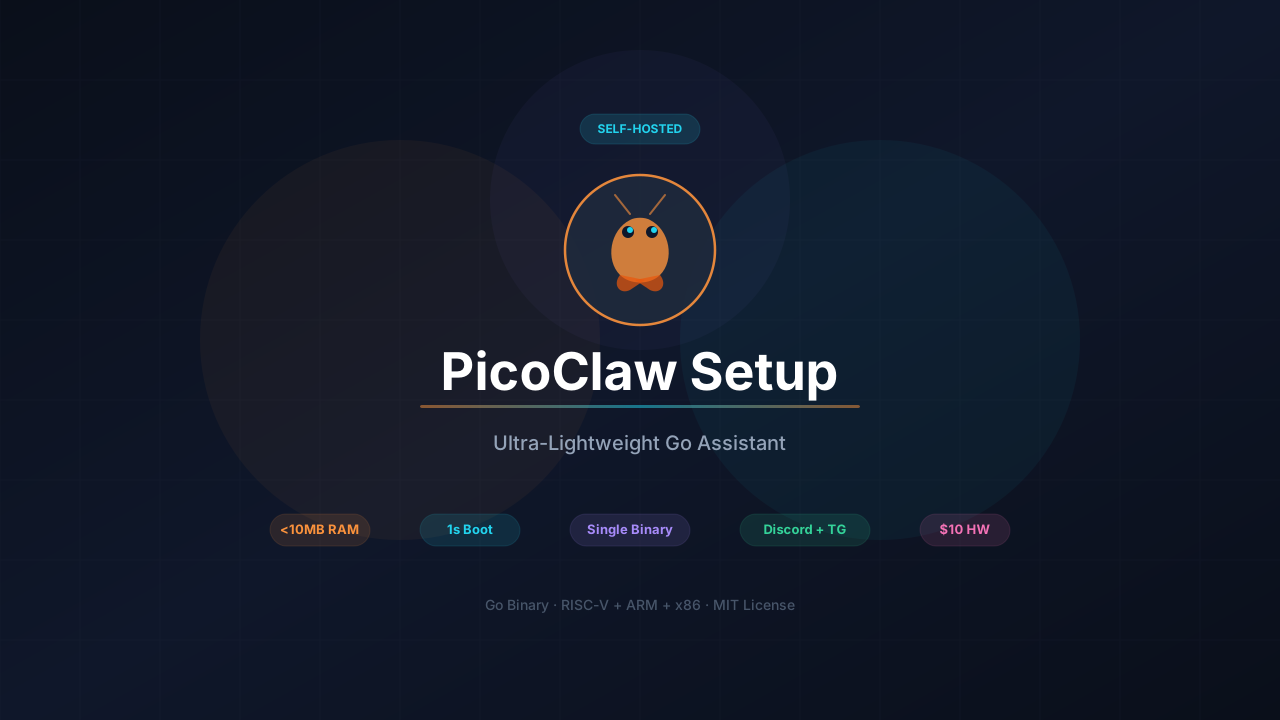
PicoClaw is a Go rewrite of nanobot that compiles down to a single binary, boots in under a second, and uses less than 10MB of RAM. Sipeed, the RISC-V hardware company behind NanoKVM and MaixCAM, built it to run on their $10 LicheeRV-Nano boards. I’ve been running it alongside my nanobot and ZeroClaw setups for the past week, and the resource numbers are real. If you want an AI assistant on hardware that would choke on Python, this is the one to look at.
This guide walks through getting PicoClaw running on a VPS or SBC with MiniMax M2.5 and GLM-5 as your models, Brave Search for web access, and Discord as the chat channel.
PicoClaw GitHubWhat this guide covers
- Installing PicoClaw from source, prebuilt binary, or Docker
- Configuring MiniMax M2.5 and Zhipu GLM-5 as LLM providers
- Setting up Brave Search and DuckDuckGo for web access
- Discord channel integration
- Memory system, workspace files, and scheduled tasks
- Security sandbox and deployment options
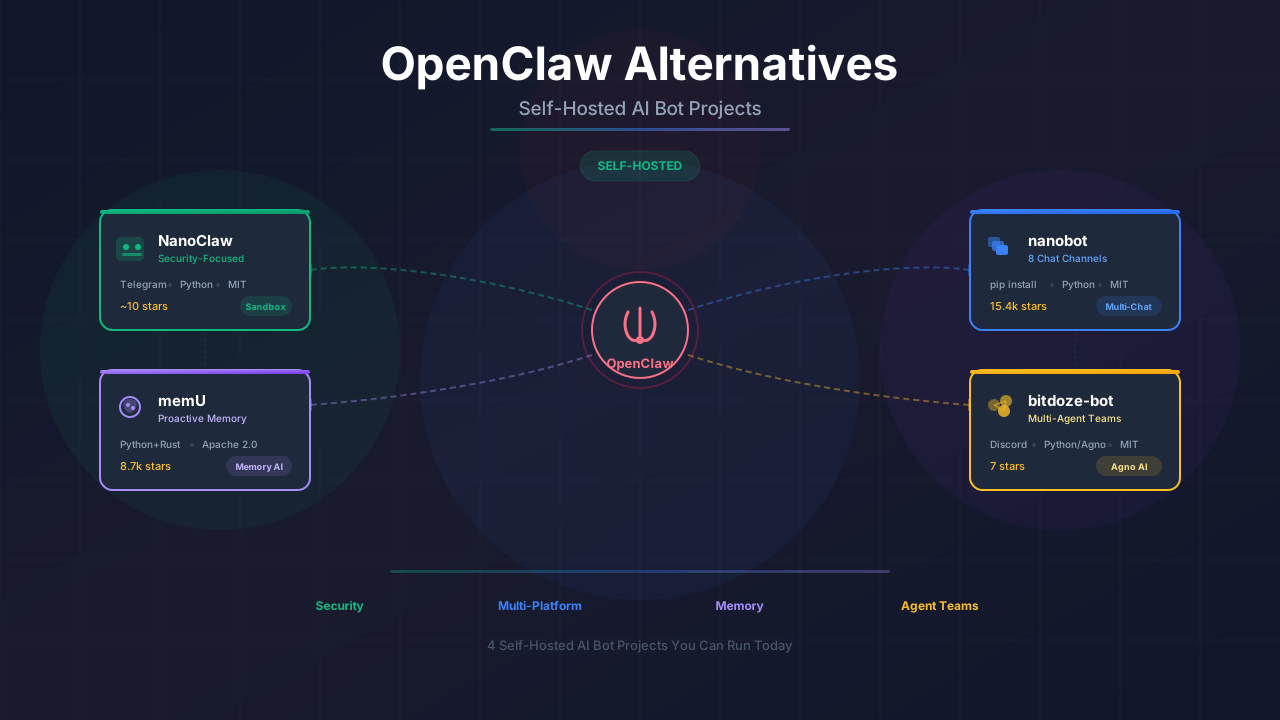
If you’re comparing self-hosted bot options, our OpenClaw alternatives roundup includes PicoClaw alongside nanobot, NanoClaw, memU, IronClaw, and ZeroClaw.
What PicoClaw actually is
PicoClaw is an open-source AI assistant from Sipeed. The project started as a nanobot port to Go, and 95% of the migration was reportedly driven by the AI agent itself with human review. The result is a single binary that runs on RISC-V, ARM, and x86 without any runtime dependencies.
The architecture follows the same pattern as nanobot:
You (Discord / Telegram / DingTalk / LINE / QQ / CLI)
    ↓
PicoClaw Gateway (running on your VPS or SBC)
    ↓
LLM Provider (OpenRouter, Zhipu, Anthropic, OpenAI, Gemini, Groq, DeepSeek)
    ↓
Tools (shell, file access, web search, memory, scheduled tasks)
Messages come in from your chat app, PicoClaw routes them to whatever LLM you configured, and the model can use built-in tools to run shell commands, read and write files, and search the web. Everything except the LLM API calls stays on your machine.
How it compares
| OpenClaw | NanoBot | PicoClaw 🦐 | |
|---|---|---|---|
| Language | TypeScript | Python | Go |
| RAM | > 1GB | > 100MB | < 10MB |
| Startup (0.8GHz) | > 500s | > 30s | < 1s |
| Binary | ~28MB (dist) | N/A (scripts) | Single binary |
| Min hardware cost | Mac Mini $599 | ~$50 SBC | $10 board |
| Channels | 4 platforms | 9 platforms | 5+ platforms |
| Providers | Several | 13+ | 8+ |
| Memory | File + semantic | File-based | File-based workspace |
Why MiniMax M2.5 and GLM-5
Both of these models came out in February 2026 and they work well with a lightweight bot like PicoClaw.
MiniMax M2.5
MiniMax M2.5 is a 230B Mixture-of-Experts model with only 10B active parameters per pass. It runs fast and cheap:
| Spec | Value |
|---|---|
| Architecture | 230B MoE, 10B active |
| Context window | 1M tokens |
| Speed (Lightning) | 100 tokens/sec |
| Cost (Lightning) | $0.30/M input, $2.40/M output |
| SWE-Bench Verified | 80.2% |
| License | Modified MIT (open-source) |
It scores 80.2% on SWE-Bench Verified, matching Claude Opus 4.6 at about 1/20th the cost. The 1M token context window means PicoClaw won’t hit context limits even with long conversations.
GLM-5
GLM-5 from Zhipu AI is a 744B MoE model with 40-44B active parameters:
| Spec | Value |
|---|---|
| Architecture | 744B MoE, ~40B active |
| Context window | 200K tokens |
| SWE-Bench Verified | 77.8% |
| BrowseComp | #1 open-source |
| License | MIT |
GLM-5 ranks first among open-source models on BrowseComp (web search agent tasks), so it’s a solid pick for a bot that does a lot of web lookups. Both models are available through their own APIs and through OpenRouter.
Installation
Three ways to get PicoClaw installed. The prebuilt binary is the fastest path.
Download the binary for your platform from the releases page:
# Example for Linux amd64 — check releases for latest version
wget https://github.com/sipeed/picoclaw/releases/download/v0.1.1/picoclaw-linux-amd64
chmod +x picoclaw-linux-amd64
sudo mv picoclaw-linux-amd64 /usr/local/bin/picoclaw
For ARM64 (Raspberry Pi, phone via Termux):
wget https://github.com/sipeed/picoclaw/releases/download/v0.1.1/picoclaw-linux-arm64
chmod +x picoclaw-linux-arm64
sudo mv picoclaw-linux-arm64 /usr/local/bin/picoclaw
You need Go 1.21+ installed:
git clone https://github.com/sipeed/picoclaw.git
cd picoclaw
make deps
make build
Or build and install in one step:
make installTo cross-compile for multiple platforms:
make build-allgit clone https://github.com/sipeed/picoclaw.git
cd picoclaw
# Set up your config
cp config/config.example.json config/config.json
nano config/config.json
# Start the gateway
docker compose --profile gateway up -d
# Check logs
docker compose logs -f picoclaw-gatewayFor a one-shot query without the gateway:
docker compose run --rm picoclaw-agent -m "What is 2+2?"After installing, initialize the workspace and config:
picoclaw onboardThis creates the ~/.picoclaw/ directory with a default config.json and a workspace/ folder.
Check that everything’s working:
picoclaw statusConfiguring MiniMax M2.5
PicoClaw uses a JSON config file at ~/.picoclaw/config.json. The provider system routes models based on keywords in the model name, similar to how nanobot does it.
Get an API key
- Go to platform.minimax.io (global) or minimaxi.com (mainland China)
- Create an account and generate an API key
MiniMax coding plan — 10% off
MiniMax offers coding plans priced for developer workloads. Get 10% off with our referral link. For details on how GLM-5 and MiniMax M2.5 compare for always-on bots, see our best open source models for OpenClaw breakdown.
Add to config
The simplest way is through OpenRouter, which gives you access to MiniMax alongside hundreds of other models:
{
  "agents": {
    "defaults": {
      "model": "minimax/MiniMax-M2.5",
      "max_tokens": 8192,
      "temperature": 0.7
    }
  },
  "providers": {
    "openrouter": {
      "api_key": "sk-or-your-openrouter-key",
      "api_base": "https://openrouter.ai/api/v1"
    }
  }
}
To hit MiniMax’s API directly, configure a dedicated provider:
{
  "agents": {
    "defaults": {
      "model": "MiniMax-M2.5"
    }
  },
  "providers": {
    "minimax": {
      "api_key": "your-minimax-api-key"
    }
  }
}
For the mainland China endpoint, add "api_base": "https://api.minimaxi.com/v1" to the minimax provider.
Test it
picoclaw agent -m "What's 42 * 17?"If you get a response, MiniMax is working.
Configuring GLM-5 (Zhipu)
PicoClaw has built-in support for Zhipu. The provider routes automatically when it detects glm in the model name.
Get an API key
- Go to bigmodel.cn
- Register and create an API key
Z.AI GLM coding plan — 10% off
Z.AI offers GLM coding plans designed for continuous developer workloads. Use our link for 10% off.
Add to config
{
  "agents": {
    "defaults": {
      "model": "glm-4.7",
      "max_tokens": 8192,
      "temperature": 0.7,
      "max_tool_iterations": 20
    }
  },
  "providers": {
    "zhipu": {
      "api_key": "your-zhipu-api-key",
      "api_base": "https://open.bigmodel.cn/api/paas/v4"
    }
  }
}
Switching between models
Configure both providers and swap the default model whenever you want. Change "model" to "MiniMax-M2.5" or "glm-4.7" and PicoClaw picks the right provider automatically. No restart needed for CLI use. For the gateway, restart with picoclaw gateway.
Setting up web search
PicoClaw supports both Brave Search and DuckDuckGo. Brave gives better results but needs an API key. DuckDuckGo works out of the box with no key required.
Brave Search
- Go to brave.com/search/api
- Sign up for an account
- The free tier gives you 2,000 searches per month
- Generate an API key from the dashboard
Add to config
{
  "tools": {
    "web": {
      "brave": {
        "enabled": true,
        "api_key": "your-brave-search-api-key",
        "max_results": 5
      },
      "duckduckgo": {
        "enabled": true,
        "max_results": 5
      }
    }
  }
}
Keep both enabled. If Brave hits a rate limit or fails, PicoClaw falls back to DuckDuckGo automatically. The max_results setting controls how many results get pulled per search. Five is a reasonable default.
Discord setup
Discord is one of the channels PicoClaw supports alongside Telegram, QQ, DingTalk, and LINE.
Create a Discord bot
- Go to discord.com/developers/applications
- Click New Application, give it a name
- Go to Bot in the left sidebar, click Add Bot
- Copy the bot token
Enable intents
Still in the Bot settings page:
- Scroll down to Privileged Gateway Intents
- Enable MESSAGE CONTENT INTENT (required, or the bot can’t read messages)
- Optionally enable SERVER MEMBERS INTENT if you plan to use allow lists
Get your user ID
- Open Discord Settings → Advanced → enable Developer Mode
- Right-click your avatar anywhere in Discord
- Click Copy User ID
Configure PicoClaw
Add the Discord channel to your ~/.picoclaw/config.json:
{
  "channels": {
    "discord": {
      "enabled": true,
      "token": "YOUR_DISCORD_BOT_TOKEN",
      "allow_from": ["YOUR_USER_ID"]
    }
  }
}
The allow_from array restricts who can talk to the bot. Leave it empty to let anyone in your server use it. For a personal bot, always lock this down to your user ID.
Invite the bot to your server
- In the Discord developer portal, go to OAuth2 → URL Generator
- Under Scopes, check
bot - Under Bot Permissions, check
Send MessagesandRead Message History - Copy the generated URL and open it in your browser
- Select the server to add the bot to
Start the gateway
picoclaw gatewaySend a message in Discord. The bot should respond. If nothing happens, check picoclaw status and look at the gateway logs.
Full config example
Here’s what a complete ~/.picoclaw/config.json looks like with OpenRouter, Zhipu, Brave Search, DuckDuckGo, and Discord:
{
  "agents": {
    "defaults": {
      "workspace": "~/.picoclaw/workspace",
      "model": "minimax/MiniMax-M2.5",
      "max_tokens": 8192,
      "temperature": 0.7,
      "max_tool_iterations": 20
    }
  },
  "providers": {
    "openrouter": {
      "api_key": "sk-or-your-openrouter-key",
      "api_base": "https://openrouter.ai/api/v1"
    },
    "zhipu": {
      "api_key": "your-zhipu-api-key",
      "api_base": "https://open.bigmodel.cn/api/paas/v4"
    },
    "groq": {
      "api_key": "gsk_your-groq-key"
    }
  },
  "channels": {
    "discord": {
      "enabled": true,
      "token": "YOUR_DISCORD_BOT_TOKEN",
      "allow_from": ["YOUR_USER_ID"]
    },
    "telegram": {
      "enabled": false,
      "token": "",
      "allow_from": []
    }
  },
  "tools": {
    "web": {
      "brave": {
        "enabled": true,
        "api_key": "your-brave-search-api-key",
        "max_results": 5
      },
      "duckduckgo": {
        "enabled": true,
        "max_results": 5
      }
    },
    "cron": {
      "exec_timeout_minutes": 5
    }
  },
  "heartbeat": {
    "enabled": true,
    "interval": 30
  }
}
Config settings explained
| Setting | Default | What it does |
|---|---|---|
agents.defaults.model | anthropic/claude-opus-4-5 | Which model handles your messages |
agents.defaults.max_tokens | 8192 | Max tokens per LLM response |
agents.defaults.temperature | 0.7 | Randomness (lower = more deterministic) |
agents.defaults.max_tool_iterations | 20 | How many tool calls per turn before stopping |
agents.defaults.restrict_to_workspace | true | Sandbox all file/shell access to workspace |
heartbeat.interval | 30 | Minutes between periodic task checks |
tools.cron.exec_timeout_minutes | 5 | Timeout for scheduled task execution |
Provider system
PicoClaw routes providers by protocol family. OpenAI-compatible endpoints (OpenRouter, Groq, Zhipu) share one code path. Anthropic has its own. Adding a new OpenAI-compatible provider is mostly a config operation with api_base and api_key.
| Provider | Purpose | Get API key |
|---|---|---|
| OpenRouter | Gateway to any model | openrouter.ai |
| Zhipu | GLM models (direct) | bigmodel.cn |
| Gemini | Google Gemini (direct) | aistudio.google.com |
| Anthropic | Claude (direct) | console.anthropic.com |
| OpenAI | GPT (direct) | platform.openai.com |
| DeepSeek | DeepSeek (direct) | platform.deepseek.com |
| Groq | Fast inference + Whisper voice | console.groq.com |
Free API tiers
OpenRouter gives 200K tokens/month free. Zhipu gives 200K tokens/month free. Brave Search gives 2,000 queries/month free. Groq has a free tier for fast inference. You can get started without spending anything.
Memory and workspace
PicoClaw stores memory and configuration in the workspace directory:
~/.picoclaw/workspace/
├── sessions/          # Conversation sessions and history
├── memory/            # Long-term memory (MEMORY.md)
├── state/             # Persistent state (last channel, etc.)
├── cron/              # Scheduled jobs database
├── skills/            # Custom skills
├── AGENTS.md          # Agent behavior guide
├── HEARTBEAT.md       # Periodic task prompts
├── IDENTITY.md        # Agent identity
├── SOUL.md            # Agent soul / personality
├── TOOLS.md           # Tool descriptions
└── USER.md            # Your personal info and preferences
Tell the bot to remember something and it writes to memory/MEMORY.md. Sessions are stored per conversation. The bootstrap files (SOUL.md, USER.md, etc.) get loaded into the system prompt every time the bot processes a message.
nano ~/.picoclaw/workspace/USER.mdAdd whatever context you want the bot to always have — project details, communication preferences, technical background. This works the same way as nanobot’s workspace files.
Heartbeat and scheduled tasks
PicoClaw can run periodic tasks automatically. Create a HEARTBEAT.md file in your workspace:
# Periodic Tasks

- Check the weather forecast
- Search the web for AI news and summarize
The agent reads this file every 30 minutes (configurable) and runs each task using available tools. For long-running tasks, PicoClaw spawns a subagent that works independently without blocking the main heartbeat loop.
You can also manage one-off and recurring jobs from the CLI:
# Add a reminder
picoclaw cron add --name "morning" --message "Good morning! What's in the news?" --cron "0 9 * * *"

# List all jobs
picoclaw cron list
Jobs are stored in ~/.picoclaw/workspace/cron/ and processed automatically.
Security sandbox
PicoClaw runs in a sandboxed environment by default. With restrict_to_workspace set to true, the agent can only access files and execute commands within the workspace directory.
Protected tools
| Tool | Function | Restriction |
|---|---|---|
read_file | Read files | Workspace only |
write_file | Write files | Workspace only |
list_dir | List directories | Workspace only |
edit_file | Edit files | Workspace only |
append_file | Append to files | Workspace only |
exec | Execute commands | Paths must be within workspace |
Dangerous command blocking
Even with restrict_to_workspace set to false, PicoClaw blocks destructive commands:
rm -rf,del /f,rmdir /s— bulk deletionformat,mkfs,diskpart— disk formattingdd if=— disk imaging- Writing to
/dev/sd[a-z]— direct disk writes shutdown,reboot,poweroff— system shutdown- Fork bombs
The sandbox boundary applies consistently across the main agent, subagents, and heartbeat tasks. There’s no way to bypass it through subagents or scheduled jobs.
Disabling restrictions
If you need the agent to access paths outside the workspace:
{
  "agents": {
    "defaults": {
      "restrict_to_workspace": false
    }
  }
}
Security risk
Disabling workspace restriction lets the agent access any path on your system. Only do this in controlled environments where you trust the model’s output.
Docker deployment
PicoClaw has a Docker Compose setup with separate profiles for agent mode and gateway mode.
Using Docker Compose
git clone https://github.com/sipeed/picoclaw.git
cd picoclaw

# Set up config
cp config/config.example.json config/config.json
nano config/config.json

# Start gateway (long-running)
docker compose --profile gateway up -d

# Check logs
docker compose logs -f picoclaw-gateway

# Stop
docker compose --profile gateway down
Agent mode (one-shot queries)
# Ask a question
docker compose run --rm picoclaw-agent -m "What is 2+2?"

# Interactive mode
docker compose run --rm picoclaw-agent
Rebuild after updates
docker compose --profile gateway build --no-cache
docker compose --profile gateway up -d
The compose file mounts config.json as read-only and uses a named volume for the workspace, so your data survives container restarts.
CLI reference
| Command | What it does |
|---|---|
picoclaw onboard | Initialize config and workspace |
picoclaw agent -m "..." | Send a single message |
picoclaw agent | Interactive chat mode |
picoclaw gateway | Start the gateway (connects to chat channels) |
picoclaw status | Show current status |
picoclaw cron list | List scheduled jobs |
picoclaw cron add | Add a scheduled job |
In interactive mode, type exit, quit, or press Ctrl+D to leave.
VPS hosting
PicoClaw runs on just about anything. The single binary with under 10MB RAM means you can deploy it on boards as cheap as $10. For a VPS, a Hetzner CX22 (2 vCPU, 4GB RAM) at €4.35/month is overkill, but it leaves room for other services.
Hetzner discount
Get €20 credit when you sign up through our referral link. That covers around 4 months of a CX22.
Quick setup on a fresh Ubuntu 24.04 VPS:
ssh root@YOUR_SERVER_IP

# Update system
apt update && apt upgrade -y

# Download binary (check releases for latest version)
wget https://github.com/sipeed/picoclaw/releases/download/v0.1.1/picoclaw-linux-amd64
chmod +x picoclaw-linux-amd64
mv picoclaw-linux-amd64 /usr/local/bin/picoclaw

# Initialize
picoclaw onboard

# Edit config
nano ~/.picoclaw/config.json

# Start gateway in background
nohup picoclaw gateway > /var/log/picoclaw.log 2>&1 &
For a proper daemon setup, create a systemd service:
[Unit]
Description=PicoClaw gateway
After=network.target

[Service]
Type=simple
ExecStart=/usr/local/bin/picoclaw gateway
Restart=always
RestartSec=10

[Install]
WantedBy=multi-user.target
Save to /etc/systemd/system/picoclaw.service, then:
systemctl daemon-reload
systemctl enable picoclaw
systemctl start picoclaw
Running on cheap hardware
PicoClaw was designed for this. A $10 LicheeRV-Nano with Ethernet or WiFi6 can serve as a minimal home assistant. A $30-50 NanoKVM works for automated server maintenance. A MaixCAM handles smart monitoring use cases.
For old Android phones, install Termux and run the ARM64 binary:
pkg install proot wget
wget https://github.com/sipeed/picoclaw/releases/download/v0.1.1/picoclaw-linux-arm64
chmod +x picoclaw-linux-arm64
termux-chroot ./picoclaw-linux-arm64 onboard
If you want to run local models alongside PicoClaw, check our guide on installing Ollama with Docker. PicoClaw works with any OpenAI-compatible endpoint, so pointing it at a local Ollama server is a one-line config change.
PicoClaw vs nanobot vs ZeroClaw
I run all three at this point, so here’s a direct comparison:
| Aspect | PicoClaw 🦐 | nanobot | ZeroClaw 🦀 |
|---|---|---|---|
| Language | Go | Python | Rust |
| RAM usage | < 10MB | ~100MB | < 5MB |
| Startup | < 1s | > 2s | < 10ms |
| Binary | Single Go binary | N/A (scripts) | 3.4MB Rust binary |
| Config format | JSON | JSON | TOML |
| Channel count | 5+ | 9 | 8+ |
| Provider count | 8+ | 13+ | 22+ |
| Memory | File-based workspace | File-based | SQLite hybrid search |
| Security | Workspace sandbox + command blocking | Allowlists | Pairing + sandbox + allowlists |
| Install method | Binary download / make install | pip install | cargo install |
| Setup time | ~2 minutes (binary) | ~5 minutes | ~10 minutes (includes compile) |
PicoClaw is the easiest to deploy: download a binary, run it, done. nanobot has better channel coverage and a bigger community. ZeroClaw has the most capable memory system and the widest provider support. For the nanobot setup guide, see our full walkthrough. For ZeroClaw, see the setup guide.
Frequently asked questions
How much does it cost to run PicoClaw?
VPS: ~$5/month at Hetzner, though PicoClaw can run on hardware as cheap as $10 one-time. MiniMax M2.5 Lightning API costs roughly $1/hour of continuous use, but actual costs are much lower since the bot only calls the API when you message it. Expect $5-20/month for personal use. You can also start with free tiers from OpenRouter and Zhipu.
Can I use PicoClaw without any API costs?
Partially. DuckDuckGo web search works without an API key. For the LLM, you need either a paid API or a local model via an OpenAI-compatible endpoint. Point PicoClaw at a local Ollama server and there are no API bills.
Does PicoClaw work on a Raspberry Pi?
Yes. Download the ARM64 binary and it runs on any Pi with networking. The binary uses under 10MB of RAM at runtime, so even a Pi Zero 2W handles it. PicoClaw was literally designed for $10 single-board computers.
Can multiple people use one PicoClaw instance?
Yes. Add multiple user IDs to allow_from in your channel config. Each person gets their own conversation context through the session system.
What’s the difference between agent and gateway?
picoclaw agent is for direct CLI chat. picoclaw gateway starts the background service that connects to Discord, Telegram, and other chat platforms. For 24/7 use, you want the gateway.
Can I add Telegram alongside Discord?
Yes. Configure both channels in the same config file and the gateway handles them at the same time. For Telegram, you need a bot token from @BotFather — the process is the same as described in the nanobot guide.
Does PicoClaw support voice messages?
Yes, through Groq’s Whisper integration. Configure a Groq API key and Telegram voice messages get automatically transcribed.
If you want to explore other AI coding tools, our AI coding tools comparison covers the current landscape. For MCP basics that work across these assistants, check the MCP introduction for beginners.
This article is also available in Spanish: Guía de Configuración de PicoClaw.