
How to Safely Update CloudPanel
The right way to update CloudPanel: take a consistent VPS snapshot first, then run the update command, then verify everything came back up clean.

2 min read
CloudPanel updates have been safe in my experience. I haven’t had one break anything. But updates can always go wrong, and a VPS snapshot takes 2 minutes. Do the snapshot. If you’re running a production site with orders or live traffic, the snapshot is the thing between you and a bad day.
Check if an update is available
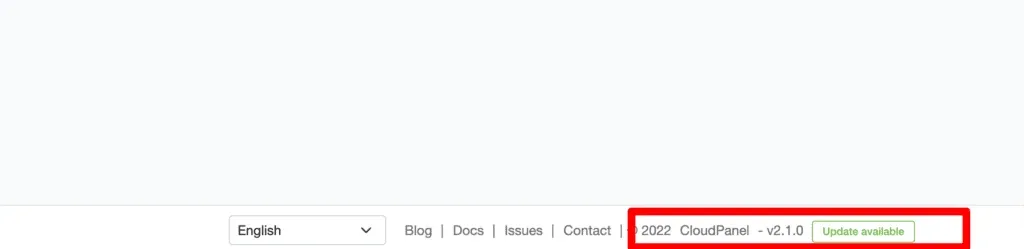
Log into CloudPanel admin and look at the footer. If a new version is out, you’ll see the current version and an “Update Available” notice:
You can review what changed at the CloudPanel Changelog.
Hetzner VPS Hostinger VPS DigitalOcean $100 Free Vultr $100 FreeVPS prices jumped across the board in 2026 — if you’re rethinking a rented box, see what changed and when a mini PC wins.
Wait before updating
Unless a bug is actively hurting you, wait 1-2 weeks after a release before updating production servers. Let others find the edge cases first. You can follow the CloudPanel changelog and the CloudPanel forum to see if anyone reports problems with a new version.
Step 1: Take a consistent snapshot
Stop your services first so the snapshot captures a clean state:
sudo service nginx stop
sudo service mysql stop
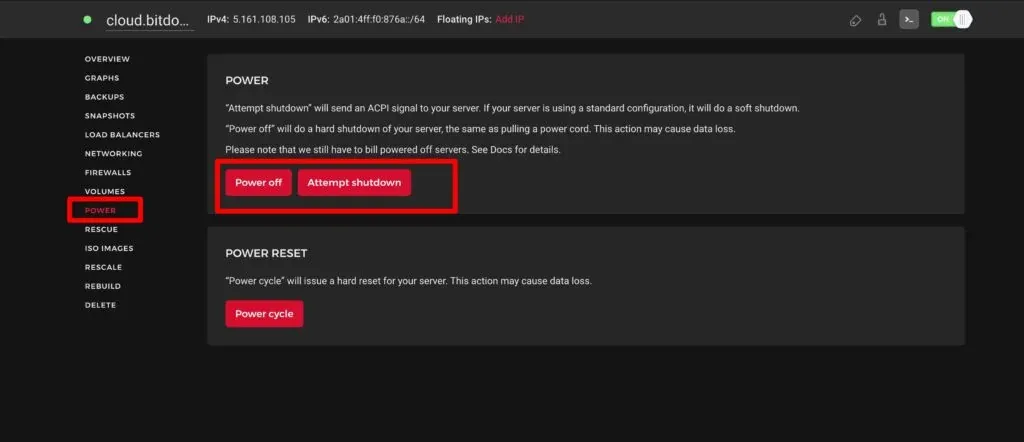
Power off the VPS from the Hetzner console:
Go to Snapshots → Take snapshot:
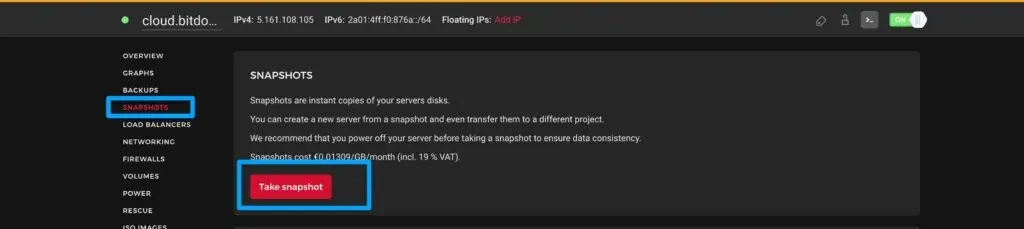
Power the server back on. You now have a restore point.
Step 2: Run the CloudPanel update
SSH into the server and run:
clp-updateThat’s it — one command updates CloudPanel to the latest release.
Step 3: Reboot
sudo service nginx stop
sudo service mysql stop
reboot
Step 4: Verify
After reboot, check the CloudPanel admin → Instance tab. All services should show as running:
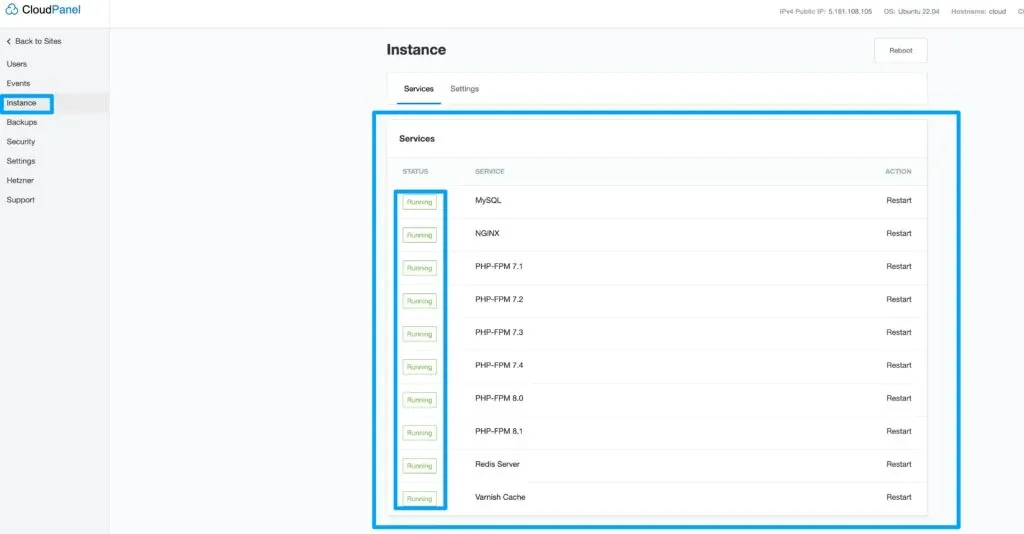
Then open one of your sites in a browser and confirm it loads. Check the site error logs in CloudPanel if anything looks off.
If something went wrong and you need to roll back, restore the snapshot from Hetzner’s console and your server will be back to its pre-update state.
Also update the OS
While you’re doing maintenance, update Ubuntu packages too:
sudo apt update && sudo apt upgrade -yCloudPanel currently supports Ubuntu 24.04, Ubuntu 22.04, Debian 12, and Debian 11. If you’re still on Ubuntu 22.04, it will keep working, but new installs should use 24.04.
Don’t run do-release-upgrade to switch Ubuntu versions on a live CloudPanel server. If you need to move to a newer OS, set up a fresh server and migrate your sites over.