How to Self-Host Stirling PDF
Learn how to self-host Stirling PDF, a PDF manipulation tool for merging, splitting, converting, and processing PDFs. Complete guide with Docker, Traefik, and Dokploy setup options.
PDF documents are commonly used for professional communication, legal documentation, and information sharing. Manipulating these files often requires expensive software licenses or online services that may compromise document privacy and security.
Stirling PDF is a self-hosted application that processes, edits, and manages PDF documents. This solution provides PDF manipulation without software subscriptions while keeping documents on your own infrastructure.
What is Stirling PDF?
Stirling PDF is an open-source web application for PDF manipulation tools. It provides an alternative to commercial software and online services.
Key Capabilities of Stirling PDF
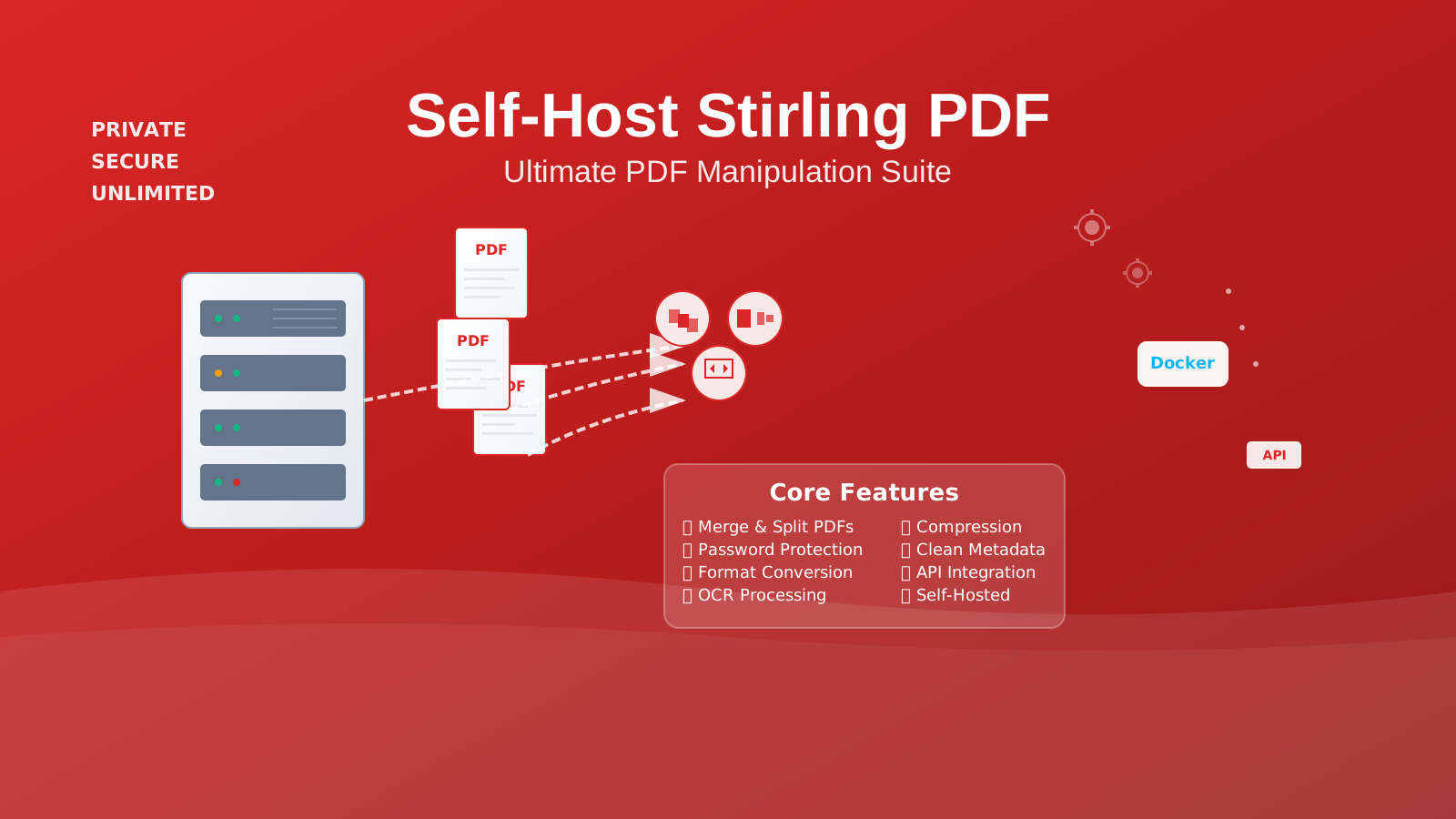
- Document Management: Merge, split, rotate, and reorganize PDF pages
- Format Conversion: Convert PDFs to/from images, Word documents, Excel files, and more
- Security Operations: Add or remove passwords, digital signatures, and encryption
- Compression & Optimization: Reduce file sizes while maintaining quality
- OCR Integration: Extract text from scanned documents and images
- Metadata Management: Clean, edit, or remove document metadata
- Batch Processing: Handle multiple documents simultaneously
- API Access: Integrate with automation workflows and other applications
How Stirling PDF Works
| Component | Function | Benefit |
|---|---|---|
| Web Interface | Browser-based GUI | Access from any device |
| Processing Engine | Java-based PDF manipulation core | Reliable operations |
| API Layer | RESTful endpoints for automation | Integration with workflows |
| Storage System | Temporary file handling | Document processing |
Stirling PDF is an open-source project. View documentation and contribute at their GitHub repository and project website.
For a comprehensive list of useful applications, check out our guide on Docker containers for home servers.
Prerequisites
Before deploying your Stirling PDF instance, ensure you have the necessary infrastructure components configured:
Resource Requirements
Stirling PDF performs intensive document processing operations. Adequate system resources ensure optimal performance, especially when handling large files or batch operations.
-
Server Infrastructure: A reliable hosting platform for your Stirling PDF deployment:
- Minimum Specifications: 2 CPU cores, 4GB RAM, 50GB storage
- Recommended Configuration: 4+ CPU cores, 8GB+ RAM, 100GB+ SSD storage
- Cloud Provider: Hetzner VPS offers excellent performance-to-price ratio
- Local Alternative: Mini PC as Home Server for on-premise deployment
-
Reverse Proxy Configuration (for secure HTTPS access):
- Traefik with Docker: Follow our comprehensive guide: How to Use Traefik as A Reverse Proxy in Docker
- Advanced Setup: Implement SSL with our tutorial: Traefik FREE Let’s Encrypt Wildcard Certificate With CloudFlare Provider
-
Container Orchestration Tools:
- Docker Engine: Latest stable release with container runtime
- Docker Compose: Multi-container application management
- Dockge (recommended): Streamlined container management interface - see: Dockge - Portainer Alternative for Docker Management
-
Network Configuration:
- Domain Access: Subdomain pointing to your server (e.g.,
pdf.yourdomain.com) - Firewall Rules: Appropriate port access and security configurations
- Domain Access: Subdomain pointing to your server (e.g.,
Setup Option 1: Docker & Docker Compose (Standalone)
This approach provides a straightforward deployment using Docker containers, ideal for users seeking a simple, self-contained Stirling PDF installation without external dependencies.
Step 1: Create Project Structure
Establish a dedicated directory hierarchy for your Stirling PDF deployment:
mkdir -p ~/stirling-pdf && cd ~/stirling-pdfStep 2: Configure Docker Compose
Create a docker-compose.yml file:
version: '3.8'

services:
  stirling-pdf:
    image: stirlingtools/stirling-pdf:latest
    container_name: stirling-pdf
    ports:
      - "8080:8080"
    volumes:
      - ./tessdata:/usr/share/tessdata    # OCR language data
      - ./configs:/configs                # Configuration files
      - ./logs:/logs                      # Application logs
      - ./custom-files:/customFiles       # Custom templates/files
    environment:
      - DOCKER_ENABLE_SECURITY=false     # Disable for standalone use
      - INSTALL_BOOK_AND_ADVANCED_HTML_OPS=true
      - LANGS=en_US                      # Set your preferred language
    restart: unless-stopped
    healthcheck:
      test: ["CMD", "curl", "-f", "http://localhost:8080/api/v1/info/status"]
      interval: 30s
      timeout: 10s
      retries: 3
      start_period: 40s
Step 3: Initialize Directory Structure
Create the necessary directories for Stirling PDF operation:
mkdir -p tessdata configs logs custom-filesStep 4: Configure OCR Support (Optional)
Download language packs for OCR:
# Download common language data for Tesseract OCR
wget -P tessdata/ https://github.com/tesseract-ocr/tessdata/raw/main/eng.traineddata
wget -P tessdata/ https://github.com/tesseract-ocr/tessdata/raw/main/fra.traineddata
wget -P tessdata/ https://github.com/tesseract-ocr/tessdata/raw/main/deu.traineddata
Step 5: Deploy Stirling PDF
Launch your Stirling PDF instance using Docker Compose:
docker compose up -dStep 6: Verify Installation
Access your Stirling PDF instance and verify functionality:
- Local Access: Navigate to
http://localhost:8080 - Network Access: Visit
http://your-server-ip:8080 - API Documentation: Check
http://localhost:8080/swagger-ui/index.html
Installation Complete
Your Stirling PDF instance is operational. You can process PDF documents.
Setup Option 2: Traefik & Dockge Integration
This setup integrates Stirling PDF with Traefik reverse proxy and Dockge management interface for HTTPS encryption and SSL certificates.
Prerequisites
This configuration requires a properly configured Traefik and Dockge environment. Follow our Traefik Wildcard Certificate guide for setup instructions.
Step 1: Verify Network Configuration
Ensure your Traefik network is properly configured:
# Verify existing network
docker network ls | grep traefik-net

# Create if necessary
docker network create traefik-net
Step 2: Docker Compose Configuration
Create a docker-compose.yml with Traefik integration:
version: '3.8'

networks:
  traefik-net:
    external: true

services:
  stirling-pdf:
    image: stirlingtools/stirling-pdf:latest
    container_name: stirling-pdf
    volumes:
      - ./tessdata:/usr/share/tessdata
      - ./configs:/configs
      - ./logs:/logs
      - ./custom-files:/customFiles
    environment:
      - DOCKER_ENABLE_SECURITY=true      # Enhanced security for public access
      - INSTALL_BOOK_AND_ADVANCED_HTML_OPS=true
      - LANGS=en_US,fr_FR,de_DE          # Multiple language support
      - SYSTEM_ROOTURIPATH=/              # Root path configuration
      - UI_APPNAME=Stirling PDF           # Custom application name
      - UI_HOMEDESCRIPTION=Your Private PDF Manipulation Suite
      - SECURITY_ENABLELOGIN=false       # Disable if using external auth
      - SYSTEM_MAXFILESIZE=2000          # Max file size in MB
    networks:
      - traefik-net
    restart: unless-stopped
    labels:
      - "traefik.enable=true"
      - "traefik.http.routers.stirling-pdf.rule=Host(`pdf.yourdomain.com`)"
      - "traefik.http.routers.stirling-pdf.entrypoints=https"
      - "traefik.http.routers.stirling-pdf.tls=true"
      - "traefik.http.routers.stirling-pdf.tls.certresolver=letsencrypt"
      - "traefik.http.services.stirling-pdf.loadbalancer.server.port=8080"
      # Security headers
      - "traefik.http.routers.stirling-pdf.middlewares=stirling-pdf-headers"
      - "traefik.http.middlewares.stirling-pdf-headers.headers.accesscontrolallowmethods=GET,OPTIONS,PUT,POST,DELETE,PATCH"
      - "traefik.http.middlewares.stirling-pdf-headers.headers.accesscontrolmaxage=100"
      - "traefik.http.middlewares.stirling-pdf-headers.headers.addvaryheader=true"
    healthcheck:
      test: ["CMD", "curl", "-f", "http://localhost:8080/api/v1/info/status"]
      interval: 30s
      timeout: 10s
      retries: 3
      start_period: 60s
Step 3: Deploy via Dockge
- Access Dockge Interface: Navigate to your Dockge dashboard (typically
https://dockge.yourdomain.com) - Create New Stack: Click “New Stack” and name it “stirling-pdf”
- Configure Composition: Paste the Docker Compose configuration
- Customize Settings: Update the domain name in Traefik labels to match your setup
- Deploy Stack: Click deploy and monitor the deployment logs
Step 4: DNS Configuration
Configure your domain’s DNS records to point to your server:
| Record Type | Name | Value | TTL |
|---|---|---|---|
| A | your-server-ip | 300 | |
| CNAME | yourdomain.com | 300 |
Step 5: Verify HTTPS Access
After DNS propagation (typically 5-15 minutes), verify secure access:
- HTTPS Access:
https://pdf.yourdomain.com - SSL Certificate: Verify the Let’s Encrypt certificate is properly installed
- API Documentation:
https://pdf.yourdomain.com/swagger-ui/index.html
DNS Propagation Time
DNS changes may take 5-15 minutes to propagate globally.
Setup Option 3: Dokploy Deployment
Dokploy provides a graphical interface with pre-configured templates and automated SSL certificate management. This option works well for users who prefer graphical interfaces over command-line operations.
Step 1: Dokploy Platform Setup
If not already installed, set up Dokploy on your server using our comprehensive guide: Dokploy Installation and Configuration Tutorial.
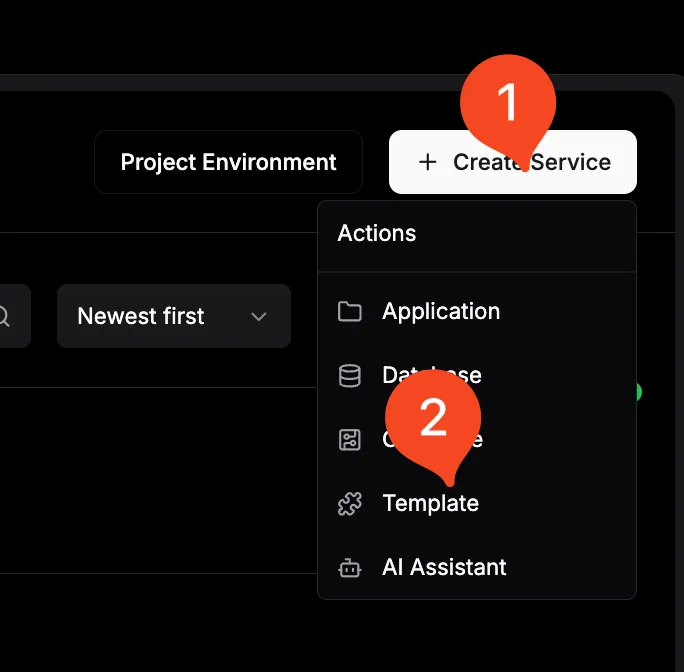
Step 2: Create Stirling PDF Project
- Access Dokploy Dashboard: Navigate to your Dokploy interface
- Create New Project: Click “New Project” and name it “stirling-pdf”
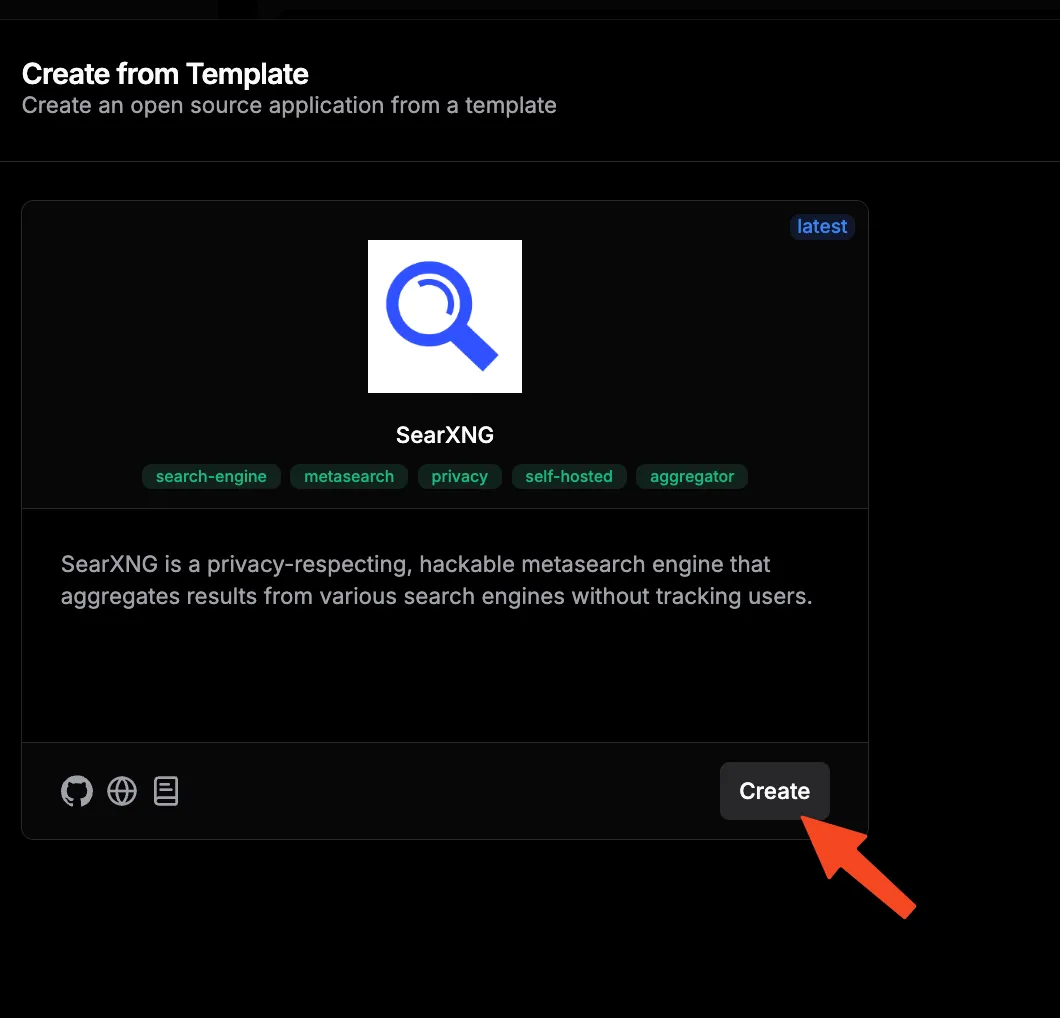
- Select Template: Choose “StarlingPDF” from the available templates or create a custom compose application
Step 3: Environment Variables Configuration
Configure the environment variables in Dokploy:
| Variable | Value | Description |
|---|---|---|
DOCKER_ENABLE_SECURITY | true | Enable security features |
INSTALL_BOOK_AND_ADVANCED_HTML_OPS | true | Install additional PDF operations |
LANGS | en_US,fr_FR,de_DE | OCR and UI language support |
SYSTEM_MAXFILESIZE | 2000 | Maximum file size in MB |
UI_APPNAME | Stirling PDF | Application name |
UI_HOMEDESCRIPTION | Private PDF Suite | Homepage description |
SECURITY_ENABLELOGIN | false | Disable for external authentication |
Use this in Dokploy configuration:
environment:
  - DOCKER_ENABLE_SECURITY=${DOCKER_ENABLE_SECURITY}
  - INSTALL_BOOK_AND_ADVANCED_HTML_OPS=${INSTALL_BOOK_AND_ADVANCED_HTML_OPS}
  - LANGS=${LANGS}
  - SYSTEM_MAXFILESIZE=${SYSTEM_MAXFILESIZE}
  - UI_APPNAME=${UI_APPNAME}
  - UI_HOMEDESCRIPTION=${UI_HOMEDESCRIPTION}
  - SECURITY_ENABLELOGIN=${SECURITY_ENABLELOGIN}
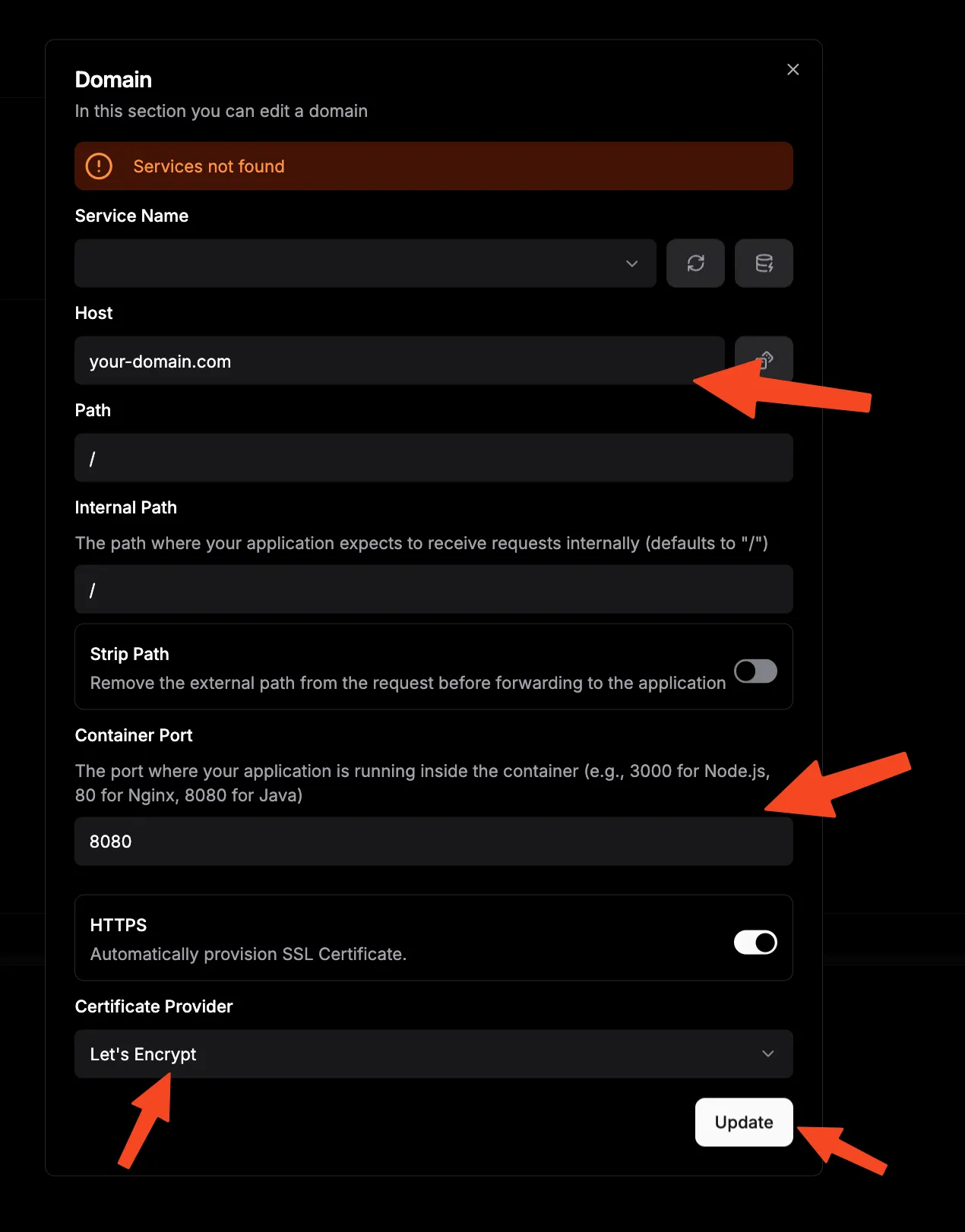
Step 4: Domain and SSL Configuration
- Navigate to Domains: Go to the “Domains” section in your Dokploy project
- Add Domain: Enter your desired domain:
pdf.yourdomain.com - Enable SSL: Toggle SSL/TLS certificate generation
- Configure Auto-Renewal: Enable automatic certificate renewal
- Set Redirects: Configure HTTP to HTTPS redirection
Step 5: Deploy and Monitor
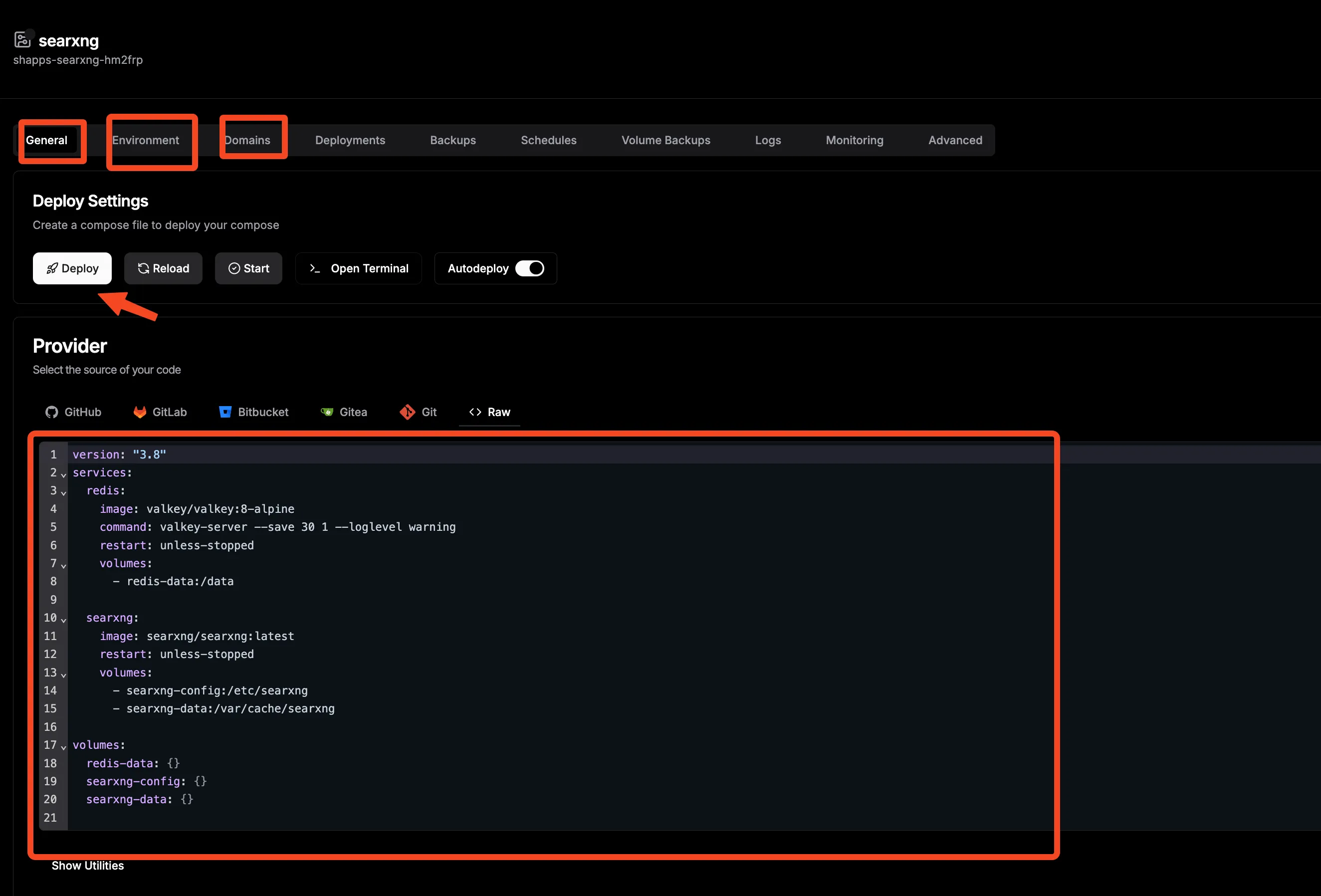
- Deploy Application: Click the “Deploy” button in Dokploy
- Monitor Logs: Watch the deployment process
- Verify Status: Check application health
- Test Functionality: Access your instance and test PDF operations
Advanced Configuration and Feature Optimization
Once Stirling PDF is operational, you can enhance its capabilities through configuration options.
Document Processing Configuration
Customize Stirling PDF through environment variables:
- File Size Limits: Configure maximum upload sizes
- OCR Languages: Install Tesseract language packs for multi-language support
- Security Settings: Enable authentication, rate limiting, and access controls
- UI Customization: Customize logos and descriptions
- Feature Toggles: Enable or disable specific functionality
- Performance Tuning: Adjust memory allocation and processing parameters
OCR and Language Support
Enhance OCR capabilities by installing language data:
| Language | Code | Download Command |
|---|---|---|
| English | eng | wget -P tessdata/ https://github.com/tesseract-ocr/tessdata/raw/main/eng.traineddata |
| Spanish | spa | wget -P tessdata/ https://github.com/tesseract-ocr/tessdata/raw/main/spa.traineddata |
| French | fra | wget -P tessdata/ https://github.com/tesseract-ocr/tessdata/raw/main/fra.traineddata |
| German | deu | wget -P tessdata/ https://github.com/tesseract-ocr/tessdata/raw/main/deu.traineddata |
| Chinese Simplified | chi_sim | wget -P tessdata/ https://github.com/tesseract-ocr/tessdata/raw/main/chi_sim.traineddata |
Security and Access Control
Configure security measures for production deployments:
environment:
  - DOCKER_ENABLE_SECURITY=true
  - SECURITY_ENABLELOGIN=true
  - SECURITY_LOGINATTEMPTSLIMIT=5
  - SECURITY_LOGINRESETTIMEDURATION=120  # minutes
  - SYSTEM_ROOTURIPATH=/
  - SECURITY_OAUTH2_AUTOCREATEUSER=true
API Integration and Automation
Stirling PDF provides a comprehensive REST API for automation and integration:
Common API Endpoints:
- Document Conversion:
/api/v1/convert/pdf-to-img - Security Operations:
/api/v1/security/add-password - Merge Operations:
/api/v1/general/merge-pdfs - Compression:
/api/v1/general/compress-pdf
Example API Usage:
# Convert PDF to images
curl -X POST "https://pdf.yourdomain.com/api/v1/convert/pdf-to-img" \
  -H "Content-Type: multipart/form-data" \
  -F "fileInput=@document.pdf" \
  -F "imageFormat=PNG" \
  -F "singleOrMultiple=multiple"
Performance Optimization and Resource Management
System Resource Configuration
Optimize Stirling PDF performance based on server specifications:
| Server Specs | Recommended Settings | Use Case |
|---|---|---|
| 2 CPU / 4GB RAM | SYSTEM_MAXFILESIZE=500 | Light personal use |
| 4 CPU / 8GB RAM | SYSTEM_MAXFILESIZE=1000 | Small team/office |
| 8+ CPU / 16GB+ RAM | SYSTEM_MAXFILESIZE=2000 | Heavy processing/enterprise |
Docker Resource Limits
Configure container resource limits:
services:
  stirling-pdf:
    # ... other configuration
    deploy:
      resources:
        limits:
          cpus: '2.0'
          memory: 4G
        reservations:
          cpus: '1.0'
          memory: 2G
Monitoring and Health Checks
Implement monitoring for production environments:
healthcheck:
  test: ["CMD-SHELL", "curl -f http://localhost:8080/api/v1/info/status || exit 1"]
  interval: 30s
  timeout: 10s
  retries: 3
  start_period: 60s
Integration with Workflow Automation
n8n Integration
Connect Stirling PDF with n8n for document processing workflows:
Example Workflow:
- Trigger: Email attachment received
- Process: Remove password protection via Stirling PDF API
- Convert: Transform to searchable PDF with OCR
- Store: Save to document management system
API-First Architecture Benefits
- Automated Processing: Integrate with CI/CD pipelines for document automation
- Batch Operations: Process multiple documents programmatically
- Custom Applications: Build tools using Stirling PDF as backend
- Workflow Integration: Connect with tools like n8n, Zapier, or custom scripts
- Monitoring Integration: Track processing metrics
Security Best Practices and Data Protection
Access Control Implementation
Security Considerations
When exposing Stirling PDF to the internet, implement security measures to protect documents.
Implement security for production deployments:
| Security Layer | Implementation | Purpose |
|---|---|---|
| Authentication | Built-in login system | User access control |
| Authorization | Role-based permissions | Feature-specific access |
| Network Security | Reverse proxy + SSL | Encrypted communication |
| Rate Limiting | Request throttling | Prevent abuse |
| File Validation | Content type checking | Malicious file protection |
Data Privacy Measures
- Temporary File Cleanup: Automatic deletion of processed files after operations
- Memory Management: Secure handling of document content in memory
- Log Sanitization: Removal of sensitive information from application logs
- Network Isolation: Container networking restrictions for security
- Backup Encryption: Encrypted storage of configuration and temporary files
Production Security Configuration
environment:
  - DOCKER_ENABLE_SECURITY=true
  - SECURITY_ENABLELOGIN=true
  - SECURITY_LOGINATTEMPTSLIMIT=5
  - SECURITY_LOGINRESETTIMEDURATION=120
  - SYSTEM_MAXFILESIZE=1000
  - SYSTEM_MAXREQUESTSIZE=1000
  - UI_HOMEDESCRIPTION=Secure PDF Processing Suite
Troubleshooting Common Issues
Performance and Memory Issues
Symptoms: Slow processing, out-of-memory errors, or container crashes
Solutions:
- Increase Container Memory: Adjust Docker memory limits
- Optimize File Sizes: Reduce maximum file size limits
- Monitor Resource Usage: Use
docker statsto analyze consumption - Process Queue Management: Implement batch processing for large files
OCR Processing Problems
Symptoms: OCR operations failing or producing poor results
Solutions:
- Verify Language Data: Ensure proper Tesseract language files are installed
- Check Image Quality: Higher resolution images produce better OCR results
- Language Configuration: Verify correct language codes in environment variables
- Memory Allocation: OCR operations require adequate RAM for processing
API Integration Difficulties
Symptoms: API calls failing or returning unexpected results
Solutions:
- Authentication Check: Verify API authentication if enabled
- Content-Type Headers: Ensure correct multipart/form-data headers
- File Size Limits: Check file size restrictions in API calls
- Error Response Analysis: Review detailed error messages from API responses
SSL Certificate Issues
Symptoms: HTTPS errors, certificate warnings, or connection failures
Solutions:
- DNS Verification: Confirm domain points to correct server IP
- Certificate Renewal: Check automatic certificate renewal configuration
- Traefik Logs: Review Traefik logs for certificate generation errors
- Network Connectivity: Verify Let’s Encrypt can reach your server
Debugging
Enable debug logging by setting SYSTEM_LOGFILE=/logs/stirling.log to capture detailed application behavior.
Maintenance and Updates
Regular Maintenance Tasks
- Weekly: Monitor disk usage and clean temporary files
- Monthly: Update Docker images for security patches and new features
- Quarterly: Review and optimize system performance settings
- Annually: Audit security configurations and access permissions
Update Procedures
Keep your Stirling PDF instance current with regular updates:
# Update Docker images
cd ~/stirling-pdf
docker compose pull
docker compose up -d

# Clean up old images
docker image prune -f
Backup Strategies
Protect your Stirling PDF configuration and data:
# Backup configuration and data
tar -czf stirling-pdf-backup-$(date +%Y%m%d).tar.gz \
  configs/ tessdata/ custom-files/ docker-compose.yml

# Automated backup script
#!/bin/bash
BACKUP_DIR="/backups/stirling-pdf"
mkdir -p $BACKUP_DIR
tar -czf "$BACKUP_DIR/stirling-pdf-$(date +%Y%m%d-%H%M%S).tar.gz" \
  configs/ tessdata/ custom-files/ docker-compose.yml
Conclusion
Self-hosting Stirling PDF gives you control over document processing. By implementing your own PDF manipulation suite, you achieve:
- Complete Data Control: Your sensitive documents never leave your infrastructure
- Cost-Effective Solution: Eliminate expensive software licenses and subscription fees
- Unlimited Processing: No file size restrictions or usage limits imposed by third parties
- Custom Integration: API-first architecture enables workflow automation
- Enhanced Security: Multi-layered security controls protect your document processing
- Scalable Performance: Adjust resources based on your processing needs
Whether you choose the Docker deployment, the Traefik integration, or the Dokploy approach, Stirling PDF provides a foundation for private document processing. Self-hosting delivers benefits in privacy protection, cost savings, and processing flexibility.
As document security becomes increasingly important in professional environments, tools like Stirling PDF demonstrate that you can maintain full control without sacrificing functionality. Transform your document workflow and experience private PDF processing.
Start Your Stirling PDF JourneyExplore our guides on Docker container orchestration, Traefik reverse proxy configuration, and Dokploy platform management.