Beszel & Uptime Kuma on Dokploy: Server Monitoring Guide
Set up Beszel and Uptime Kuma on Dokploy for complete Docker server monitoring: resource metrics, uptime checks, SMTP alerts, plus Beszel 0.19 and Kuma v2 tips.

Updated Published 31 min read
Beszel and Uptime Kuma are the two self-hosted tools I put on every Dokploy server. The split is simple: Beszel watches what’s happening inside the machine (CPU, memory, disk, Docker containers), while Uptime Kuma verifies your services actually work from the outside. Internal health and external availability fail in different ways, so you need both.
This guide walks through deploying both on Dokploy, wiring email alerts through Brevo, and connecting the two tools into a dead man’s switch so your monitoring can’t fail silently.
Verified with Beszel 0.19.0 and Uptime Kuma 2.5.4, September 2026. Both tools moved fast since this guide was first published, so version-specific steps (image tags, agent env vars, backups) are current as of that date.
More Monitoring Options
For a broader look at monitoring options like Netdata or Prometheus + Grafana, see our server monitoring tools guide.
About the Video
The video was recorded before Uptime Kuma v2 and Beszel 0.19. The written steps below are the current ones. In particular, the image tags and agent environment variables changed.
Understanding key monitoring metrics
Good self-hosted server monitoring starts with knowing which numbers matter. Everything else in this guide exists to collect these and to tell you when they go wrong:
| Metric Category | What to Monitor | Why It Matters |
|---|---|---|
| CPU | Load average (1, 5, 15 min), per-core usage, system/user time | Identifies processing bottlenecks |
| Memory | Available RAM, swap usage, buffer/cache utilization | Prevents out-of-memory crashes |
| Disk | Space usage, inode utilization, I/O wait times | Avoids disk-full failures |
| Network | Bandwidth, packet loss, latency, connection states | Detects network issues early |
In a container environment you care about these same metrics at two levels: the host (is the machine healthy?) and the container (is this app eating more RAM than it should?). Beszel handles both levels, and recent versions added more specialized collectors on top (S.M.A.R.T. disk health, systemd services, GPU usage, ZFS pools), which we’ll flag where they matter.
Why Beszel and Uptime Kuma?
| Tool | Purpose | What It Monitors |
|---|---|---|
| Beszel | Internal resource monitoring | CPU, memory, disk, network, Docker containers, systemd, SMART, GPU, ZFS |
| Uptime Kuma | External availability checks | HTTP/HTTPS endpoints, DNS, TCP ports, SSL certificates, push heartbeats |
Beszel: the lightweight monitoring hub
Beszel is a lightweight monitoring solution built around a hub and a small agent. Unlike Prometheus + Grafana, there’s no time-series database to operate and no dashboards to build. Current versions (0.19.x) give you:
- Real-time server metrics with historical graphs
- Docker container statistics, plus a containers page with status, health, and logs (0.14+)
- Container health alerts that include log excerpts (0.19+)
- S.M.A.R.T. disk health monitoring with failure alerts (0.15+)
- systemd service monitoring, including alerts for failed services (0.16+)
- GPU monitoring (NVIDIA via NVML, Apple Silicon, Intel Arc) (0.16-0.18+)
- ZFS pool and dataset monitoring (0.19+)
- Alert quiet hours to stop night-time noise (0.17+)
- Multi-server support from a single hub, with public key or token auth
- Update-available notice in the UI (0.18.5+)
- MIT licensed, fully free self-hosted
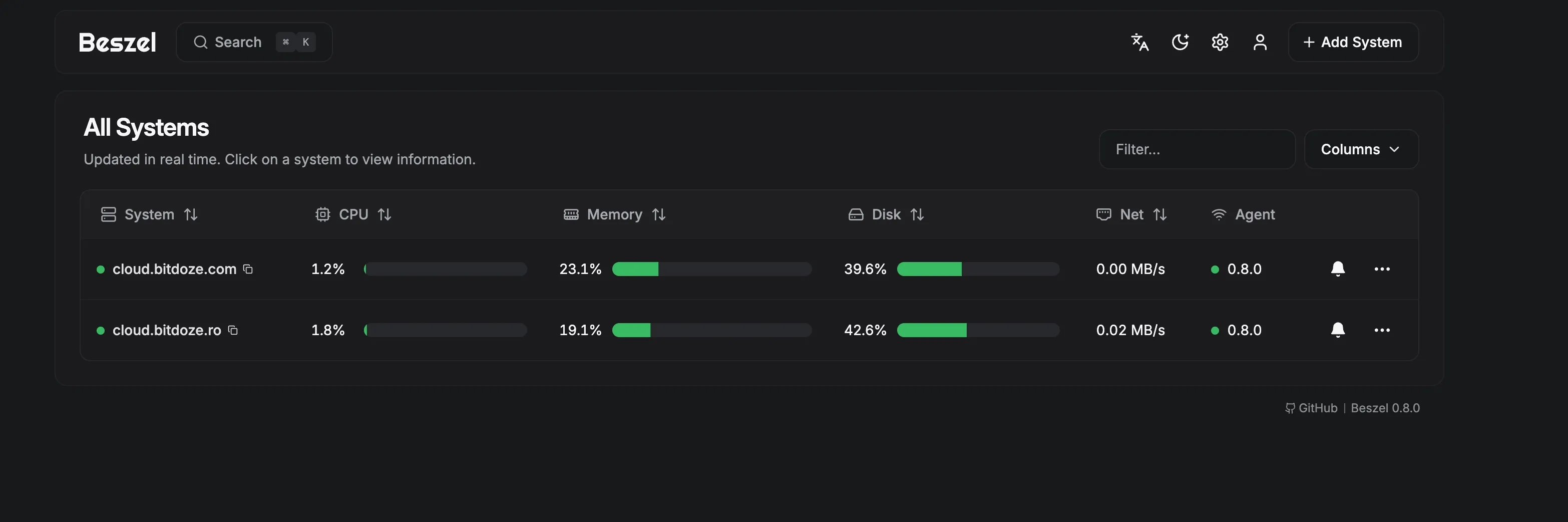
Here’s the Beszel interface showing a monitored system:
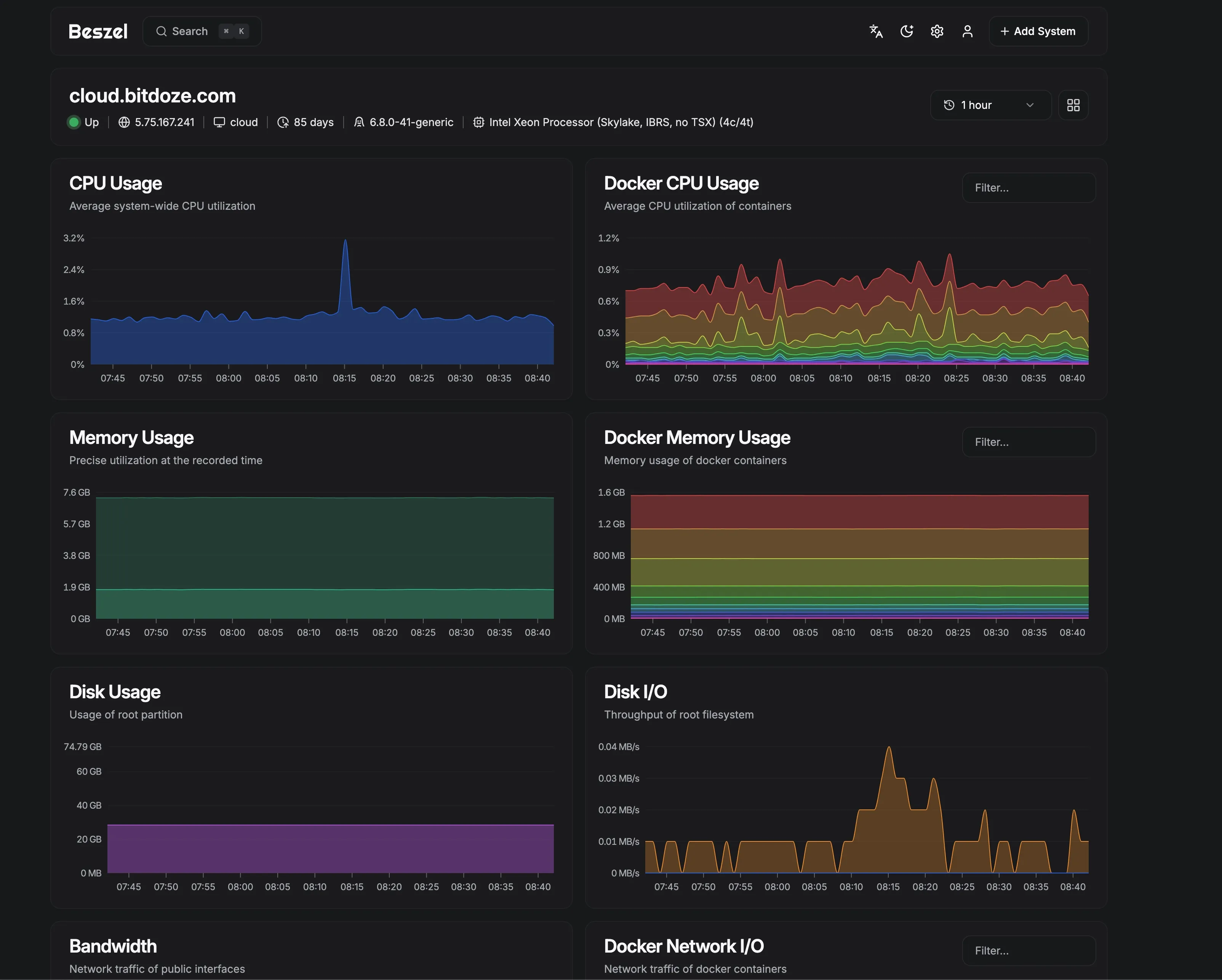
And the historical graphs for CPU, memory, and network:
Screenshots
These screenshots are from an earlier Beszel version. The 0.19 UI looks fresher and has more pages (containers, SMART, services), but the layout concept is the same.
Beszel at a glance:
| Feature | Description | Benefit |
|---|---|---|
| Lightweight | Minimal resource usage (expect ~50-100MB RAM for the hub, ~10-20MB per agent) | Fine for small servers |
| Docker integration | Per-container CPU, memory, network, plus health and logs | Container tracking without extra tools |
| Secure agent comms | SSH key auth by default, optional outbound WebSocket with tokens | No open management ports needed |
| Multi-server | One hub monitors all your agents | Centralized monitoring |
| Historical data | Metrics stored with graphs over time | Trend analysis |
Uptime Kuma: uptime monitoring from the outside
Uptime Kuma checks whether your websites and services are reachable from the outside world and notifies you when they aren’t. Version 2 is the current stable line (v2.0 shipped October 2025), and it covers:
- HTTP(s), keyword, JSON Query, and Websocket-upgrade monitors
- TCP, Ping, DNS, Steam, and Docker container checks
- NTP monitors (added in v2.5.0)
- Push monitors: a URL your apps can ping as a heartbeat
- SSL certificate expiration monitoring
- Public status pages
- 90+ notification integrations
- Maintenance windows
Why use both together
Internal health does not equal external availability:
- Your server can show 10% CPU usage while your site serves 502s because a container crashed
- A container can be “running” but returning errors on every request
- Your disk can be 95% full and Uptime Kuma won’t notice until the app falls over
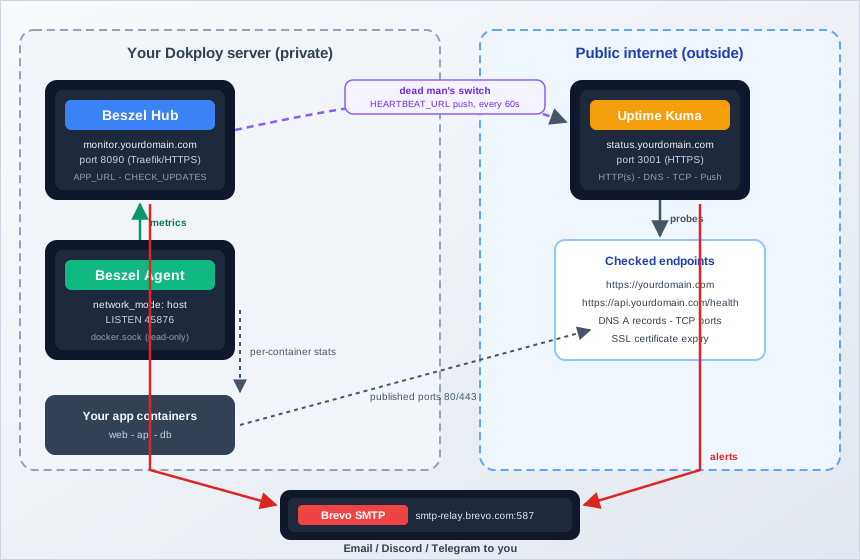
Beszel tells you what’s happening inside. Uptime Kuma tells you what users experience. Together, here’s the full picture:
How this stack compares
| Feature | Beszel + Uptime Kuma | Prometheus/Grafana | Netdata |
|---|---|---|---|
| Scalability | Small-Medium | Enterprise-grade | Medium |
| Setup Complexity | Low | High | Low |
| Customization | Moderate | Extensive | Moderate |
| Resource Usage | Very low (expect ~200-400MB total; check with docker stats) |
Moderate-High | Low |
| Learning Curve | Gentle | Steep | Moderate |
| Uptime Monitoring | Built-in (Kuma) | Requires additional setup | Limited |
| Status Pages | Yes (Kuma) | Manual setup needed | No |
For 1-10 servers this combination is hard to beat. Past 20 servers or if you need custom recording rules and long retention, Prometheus + Grafana earns its complexity.
Prerequisites
- A VPS or server: 1GB RAM works, 2GB is comfortable for this stack plus your apps
- Dokploy installed: follow the Dokploy installation guide if you haven’t already
- Two DNS subdomains: for example
monitor.yourdomain.com(Beszel) andstatus.yourdomain.com(Uptime Kuma) - Ports: 80/443 open for the dashboards; port 45876 also reachable from the hub if you’ll monitor remote agents the classic way (explained in Part 2)
- SSH access: for the verification commands in this guide
- Email service (optional): a Brevo account for alerts; the free tier gives 300 emails/day
Part 2 assumes you’re comfortable deploying a raw compose file; if not, read how to deploy a Docker Compose app in Dokploy first.
Running this on a home server instead of a VPS? A compact box like the GMKtec M5 Ultra is enough for this monitoring stack plus a handful of containers.
Try Hetzner Cloud Now Try Hostinger VPSVPS prices jumped across the board in 2026 — if you’re rethinking a rented box, see what changed and when a mini PC wins.
Part 1: Deploying the Beszel hub
Beszel has two components:
- The Hub: the web dashboard where you view all metrics and configure alerts
- The Agent: a tiny container installed on every server you want to monitor
Step 1: Create the service from the Dokploy template, then fix the tag
- In your Dokploy dashboard, go to your project and click Create Services → Template
- Search for Beszel and select it
- Before deploying, open the compose editor and change the image tag. At the time of writing, the Dokploy blueprint pins
henrygd/beszel:0.10.2, which is several minor versions behind. Set it tohenrygd/beszel:0.19(floats within the 0.19 line) orhenrygd/beszel:0.19.0(pinned) - Choose the server you want the hub on and deploy
Don't Use :latest
Avoid the latest tag entirely. Beszel has shipped broken latest pushes before (a bad push in the 0.18 cycle made agents report as down). Pin to a minor line like 0.19 so updates are deliberate.
For redundancy, deploy the hub on a different node from your main production apps. If the production server dies, the hub survives to tell you about it.
Step 2: Configure the domain
- Go to the Domains tab of the Beszel service
- Add your domain (for example
monitor.yourdomain.com) - Set the port to 8090 (Beszel’s default UI port)
- Enable HTTPS (Let’s Encrypt) and create the domain
If you use Cloudflare, create an A record pointing monitor to your server IP and set SSL/TLS mode to Full, not Flexible.
Step 3: Set essential environment variables
Two environment variables are worth setting on the hub:
APP_URL=https://monitor.yourdomain.com
CHECK_UPDATES=trueAPP_URLmakes alert emails contain real links instead oflocalhostCHECK_UPDATES(Beszel 0.18.5+) shows an update-available notice in the UI when a new version exists
Add them in the Environment tab, save, and redeploy. We’ll add a third variable later, HEARTBEAT_URL, in the dead man’s switch section.
Step 4: Initial setup and verify
- Visit
https://monitor.yourdomain.comand create your admin account with a strong password - You’ll land on an empty dashboard
Verify from your server:
docker exec beszel /beszel health --url http://localhost:8090Exit code 0 means the hub is healthy. From outside:
curl -fsSIL https://monitor.yourdomain.com | head -1Expect HTTP/2 200 or a redirect to /login. Anything else (timeouts, 5xx) means the domain or Traefik config is wrong.
Failure mode to know about: if the dashboard looks nothing like the current Beszel docs, the blueprint tag won. Check what actually deployed:
docker ps --format '{{.Names}}\t{{.Image}}' | grep beszelIf it says 0.10.2 or older, fix the tag in Dokploy and redeploy.
Part 2: Installing the Beszel agent
Now install the agent on every server you want to monitor, starting with the hub’s own machine.
Step 1: Get the agent config from the hub
- In the Beszel hub, click Add System
- Name it (for example
main-dokploy-node) - Copy the Docker Compose snippet the dialog generates. It contains the unique public KEY for this system
Depending on your hub version, the snippet may also include HUB_URL and TOKEN for outbound WebSocket mode (more on that below). The classic shape looks like this:
services:
  beszel-agent:
    image: henrygd/beszel-agent
    container_name: beszel-agent
    restart: unless-stopped
    network_mode: host
    volumes:
      - ./beszel_agent_data:/var/lib/beszel-agent
      - /var/run/docker.sock:/var/run/docker.sock:ro
    environment:
      LISTEN: 45876
      KEY: "<public key from the Add System dialog>"
Three details matter here:
LISTENis the current variable name. Older guides (and old copies of this article) usedPORT, which stopped being the correct name around v0.12. If your agent ignores its port config, this is why.network_mode: hostis required so the agent can read the host’s real network interface stats.- The Docker socket is mounted read-only (
:ro) so the agent can list containers and pull per-container stats without being able to mutate Docker.
Step 2: Deploy the agent via Dokploy
- In Dokploy, create a new service of type Compose (not Template)
- Name it
beszel-agent - Paste the compose config you copied from the hub
- Deploy
Port Must Match
The default agent port is 45876. If you change LISTEN, the hub needs to know. Keep the default and there is nothing extra to configure.
Step 3: Verify the connection
- The system icon in the hub turns green within about a minute
- CPU, memory, disk, and Docker stats start populating graphs
- The agent ships a health check too:
docker exec beszel-agent /agent healthExit code 0 means the agent process is healthy. If the icon stays red, jump to the troubleshooting checklist below.
Two ways to connect agents
Beszel supports two connection models. Pick based on how many servers you have and how your firewall is set up.
Per-system key (classic)
The flow from the steps above: each system you add in the hub gets its own SSH public key, and the agent listens on port 45876 for the hub to dial in.
- Best for 1-3 servers
- The hub must be able to reach every agent on port 45876 (inbound rule on each server’s firewall)
- Each
Add Systemdialog gives you a fresh compose snippet with a unique KEY, so there are no shared secrets
Universal token + outbound WebSocket
Since Beszel v0.12.0, agents can instead dial out to the hub over WebSocket and self-register with a token. Tokens can be made permanent since v0.18.0.
- In the hub, go to Settings → Tokens and create a universal token
- Deploy this on every server:
services:
  beszel-agent:
    image: henrygd/beszel-agent
    container_name: beszel-agent
    restart: unless-stopped
    network_mode: host
    volumes:
      - ./beszel_agent_data:/var/lib/beszel-agent
      - /var/run/docker.sock:/var/run/docker.sock:ro
    environment:
      KEY: "<any placeholder or real key>"
      HUB_URL: "https://monitor.yourdomain.com"
      TOKEN: "<token from /settings/tokens>"
SYSTEM_NAME: "worker-01"- One token works for N servers. Set
SYSTEM_NAMEper server so they don’t collide - No inbound port 45876 needed anywhere; the agent makes outbound HTTPS to the hub. Great for firewall-tight environments
- Recommended for fleets of 4+ servers
Breaking Change in Beszel 0.19
Agents now verify HTTPS certificates when connecting to the hub. With a normal Let’s Encrypt cert from Dokploy/Traefik, nothing changes. But if your hub runs on a self-signed cert, a private CA, or an IP-based URL, the connection is rejected until you point the agent at your CA with the CA_CERT_FILE environment variable.
Troubleshooting: agent shows red
Work through this checklist in order:
- Port reachability (classic mode only): from the hub’s server,
nc -zv <agent-ip> 45876. If it fails, open 45876 in the agent server’s firewall/security list, limited to the hub’s IP, not the world - KEY mismatch: the
KEYin the agent’s env must match what the hub generated for that system. Copy-paste errors are the usual cause - Wrong
HUB_URL/TOKEN(WebSocket mode): the URL must be exactly the hub’s public URL, and the token must not be expired - Certificate rejection (0.19+): if the agent logs mention certificate errors, you’re on a non-public CA, so set
CA_CERT_FILEas described above - Check agent logs:
docker logs beszel-agent; connection errors are explicit
Beszel also maintains a common issues page in its docs that covers the rarer cases.
Monitoring additional servers
With a universal token this is now the cheap part of the whole setup:
- Copy the same compose snippet to every server
- Change
SYSTEM_NAME(for exampleworker-02,backup-01) - Deploy. Each agent self-registers in the hub
No hub-side dialog needed per server. If you’re on the classic key flow instead, repeat Add System for each server and deploy its unique snippet.
Part 3: Setting up Uptime Kuma (v2)
Beszel watches internal resources; Uptime Kuma watches what the outside world sees.
The latest Tag Still Points to v1
Uptime Kuma’s latest Docker tag is deprecated and still serves version 1. If your compose says louislam/uptime-kuma:1 or :latest, you are running the old major, including on fresh Dokploy template deployments if you don’t check. Use louislam/uptime-kuma:2. This is the single most important fix in this article.
If you want a quicker path than manual tag surgery, we have a separate one-click Uptime Kuma deployment guide for Dokploy, and a general guide to install Uptime Kuma self-hosted on any server if you’re not using Dokploy here.
Step 1: Deploy via template, change the tag to 2
- In Dokploy, create a service from Template, search for Uptime Kuma, select it
- In the compose editor, set the image to
louislam/uptime-kuma:2(the Dokploy blueprint ships2.1.0at the time of writing, the right major version but behind current stable;:2floats the whole v2 line). Current stable is 2.5.4 - Deploy
Two optional tweaks:
louislam/uptime-kuma:2-slimif you want a smaller image- Add
UPTIME_KUMA_SQLITE_SINGLE_CONNECTION=trueto the environment if you run this on a Raspberry Pi-class device and hit SQLite locking errors (available since 2.3.0)
Migrating from Uptime Kuma v1 to v2
Many existing setups are silently stuck on 1.23.x precisely because latest never left v1. The upgrade is safe if you do it in this order:
- Stop the container (in Dokploy: stop the service)
- Back up the data directory. This is the only supported backup method in v2; the old “export to JSON” feature was removed. See the backup commands in the Backups section below
- Change the image tag to
:2and start the service. Changing the image tag is exactly a Docker Compose stack update in Dokploy, so the same flow applies - Watch the deploy logs. v2 migrates the heartbeat database on first start, and that “could take some time”. The maintainer’s reference point is around 7 minutes for 20 monitors with 90 days of history, and it can take longer on slow disks or big instances
- Verify your monitors and notifications came through
Do Not Interrupt the Migration
If the migration is interrupted mid-run, restore your backup and retry from a stopped state. Don’t restart the container because it “looks stuck”; check the logs for activity first.
Other v2 changes that matter once you’re migrated:
- New monitors default to 0 retries (was 1). A single failed probe can now page you. Set retries deliberately: 2-3 for flaky endpoints, 1 for things that should never blip
- SMTP notification templates use LiquidJS; variable names are case-sensitive, and unsupported variables are ignored. Only matters if you customized templates in v1
- Badge
:durationvalues are restricted to fixed formats like24hor30d
Step 2: Configure the domain
- Go to the Domains tab of the Kuma service
- Add
status.yourdomain.com, internal port 3001, enable HTTPS, create
Volume Persistence
Dokploy handles the volume creation automatically to persist your monitoring data across container restarts. Check which volume name it generated; you’ll need it for backups.
Step 3: Initial setup
- Visit
https://status.yourdomain.comand create the admin account - You’ll see an empty dashboard
Step 4: Add your first monitors
- Click Add New Monitor
- Pick a type (the table below), enter the target
- Set the heartbeat interval (60s is fine) and set retries explicitly; remember the v2 default is 0
- Save
| Monitor Type | Use Case | Example | Suggested Retries |
|---|---|---|---|
| HTTP(s) | Website availability | https://yourdomain.com |
2-3 |
| HTTP(s) - Keyword | Content verification | Check the page contains “Welcome” | 2-3 |
| JSON Query | API responses | Assert $.status equals ok |
2 |
| TCP Port | Database/queue connectivity | PostgreSQL on 5432 (internal) | 2 |
| DNS | DNS resolution | Check the A record for your domain | 2 |
| Docker Container | Container state via the Docker socket | Monitor a specific container | 1-2 |
| NTP | Time server health (v2.5.0+) | Your internal NTP source | 2 |
| Push | App heartbeats (dead man’s switch) | See the next section | 1 |
Verify: the monitor shows green heartbeat bars within one interval. Then test detection on purpose: stop one small app container and confirm Kuma flips it to Down and recovers it to Up after you restart it. If a single blip alerts you immediately, that’s the retries=0 default; raise it.
Monitor your monitoring: a dead man’s switch
Both dashboards share one blind spot. If the Beszel hub crashes, the whole VPS dies, or DNS breaks, nothing alerts you, because every internal check dies with the machine.
The old advice was to point a free UptimeRobot account at your Uptime Kuma instance. You don’t need a third party anymore. Since Beszel v0.18.4, the hub can send a heartbeat to any push endpoint, and Uptime Kuma has native Push monitors:
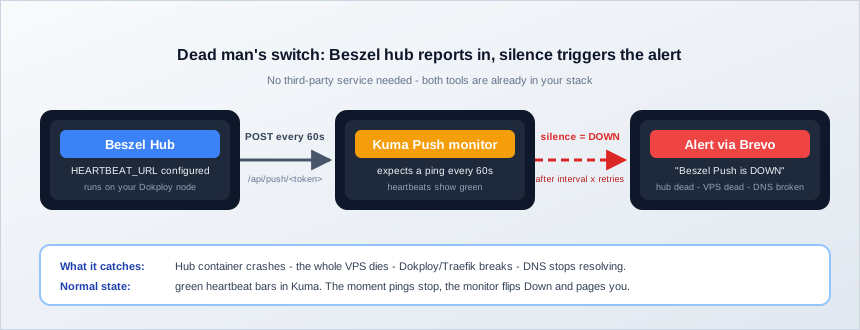
- In Uptime Kuma, add a monitor of type Push
- Copy the push URL it generates (shape:
https://status.yourdomain.com/api/push/<token>) - Add to the Beszel hub environment in Dokploy:
APP_URL=https://monitor.yourdomain.com
CHECK_UPDATES=true
HEARTBEAT_URL=https://status.yourdomain.com/api/push/<token>- Redeploy the hub
Beszel now POSTs a JSON status summary (systems up/down, triggered alerts, hub version) every HEARTBEAT_INTERVAL seconds (60 by default). As long as pings arrive, the Kuma monitor shows green heartbeats. The moment they stop, Kuma declares it Down and fires your notification.
Why This Beats a Third-Party Watcher
It’s free, it stays inside your stack, and it catches the same failure class: hub dead, VPS dead, Traefik broken, DNS not resolving. The same trick works in reverse: give each critical app its own Kuma push monitor so a crashed app can’t take its own watchdog down with it.
Verify: once the push monitor shows green, stop the Beszel hub container and wait. Kuma should flip the monitor to Down after roughly interval × retries (about 1-2 minutes with defaults), then recover when you start the hub again. For more heartbeat and push-monitor patterns across different stacks, see the broader server monitoring guide.
Part 4: Configuring SMTP alerts with Brevo
Monitoring without notifications is just a pretty dashboard. Here’s how to wire email alerts through Brevo (formerly Sendinblue), which offers 300 free emails per day, plenty for alerts.
Step 1: Get SMTP details from Brevo
- Create a free Brevo account if you don’t have one
- Go to Settings → SMTP & API
- Generate a new SMTP key
- Note the credentials:
| Setting | Value |
|---|---|
| Server | smtp-relay.brevo.com |
| Port | 587 |
| Login | Your Brevo email |
| Password | The SMTP key you generated |
Sender Authentication
Ensure your sender address (e.g., alerts@yourdomain.com) is authenticated in Brevo. Go to Settings → Senders & IP → Senders and add/verify your domain, or every test email will bounce.
Step 2: Configure Beszel alerts
- In Beszel, open the admin Settings and find the SMTP section (exact tab names vary a bit between versions, but it lives under admin settings)
- Enter the Brevo details: host
smtp-relay.brevo.com, port587, your Brevo login, the SMTP key as password, andalerts@yourdomain.comas sender - Save, then use the built-in test email button to confirm delivery
Set up alert thresholds:
- Go to Systems, click your server, open Alerts
- Enable alerts per metric; the recommended values are in the thresholds table in the Best Practices section
Beyond email, Beszel notifications are configured as Shoutrrr URLs under Settings → Notifications. That gives you native Discord, Telegram, Slack, Microsoft Teams, Gotify, Ntfy, Pushover, Matrix, Mattermost, OpsGenie, Signal, and Twilio, with no webhook glue required.
Step 3: Configure Uptime Kuma alerts
- In Uptime Kuma, go to Settings → Notifications
- Click Setup Notification, choose Email (SMTP)
- Fill in the same Brevo details: hostname
smtp-relay.brevo.com, port587, security STARTTLS, your Brevo login, the SMTP key as password,alerts@yourdomain.comas From - Click Test and check the inbox, then save
- Attach the notification to each monitor (or use the “apply to all monitors” option when saving it)
One footnote if you customize email templates in v2: Kuma switched template rendering to LiquidJS, and variable names are case-sensitive.
Verify both paths: send a test email from each tool, then check the Brevo dashboard’s delivery logs. If tests arrive but real alerts don’t, the usual cause is notifications not attached to the monitors.
Part 5: Testing your monitoring stack
Untested alerting is a guess, not a system. Run all three tests after setup, and re-run them every month or after major changes.
Test 1: Beszel detects a dead agent
- On a monitored server:
docker stop beszel-agent - Wait 1-2 minutes
- Expect a “System is Down” email (assuming you enabled the status alert in Part 4)
docker start beszel-agentand confirm the “System is Up” recovery email
Test 2: Uptime Kuma detects a dead app
- Stop one of your monitored apps:
docker stop your-web-app - Kuma should detect the failure (timeout or 502) within heartbeat interval × retries
- Expect the notification, then restart the app and confirm the Up notification
Test 3: The dead man’s switch catches a dead hub
- Stop the Beszel hub container on your Dokploy node
- Watch the Kuma push monitor flip to Down after about interval × retries (1-2 minutes with defaults)
- Expect your notification, then start the hub again
If any test fails silently, fix it now. This is exactly the failure class you built the stack to catch.
Backups, updates, and costs
The stack is only done when it survives a server rebuild. Here’s the operator floor.
Backing up Uptime Kuma
In v2, backing up the data directory is the only supported backup method; the old JSON export was removed. First find the real volume name (Dokploy’s naming won’t match generic examples):
docker volume ls | grep -i kumaThen back it up:
docker run --rm -v <kuma_volume>:/data -v $(pwd):/backup alpine \
  tar czf /backup/kuma-backup.tar.gz -C /data .
Schedule it: a weekly cron is fine since the data changes slowly, or use Dokploy’s built-in backups. For offsite copies, see how to set up automated Dokploy backups to Cloudflare R2. A backup you’ve never restored is a hope, not a backup: do one test restore.
Backing up Beszel
The hub stores everything in its data volume (beszel_data in the default compose). Admin settings include a Backups section. Check what your version offers there and back the volume up the same way as Kuma’s if you want full control. If you lose admin access, recover it directly:
docker exec beszel /beszel superuser upsert you@example.com newpasswordUpdating safely
- Beszel: keep
CHECK_UPDATES=trueso the hub tells you when a release exists. Pin to the minor line (0.19) and read the release notes before jumping. 0.19’s agent certificate verification is a good example of a change that bites unprepared setups - Uptime Kuma: pin the major (
:2), and back up the data directory before every upgrade. Then redeploy via Dokploy and watch the logs
What this costs
Both tools are MIT-licensed and free; no paid tier is required for any feature in this guide. Brevo’s free tier covers 300 alert emails/day. The real cost is zero extra infra: the whole stack fits comfortably on the VPS you already run. Expect roughly 50-100MB RAM for the hub, 10-20MB per agent, and 100-200MB for Kuma. Get real numbers on your node with docker stats.
Your monthly operating checklist:
- Backup the Kuma data directory and the Beszel volume (weekly is fine)
- Test-restore a backup once, so you know the procedure works
- Re-run the three alert tests monthly
- Review thresholds after adding new services
- Apply updates at least monthly, reading release notes first
Best practices and security hardening
- Set meaningful thresholds: alert on sustained problems, not every CPU spike. Use Beszel’s quiet hours (0.17+) to mute non-urgent alerts at night
- Use multiple channels: email for everything, Discord/Telegram/Pushover for critical alerts
- Test alerts monthly: the three tests in Part 5 take five minutes
- Document your monitors: a one-line comment per monitor saying what it checks and why it exists
- Monitor your monitoring: the dead man’s switch from the previous section is not optional if this stack matters
Recommended alert thresholds
Starting points that avoid alert fatigue. Tune to your workload:
| Metric | Warning | Critical | Notes |
|---|---|---|---|
| CPU usage | 70% for 5 min | 90% for 5 min | Sustained high CPU indicates a bottleneck |
| Memory usage | 75% | 85% | Leave headroom for spikes |
| Disk usage | 80% | 90% | Plan expansion before critical |
| Disk I/O wait | 20% | 40% | High I/O wait slows everything |
| Container restarts | 2 in 10 min | 5 in 10 min | Crash loops need investigation |
| System status | n/a | Down | Immediate alert |
Beszel 0.19 can also alert natively on things the older versions couldn’t: container health (with log excerpts in the notification), failed systemd services, CPU I/O wait and steal time, GPU usage, temperature, S.M.A.R.T. failure, low battery, bandwidth, and load average. If you came from a cron-and-email setup, like the classic approach to monitoring CPU usage and sending email alerts on Linux, this replaces all of that scripting.
Security hardening
A monitoring tool is, by definition, a map of your entire infrastructure. Treat it as sensitive:
- Docker socket: read-only mount is the baseline. For tighter setups, run a socket proxy like
linuxserver/docker-socket-proxywithCONTAINERS=1and point the agent’sDOCKER_HOSTat it; the agent gets container stats and nothing else. (SettingDOCKER_HOST=""disables Docker monitoring entirely if you want metrics-only.) - Agent port: in classic mode, firewall 45876 to the hub’s IP only. Or skip the inbound port altogether with the WebSocket token mode from Part 2
- Beszel auth: beyond password auth you get OAuth/OIDC (with
DISABLE_PASSWORD_AUTHto turn passwords off entirely),MFA_OTPemail one-time passwords (requires SMTP configured first), andTRUSTED_AUTH_HEADERfor Cloudflare Access-style fronting. Use the Admin/User/Read-only roles if you share the dashboard - Uptime Kuma: strong admin password, keep the admin UI private, and let only the status pages be public if you need public ones
These overlap heavily with the checklist in our guide on how to secure a Docker server. Apply that checklist to the whole node, not just the monitoring stack.
When to scale up
- 1-5 servers: this Beszel + Uptime Kuma stack is all you need
- 5-20 servers: same stack works; consider adding Netdata on the noisy nodes for deeper per-metric drilldowns
- 20+ servers or compliance needs: time to move to Prometheus + Grafana
Conclusion
Beszel for internal resource metrics, Uptime Kuma for external availability, both self-hosted on Dokploy, both wired into Brevo alerts, and both watching each other through a push heartbeat. That’s a complete monitoring stack that adds nothing to the monthly bill.
Both tools grew real capabilities since this guide was first written. Beszel 0.19 now covers ZFS pools, SMART disk health, GPU usage, systemd services, and container health alerts with logs. Uptime Kuma v2 added JSON Query and NTP monitors. Same two containers, far more coverage.
| Your Situation | Recommended Approach |
|---|---|
| Beginner with 1-2 servers | Start with this Beszel + Uptime Kuma stack |
| Need log monitoring too | Add Dozzle for Docker logs |
| Want cloud-managed option | Consider Netdata Cloud (free for 5 nodes) |
| Not on Dokploy yet | Compare the best self-hosted server panels first |
| Enterprise with complex needs | Prometheus + Grafana stack |
For the full menu of options, including Netdata and Prometheus, see our server monitoring tools guide.
Beszel on GitHub Uptime Kuma on GitHubFrequently asked questions
What's the difference between Beszel and Uptime Kuma?
Beszel monitors internal server resources: CPU usage, memory, disk space, network bandwidth, Docker container stats, and (in recent versions) SMART disk health, systemd services, GPU usage, and ZFS pools. It tells you what’s happening inside your server.
Uptime Kuma monitors external availability: whether your websites respond, APIs return valid data, and services are reachable from outside. It tells you what users experience.
You need both because a server can have healthy internal metrics but still serve errors to users, and an app can be down while the server itself looks perfectly fine.
Are Beszel and Uptime Kuma free?
Yes, both. Both projects are MIT-licensed and fully free to self-host. There’s no paid tier gating features, no per-monitor limits, no license keys.
Your only potential costs are the infrastructure they run on (any small VPS handles the whole stack) and an email service for alerts if you exceed free tiers; Brevo’s free 300 emails/day covers alert volume for almost any homelab or small production setup.
How much RAM and CPU do they use?
Expect roughly:
- Beszel Hub: ~50-100MB RAM
- Beszel Agent: ~10-20MB RAM per monitored server
- Uptime Kuma: ~100-200MB RAM depending on monitor count and history
Combined, plan for a few hundred megabytes, an order of magnitude less than a Prometheus + Grafana stack. CPU is negligible at idle on all three. For real numbers on your own node, run docker stats and read the actual usage; the numbers above are planning figures, not guarantees.
Can I use other notification services besides email?
Yes, both tools go well beyond email.
Beszel configures notifications as Shoutrrr URLs under Settings → Notifications, with native support for Discord, Telegram, Slack, Microsoft Teams, Gotify, Ntfy, Pushover, Matrix, Mattermost, OpsGenie, Signal, and Twilio, among others.
Uptime Kuma has 90+ built-in notification integrations, including Slack, Discord, Teams, Telegram, Pushover, Gotify, PagerDuty, Opsgenie, SMS services, and generic webhooks.
How do I backup my monitoring data?
Uptime Kuma (v2): backing up the data directory is the only supported backup method; the JSON export feature was removed in v2. First check your actual volume name with docker volume ls (Dokploy’s naming differs from generic docs), then:
docker run --rm -v <kuma_volume>:/data -v $(pwd):/backup alpine \
tar czf /backup/kuma-backup.tar.gz -C /data .Beszel: the hub keeps everything in its data volume; admin settings also expose a backups section. If you’re locked out, recover admin access with:
docker exec beszel /beszel superuser upsert you@example.com newpasswordFor offsite, scheduled copies of both, follow the guide to set up automated Dokploy backups to Cloudflare R2.
My Beszel agent shows red and won't connect. What do I check?
In order:
- Firewall: in classic key mode, the hub must reach the agent on port 45876. Allow it for the hub’s IP only. Not needed on the same host, and not needed at all in WebSocket token mode
- KEY mismatch: the agent’s
KEYmust be the one generated for that specific system - HUB_URL/TOKEN (WebSocket mode): must be the hub’s exact public URL and a valid, non-expired token
- Certificate verification (Beszel 0.19+): agents now verify the hub’s HTTPS certificate. Self-signed or private-CA hubs need
CA_CERT_FILEconfigured on the agent; public Let’s Encrypt certs need nothing - Read
docker logs beszel-agent; connection failures are logged explicitly
Beszel’s docs also keep a common issues page that covers rarer cases.
Can I monitor servers that aren't running Dokploy?
Yes. The Beszel agent is a single container (or static binary) that runs anywhere:
- Docker/Podman on any Linux server
- The binary directly, without Docker
- Windows and FreeBSD hub builds exist too (0.17+)
As long as the agent can reach the hub (port 45876 inbound, or outbound WebSocket with a universal token), it shows up in the same dashboard. The universal token flow makes this trivial for mixed fleets: one snippet, one token, every server.
Can I create public status pages?
Uptime Kuma has built-in status pages:
- Go to Status Pages in the menu
- Create a new status page and pick a slug
- Add the monitors to display and customize the look
- Share the public URL
You can run multiple status pages, one public for users and one internal for the team. Keep the Kuma admin UI private and only expose the status page domain publicly.
Can I monitor extra disks or ZFS pools with Beszel?
Yes. For extra filesystems, mount them under /extra-filesystems in the agent’s compose:
volumes:
  - /var/run/docker.sock:/var/run/docker.sock:ro
  - /mnt/disk/.beszel:/extra-filesystems/sda1:ro
Since 0.19, Beszel also monitors ZFS pools and datasets natively, and S.M.A.R.T. disk health (with failure alerts) has been built in since 0.15, so NAS drives and pools no longer need external tooling for basic health tracking.
Why did my new Uptime Kuma monitor alert after a single failed check?
That’s a v2 behavior change: new monitors default to 0 retries (v1 defaulted to 1). With zero retries, one missed probe flips the monitor Down and pages you immediately.
Fix it per monitor: set retries to 2-3 for endpoints behind flaky networks or cron-driven backends, and keep 0-1 only for things that should never blip. Retrying trades detection speed for noise resistance, so decide deliberately per monitor instead of living with the default.
How does Beszel compare to Netdata or Prometheus?
- Beszel: lightest footprint, simplest setup, and no longer “basic”: containers with health and logs, SMART, systemd, GPU, and ZFS monitoring are all built in now
- Netdata: more metrics per node out of the box, ML anomaly detection, a cloud option free for 5 nodes
- Prometheus/Grafana: the most customizable and enterprise-grade, at the cost of operating a time-series database and building dashboards yourself
For 1-10 servers, Beszel + Uptime Kuma gives you the best coverage-to-effort ratio. Move to Prometheus + Grafana when you need custom recording rules, very long retention, or a large fleet.