Tugtainer: Self-Hosted Docker Container Auto-Updater
Automate Docker container updates with Tugtainer - a self-hosted solution featuring Web UI, multi-host support, and notifications. Compare with Watchtower & Ouroboros. Deploy easily with Dokploy.
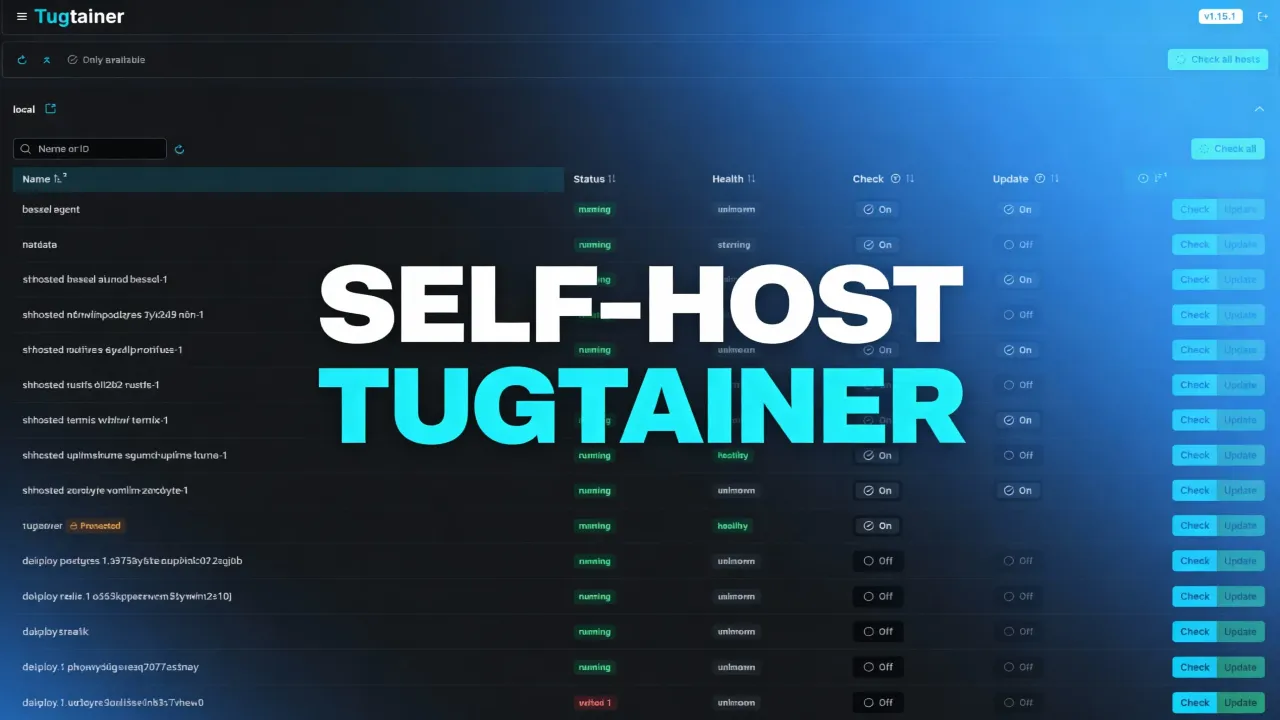
Updating Docker containers by hand gets tedious fast when you’re managing multiple servers. Tugtainer is a self-hosted tool that automates this while letting you decide what updates and when. If you’re new to Docker, start with our guide on essential Docker commands.
What is Tugtainer?
Tugtainer checks for and updates your Docker containers automatically. Unlike similar tools, it has a web interface where you can manage updates, see what’s happening, and set up notifications. You can also manage containers across multiple servers by running agents on each one.
Try Hetzner Cloud NowProduction Use
The application is distributed “as is” and the developers do not recommend it for critical production environments without testing. Always ensure you have backups of important data before enabling auto-updates.
Tugtainer vs alternatives
Several tools can automatically update your Docker containers. Here’s how Tugtainer compares to Watchtower and Ouroboros:
| Feature | Tugtainer | Watchtower | Ouroboros |
|---|---|---|---|
| Web UI | Yes (with authentication) | No | No |
| Multi-Host Support | Yes (via agents) | No | No |
| Notifications | Yes (Apprise - 80+ services) | Yes | Yes |
| Auto-Update Groups | Yes (dependency-aware) | No | No |
| Configuration | GUI | Environment variables | Environment variables |
| Private Registries | Yes | Yes | Yes |
| Granular Control | Yes (per-container) | Yes (per-container) | Yes (per-container) |
| Dependency Handling | Yes (automatic) | No | No |
| Self-Update | Manual only | Yes | Yes |
| Pruning | Yes (auto/manual) | Yes | Yes |
Key terms
- Dependency-Aware: Detects which containers depend on others (like databases) and updates them in the right order. It stops dependent services first, then updates the dependencies.
- Socket-Proxy: A security container that controls access to the Docker socket. Tugtainer can’t update itself or the proxy from within.
When to pick Tugtainer:
- You want a web interface instead of configuring environment variables
- You’re managing containers across multiple servers
- You need automatic dependency handling
When to pick Watchtower:
- You have a simple single-host setup and want something lightweight
When to pick Ouroboros:
- You prefer minimal configuration via environment variables
Main features
Tugtainer includes these features:
- Web UI: A clean interface with login to manage all your containers
- Multi-Host Support: Manage containers on different servers using the Tugtainer Agent
- Granular Control: Set each container to “check only” or “auto-update” mode
- Notifications: Send alerts to Discord, Telegram, Slack, email, and other services via Apprise
- Private Registries: Pull images from private Docker registries
- Dependency Handling: Updates containers in the right order (stops dependent services first)
- Pruning: Clean up old images automatically or manually
How to deploy Tugtainer
You can deploy Tugtainer with Dokploy for an easy setup, or use Docker Compose.
Option 1: Deploy with Dokploy
If you’re using Dokploy to manage your server, deploying Tugtainer is simple. Dokploy handles SSL certificates and reverse proxy configuration automatically. If you don’t have Dokploy installed yet, follow our Dokploy installation guide.
- Create a Service: In your Dokploy project, click “Add Service” and select “Compose”
- Name It: Give it a name like
tugtainer - Add Configuration: Paste this configuration into the Compose editor:
services:
  tugtainer:
    image: quenary/tugtainer:latest
    container_name: tugtainer
    restart: unless-stopped
    environment:
      - PORT=80
    volumes:
      - tugtainer_data:/tugtainer
      - /var/run/docker.sock:/var/run/docker.sock:ro

volumes:
tugtainer_data:- Configure Domain: In the “Domains” tab, add your domain (like
updates.yourdomain.com) and map it to port 80 - Deploy: Click “Deploy”. Dokploy will start the container and issue an SSL certificate
Dokploy integration
Using Dokploy puts Tugtainer behind HTTPS, which is recommended for accessing the web UI.
Option 2: Deploy with Docker Compose
You can also deploy Tugtainer manually with Docker Compose. This configuration sets up the main instance and gives it access to the Docker socket.
services:
  tugtainer:
    image: quenary/tugtainer:latest
    container_name: tugtainer
    restart: unless-stopped
    ports:
      - 9412:80
    volumes:
      - tugtainer_data:/tugtainer
      - /var/run/docker.sock:/var/run/docker.sock:ro

volumes:
  tugtainer_data:
Self-Update Limitation
Tugtainer cannot update itself or the socket-proxy from within the app. You should exclude these from auto-updates to prevent errors. Update them manually or via another tool like Portainer.
Managing remote hosts
You don’t need a full Tugtainer instance on each server. Deploy the Tugtainer Agent on remote servers instead:
services:
  tugtainer-agent:
    image: quenary/tugtainer-agent:latest
    container_name: tugtainer-agent
    restart: unless-stopped
    ports:
      - 9413:8001
    environment:
      - AGENT_SECRET=CHANGE_ME!
    volumes:
      - /var/run/docker.sock:/var/run/docker.sock:ro
You can also deploy the agent via Dokploy using the same compose file. If you remove the ports section, you can expose the agent through a domain instead.
After deploying the agent, go to the Tugtainer web UI, navigate to Menu -> Hosts, and add the new host using its IP and the AGENT_SECRET you set.
Tugtainer web UI
Once you deploy Tugtainer and access the web interface, you’ll see a dashboard that shows all your containers and their update status.
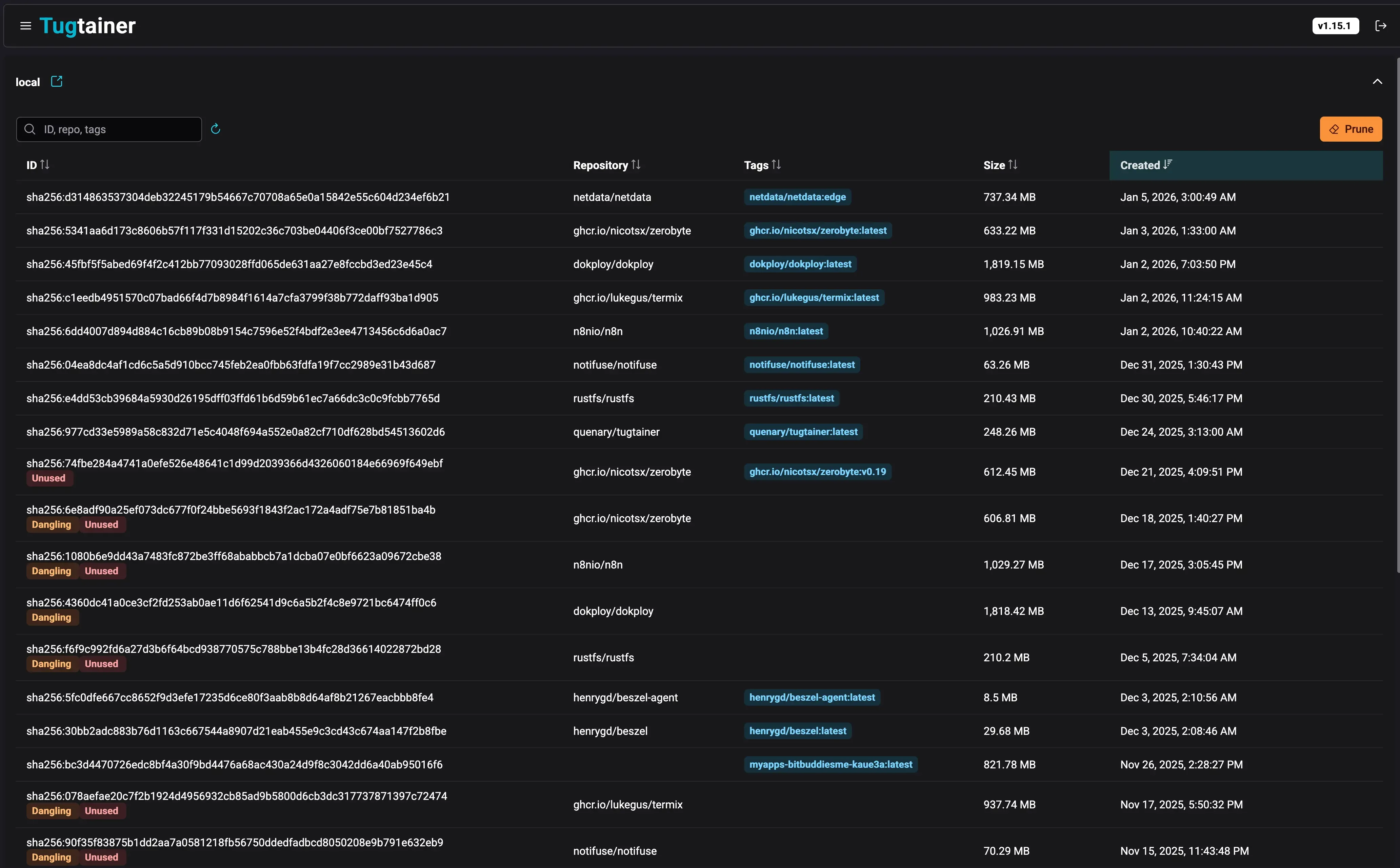
The dashboard shows all your containers, their current versions, and whether updates are available. You can quickly see which containers are set to auto-update and which are protected.
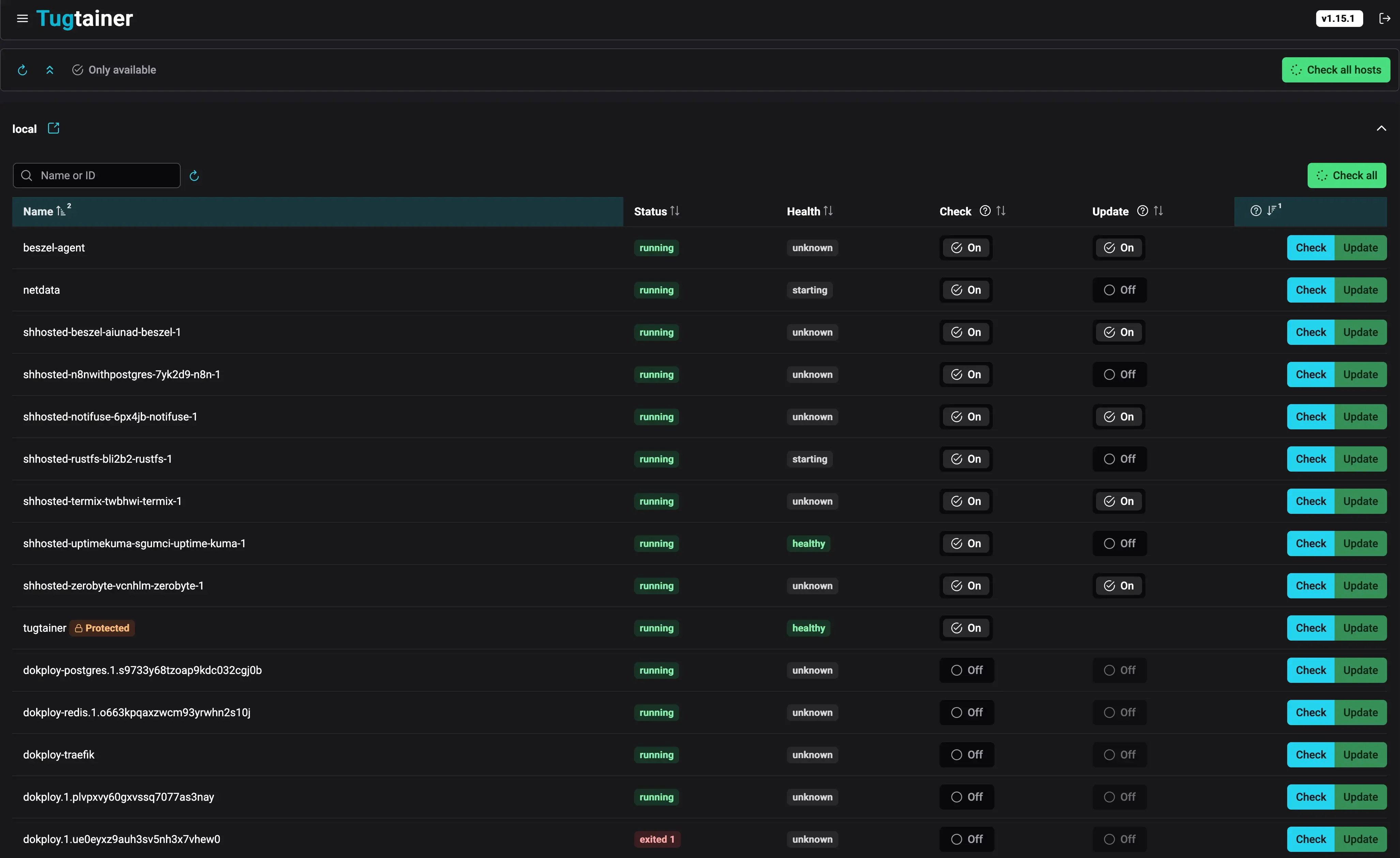
From this view, you can:
- View detailed information about each container
- Toggle between “check only” and “auto-update” modes
- See update history and logs
- Manually trigger updates for specific containers or groups
- Configure custom labels and dependencies
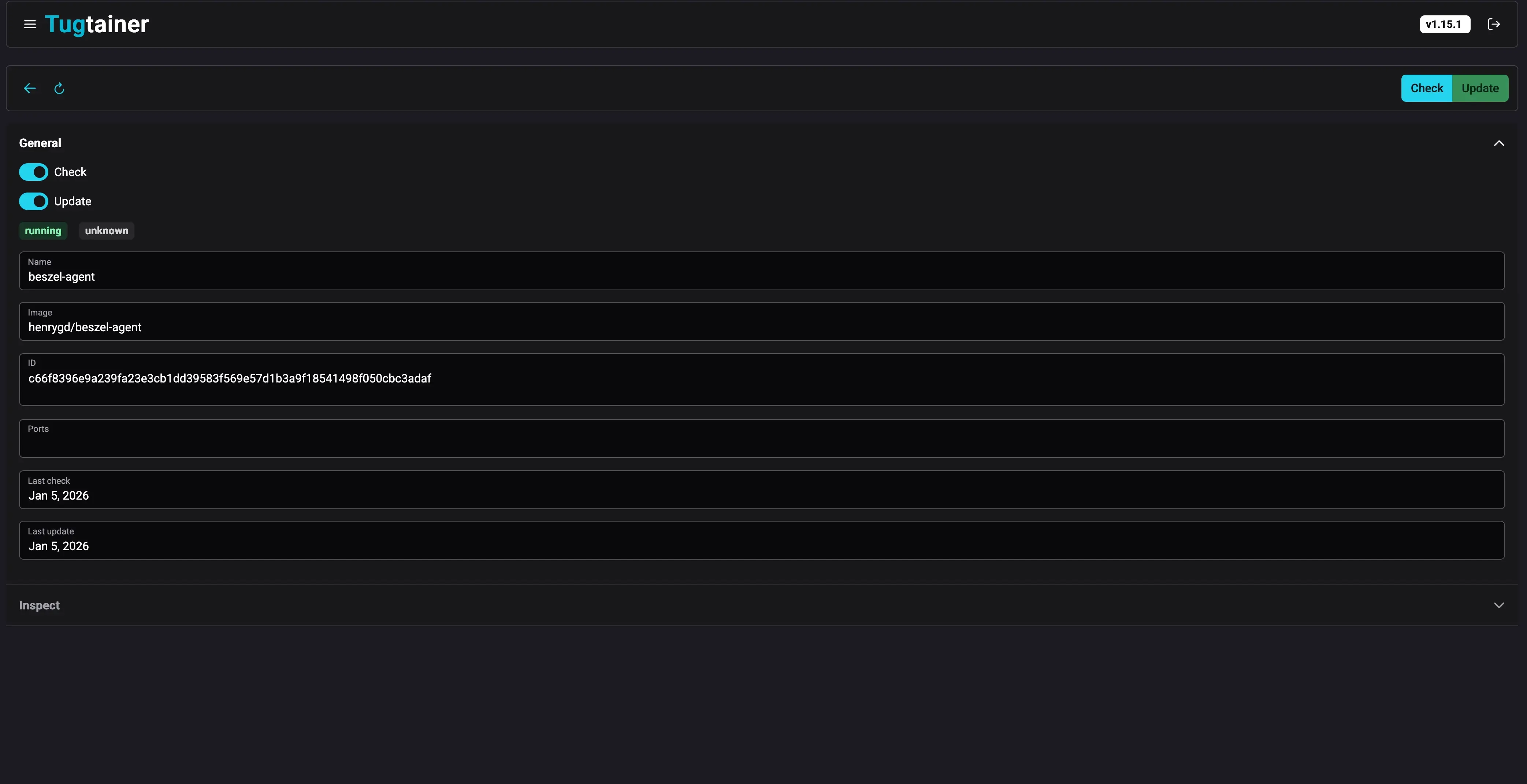
The individual container view lets you configure:
- Update schedule
- Notification preferences
- Dependency management
- Custom labels for advanced control
Initial login
When you first visit the Tugtainer web UI, you’ll set up an administrator account.
- Create Password: Set a secure password during the initial setup
- Login: Use the password you created to access the dashboard
- Change Password: You can change your password later in the settings
Tugtainer doesn’t generate a random password like some Docker tools - you set it yourself during the setup wizard.
Check and update process
Tugtainer organizes containers into groups for safe updating. A group includes linked containers, like those in the same Docker Compose project or manually linked via labels.
When an update runs (by schedule or manually):
- Image Pull: Tugtainer checks for and pulls new images
- Stop Order: If an update is available and enabled, containers in the group stop starting from the most dependent ones
- Update & Start: Containers are recreated with the new image and started in reverse order (dependencies first)
Custom labels
You can control Tugtainer’s behavior with Docker labels on your containers:
dev.quenary.tugtainer.protected=true: Prevents Tugtainer from stopping or updating a container. Use this for the agent itself.dev.quenary.tugtainer.depends_on="db,redis": Manually declare dependencies for containers not in the same compose file.
Monitoring your containers
When running auto-update systems, monitor your server resources to avoid issues. You can use server monitoring dashboards to track CPU, memory, and disk usage.
Notifications
Tugtainer uses Apprise for notifications, so you can send alerts to Discord, Telegram, Slack, email, and many other services. You can customize notification messages using Jinja2 templates.
Notifications report on:
- Available: New image found
- Updated: Container successfully updated
- Rolled Back: Update failed, reverted to old image
- Failed: Update failed
Frequently asked questions
How does Tugtainer handle container dependencies?
Tugtainer automatically detects dependencies between containers in the same Docker Compose project. During updates, it stops containers starting from the most dependent ones (leaves first) and starts them in reverse order (roots first). This ensures databases and other dependencies are running before dependent services restart. For containers not in the same compose file, manually declare dependencies with the dev.quenary.tugtainer.depends_on label.
Can I exclude specific containers from auto-updates?
Yes. You can exclude containers in several ways:
- Use the
dev.quenary.tugtainer.protected=truelabel to prevent Tugtainer from stopping or updating a container - Configure individual containers in the web UI for “check only” mode
- Manually manage certain containers while letting Tugtainer handle the rest
What happens if an update fails?
Tugtainer can roll back failed updates:
- The container reverts to the previous working image
- You receive a notification about the rollback via your configured Apprise services
- The old image remains available so you can restore it manually
- This prevents downtime from failed updates
Is Tugtainer safe for production environments?
The developers don’t recommend using Tugtainer in critical production environments without testing. Always:
- Test updates in a staging environment first
- Maintain regular backups of your data
- Monitor your applications after auto-updates
- Consider using “check only” mode for critical services initially
- Have a rollback plan before enabling auto-updates
How do I manage Docker disk space with Tugtainer?
Tugtainer includes automatic or manual pruning of old images. For a complete cleanup, follow our guide on how to clean all Docker images, containers, and volumes.
Can Tugtainer update itself?
No, Tugtainer can’t update itself or the socket-proxy. Exclude Tugtainer from auto-updates to prevent errors. Update it manually via Docker Compose or another tool like Portainer. The same applies to the Tugtainer Agent - protect it with the dev.quenary.tugtainer.protected=true label.
How does Tugtainer compare to manual Docker Compose updates?
You can update containers manually with docker compose pull and docker compose up -d (as shown in our Docker Compose update guide), but Tugtainer automates this:
- Checks for updates on a schedule
- Handles dependencies intelligently
- Sends notifications about available updates
- Provides a centralized web UI for managing multiple containers
- Supports multiple hosts from one interface
Authentication and security
By default, Tugtainer uses password authentication stored in an encrypted file. Starting with v1.6.0, you can configure an OpenID Connect (OIDC) provider to handle login with your existing identity management system.
Setting up OIDC authentication
To enable OIDC authentication, you need:
-
OIDC Provider: Configure your provider (Auth0, Keycloak, Azure AD, Google, etc.) with:
- Client ID
- Client Secret
- Issuer URL
- Redirect URL (your Tugtainer domain +
/auth/callback)
-
Environment Variables: Add these to your Tugtainer container:
environment:
  - OIDC_ENABLED=true
  - OIDC_CLIENT_ID=your_client_id
  - OIDC_CLIENT_SECRET=your_client_secret
  - OIDC_ISSUER=https://your-provider.com
  - OIDC_REDIRECT_URI=https://tugtainer.yourdomain.com/auth/callback
- OIDC_SCOPES=openid email profile- Restart Container: Apply the changes by recreating the container
Users can then log in with their OIDC credentials instead of the default password system.
Related articles
- Best Self-Hosted Panels: A Comparison - Compare Tugtainer with other self-hosted management solutions
- Top 50+ Docker Commands You MUST Know - Essential Docker commands for container management
- Dokploy Install - Self-Host Your SaaS - Complete Dokploy installation guide
- How To Update Containers With Docker Compose - Manual container update guide
- How To Clean All Docker Things - Complete Docker cleanup guide
- Monitor Server Resources - Server and Docker resource monitoring