How to Install FlowiseAI with Docker Compose (2026)
Install FlowiseAI with Docker Compose and Postgres in 2026: pinned 3.1.4 setup, secrets, hardening, and what Flowise end of life means for self-hosters.

30 min read

FlowiseAI is an open-source, drag-and-drop builder for AI chatflows and agent workflows, Apache 2.0 licensed, built on Node.js and React. Before you install anything, one fact drives every decision below: Flowise is end of life. The final release is 3.1.4 (July 29, 2026), the GitHub repo was archived read-only on August 13, 2026, and no security patches ship after August 31, 2026. If you still want to install FlowiseAI with Docker Compose (because you already run it and need the correct frozen setup, or because you want a self-contained low-code tool that will never change under you), this guide is the pinned 3.1.4 deployment, with the auth, volume, and secrets fixes the older versions of this article got wrong.
We are going to use Dockge to manage the Docker Compose file and Cloudflare Tunnels as the reverse proxy, so you get SSL without exposing the host. I will include an optional backup service with Docker DB Backup so you have SQL dumps when something goes wrong. The same Compose file works with plain docker compose and whatever reverse proxy you already run.
If you are interested to see some free cool open source self hosted apps you can check toolhunt.net self hosted section.
Flowise Status: End of Life (Read This First)
Flowise is end of life (Aug 31, 2026)
Flowise stopped active development on July 29, 2026, the GitHub repo was archived on August 13, 2026, and the project is past end of life since August 31, 2026. There will be no security patches, ever. Sources: the sunset announcement on flowiseai.com and the official discussion thread.
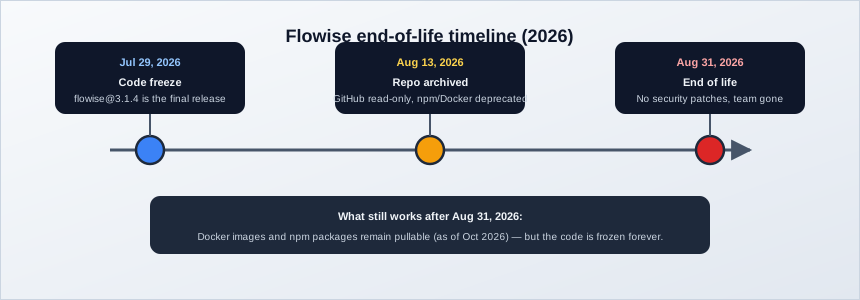
Here is the timeline as it happened:
- July 29, 2026: Code freeze. Active feature development stopped and
flowise@3.1.4shipped as the final release ever. - August 13, 2026: The GitHub repository moved to public archive (read-only). Issues and PRs are locked. The npm package and Docker images were marked deprecated.
- August 31, 2026: End of life. The core team left Discord and GitHub. No security patches from this date forward.
What still works: the code remains available under Apache 2.0, and the Docker images are still pullable as of this update (October 2026). Forks are allowed by the license, but no community fork with any meaningful traction existed as of this writing; the largest ones sit at a handful of stars. I would not bet a deployment on a fork appearing. There is also no official presence on Discord anymore, so community support is whatever search engines index.
The team’s stated reason for the sunset is a shift toward coding agents and away from rigid low-code workflow builders. That is useful context for the alternatives section at the end.
One more thing before you decide: releases 3.1.2 through 3.1.4 were almost entirely security fixes (a credential data leak, an IDOR in PUT /api/v1/user, cross-workspace disclosure, an MCP stdio allowlist, a clickjacking fix). If you run anything older than 3.1.4, upgrade to 3.1.4 first and then freeze. Running older is running known-vulnerable.
Now the decision: which one of these is you?
I already run Flowise
Keep it, but lock it down. Pin flowiseai/flowise:3.1.4 (do not stay on :latest or anything older), migrate the volume and auth as covered in Upgrading an Existing Flowise Install, and reduce exposure (Cloudflare Access in front of the tunnel, or LAN/tailnet-only). Then plan an exit on your own timeline instead of during an incident. The Hardening section covers the rest.
I'm starting fresh
Seriously consider something maintained first. My default pick for workflow automation breadth is n8n. You can self-host n8n in 2026 with Docker. If you specifically want the low-code chatflow model, Langflow is the closest maintained equivalent. Starting a new project on frozen software means you own every future security issue yourself. If you still want Flowise, the install guide below is correct, just go in knowing that.
I'm just evaluating
Don’t start here. There is no upstream to evaluate against, no roadmap, and no security response process. Browse the top AI GitHub repos for actively maintained tooling instead. Come back to this page only when you need to operate an existing instance.
EOL software on a public hostname is a real risk. The Hardening section below covers how to reduce it.
How to Install FlowiseAI with Docker and Docker Compose
If you have decided to proceed (existing install, or you accept the freeze), here is the current, correct 3.1.4 setup: Docker Compose with a Postgres sidecar, generated session secrets, a healthcheck-gated startup, and SSL through Cloudflare Tunnels.
The video shows an older UI
The video above was recorded in March 2024 against Flowise 1.x. The drag-and-drop basics still apply, but the interface and the login flow have changed since then (and the current auth model is different; see step 6). The Compose file and secrets in this article are current for 3.1.4.
In case you are interested to monitor server resources like CPU, memory, disk space you can check: How To Monitor Server and Docker Resources
1. Prerequisites
Before you begin, make sure you have the following in place:
- A VPS to host FlowiseAI: 2 vCPU / 4 GB RAM is comfortable for hobby use. The official docs suggest 2×4 vCPU / 8 GB plus queue workers; that guidance is for scale and is overkill here. I use Hetzner or Hostinger for boxes like this, or a Mini PC as Home Server if you want it at home. The ASUS DC510 mini PC is a compact option.
- Docker and Dockge installed on the server. See the Dockge install guide for the full tutorial. Plain
docker composeworks too if you skip Dockge. - Cloudflare Tunnels configured for the VPS, or a reverse proxy already in place (CloudPanel or Traefik both work).
- A DNS hostname pointing at the box (or at the tunnel), e.g.
flowise.yourdomain.com. - At least ~5 GB of free disk: the 3.1.4 image is roughly 1.5 GB compressed, so the first pull is slow on small VPS disks.
Versions we will pin in this guide: flowiseai/flowise:3.1.4 (the final release) and postgres:17-alpine for new installs. Postgres 18 works too. If you already have a database volume, keep whatever major it runs (see the upgrade section).
VPS prices jumped across the board in 2026. If you’re rethinking a rented box, see what changed and when a mini PC wins.
You can use also Traefik as a reverse proxy for your apps. I have created a full tutorial with Dockge install also to manage your containers on: How to Use Traefik as A Reverse Proxy in Docker
2. Create the Docker Compose File (pinned to 3.1.4)
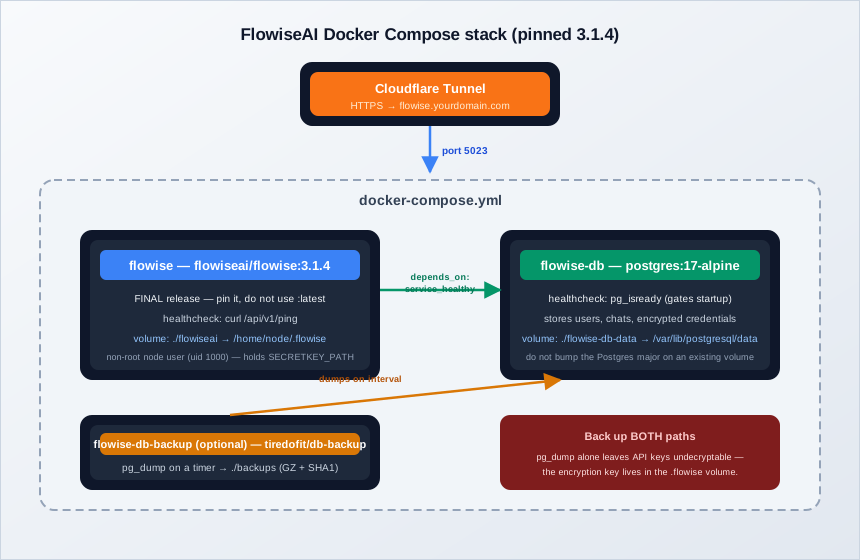
This is the stack you are deploying: Flowise on 3.1.4, Postgres behind a healthcheck gate, an optional backup sidecar, and a Cloudflare Tunnel in front.
Pin the image, do not use :latest
With the project archived, pinning is mandatory operator hygiene. There are no more fixes coming, and a floating tag protects you from nothing while exposing you to tag re-pointing or yanking. Use flowiseai/flowise:3.1.4 and leave it there.
Create a docker-compose.yml with the following content:
services:
  flowise-db:
    image: postgres:17-alpine
    hostname: flowise-db
    environment:
      POSTGRES_DB: ${POSTGRES_DB}
      POSTGRES_USER: ${POSTGRES_USER}
      POSTGRES_PASSWORD: ${POSTGRES_PASSWORD}
    volumes:
      - ./flowise-db-data:/var/lib/postgresql/data
    restart: unless-stopped
    healthcheck:
      test: ["CMD-SHELL", "pg_isready -U ${POSTGRES_USER} -d ${POSTGRES_DB}"]
      interval: 5s
      timeout: 5s
      retries: 5

  flowise:
    image: flowiseai/flowise:3.1.4   # FINAL release: project archived Aug 2026, pin it
    container_name: flowiseai
    hostname: flowise
    healthcheck:
      test: ["CMD", "curl", "-f", "http://localhost:${PORT}/api/v1/ping"]
      interval: 10s
      timeout: 5s
      retries: 5
      start_period: 30s
    ports:
      - 5023:${PORT}
    volumes:
      - ./flowiseai:/home/node/.flowise   # non-root node user (uid 1000) since v3.0.11
    environment:
      PORT: ${PORT}
      APP_URL: ${APP_URL}
      LOG_LEVEL: info
      LOG_PATH: /home/node/.flowise/logs
      DATABASE_TYPE: postgres
      DATABASE_PORT: 5432
      DATABASE_HOST: flowise-db
      DATABASE_NAME: ${POSTGRES_DB}
      DATABASE_USER: ${POSTGRES_USER}
      DATABASE_PASSWORD: ${POSTGRES_PASSWORD}
      # session/cookie secrets: openssl rand -hex 32
      JWT_AUTH_TOKEN_SECRET: ${JWT_AUTH_TOKEN_SECRET}
      JWT_REFRESH_TOKEN_SECRET: ${JWT_REFRESH_TOKEN_SECRET}
      EXPRESS_SESSION_SECRET: ${EXPRESS_SESSION_SECRET}
      TOKEN_HASH_SECRET: ${TOKEN_HASH_SECRET}
      SECURE_COOKIES: "true"          # behind HTTPS (Cloudflare Tunnel)
      NUMBER_OF_PROXIES: 1
      # ONLY if you must reach internal/localhost services (SSRF trade-off):
      # HTTP_SECURITY_CHECK: "false"
      # keep old basic auth ONLY to claim an upgraded legacy instance:
      # FLOWISE_USERNAME: ${FLOWISE_USERNAME}
      # FLOWISE_PASSWORD: ${FLOWISE_PASSWORD}
    restart: on-failure:5
    depends_on:
      flowise-db:
        condition: service_healthy
    entrypoint: /bin/sh -c "sleep 3; flowise start"
Two services do the work:
flowise-db: PostgreSQL, with apg_isreadyhealthcheck. Flowise will not start until this passes, thanks todepends_on: condition: service_healthy.flowise: the pinned Flowise image. The host port is5023mapped to${PORT}(default 3000) inside the container. The healthcheck usescurlagainst/api/v1/ping(the current image shipscurl; older setups usedwget).
Note the volume path: ./flowiseai:/home/node/.flowise. Since v3.0.11 the container runs as a non-root node user (uid 1000) and the data directory moved from /root/.flowise to /home/node/.flowise. If you mount at the old path, or the host directory is root-owned, the container will crashloop with permission errors. If that just bit you, jump to Troubleshooting.
The ./flowiseai directory holds logs, but also the encryption key that Flowise uses to encrypt stored credentials and API keys (SECRETKEY_PATH). That matters for backups in a second.
We will verify all of this after docker compose up -d in step 4. Do not stop at the YAML.
Optional: database backups. If you want scheduled SQL dumps, add a third service:
flowise-db-backup:
  container_name: flowise-db-backup
  image: tiredofit/db-backup
  volumes:
    - ./backups:/backup
  environment:
    DB_TYPE: postgres
    DB_HOST: flowise-db
    DB_NAME: ${POSTGRES_DB}
    DB_USER: ${POSTGRES_USER}
    DB_PASS: ${POSTGRES_PASSWORD}
    DB_BACKUP_INTERVAL: 720
    DB_CLEANUP_TIME: 72000
    CHECKSUM: SHA1
    COMPRESSION: GZ
    CONTAINER_ENABLE_MONITORING: false
  depends_on:
    flowise-db:
      condition: service_healthy
  restart: unless-stopped
tiredofit/db-backup is still maintained (last push September 2026) and this pattern still works. Dumps land in ./backups, gzipped, every 720 minutes.
pg_dump alone is not a backup of Flowise
The database stores credentials and API keys encrypted. The encryption key lives in the .flowise volume (SECRETKEY_PATH), not in Postgres. Back up both paths and restore both together, or a restored database full of undecryptable blobs greets you. For an off-box target, pair the dumps with self-hosted backups with Restic and Rclone.
If you plan to run several AI apps on the same VPS and want to share one Postgres container instead of stacking sidecars, see how to run multiple PostgreSQL databases in one Docker service.
3. Create the .env File with Secrets
Next to the Compose file, create a .env:
PORT=3000
APP_URL=https://flowise.example.com
POSTGRES_USER=flowise
POSTGRES_PASSWORD=a4f2c8e1b9d07a3c5e8f1a2b4c6d8e0f
POSTGRES_DB=flowise
JWT_AUTH_TOKEN_SECRET=7d3a9c1e5b8f0a2c4e6d8b0a2c4e6f8a1b3c5d7e9f0a2b4c6d8e8f0a1b3c5d7
JWT_REFRESH_TOKEN_SECRET=b2e4f6a8c0d2e4f6a8b0c2d4e6f8a0b2c4d6e8f0a2b4c6d8e8f0a1b3c5d7e9f0
EXPRESS_SESSION_SECRET=c3f5a7b9d1e3f5a7b9d1e3f5a7b9d1e3f5a7b9d1e3f5a7b9d1e3f5a7b9d1e3f5
TOKEN_HASH_SECRET=d4a6b8c0e2f4a6b8c0e2f4a6b8c0e2f4a6b8c0e2f4a6b8c0e2f4a6b8c0e2f4a6
Generate each secret yourself and paste the literal output:
openssl rand -hex 32Run it once per secret (and openssl rand -hex 16 is plenty for POSTGRES_PASSWORD). The values shown above are fake; generate fresh ones and never reuse example secrets from a blog post.
Compose does not expand commands in .env
POSTGRES_PASSWORD=$(openssl rand -hex 16) does not work the way you hope. Docker Compose reads .env as literal key=value pairs; there is no shell expansion. Generate values in your shell first, then paste the literal strings.
Why the four secrets matter: Flowise’s docs warn that default session and JWT secrets are forgeable. If you leave them unset, sessions are weaker than they look, and logins break across container restarts because tokens are not stable. Setting fixed secrets is cheap insurance. While you are here, set APP_URL to the exact public URL you will serve. A mismatch between APP_URL and what users type is a classic “login works on localhost but not on the domain” bug.
SECURE_COOKIES: "true" in the Compose file is correct behind an HTTPS Cloudflare Tunnel. If you are testing over plain HTTP and auth suddenly refuses to work, that is the knob. Do not turn it off in production.
Two more notes on this file:
FLOWISE_USERNAMEandFLOWISE_PASSWORDare deprecated (since v3.0.1). New installs do not use them: the first visit to the web UI shows an admin signup form and the account lives in Postgres. Keep the old vars only if you are claiming a migrated legacy instance (covered in the upgrade section).- Do not touch
HTTP_SECURITY_CHECKyet. Since 3.1.0 it blocks calls tolocalhostand internal addresses by default (SSRF mitigation). If step 4 or 6 fails to reach an internal service, that is the setting involved. Details in Troubleshooting.
4. Deploy and Verify FlowiseAI
With the Compose file and .env in place:
docker compose up -dThe first pull is around 1.5 GB compressed. On a small VPS disk or a slow uplink, give it a few minutes before assuming anything is broken.
Then verify, in this order:
docker compose ps
curl http://localhost:5023/api/v1/ping
docker compose logs flowise --tail 50
docker compose exec flowise-db psql -U flowise -d flowise -c '\dt'
What you want to see:
docker compose ps: bothflowiseandflowise-dbreporthealthy(notstarting, notrestarting).curl http://localhost:5023/api/v1/ping: returnspong. If you changedPORT, change the URL to match the host port (5023 in the Compose file).- Logs show startup and database migrations completing. Look for errors, connection refused, or an immediate restart loop.
\dtin psql lists Flowise’s tables (user,chatflow,credential, and friends). No tables means migrations did not run.- Opening the domain shows the admin signup screen. This proves the database and auth tables are live.
docker ps works too if you want the Dockge-friendly one-liner. You are looking for the same two containers up, with the Flowise one healthy.
If any step fails, jump to Troubleshooting. The failure modes below map one-to-one to these checks.
5. Configure Cloudflare Tunnels for SSL
To reach FlowiseAI securely without opening ports on the server, use Cloudflare Tunnels. Go to Access → Tunnels, pick the tunnel you already created for this host, and add a hostname that maps your domain or subdomain to the service and port.
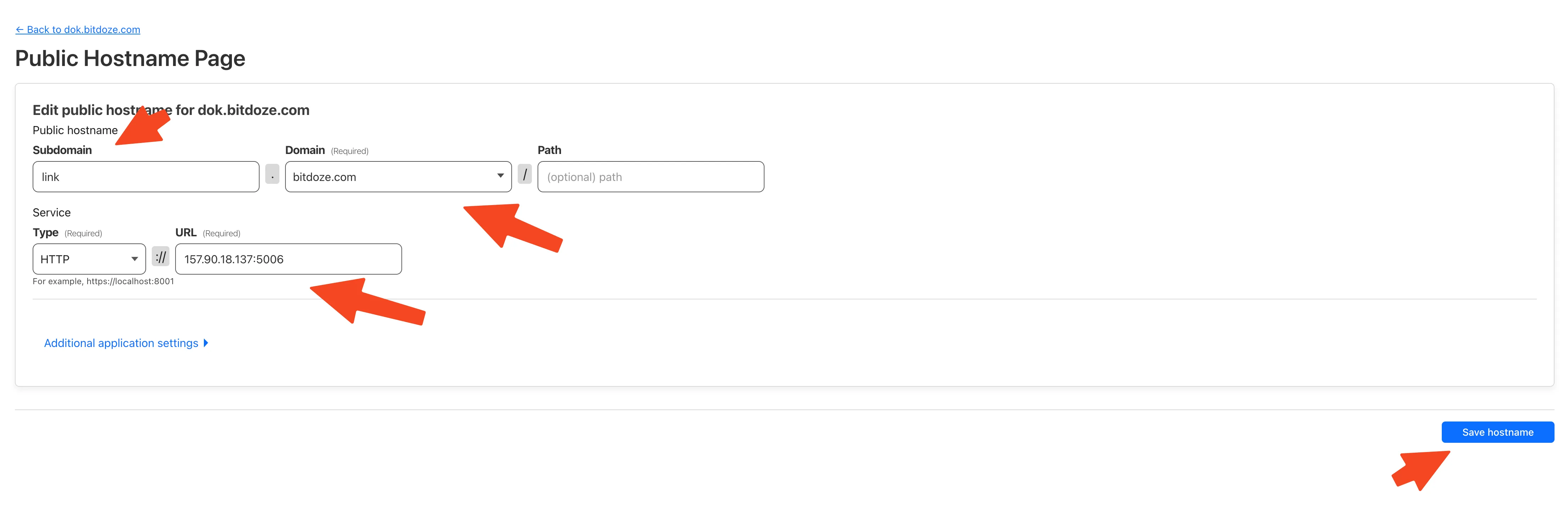
Point the service at http://flowise:3000 (the in-network name and container port) or at http://localhost:5023 if you route through the published host port.
Verify it works end to end:
curl -I https://flowise.yourdomain.comYou want a 200 or 302, and the certificate should be Cloudflare-issued. This HTTPS hop is what justifies SECURE_COOKIES: "true" in the Compose file.
You can also check Setup CloudPanel as Reverse Proxy with Docker and Dockge to use CloudPanel as a reverse proxy to your Docker containers or How to Use Traefik as A Reverse Proxy in Docker.
6. Create the Admin Account and Your First Flow
Open the domain you configured. The first visit shows an admin signup form (email and password). This account is stored in Postgres and sessions are JWT cookies; the old FLOWISE_USERNAME / FLOWISE_PASSWORD basic-auth era ended with v3.0.1. Pick a strong password here, because this account controls every credential stored in the instance.
The screenshots below are from an older Flowise UI
The 3.1.x editor splits into Assistant / Chatflow / Agentflow builders and looks different from the images in this article. The drag-and-drop model is the same; only the chrome moved.
Once logged in, create your first flow: add nodes from the sidebar, connect them, and configure each one. Start with a simple chatflow. An LLM node plus a memory node is enough to prove the wiring.
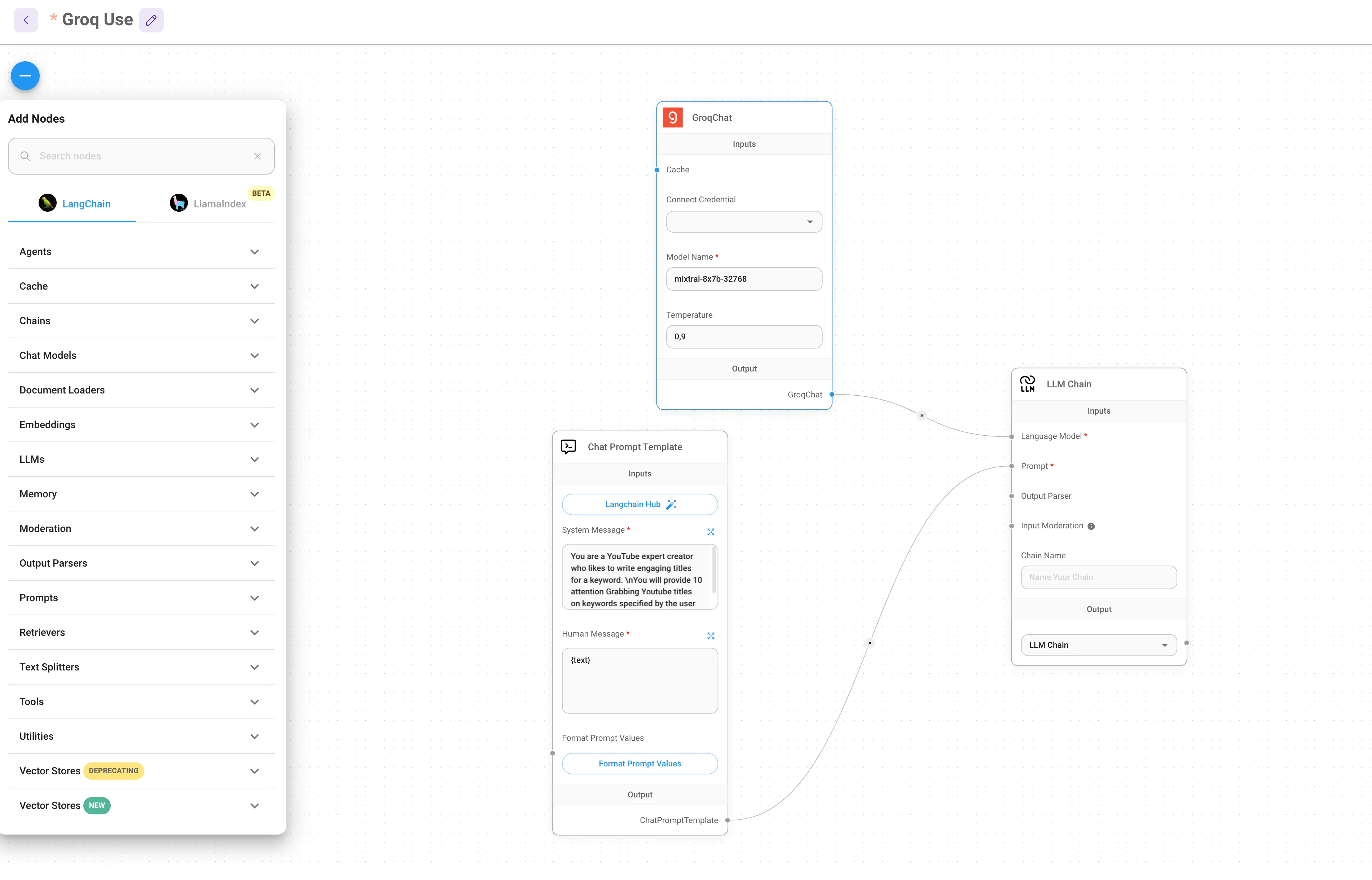
Screenshot from an older Flowise UI. The 3.1.x editor differs.
There is also a marketplace of templates you can clone as a starting point instead of building from an empty canvas.
7. Use the FlowiseAI Chatflow Externally
When the flow does what you want, Flowise gives you several ways to use it outside the editor: an embed snippet for websites, Python and JavaScript snippets, a cURL example, or a plain share link.
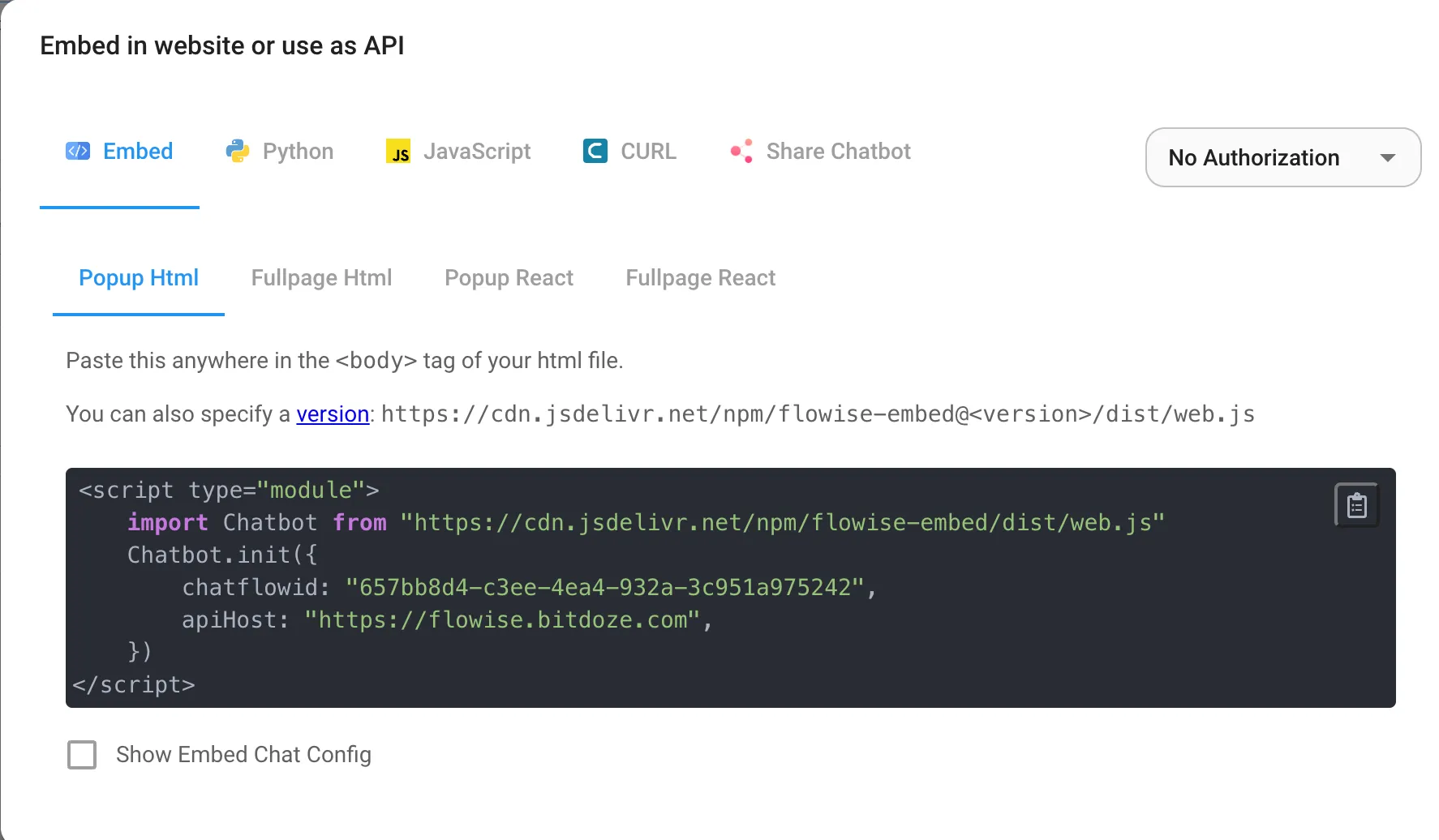
One security habit while you are here: scrub exported flow JSON before you paste it into a gist, a ticket, or a repo. Exports can carry variable values and configuration you would not want public. Treat exported JSON like a config file, not like a diagram.
Upgrading an Existing Flowise Install (Volume & Auth Migration)
If your stack looks like the 2024 version of this article (image on :latest, volume at /root/.flowise, basic auth in the environment), here is the ordered migration to the 3.1.4 setup. Do these steps in order; each one prevents a specific failure.
-
Dump the database first. If the data matters, take a
pg_dumpbefore touching anything. The backup service from step 2 only helps if it was already running. Otherwise do it by hand:docker compose exec flowise-db pg_dump -U flowise flowise > flowise-backup.sql. -
Stop the stack:
docker compose down. -
Fix the volume ownership. The old
/root/.flowisebind mounts are root-owned; the 3.0.11+ image runs as uid 1000 and will EACCES/crashloop otherwise:bash chown -R 1000:1000 ./flowiseai -
Update the mount and the image. Change the volume to
./flowiseai:/home/node/.flowiseand pinflowiseai/flowise:3.1.4. The upgrade path goes to 3.1.4, not past it; it is the last release. -
Claim the instance (once). Per the official auth docs, keep
FLOWISE_USERNAMEandFLOWISE_PASSWORDin the environment for one run: on the first visit, log in with those old basic-auth credentials to claim ownership, then create the new admin account. After that, remove the old vars. (This flow is documented upstream; test it on a scratch copy first if your instance is one you cannot afford to lock yourself out of.) -
Set the four JWT/session secrets and
APP_URLfrom step 3 of the install so sessions survive restarts. -
Do not bump the Postgres major. If your volume was created by
postgres:16-alpine, keep 16. Postgres images refuse to start across major versions against an existing data directory withoutpg_upgradeor a dump-restore.
Postgres majors do not mix with existing volumes
Switching postgres:16-alpine to postgres:17-alpine on the same ./flowise-db-data directory will fail at startup: the data directory format is not compatible across majors. Stay on your current major, or dump-restore into a fresh 17 volume.
Then bring it up and run the same verify block as step 4. The two failure modes this section prevents are EACCES crashloops and broken logins. Both have expanded fixes in the next section.
Rollback: docker compose down is reversible as long as you did not delete ./flowiseai or ./flowise-db-data. If the upgraded stack misbehaves and you have the old compose file, restoring the old file and the old image tag brings back the previous behavior, except you still want to be on 3.1.4 for the security fixes.
Troubleshooting FlowiseAI in Docker
EACCES or crashloop after an image update
The volume is root-owned from the pre-3.0.11 /root/.flowise era, or you mounted at the old path. The container runs as the node user (uid 1000) and cannot write root-owned directories.
Stop the stack and fix ownership on the host directory, then make sure the mount target is /home/node/.flowise:
docker compose down
chown -R 1000:1000 ./flowiseai
docker compose up -d
docker compose logs flowise --tail 50
Broken looks like EACCES: permission denied in the logs or the container stuck in Restarting.
Connection blocked to localhost or internal services (local Ollama, internal gateways)
Since 3.1.0, HTTP security validation is on by default with a deny list that blocks localhost, 127.0.0.1, and internal addresses. This is SSRF mitigation, and it will also block a legitimate call to a local model server. If you want to set up Ollama with Open WebUI using Docker Compose on the same host and point Flowise at it, this is the setting that gets in the way.
You have two options: set HTTP_SECURITY_CHECK: "false" in the environment, or extend HTTP_DENY_LIST deliberately. Understand the trade-off: turning the check off re-enables server-side request forgery paths through your flows. On a single-tenant box behind Cloudflare Access the risk is manageable; on anything shared, prefer a narrow allowlist over disabling the check.
Logged out after every container restart
JWT/session secrets were left unset (or you are on defaults), so tokens are not stable across restarts. Also check that EXPIRE_AUTH_TOKENS_ON_RESTART is not set to true.
Set JWT_AUTH_TOKEN_SECRET, JWT_REFRESH_TOKEN_SECRET, EXPRESS_SESSION_SECRET, and TOKEN_HASH_SECRET in .env (step 3), recreate the container (docker compose up -d), and log in once more.
Auth works on localhost but fails via the domain
APP_URL does not match the public URL, or SECURE_COOKIES: "true" is set while you are serving plain HTTP (the browser drops the cookie).
Set APP_URL to the exact URL users type (scheme included), and keep SECURE_COOKIES enabled only behind HTTPS, which you have if you followed the Cloudflare Tunnel step.
Rate limiting misbehaves behind the tunnel or a proxy
Flowise cannot see the real client IP and counts every request as coming from the proxy address.
Set NUMBER_OF_PROXIES: 1 (already in the Compose file above) when running behind exactly one proxy layer such as Cloudflare Tunnel.
Restored the database and every credential is garbage
The backup covered Postgres only. Credentials are encrypted with a key stored in the .flowise volume (SECRETKEY_PATH); a restored DB without that key cannot decrypt anything.
Restore the .flowise directory alongside the database dump, from the same point in time. If the key is gone, the credentials are gone; you will need to re-enter API keys in each flow. This is why the “back up both paths” rule in step 2 is not optional.
Hardening a Frozen Flowise Instance
No patches are coming, so exposure reduction is the whole game. The VPS itself is the cheap part (2 vCPU / 4 GB covers it); the ongoing cost of running end-of-life software is your time on backups and exposure review.
- Get to 3.1.4 first, then freeze. 3.1.2 to 3.1.4 were security releases (credential leak, IDOR in
PUT /api/v1/user, cross-workspace disclosure, MCP stdio allowlist, clickjacking). Anything older runs known-vulnerable code. - Put Cloudflare Access (Zero Trust) in front of the tunnel. The editor UI should not be open to the internet on an application that will never be patched again. An email-identity check in front is the highest-value control on this list.
- Use the host firewall, or do not publish at all. UFW allowlist for SSH and the tunnel only. If you do not genuinely need public access, keep it LAN- or tailnet-only. See how I secured my Docker server for the firewall and exposure side.
- Least privilege inside Flowise: disable nodes you do not use (
DISABLED_NODES), keepALLOW_BUILTIN_DEP=false, and if you use MCP stdio tools keepCUSTOM_MCP_ALLOWED_COMMANDSto a tight allowlist. - Treat backups as your real insurance. Database dumps plus the
.flowisevolume, restored together, tested at least once. An untested backup is a hope, not a plan. - Watch the forks list occasionally. None with traction existed as of October 2026. If a serious fork emerges before Docker Hub starts yanking deprecated tags, it becomes your upgrade path. Check periodically rather than assume one will appear.
If you want one more cheap layer, DNS-level filtering (I use NextDNS) can block callbacks to known-bad domains even if something in the stack gets exploited, but Cloudflare Access and the firewall are the controls that matter here.
Flowise Alternatives: n8n, Langflow, and Coding Agents
If you are not yet committed, I would consider these three directions.
n8n is my default for workflow automation. It is actively maintained (200k+ stars and a busy repo), covers trigger/agent/automation workflows broadly, and has a real self-hosting story. If what you liked about Flowise was wiring AI steps into business automations, this is where to go. The full setup is in self-host n8n in 2026 with Docker.
Langflow is the closest 1:1 replacement for the low-code chatflow model. Same visual builder idea, actively maintained (150k+ stars), and it plays fine with Postgres, so the architecture in this article transfers. You can install Langflow with Docker Compose in the same shape as this guide.
Coding agents are the direction the Flowise team said they were moving toward, and the space has moved there too. If the drag-and-drop ceiling is what pushed you to this article, consider skipping the builder layer: build your own AI agent with Mastra and keep the logic in code where you can version, test, and review it. On the CLI side, open-source coding agents like OpenCode Go run low-cost coding models if you want to explore that path cheaply.
Self-host n8n with Docker Install Langflow with Docker ComposeMigration reality check: there is no official Flowise exporter to either target. Flows export as JSON, but n8n and Langflow each have their own DSL. Nothing translates automatically. Export a representative flow, rebuild it by hand in the target, and test it before you commit to a migration path. Budget for the rebuild; do not budget for a converter that does not exist.
All three self-host fine on the same 2 vCPU / 4 GB box this guide targets.
Conclusion
The install in this article works, and for anyone already running Flowise it is the correct frozen setup: flowiseai/flowise:3.1.4, Postgres behind a healthcheck, real session secrets, and SSL through a Cloudflare Tunnel. With upstream gone, operational discipline keeps this safe: pin the image, verify the deploy, back up both the database and the .flowise volume, and cut the app’s exposure (Cloudflare Access, firewall, or LAN-only). Do not run anything older than 3.1.4.
If you are not already committed to Flowise, do not start. Install something maintained instead (n8n or Langflow) and keep this page bookmarked for the day you need to operate a legacy instance.
For more self-hosted containers, see Best 125+ Docker Containers for Home Server. For the wider AI tooling map, see top AI GitHub repos.