How to Build a Free Astro Blog with Cloudflare in 30 Minutes
Learn how to build a free Astro blog and deploy it to Cloudflare Pages in 30 minutes: no credit card, no hosting fees, step-by-step for total beginners.

27 min read
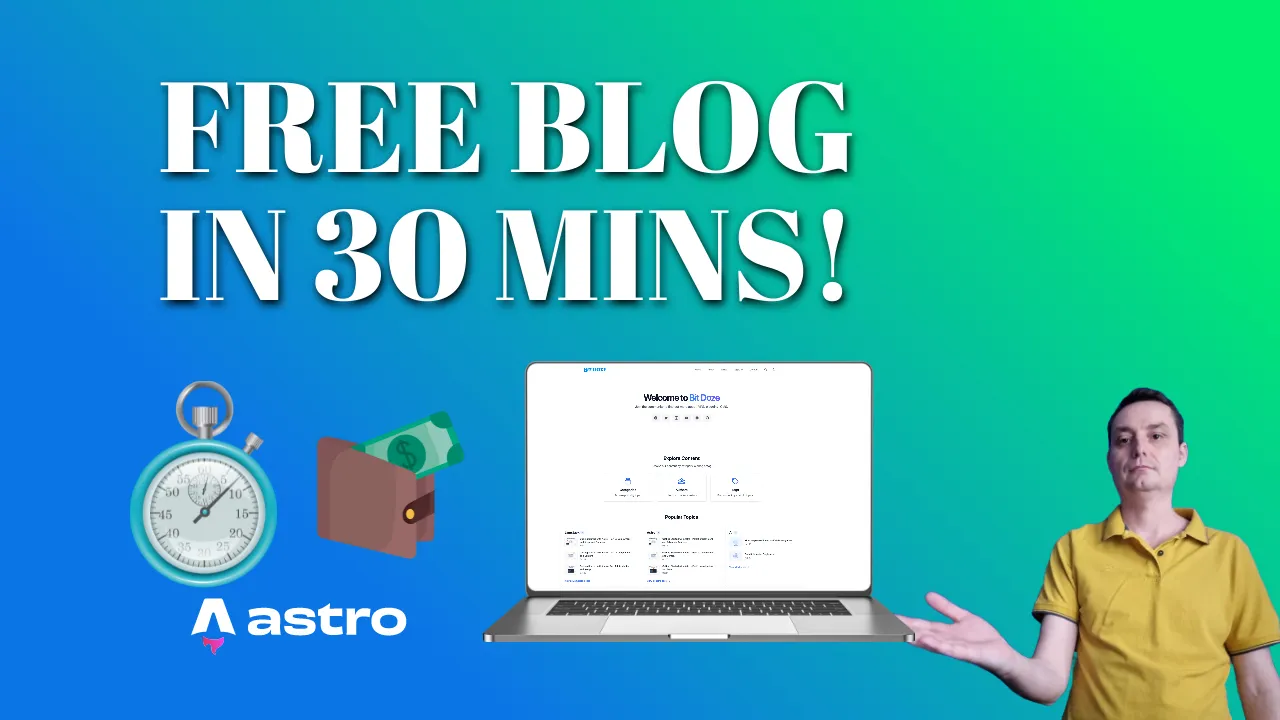
Want a blog that costs nothing to host? This guide builds a free Astro blog and deploys it to Cloudflare Pages in about 30 minutes. No credit card and no hosting bills.
You do not need to know JavaScript or any framework. If you can paste commands into a terminal, you can follow along.
Update: the theme just got a speed boost
The Bitdoze Astro Theme you’ll fork in Level 4 now runs on Astro 7. Astro’s new Rust compiler roughly cut build times in half on this very blog (743 pages, 103s down to 47s), and I used the upgrade as a reason to add a real Vitest test suite, a stricter content schema, and a sitemap fix to the theme too. Nothing below changes for you, npm install just pulls in the faster version. Full numbers here: Astro 7 Benchmark: Build Times Cut in Half.
One honesty note: the video and screenshots in this guide were recorded before Astro 7 landed and before Cloudflare renamed the dashboard nav to Workers & Pages. The written steps below are the source of truth for the config files and the deploy flow.
What the heck is Astro anyway?
Astro is a modern static site generator. You build pages with your favorite UI framework (React, Vue, Svelte) or with plain Markdown, and Astro ships zero JavaScript by default.
While other frameworks send megabytes of JS to the browser, Astro delivers mostly HTML. Pages load fast on their own, without a cache plugin doing the heavy lifting.
Version timeline, so you know where you stand (checked Oct 2026): Astro 5 shipped Dec 2024, Astro 6 landed Mar 2026, and Astro 7 arrived Jun 22, 2026 with a Rust-based compiler. The current release is 7.3.8 (Oct 8, 2026). The theme in this guide runs Astro 7.
Why Astro is perfect for your blog
- Static HTML and zero JS by default: your pages are plain files on a CDN, which is what search engines and slow phones want
- Islands architecture: only the interactive parts get hydrated
- Use any UI framework you like, or none at all
- Markdown support for writing posts
- Zero-config defaults, so you spend time writing instead of wiring
Think of Astro as the mullet of web frameworks: business in the front (static HTML for speed) and party in the back (JavaScript only where you need it). Today we’re using it to build you a blog that does not need a devops babysitter. Already running a WordPress site? Check out how I migrated my WordPress site to Astro, it was way less painful than I expected.
What you’ll have by the end
The whole $0 stack: GitHub + Astro + Cloudflare Pages. Here’s what you get:
- A modern, responsive blog powered by Astro
- Content stored in a GitHub repo you control
- Site deployed on Cloudflare Pages with free SSL
- A free
*.pages.devURL, plus an optional custom domain (becausemyawesomeblog.combeatsrandomstring.pages.dev) - Free preview deployments for every branch, which double as staging
- Total cost: $0.00
What you need
- A GitHub account (free, you’ll make one in Level 1)
- Node.js v22.12.0 or newer and npm 10.8.2+ (hard floor: the theme and Astro 7 refuse to run below this; current LTS 24.x is perfect)
- git (bundled with VS Code, Xcode Command Line Tools, or your distro’s package manager)
- Basic Markdown knowledge
- About 30 minutes
- Visual Studio Code or any editor (optional)
- A drink of your choice
Fail fast check before anything else:
node --version   # expect v22.12.0 or newer, e.g. v22.23.3 or v24.22.0
npm --version    # expect 10.8.2 or newer
If node --version prints anything below v22.12.0, stop here and upgrade. Astro 7 will not run on older Node, and you’ll just collect engine errors in Level 6. Full fix lives in the Troubleshooting section at the bottom.
Heads up: the video predates Astro 7, the Cloudflare dashboard rename (Workers & Pages), and the site.ts config split. It’s great for the overall flow, but follow the written steps below wherever the UI or config files have moved.
Level 1: become a GitHubber (5 minutes)
Already got a GitHub account? Skip ahead. If not:
- Go to GitHub.com
- Click Sign up
- Pick a username
- Verify your email (check spam, those sneaky emails love hiding)
Achievement unlocked: you have a GitHub account.
Verify: you’re logged in and can see your dashboard at github.com.
Prefer SSH?
HTTPS cloning works fine for this guide. If you’d rather use keys from the start: link GitHub with SSH on Mac/Linux.
Level 2: Node your way to success (5 minutes)
Before we get coding, install Node.js and npm:
- Visit nodejs.org
- Download the LTS version (24.x as of Oct 2026; anything v22.12.0+ works)
- Install it like any other app
- Open Terminal/Command Prompt and type:
node --version   # expect v22.12.0 or newer (Astro 7 requirement)
npm --version    # expect 10.8.2 or newer
If you see numbers in the right range, you’re good. If you see numbers in the wrong range (v18.x, v20.x), you now own a known failure mode: npm install will throw engine errors and the dev server will refuse to start. Fix it before moving on.
For the curious: Node 26 becomes LTS on 2026-10-28. You don’t need to chase the newest version, you just need to clear the v22.12.0 floor.
For more on Node.js
Multiple versions on one machine, no sudo drama: install Node.js with nvm on macOS/Ubuntu.
Level 3: power up with VS Code (optional, 3 minutes)
Because coding in Notepad is so 1995.
- Go to code.visualstudio.com
- Download and install
- Open it
Any editor works: Neovim, Windsurf, whatever you already have open. VS Code is just the path of least resistance here because its built-in git panel does the Level 5 and Level 9 steps without leaving the window. If you want an AI-powered code editor like Windsurf, that works too.
Level 4: fork a free Astro blog theme (2 minutes)
Time to grab the blog template. This is the whole reason the guide works: a free Astro blog theme with search, RSS, dark mode, and about 20 demo posts already wired up.
- Visit Bitdoze Astro Theme
- Hit Fork (top-right corner)
- Name it whatever you want (
my-awesome-blogworks) - Click Create fork
You now own a copy.
Where's the 'Use this template' button?
The theme README mentions GitHub’s “Use this template” shortcut, but the repo is not currently flagged as a GitHub template, so that button may not show up. Don’t hunt for it. Fork is the reliable path (and it keeps the upstream-merge workflow in “Keep your blog fresh” working). If you hate forks, use Method B below.
Method A: Fork (recommended)
Exactly the 4 steps above. Your fork lives at github.com/YOUR-USER/my-awesome-blog, and Sync fork on GitHub keeps it current with the theme.
Method B: Clone + push to a new repo
For when you want a clean repo with no fork relationship:
git clone https://github.com/bitdoze/bitdoze-astro-theme.git my-awesome-blog
cd my-awesome-blog
rm -rf .git
git init
git add .
git commit -m "Import Bitdoze Astro Theme"
Then create an empty repo on GitHub and push:
git remote add origin https://github.com/YOUR-USER/my-awesome-blog.git
git push -u origin main
Verify: git remote -v shows your repo as origin.
Verify: the repo appears under your GitHub account with the theme files inside.
Level 5: clone like a pro (3 minutes)
Get the code on your machine:
- In your forked repo, click Code > copy the HTTPS URL
- Open VS Code
- Press
Ctrl+Shift+P(orCmd+Shift+Pon Mac) - Type Git: Clone, hit Enter
- Paste the URL, pick a folder
- Open the repo when prompted
Verify: the repo folder opens in VS Code with package.json visible in the file tree. No package.json? You cloned the wrong thing.
Level 6: install and run locally (5 minutes)
Connect the pipes and get the blog running on your own machine.
- Open the terminal in VS Code (
Ctrl + backtick) - Type:
npm install
npm run dev- Wait for the install (first run downloads the Astro toolchain)
- Visit
http://localhost:4321
Fun fact: the repo ships a .node-version file pinned to 22.12.0. That’s what keeps everyone on the same Node floor, here and later on Cloudflare.
Achievement unlocked: the blog runs on your machine.
Verify: http://localhost:4321 shows the demo homepage: hero section plus a grid of demo posts. That’s the theme’s sample content, we’ll evict it in a minute.
Broken looks like: the terminal errors on startup. Nine times out of ten it’s Node older than v22.12.0 or a stale node_modules. Jump to Troubleshooting at the bottom of this guide.
Level 7: make it yours (10 minutes)
Add your personal flair. This is the section that changed the most in the 2026 theme update, so read the file names carefully. In the old days everything lived in config.json. Not anymore.
Update src/config/site.ts (your blog’s identity)
This is now the single identity file. Edit the obvious strings, leave the structure alone:
export const siteConfig = {
  // Identity
  title: "Your Amazing Blog Title",
  brandName: "Your Blog Name",
  logoText: "Your Blog Name",
  author: "Your Name",
  description: "Your captivating blog description",
  heroDescription: "One or two sentences under your hero headline.",
  footerDescription: "What your blog is about, in one line.",
  postsPerPage: 11,
  // Below this you'll find hero { title, titleAccent, primaryCta, ... }
  // and homepage { showFeaturedPosts, showTaxonomyCards, ... }
  // leave the rest alone for now
};
Note for anyone following old tutorials: there is no name key anymore. If a blog post tells you to set siteConfig.name, it’s describing a dead version of the theme. title and brandName are your new friends.
Update src/config/config.json (contact stuff only)
config.json no longer holds your site title or URL. It only holds the contact form endpoint and contact details:
{
  "params": {
    "contact_form_action": "#"
  },
  "contactinfo": {
    "address": "",
    "email": "you@example.com",
    "phone": ""
  }
}
Leave contact_form_action as "#" until you have a form endpoint, then add a contact form to Astro for free, no backend needed and point the action at your endpoint.
Menus and socials (unchanged)
Navigation lives in src/config/menu.json and social icons live in src/config/social.json, same as in the old guide. Paths and shapes are in “Customize even more” further down if you need them.
The one-line mental model
site.ts = identity · config.json = contact · menu.json = nav · social.json = socials. Keep this straight and the theme never fights you.
Verify: with npm run dev still running, change title and brandName in site.ts, save, and hard-refresh http://localhost:4321. The hero/footer text should change. If the dev server throws a TypeScript error, you probably removed a comma or a quote, the error line points right at it.
Level 7.5: evict the demo content (2 minutes)
The theme ships with about 20 demo posts and a couple of demo authors. Skip this step and your first deploy is full of someone else’s articles. The README is blunt about it: delete what you don’t need.
- Open
src/content/posts/ - Delete the demo
.md/.mdxfiles (keep one around until the smoke test if you want something to click on) - Check
src/content/authors/andsrc/content/about/index.mdfor demo copy you want to replace
Good news: empty collections render as empty lists. Deleting everything does not break the build.
Verify: refresh http://localhost:4321, the homepage shows only your content (or clean empty states).
Level 8: write your first post (5 minutes)
- Go to
src/content/posts/ - Create
my-first-post.md - Paste this in:
---
title: "My First Blog Post"
meta_title: "My First Amazing Blog Post"
description: "This is the beginning of my blogging journey!"
date: 2023-07-15
image: "../../assets/images/web-development.svg"
authors: ["admin"]
categories: ["Personal"]
tags: ["beginnings", "blogging"]
featured: true
---
## Hello World!
Welcome to my shiny new blog! I'm excited to overshare my thoughts with the internet.
### Why I Started This Blog
- To rant
- To teach
- To learn
- To procrastinate productively
Stay tuned for more!
Two frontmatter notes. First, featured: true (optional) surfaces the post in the homepage “Featured Posts” grid, so use it for your best stuff. Second, on image paths: the content schema got stricter in the 2026 update. Rather than trusting any path you see in a tutorial (including the one above), copy the image: line from one of the demo posts you haven’t deleted yet, and point it at an image you actually added. On a bad path you get a broken image or a build error, not a friendly hint.
- Save and refresh
http://localhost:4321
Achievement unlocked: first post published.
Verify: the post shows up on the homepage and opens on its own page. Want media in your posts later? Here’s how to add YouTube videos to your Astro blog.
Broken looks like: an error mentioning an unclosed tag or invalid HTML. Astro 7 got stricter, pasted HTML now fails the build instead of being silently fixed. See the Troubleshooting section at the bottom.
Level 9: save and push (2 minutes)
- Click the Source Control icon (branchy thing)
- Stage all changes (+ button)
- Write a commit message
- Click the checkmark to commit
- Push via the “…” menu > Push
Build locally before you push
Astro 7’s stricter HTML rules mean unclosed tags and unterminated attributes now fail the build instead of being auto-corrected. The error prints file + line, which is much friendlier on your machine than in a Cloudflare build log. Run npm run build (or the belt-and-braces npm run verify) before every push. Takes seconds on a fresh blog.
Verify: npm run build exits cleanly and prints the dist/ folder. If it doesn’t, the last error in the terminal tells you which file to open.
Level 10: enter the cloud (3 minutes)
- Sign up at Cloudflare.com
- Verify email
- Skip “Add a website” (we’re doing Pages, no domain required yet)
No credit card needed for any of this. Pages Free is genuinely free.
Boss Fight: deploy your Astro blog to Cloudflare Pages (5 minutes)
Here’s the whole pipeline in one picture: a git push becomes a live blog.
The dashboard nav changed in 2026, so follow this exactly:
- Cloudflare dashboard → Workers & Pages
- Create application → Pages tab → Connect to Git
- Authorize GitHub, pick your fork
- Set the project name (
my-awesome-blogworks) and production branch:main - Framework preset: Astro (or set manually): Build command
npm run build, Output directorydist - Click Save and Deploy
Coffee time while Cloudflare builds.
Two gotchas worth knowing before you click:
- A Git-integrated project cannot be switched to Direct Upload later. Pick Git (we did) and you’re fine.
- Every branch that isn’t
mainbecomes its own preview deployment with a unique URL. That’s free staging, use it shamelessly.
Seeing a 'Use Workers instead?' nudge?
Expected. Cloudflare now steers new projects toward Workers and the Pages docs carry a banner saying so. For a static blog, Pages is still free, still supported, and it’s what this very site runs on. If you ever outgrow it, Cloudflare publishes a “Migrate to Workers” doc. You did not take a wrong turn.
Free plan, real numbers
Cloudflare Pages Free (limits page updated 2026-09-05): 500 builds/month, 1 concurrent build, 20-minute build timeout, 20,000 files, 25 MiB max file size, 100 custom domains per project, unlimited preview deployments. A personal blog won’t register on any of those meters. The classic “unlimited bandwidth and requests” wording lives on the pricing page, check it there before quoting it in anger.
Verify: the build log goes green and Cloudflare hands you a URL like https://my-awesome-blog.pages.dev. Open it.
Broken looks like: a failed build from a typo’d build command or output dir (it’s npm run build and dist), or the Node version errors covered in Troubleshooting. The 20-minute timeout will not bite a blog this size.
For the longer, screenshot-heavy version of this deploy flow, see our full guide to deploying an Astro blog on Cloudflare.
The 5-minute smoke test (after your first deploy)
Don’t just admire the URL. Poke it. This is the “did it actually work?” checklist:
- Open the
*.pages.devURL: homepage, one post page, one category page all render - Site search (the theme ships Fuse.js client search) returns your post
/rss.xmlloads and a sitemap exists- A garbage URL like
/this-does-not-existrenders your custom 404 page - Push a throwaway branch and grab its free preview deployment URL from the Deployments tab
- If anything looks off, run
npm run buildornpm run verifylocally first, the error is clearer there
Those preview deployments are your free staging environment. Use them for risky theme edits before merging to main.
Bonus Round: custom domain (optional, 5 minutes)
- Buy a domain. Need a naming gut-check first? Here’s how to choose a good domain name.
- In Cloudflare Pages, open your project > Custom domains
- Click Set up a custom domain
- Follow the DNS instructions
SSL stays free either way, Cloudflare issues and renews the certificate for you.
On price: skip the “$1/year” fantasy unless you enjoy renewal surprises. The boring, predictable option is Cloudflare Registrar: at-cost domains, roughly the wholesale price, no markup renewal games. Check their registrar page for the current number, I won’t hardcode one here.
Verify: https://yourdomain.com loads with the padlock, and the page source shows your domain (not pages.dev) in the canonical tag.
Point SITE_URL at your production domain
Once the custom domain works, the theme README tells you to point SITE_URL at your production origin so canonical URLs, Open Graph tags, and the sitemap stop advertising your *.pages.dev address.
Verify before you copy
Check the theme README’s SITE_URL step for the current mechanism (env var in the Pages build settings vs a config field) before editing anything, it has moved between theme versions. The safe version of this instruction: find SITE_URL in the README, set it to https://yourdomain.com, redeploy, then confirm the canonical tag again.
What all this costs
| Piece | Cost |
|---|---|
| GitHub account + repos | $0 |
| Astro (open source, MIT) | $0 |
| Cloudflare Pages, Free plan | $0 (500 builds/month, unlimited previews) |
| SSL certificate | $0 (Cloudflare-managed) |
*.pages.dev URL |
$0 |
| Custom domain (optional) | ~$10/yr at-cost via Cloudflare Registrar (promo TLDs can be cheaper) |
| Total as written | $0.00 |
The domain is vanity, not necessity. Plenty of good blogs live on a pages.dev URL forever.
Keep blogging like a champ
Option 1: edit on GitHub
- Add
.mdfiles insrc/content/posts/ - Commit changes
- Done
Handy from a tablet on the couch. Just remember Astro 7’s stricter HTML rules apply on every push, so write clean Markdown.
Option 2: edit locally (recommended)
- Pull latest:
git pull- Add new post
- Preview with:
npm run dev- Commit and push:
git add .
git commit -m "Add awesome new post"
git push
Cloudflare will redeploy automatically.
Verify: the project’s Deployments tab in Cloudflare shows the new build, and the post is live on your URL.
Growing past a handful of Markdown files? When the git pull workflow starts feeling like a chore for non-technical editors, look at the best headless CMS options for Astro. And if you want readers, grow an audience with a free-tier newsletter tool like EmailOctopus, it fits the $0 theme of this whole operation.
Pro tips
- Post regularly
- Use images and GIFs to break up text
- Share your posts where your readers are, and reply to comments
- Mark your best posts with
featured: trueso the homepage grid does you justice - Make
npm run verifyyour pre-push reflex: types checked, tests run, build green - If you want stats without the surveillance economy, run privacy-friendly Plausible analytics on Cloudflare Workers
Blogging shouldn’t feel like homework. If it does, post less often instead of quitting.
Local dev workflow cheat sheet
npm run dev        # Start local server (http://localhost:4321)
npm run build      # Build production version into dist/
npm run preview    # Preview the production build
npm run verify     # astro check + tests + build (safe pre-push habit)
git add .          # Stage changes
git commit -m "Your message"  # Commit
git push           # Deploy!
Customize even more
Your project is flexible. Here’s what you can tweak inside the src/ folder:
Styles and colors
- Edit
src/styles/global.cssto change theme colors, fonts, or add custom CSS.
:root {
  --color-primary-500: #3b82f6; /* Change this to your fav color */
}- Customize dark mode colors under
.dark { ... }in the same file.
Social links
src/config/social.jsonholds your social profile URLs (see Level 7 for the file map).
Navigation menu
src/config/menu.jsoncustomizes your site’s navigation links.
Images, logos and favicons
- Place images in
src/assets/images/orpublic/images/(the first gets optimized at build time, the second is copied as-is). - Replace favicons/logos in
src/assets/favicons/orpublic/. - Update references if needed in configs or layout files.
Content: posts, pages, authors
- Blog posts live in
src/content/posts/ - Static pages live in
src/content/pages/(e.g., Privacy, Terms) - The about page is
src/content/about/index.md - Author profiles live in
src/content/authors/, which is great for multi-author blogs
Site info and metadata
src/config/site.tsis the identity file: title, brand, hero text, homepage toggles (Level 7).src/config/config.jsonis contact-only: form endpoint plus contact info (Level 7).
Layouts and components
- Customize how your blog looks by editing components in
src/layouts/and its subfolders. - Change headers, footers, post layouts, widgets, etc.
Pages and routing
- Add or edit pages in
src/pages/(e.g.,/about,/contact,/blog). - Create new
.astrofiles for custom routes.
This way, you can fully personalize your blog’s look, feel, and content!
Keep your blog fresh
- Add the original repo as upstream:
git remote add upstream https://github.com/bitdoze/bitdoze-astro-theme.git- Fetch updates:
git fetch upstream- Merge:
git merge upstream/main- Fix conflicts, push, done!
Read the theme’s CHANGELOG.md before you merge a new upstream version. It’s the difference between “oh, that key moved” and a confused evening of archaeology. The default branch is still main.
Merge conflicts in site.ts or config.json? That usually means upstream renamed or split a config key. The changelog tells you the new shape, then re-apply your values on top.
“But why Astro?” (for the skeptics)
“Couldn’t I just use WordPress/Wix/Medium?” Sure, you could also use a butter knife to cut down a tree. Here’s the honest case, numbers included:
- Astro 7’s Rust compiler built this very blog’s 743 pages in 47s, down from 103s on Astro 6. That’s the Astro 7 benchmark: build times cut in half on a 743-page site. For a ten-post blog, builds are instant either way, the point is the tooling grows with you.
- The speed your readers feel comes from static HTML and zero JS by default. Your pages are files served from a CDN. Nothing to patch, no PHP to keep updating, no cache plugin doing heroics.
- Cost and ops stay boring: $0 per month and the only moving parts are git and a build. Compare that to managed builder plans or a WordPress host with staging, backups, and a security plugin subscription.
- A static site is a tiny attack surface, but you still own your GitHub account security (turn on 2FA) and dependency updates via upstream merges. Nothing is “set and forget”.
- WordPress IS the right call for heavy plugin ecosystems, multiple non-technical editors, or a shop with real e-commerce needs. If that’s you, read an honest Astro vs WordPress cost and ops breakdown before committing to anything.
Building it yourself also means you can say “oh, my blog? I built it with Astro” at parties, if that’s your thing.
Troubleshooting
Site won’t build?
- Check terminal errors
- Validate Markdown syntax
- Run
npm run buildlocally for clues
Build fails with “unclosed tag” or invalid HTML
Astro 7 stopped auto-correcting broken markup. Unclosed tags and unterminated attributes now fail the build, and the error prints the file and line number.
- Fix: open that file, close the tag (or terminate the attribute), run
npm run buildlocally, push again. Pasting HTML from the web is the usual culprit.
Works locally, fails on Cloudflare
If the build goes green on your machine and red in the Cloudflare log, check the Node version on the build host. The theme ships .node-version pinned to 22.12.0 and Cloudflare’s build image reads it automatically.
- Fix: if you moved the theme into your own repo, keep the
.node-versionfile. If you can’t, setNODE_VERSION=22.16.0(or any 22.12+) in the Pages project’s build environment variables.
npm install fails or throws engine errors
Seeing EBADENGINE or “unsupported engine”? Your Node is below the v22.12.0 floor.
- Fix: check
node --version, upgrade Node (nvm guide here), then:
npm cache clean --force- Delete
node_modules&package-lock.json, reinstall.
Images missing?
- Check paths
- Use relative paths or full URLs
- Put images in
public/images/
The “Use this template” button is missing on GitHub
The theme repo isn’t flagged as a GitHub template, so the button often doesn’t render. Use Fork (Level 4, Method A) or the clone-and-push route (Method B).
Everything exploded?
Deep breath. Read the last error in the build log, check the Node version, and rebuild locally. Those three catch almost everything. If it’s still broken, the theme’s GitHub issues are the right place to ask.
Quick FAQ
Is this really 100% free?
Yes, as written. GitHub $0, Astro $0, Cloudflare Pages $0 (500 builds/month, unlimited preview deployments), SSL $0. The only possible cost is a custom domain, and even that is optional. Full breakdown in “What all this costs” above.
Cloudflare keeps telling me to use Workers. Did I pick wrong?
No. Cloudflare now steers new projects toward Workers because it’s their broader platform, but Pages is still free, still documented, and still what this site runs on. For a static blog, Pages does the job. If your needs ever outgrow it, there’s a documented migration path to Workers, no dead end.
Do I need to know React, Vue, or any framework?
No. This theme is plain Astro plus Markdown. You write posts in Markdown, the theme turns them into HTML. Frameworks are optional in Astro and unused here.
Can I use my own domain?
Yes, and SSL is free either way. See the Bonus Round for the custom domain steps and the note about pointing SITE_URL at your production domain. For registration, Cloudflare Registrar sells at-cost domains without renewal markups.
How do I add comments, analytics, a contact form, or videos?
The theme covers search, RSS, and dark mode out of the box. For the extras: the contact form endpoint is waiting in config.json (Level 7), media embeds are covered in Level 8’s links, and the analytics suggestion is in Pro Tips. All three have dedicated step-by-step guides on this site.
You did it!
You now own a working blog on Cloudflare Pages that costs $0 to run. The usual next moves: write posts on a schedule, hook up a custom domain once you have one, and automate anything you find yourself repeating.
Want to go deeper once the blogging habit sticks? Work through the best Astro.js online courses, hook up custom domains properly, or automate deploys with GitHub Actions.
Get the Bitdoze Astro ThemeHappy blogging!
P.S. If this guide helped, share it and star the Bitdoze Astro Theme on GitHub.