Bunny Stream: How to Host and Deliver Videos Without Vimeo or YouTube
A step-by-step guide to hosting your own videos with Bunny Stream. I use it for my free courses on bitbuddies.me and it costs a fraction of what Vimeo charges.

16 min read
If you’re hosting video content on your website, whether that’s courses, tutorials, product demos, or marketing material, you’ve probably looked at YouTube and Vimeo as your two main options. YouTube is free but plasters ads over your content and doesn’t let you control who watches. Vimeo gives you control but charges a premium for it, especially once your library grows.
I ran into this exact problem with BitBuddies, where I host free courses on topics like Dokploy and CloudPanel setup. I needed a video platform that would let me embed clean, ad-free videos in my course pages without paying Vimeo’s subscription fees. Bunny Stream turned out to be the answer, and I’ve been running all my course videos through it since.
This guide walks through the full setup: creating a library, uploading videos, embedding the player, customizing it, and locking things down with security features. I’ll also cover the API if you want to automate uploads.
If you want a broader look at the Bunny.net platform beyond just video, check out my Bunny.net review (honest take after 1 year — cheaper than Cloudflare on bandwidth) where I cover CDN, storage, DNS, and the rest of the stack.
Try Bunny Stream free for 14 days
Sign up at Bunny.net with no credit card required. You get full access to Stream and every other service during the trial.
Why not just use YouTube?
YouTube is free and the obvious choice for public videos. But it comes with tradeoffs that matter if you’re embedding videos on your own site:
- Ads on your content: Unless viewers pay for YouTube Premium, they see ads before or during your videos. On a course page, that means your students watch an ad for something unrelated before every lesson.
- Recommendations pull viewers away: YouTube’s sidebar and end-screen suggestions actively try to send your viewers somewhere else. You’re competing with cat videos for attention.
- No real access control: You can make videos unlisted, but anyone with the link can share it. There’s no token authentication or DRM.
- YouTube owns the relationship: Your viewers are YouTube’s users first, yours second. Analytics are limited, and you can’t customize the player to match your brand.
- SEO leakage: Embedded YouTube videos send authority to youtube.com, not your domain.
YouTube makes sense for public marketing content where you want maximum reach. But for course content, membership sites, or anything where you want to control the experience, it falls short.
Why not Vimeo?
Vimeo solves the ad and branding problems, but the pricing is where it gets painful:
| Feature | Vimeo Starter | Vimeo Standard | Vimeo Advanced |
|---|---|---|---|
| Price | $12/mo | $33/mo | $65/mo |
| Storage | 100 GB | 5 TB | 5 TB |
| Bandwidth | Limited | Higher | Highest |
| Privacy controls | Basic | Yes | Yes |
| Player customization | Limited | Yes | Yes |
Those prices are per-user, billed annually. And once you hit bandwidth limits, you either upgrade or your videos stop loading. For a course platform with a growing library, the costs scale in a way that doesn’t make much sense.
What Bunny Stream gives you instead
Bunny Stream is pay-as-you-go. No monthly subscription tiers, no per-video limits, no bandwidth caps. You pay for storage and delivery, that’s it.
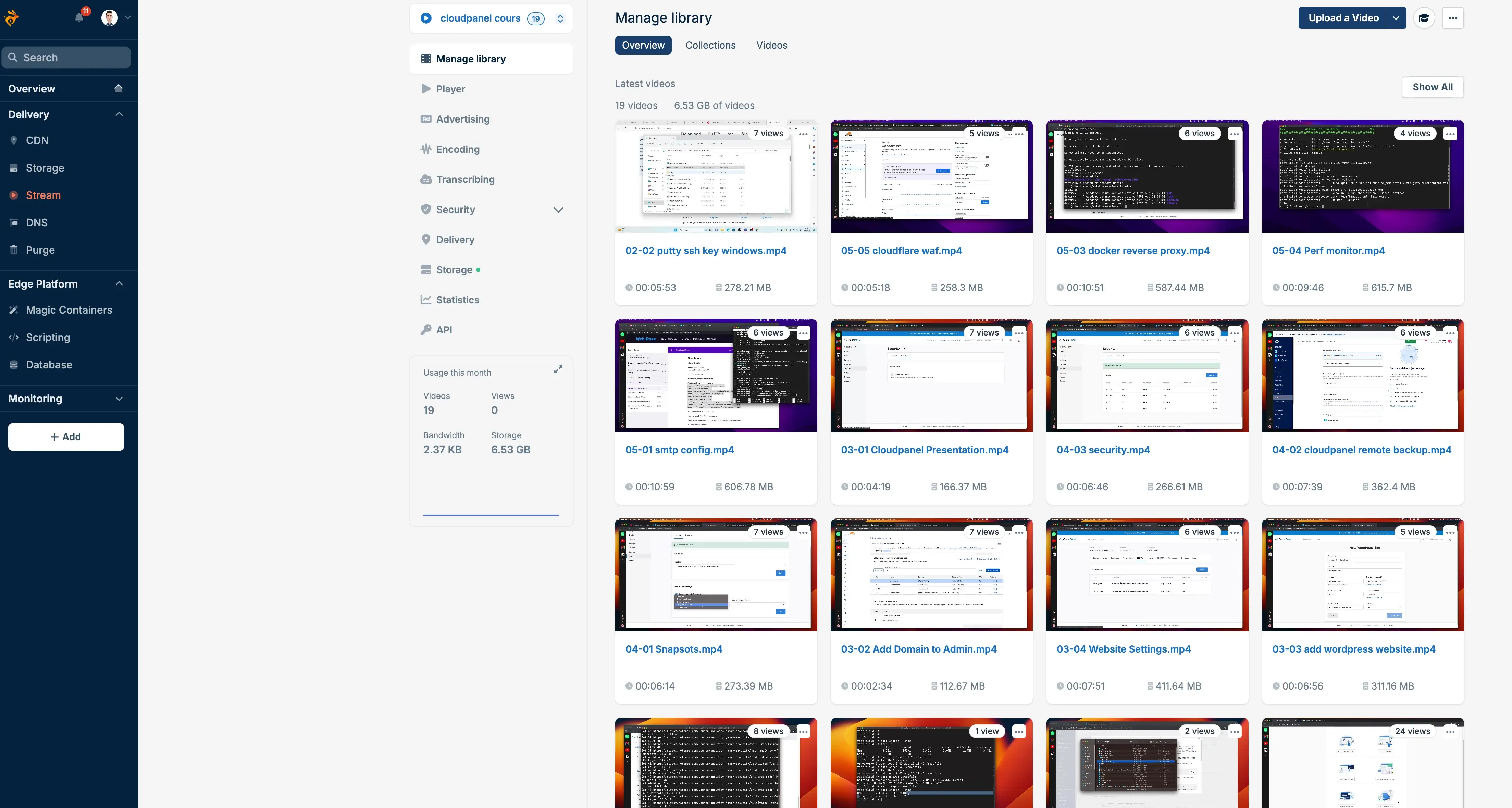
Here’s what it includes at no extra cost:
- Free transcoding: Upload once, Bunny creates 240p through 1080p versions automatically
- Built-in player: Customizable, responsive, no third-party embed needed
- DRM protection: Block downloads, screen recording, and screenshots
- Token authentication: Control exactly who can view each video
- Hotlink protection: Prevent unauthorized embedding on other domains
- Adaptive bitrate streaming: HLS delivery adjusts quality to viewer’s connection
- TUS resumable uploads: Large file uploads that survive connection interruptions
- Webhook support: Get notified when transcoding finishes, videos get viewed, etc.
- AI content tagging: Automatic categorization of your video library
- Watermarking: Add your logo or text overlay to videos
For what I run on BitBuddies, my monthly Bunny Stream bill stays under $5. That’s for all the course videos stored and delivered. On Vimeo, the same setup would cost me $33/month at minimum, probably more.
Setting up Bunny Stream step by step
Here’s the full walkthrough from zero to embedded videos on your site.
1. Create a Bunny.net account
Head to bunny.net and sign up. No credit card needed for the 14-day trial. You’ll land on the dashboard after confirming your email.
2. Create a video library
In the Bunny dashboard, go to Stream in the left sidebar, then click Add Video Library.
You’ll need to pick:
- Library name: Something descriptive. I use “bitbuddies-courses” for my course content.
- Primary storage region: Pick the one closest to where most of your viewers are. For a global audience, Frankfurt or New York are solid defaults.
- Replication regions (optional): Add more regions if you want faster delivery worldwide. Each additional region adds $0.005/GB to storage costs, but delivery gets faster for viewers in those areas.
Hit create and your library is ready.
3. Upload your videos
You have three options for getting videos into Bunny Stream:
Dashboard upload
The simplest approach. Go to your video library, click Upload, and drag your files in. Bunny handles everything from there.
The dashboard uses TUS resumable uploads under the hood, so if your connection drops halfway through a 2 GB file, it picks up where it left off. You’ll see a progress bar and transcoding status for each video.
I use this for one-off uploads when I’m adding a new lesson to a course. Quick and painless.
API upload
For automated workflows, Bunny’s API lets you create video objects and upload via TUS protocol. Here’s the basic flow:
# Step 1: Create a video object
curl -X POST "https://video.bunnycdn.com/library/{libraryId}/videos" \
  -H "AccessKey: {your-api-key}" \
  -H "Content-Type: application/json" \
  -d '{"title": "Lesson 1 - Getting Started"}'
This returns a video GUID. Then upload the file:
# Step 2: Upload the video file via PUT
curl -X PUT "https://video.bunnycdn.com/library/{libraryId}/videos/{videoId}" \
  -H "AccessKey: {your-api-key}" \
  -H "Content-Type: application/octet-stream" \
  --data-binary @lesson-1.mp4
For larger files, use the TUS protocol endpoint instead of the PUT method. Libraries like tus-js-client handle chunked uploads with automatic resumption.
Direct URL fetch
If your videos are already hosted somewhere (S3, another CDN, a direct URL), Bunny can fetch them for you:
curl -X POST "https://video.bunnycdn.com/library/{libraryId}/videos/fetch" \
  -H "AccessKey: {your-api-key}" \
  -H "Content-Type: application/json" \
  -d '{"url": "https://example.com/video.mp4", "title": "Lesson 1"}'
This is handy when migrating from another platform. Point Bunny at your existing video URLs and it pulls them in, transcodes them, and replicates them across your storage regions.
After upload, Bunny automatically transcodes each video into multiple resolutions. You can watch the progress in the dashboard. Transcoding time depends on video length and resolution, but a 10-minute 1080p video usually finishes in a couple of minutes.
4. Embed videos on your site
Once a video is transcoded, click on it in the dashboard and you’ll find the embed code. It looks like this:
<iframe
  src="https://iframe.mediadelivery.net/embed/{libraryId}/{videoId}"
  loading="lazy"
  style="border:none;position:absolute;top:0;height:100%;width:100%;"
  allow="accelerometer;gyroscope;autoplay;encrypted-media;picture-in-picture;"
  allowfullscreen="true"
></iframe>
Wrap it in a responsive container for proper sizing:
<div style="position:relative;padding-top:56.25%;">
  <iframe
    src="https://iframe.mediadelivery.net/embed/{libraryId}/{videoId}"
    loading="lazy"
    style="border:none;position:absolute;top:0;height:100%;width:100%;"
    allow="accelerometer;gyroscope;autoplay;encrypted-media;picture-in-picture;"
    allowfullscreen="true"
  ></iframe>
</div>
The padding-top: 56.25% gives you a 16:9 aspect ratio. Adjust for other ratios if needed.
On BitBuddies, each course lesson page has one of these embeds. The player loads fast, there are no ads, and students can pick their quality level. That’s exactly the experience I wanted.
5. Customize the player
Go to your video library settings to configure the player appearance:
- Player color: Match your brand. I use the BitBuddies accent color so the player feels native to the site.
- Controls: Show or hide specific buttons (speed control, quality selector, PiP, fullscreen).
- Captions: Upload SRT/VTT files for subtitles. Multiple languages supported.
- Thumbnail: Bunny auto-generates one, or you upload your own.
- Watermark: Overlay your logo on the video. Position, size, and opacity are all adjustable.
- Playback speed: Enable speed controls so viewers can watch at 1.5x or 2x (course students love this).
You can also skip the built-in player entirely and use the raw HLS manifest URL with your own player (Video.js, Plyr, whatever you prefer). The HLS URL is available in each video’s settings.
6. Set up security
This is where Bunny Stream earns its keep over YouTube for course content.
Token authentication
Token auth ensures that only your website can generate valid playback URLs. Enable it in your library security settings, set a token key, and then sign your embed URLs server-side.
Here’s how the signed URL works:
const crypto = require('crypto');

function signBunnyUrl(libraryId, videoId, tokenKey, expirationTime) {
  const expires = Math.floor(Date.now() / 1000) + expirationTime;
  const hashableBase = tokenKey + videoId + expires;
  const token = crypto
    .createHash('sha256')
    .update(hashableBase)
    .digest('hex');
  return `https://iframe.mediadelivery.net/embed/${libraryId}/${videoId}?token=${token}&expires=${expires}`;
}
The URL expires after your set time window, so even if someone shares the link, it stops working. I set mine to expire after 4 hours, which gives students plenty of time to watch a lesson without the link becoming permanently shareable.
DRM protection
If you’re selling video content and downloads are a concern, Bunny’s DRM integration blocks:
- Video downloads (right-click save, browser extensions)
- Screen recording on supported platforms
- Screenshots on supported devices
DRM uses Widevine (Chrome, Android) and FairPlay (Safari, iOS) under the hood. You enable it per-library in the settings. No additional cost.
Worth noting: DRM isn’t bulletproof. Someone can always point a camera at their screen. But it stops 95% of casual piracy, which is usually enough.
Hotlink protection and allowed domains
Restrict which domains can embed your videos. In your library settings, add your allowed domains (e.g., bitbuddies.me, www.bitbuddies.me) and enable hotlink protection. Anyone trying to embed your video on an unauthorized domain sees nothing.
This prevents people from copying your embed code onto their own site and serving your content at your expense.
Geo-blocking
Block or allow specific countries from accessing your videos. Useful for licensing restrictions or if your content is region-specific.
Working with the API
If you’re building a course platform or any app that manages video programmatically, the Bunny Stream API covers everything you need.
Common API operations
# List all videos in a library
curl "https://video.bunnycdn.com/library/{libraryId}/videos?page=1&itemsPerPage=100" \
  -H "AccessKey: {your-api-key}"

# Get video details (including transcoding status)
curl "https://video.bunnycdn.com/library/{libraryId}/videos/{videoId}" \
  -H "AccessKey: {your-api-key}"

# Update video metadata
curl -X POST "https://video.bunnycdn.com/library/{libraryId}/videos/{videoId}" \
  -H "AccessKey: {your-api-key}" \
  -H "Content-Type: application/json" \
  -d '{"title": "Updated Title", "chapters": [{"title": "Intro", "start": 0, "end": 60}]}'

# Delete a video
curl -X DELETE "https://video.bunnycdn.com/library/{libraryId}/videos/{videoId}" \
  -H "AccessKey: {your-api-key}"
Webhooks
Set up webhook URLs in your library settings to get notified when:
- A video finishes transcoding (
video_encoded) - A video gets a caption generated (
caption_generated)
This is useful if you want to automatically publish a course lesson once its video is ready, or trigger a notification to students.
How much it actually costs
This is the part that sold me. Bunny Stream pricing breaks down into two components:
| Component | Cost |
|---|---|
| Storage | $0.01/GB per month |
| Delivery (Standard network) | $0.01/GB (EU/NA) |
| Delivery (Volume network) | $0.005/GB |
| Transcoding | Free |
| Player | Free |
| DRM | Free |
| API access | Free |
Real-world cost examples
Small course (my setup)
What I run on BitBuddies:
| Item | Amount | Monthly cost |
|---|---|---|
| Stored video | ~50 GB | $0.50 |
| Monthly delivery | ~100 GB (EU/NA) | $1.00 |
| Replication | 2 regions | $0.50 |
| Total | ~$2.00/mo |
For comparison, Vimeo Starter costs $12/month with less storage and limited bandwidth.
Medium course platform
A platform with a larger library:
| Item | Amount | Monthly cost |
|---|---|---|
| Stored video | 500 GB | $5.00 |
| Monthly delivery | 1 TB (EU/NA) | $10.00 |
| Replication | 3 regions | $3.75 |
| Total | ~$18.75/mo |
The same setup on Vimeo Standard would cost $33/month, and you’d still hit bandwidth ceilings.
Large video library
A production video platform:
| Item | Amount | Monthly cost |
|---|---|---|
| Stored video | 5 TB | $50.00 |
| Monthly delivery | 20 TB (Volume network) | $100.00 |
| Replication | 5 regions | $50.00 |
| Total | ~$200/mo |
At this scale, traditional cloud video (AWS MediaConvert + S3 + CloudFront) would cost significantly more. Transcoding alone on AWS runs about $0.02/minute.
My setup on BitBuddies
Here’s how I actually use Bunny Stream for BitBuddies in practice:
I have one video library called “bitbuddies-courses” with Frankfurt as the primary storage region and a second replication point in New York. Most of my students are in Europe and North America, so this covers the vast majority of viewers with low latency.
Each course (like the Dokploy Setup and CloudPanel Setup courses) has its own collection within the library. When I record a new lesson, I upload it through the dashboard, wait a few minutes for transcoding, and drop the embed code into the course page.
I’ve enabled token authentication so the video URLs expire after a few hours. The courses are free, so I’m not trying to lock things down aggressively, but it prevents people from hot-linking the videos elsewhere and racking up my bandwidth bill.
The player matches the BitBuddies brand colors, and I have playback speed controls enabled because students watching setup tutorials often want to skip through the parts they already know.
Total monthly cost for all of this: around $2. I spend more on coffee in a day.
When you should still use YouTube or Vimeo
Bunny Stream isn’t the right pick for every situation. Be honest about your use case:
Stick with YouTube when:
- You want maximum organic discoverability (search, recommendations, algorithm)
- Your content is public and you benefit from YouTube’s built-in audience
- You don’t mind ads on your videos
- You need free hosting with unlimited storage
Consider Vimeo when:
- You need OTT (over-the-top) live streaming with monetization
- Your workflow depends on Vimeo’s specific integrations (certain LMS platforms, marketing tools)
- You need Vimeo’s built-in video creation and editing tools
Use Bunny Stream when:
- You’re embedding videos on your own site and want a clean, branded experience
- You’re building a course platform, membership site, or knowledge base
- Cost predictability matters and you don’t want per-tier subscription pricing
- You need DRM, token auth, or hotlink protection
- You want API control over your video library
Frequently asked questions
Can I migrate my existing videos from Vimeo to Bunny Stream?
Yes. If you can get direct download URLs for your Vimeo videos (available on paid plans), you can use Bunny’s URL fetch API to pull them in directly. Bunny downloads, transcodes, and stores them. You’ll need to update your embed codes afterward, but the actual migration is straightforward.
If you can’t get direct URLs from Vimeo, download the files locally first and re-upload them to Bunny through the dashboard or API.
Does Bunny Stream support live streaming?
Not currently. Bunny Stream is for video-on-demand (pre-recorded content). If you need live streaming, you’d need to pair it with a separate service like OBS + a streaming platform, then upload the recordings to Bunny afterward.
What video formats can I upload?
Bunny accepts most common formats: MP4, MKV, MOV, AVI, WEBM, and others. The recommended upload format is MP4 with H.264 encoding, as it gives the fastest transcoding times. But you can throw pretty much any format at it and Bunny figures it out.
How long does transcoding take?
Depends on the video length and resolution. A 10-minute 1080p video usually transcodes in 2-3 minutes. Longer or higher-resolution videos take proportionally more time. 4K content takes noticeably longer. You can monitor progress in the dashboard or via webhooks.
Can I use my own video player instead of Bunny's?
Yes. Every video gets an HLS manifest URL that you can feed into any HLS-compatible player: Video.js, Plyr, hls.js, or whatever you prefer. The built-in player is convenient but entirely optional.
Is Bunny Stream good enough for paid courses?
For most course creators, yes. With DRM enabled, token authentication, and hotlink protection, you have enough security to prevent casual piracy. No video platform is piracy-proof (screen recording always exists), but Bunny’s protections are on par with what Vimeo and Wistia offer at higher price points.
How does Bunny Stream handle mobile playback?
The built-in player is responsive and works well on mobile browsers. HLS adaptive streaming automatically adjusts quality based on the viewer’s connection speed, so mobile users on cellular data get a lower resolution that loads quickly, while wifi users get full quality.
Wrapping up
Bunny Stream fills a gap that YouTube and Vimeo leave open. YouTube is free but takes control away from you. Vimeo gives control back but charges a subscription that scales awkwardly. Bunny charges for what you actually use, includes features that cost extra elsewhere, and gets out of your way.
I’ve been running my BitBuddies course videos on it for a while now and I have no plans to switch. The setup took less than 30 minutes, the player looks clean on every device, and my monthly bill is pocket change.
If you want to learn more about the full Bunny.net platform (CDN, storage, DNS, security, and more), I wrote a detailed Bunny.net review that covers everything. And if you’re looking at storage options for your video files or other assets, check out my Bunny Storage vs S3 vs Backblaze comparison.
Try Bunny Stream Free for 14 Days