How to Add Smooth Scroll and Anchor Links to Carrd
Learn how to implement smooth scrolling navigation in your Carrd website with anchor links that glide to sections instead of jumping.
When visitors click navigation links on a one-page site, they expect a smooth experience. The default browser behavior is an instant jump - one moment you’re at the top, the next you’re halfway down the page. It works, but it feels jarring.
Smooth scrolling changes that. Click a link and the page glides to the target section, giving visitors a sense of where they are in relation to other content. It’s a small detail that makes your Carrd site feel more polished.
Carrd.coSome Carrd Tutorials:
- Add Popup Modal to Carrd
- Add Testimonial Slider to Carrd
- Add Dark Mode Toggle to Carrd
- Add Floating Menu to Carrd
- Add Sidebar Menu to Carrd
- Carrd.co Review
The complete list with Carrd plugins, themes and tutorials you can find on my carrdme.com website.
Why Smooth Scrolling Matters
A few reasons to add smooth scrolling:
-
Better user orientation - Visitors see the page moving, so they understand the site’s structure better.
-
Professional feel - Small interactions like this separate amateur sites from polished ones.
-
Reduced disorientation - Instant jumps can confuse visitors, especially on longer pages.
-
Works with any navigation - Whether you use a sticky header, floating menu, or sidebar navigation, smooth scrolling improves the experience.
How to Add Smooth Scrolling to Carrd
Step 1: Set Up Your Section IDs in Carrd
First, you need to give each section an ID that links can target. In Carrd:
- Click on a container or section you want to link to
- Go to Settings (gear icon)
- Find the “ID” field
- Enter a simple name like
about,services,contact
Do this for each section you want in your navigation.
Step 2: Add the Embed Element
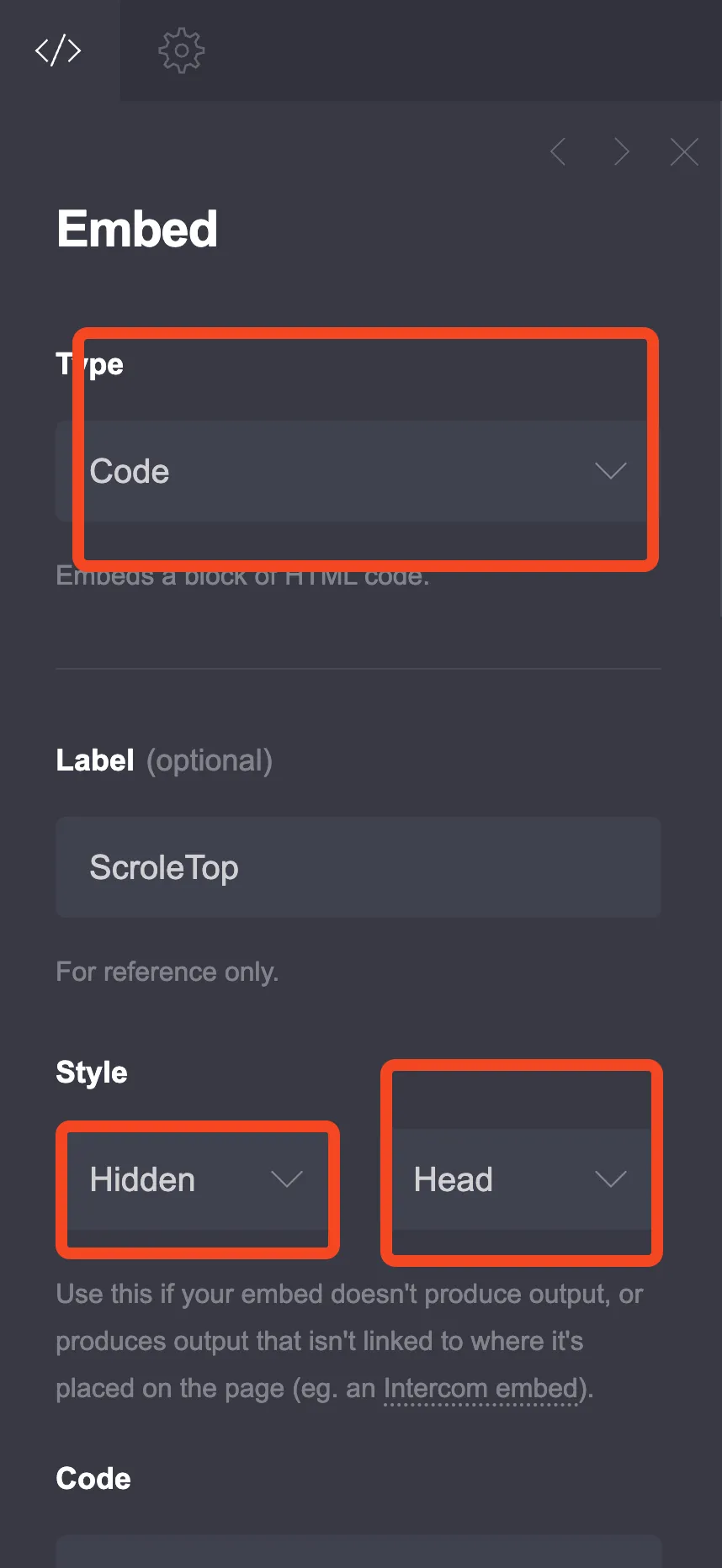
Go to the + sign and add an Embed element anywhere on your page:
- Type: Code
- Style: Hidden, Head
Step 3: Add the Smooth Scroll Code
Here’s the complete code with multiple options:
Option 1: Simple Smooth Scroll (CSS Only)
The easiest approach uses pure CSS. It works in all modern browsers and with Carrd’s built-in navigation.
<style>
  html {
    scroll-behavior: smooth !important;
  }
</style>
That’s it. This enables smooth scrolling when you click Carrd’s navigation links. The browser handles everything automatically.
Limitation: You can’t control scroll speed or add offset for sticky headers with this method.
Option 2: Custom Scroll Speed (No Sticky Header)
If you want to control how fast the page scrolls but don’t have a sticky header, use this. It works with Carrd’s navigation system by listening to URL hash changes.
<script>
(function() {
  const scrollDuration = 800; // Change this: 600 = fast, 1000 = slow

  function smoothScroll(target) {
    const startPosition = window.pageYOffset;
    const targetPosition = target.offsetTop;
    const distance = targetPosition - startPosition;
    let startTime = null;

    function easeInOutQuad(t) {
      return t < 0.5 ? 2 * t * t : -1 + (4 - 2 * t) * t;
    }

    function animate(currentTime) {
      if (!startTime) startTime = currentTime;
      const elapsed = currentTime - startTime;
      const progress = Math.min(elapsed / scrollDuration, 1);

      window.scrollTo(0, startPosition + distance * easeInOutQuad(progress));

      if (elapsed < scrollDuration) {
        requestAnimationFrame(animate);
      }
    }

    requestAnimationFrame(animate);
  }

  // Carrd uses hashchange for navigation
  window.addEventListener('hashchange', function() {
    setTimeout(function() {
      const hash = location.hash;
      if (!hash) return;

      // Carrd uses ID format: "sectionname-section" (e.g., #about becomes #about-section)
      const target = document.querySelector(hash + '-section') ||
                     document.querySelector(hash);

      if (target) {
        smoothScroll(target);
      }
    }, 10);
  });
})();
</script>
How it works: Carrd intercepts link clicks and changes the URL hash. This script listens for those hash changes and performs smooth scrolling.
Adjust speed: Change scrollDuration = 800 to your preference (600 = faster, 1200 = slower).
Option 3: Smooth Scroll with Sticky Header Offset
If you have a sticky header, this prevents content from scrolling behind it.
<script>
(function() {
  const headerOffset = 80; // Change this to your header's height in pixels
  const scrollDuration = 800;

  function smoothScroll(target) {
    const startPosition = window.pageYOffset;
    const targetPosition = target.offsetTop - headerOffset;
    const distance = targetPosition - startPosition;
    let startTime = null;

    function easeInOutQuad(t) {
      return t < 0.5 ? 2 * t * t : -1 + (4 - 2 * t) * t;
    }

    function animate(currentTime) {
      if (!startTime) startTime = currentTime;
      const elapsed = currentTime - startTime;
      const progress = Math.min(elapsed / scrollDuration, 1);

      window.scrollTo(0, startPosition + distance * easeInOutQuad(progress));

      if (elapsed < scrollDuration) {
        requestAnimationFrame(animate);
      }
    }

    requestAnimationFrame(animate);
  }

  window.addEventListener('hashchange', function() {
    setTimeout(function() {
      const hash = location.hash;
      if (!hash) return;

      const target = document.querySelector(hash + '-section') ||
                     document.querySelector(hash);

      if (target) {
        smoothScroll(target);
      }
    }, 10);
  });
})();
</script>
Configuration:
headerOffset = 80- Set this to your sticky header’s height in pixelsscrollDuration = 800- Adjust scroll speed (600 = faster, 1000 = slower)
Option 4: Scroll Progress Bar
Add a colored bar at the top showing scroll progress. Combine with Option 1 for smooth scrolling.
<style>
  html {
    scroll-behavior: smooth !important;
  }

  .scroll-progress {
    position: fixed;
    top: 0;
    left: 0;
    width: 0%;
    height: 3px;
    background: #4f46e5;
    z-index: 99999;
    transition: width 0.1s;
  }
</style>

<div class="scroll-progress" id="scrollProgress"></div>

<script>
(function() {
  const progressBar = document.getElementById('scrollProgress');

  function updateProgress() {
    const scrollTop = window.pageYOffset;
    const docHeight = document.documentElement.scrollHeight - window.innerHeight;

    if (docHeight > 0) {
      progressBar.style.width = (scrollTop / docHeight) * 100 + '%';
    }
  }

  window.addEventListener('scroll', updateProgress);
  updateProgress();
})();
</script>
Change color: Modify background: #4f46e5 to your brand color.
Option 5: Smooth Scroll for Back-to-Top Button
If you have a back-to-top button, here’s code specifically for that:
<style>
  .back-to-top {
    position: fixed;
    bottom: 30px;
    right: 30px;
    width: 50px;
    height: 50px;
    background: #4f46e5;
    color: white;
    border: none;
    border-radius: 50%;
    cursor: pointer;
    font-size: 24px;
    display: flex;
    align-items: center;
    justify-content: center;
    opacity: 0;
    visibility: hidden;
    transition: all 0.3s ease;
    z-index: 1000;
    box-shadow: 0 4px 15px rgba(0,0,0,0.2);
  }

  .back-to-top.visible {
    opacity: 1;
    visibility: visible;
  }

  .back-to-top:hover {
    background: #4338ca;
    transform: translateY(-3px);
  }
</style>

<button class="back-to-top" id="backToTop" aria-label="Back to top">↑</button>

<script>
  const backToTopButton = document.getElementById('backToTop');

  // Show/hide button based on scroll position
  window.addEventListener('scroll', function() {
    if (window.pageYOffset > 300) {
      backToTopButton.classList.add('visible');
    } else {
      backToTopButton.classList.remove('visible');
    }
  });

  // Smooth scroll to top
  backToTopButton.addEventListener('click', function() {
    window.scrollTo({
      top: 0,
      behavior: 'smooth'
    });
  });
</script>
The button appears after scrolling down 300 pixels and smoothly scrolls back to the top when clicked.
Setting Up Navigation Links in Carrd
To make your navigation work with smooth scrolling:
-
Create your navigation using Carrd’s built-in buttons or link elements
-
For each link, set the URL to the section ID with a
#prefix:- Home:
#home - About:
#about - Services:
#services - Contact:
#contact
- Home:
-
Make sure sections have matching IDs in their Settings panel
The smooth scroll code automatically handles any link that starts with #.
Troubleshooting
Scroll stops short or goes too far? Adjust the headerOffset value to match your actual header height.
Links don’t work? Check that your section IDs match exactly (case-sensitive). An ID of About won’t match a link to #about.
Scrolling feels too slow or fast? Change the scrollDuration value. 600-1000ms usually feels natural.
Active link highlighting not working? Make sure your navigation links use the a tag with href="#sectionid" format.
Conclusion
Smooth scrolling is one of those details that visitors notice subconsciously. It makes your site feel more professional without being flashy. Start with the simple CSS-only option, and add the JavaScript version if you need header offset support or extra features.
Combine this with a floating menu or sidebar navigation for a complete navigation experience.