Carrd Smooth Scroll: Native Anchor Links + Custom Code
Carrd smooth scroll made easy: use native Scroll Points and anchor links for free, or add custom code for controlled speed, easing, and sticky-header offset.

Updated Published 67 min read
Carrd smooth scroll is now built in. Scroll Points glide visitors to any anchor with zero code, on every plan, including Free. That changes the order of this guide, because most “smooth scroll for Carrd” tutorials, older versions of this one included, start with an embed snippet you do not actually need.
What has not changed: the browser still needs a target to scroll to, and your navigation still needs anchor links pointing at it. What changed is who does the animating. Carrd’s own published site JavaScript runs an eased requestAnimationFrame scroll (750ms by default) when a Scroll Point link fires (verified in the inline JS of a live published Carrd site, September 2026), so the native route covers the common case. Click a nav link, the page glides.
The custom embed code still earns its place in three situations: you want an easing curve or duration Carrd’s speed setting does not offer, you need a sticky-header offset that adapts to your header, or you want extras like a scroll progress bar or a smooth back-to-top button. Everything below runs from “free and zero code” down to “paste this snippet”, so stop at the first option that solves your case. The native route costs nothing on every Carrd plan.
2026 update
Carrd smooth-scrolls to Scroll Points natively now. Treat the code snippets below as optional. Use them only for custom speed, easing, or a sticky-header offset.
Some Carrd tutorials:
- Add Popup Modal to Carrd
- Add Testimonial Slider to Carrd
- Add Dark Mode Toggle to Carrd
- Add Floating Menu to Carrd
- Add Sidebar Menu to Carrd
- Carrd.co Review
The complete list with Carrd plugins, themes and tutorials you can find on my carrdme.com website.
Why Smooth Scrolling Matters
On a one-page site the whole navigation story is scrolling. Visitors click “Pricing” and expect to land there with some sense of the distance they just travelled.
-
Better user orientation - The page visibly moves through its own structure, so visitors understand where the target sits relative to everything else.
-
Professional feel - Small interactions like this separate a thrown-together page from a finished one. One-page navigation lives or dies on details like this.
-
Reduced disorientation - An instant jump from hero to footer is disorienting on long Carrd sections. A glide is not.
It also works with whatever navigation you already use: a sticky header, a floating menu, or sidebar navigation. Smooth scrolling improves all of them.
Do You Still Need Code for Smooth Scrolling in Carrd?
Short answer: no, not for plain anchor scrolling. Add a Scroll Point, link to it with #name, done. Carrd animates the scroll in the browser.
You still need code when you want any of these:
- An easing curve, or a duration outside Carrd’s five speed levels
- A sticky-header offset that follows your header’s real height, so content does not park itself under it
- Decorative extras: a scroll progress bar, a styled back-to-top button, scroll-triggered effects
If none of those apply, jump to How to Use Carrd Scroll Points for Native Smooth Scroll and ignore the rest of this page.
How Carrd Resolves #hash Links: Scroll Points vs. Sections
Before picking a method, it helps to know what Carrd does when a #hash changes. The old version of this article conflated Scroll Points and section IDs. They are different features with different DOM footprints.
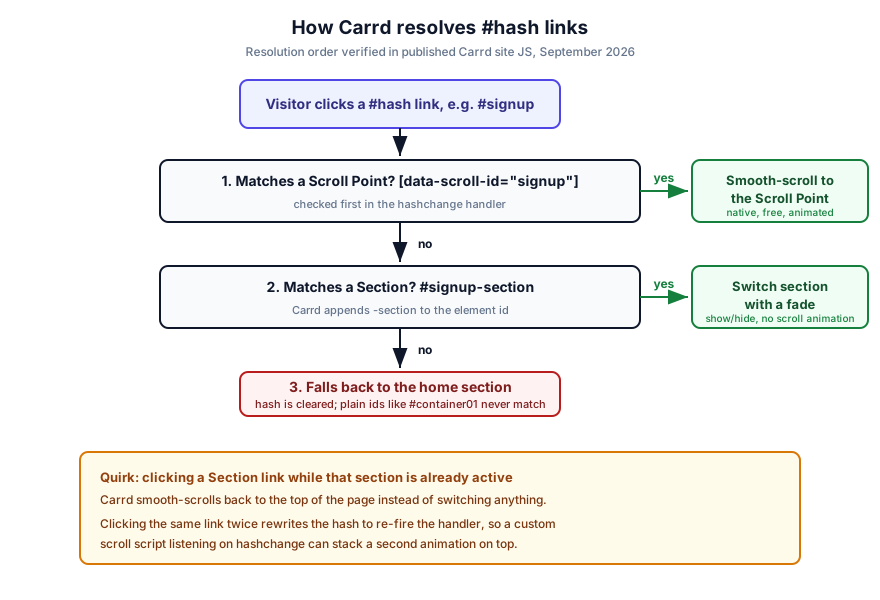
From the published site JavaScript of a live Carrd site (inspected September 2026), the hashchange handler resolves a hash in this order:
Under the hood
[data-scroll-id=“hash”]- it is a Scroll Point. Carrd smooth-scrolls to it if its section is visible.#hash-section- it is a Section. Carrd shows or switches to that section with a fade. No scroll animation, because there is nothing to scroll.- Anything else - Carrd falls back to the home section and clears the hash. That includes links to plain element IDs like
#container01.
A section named contact really does render as <section id="contact-section"> in the published DOM, and a Scroll Point has no id at all, only data-scroll-id. That is why generic smooth-scroll snippets built on document.getElementById(hash) find nothing on a Carrd site.
The back-to-top quirk
If the target section is already active, a Section link scrolls smoothly back to the top of the page instead of doing nothing. Switching to a different section shows the new one already at the top, with no scroll animation. Also, clicking the same link twice makes Carrd rewrite the hash to re-fire the handler. A custom script listening on hashchange can stack a second animation on top of Carrd’s own, which is where “double animation” jitter comes from.
How to Use Carrd Scroll Points for Native Smooth Scroll
This is the default path. It is free on every Carrd plan, including Free (3 sites), and needs no embed element. Scroll Points are plain Control elements.
- Add a Scroll Point control element where the linkable point should sit
- Point any button or link at it with
#name - Deep-link from outside with
yourdomain.com/#name, or usescrollpoint:nextstyle special URLs
Free plan friendly
Scroll Points and Section Breaks are Control elements. No Pro plan required. Docs: using Scroll Points.
Step 1: Add a Scroll Point Control Element
- In the Carrd builder, click
+(Add Element) - Choose Control
- Set Type to Scroll Point
- Name it with lowercase letters, numbers, and hyphens only:
signup,pricing,contact - Drop it exactly where the linkable point should sit, usually just above a heading
The lowercase restriction is real. Carrd lowercases the hash before matching and ignores any hash containing characters other than letters, numbers, and hyphens, so #sign up or #sign_up will not resolve. If you cannot find a name later, open More Actions → Elements… (the Elements Panel added in August 2026) for a list of every element on the page.
Published Scroll Points also carry data-scroll-behavior (default, center, previous), data-scroll-offset, and data-scroll-speed attributes, and Carrd’s JS reads all three. Speed runs from 1 to 5 and maps to 1250, 1000, 750 (the default), 500, and 250ms. Offset is added to the landing position, in units of the page’s root font size. If your Scroll Point settings expose speed or offset, try them before reaching for code.
Step 2: Link to It with #name
Any URL field in Carrd takes the hash:
- Button URL:
#pricing - Text link:
#signup - Nav item in a Carrd mobile responsive navbar: same
#pricingformat
Verify: publish the site, click the link, and watch two things. The URL hash should change to #pricing, and the page should glide rather than teleport. If the URL does not change, the link is wrong. If the URL changes but the page jumps instantly, you are pointing at a Section, not a Scroll Point.
Step 3: Deep Links and scrollpoint: Special URLs
Scroll Points work as real anchors from outside the page. Share https://yourdomain.com/#pricing in an email or social post and Carrd scrolls to the point on load.
For sequential one-pagers, Carrd also accepts special URLs (see URL types in the docs):
scrollpoint:next- next Scroll Point downscrollpoint:previous- previous one upscrollpoint:first- first Scroll Pointscrollpoint:last- last one
These are handy on “Next section” buttons at the bottom of each block.
Verify: open yourdomain.com/#pricing in a fresh incognito window. You should land scrolled to the pricing block with the hash visible in the address bar.
Failure mode: a name typo fails without an error. Carrd just falls back to the home section. Check exact spelling in the Elements Panel before you chase other causes.
Prerequisites: Carrd Plans and the Embed Element
The code options below (2, 3, 5, and the smooth button in 6) paste custom code, and custom code needs the Embed element. That is where Carrd gates the features. Prices below are from carrd.co/pro as of September 2026.
| Feature | Plan needed | Cost |
|---|---|---|
| Scroll Points, Section Breaks | Any, including Free | $0 |
| Embed element (custom code) | Pro Standard and up | $19/yr, 10 sites |
| Advanced Settings (fixed element IDs, Events) | Pro Plus and up | $49/yr, 25 sites |
Full plan list if you need more sites: Free (3 sites), Pro Lite $9/yr (3 sites), Lite 10 $14/yr, Lite 25 $29/yr, Pro Standard $19/yr (10 sites, includes embeds, widgets, forms, analytics), Pro Plus $49/yr (25 sites, adds Advanced Settings, Events, redirects, password protection), Plus 50 $89/yr, Plus 100 $159/yr. See the Carrd plan comparison in our Carrd.co review if you want a second opinion before paying.
Decision rule: start on Free with Scroll Points. Upgrade to Carrd Pro Standard ($19/yr) only when you actually need custom code. Pro Plus ($49/yr) is only worth it for Advanced Settings and Events.
Compare Carrd plans- A Carrd account (any plan for native Scroll Points, Pro Standard+ for the code options)
- A published site to test on - embeds do nothing in the builder
- Your sticky header height in pixels, if you have one
- 10 minutes and one browser tab with dev tools open
Plan gates
Scroll Points and Section Breaks: free. The Embed element (all code options below): Pro Standard at $19/yr. Advanced Settings with fixed element IDs and On Click events: Pro Plus at $49/yr.
The embed flow, once
For every code option below:
- Click
+(Add Element) → Embed - Type: Code
- Style: Hidden
- Location: Head, Body Top, or Body End (docs for embedding custom code list all three)
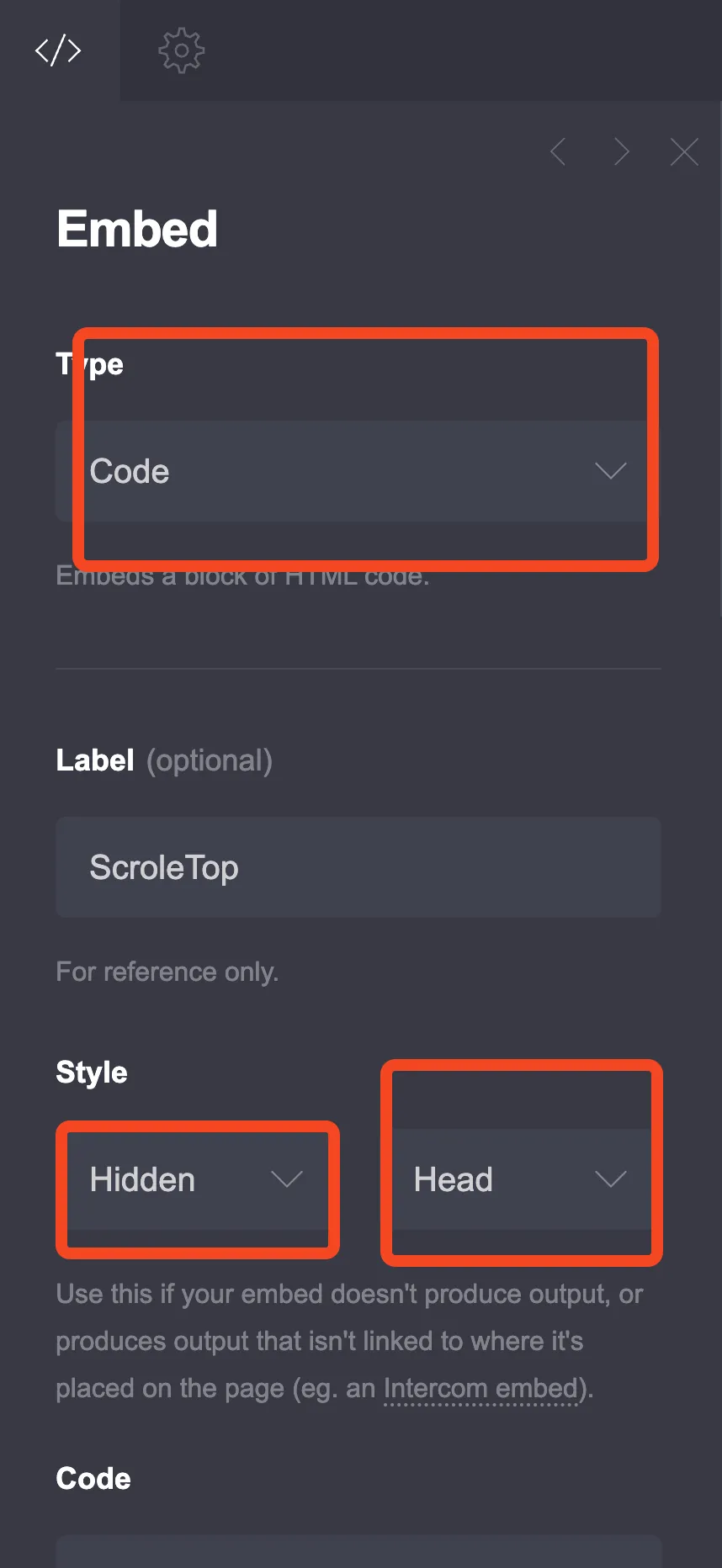
Placement convention used in this guide:
- Pure
<style>snippets → Hidden, Head - Anything with
<div>,<button>, or<script>→ Hidden, Body End
Nothing renders in the builder
Embeds output nothing in the Carrd builder. You must publish the site to see them work. This is the number one reason “my smooth scroll does nothing”. You are previewing in the wrong place.
If you have never used a Hidden embed before, the Carrd popup modal tutorial walks the same flow for a different feature, and the Carrd dark mode toggle is another embed-based customization worth stealing patterns from. A cookie notice is another Hidden embed example if you want more reps.
Option 1: CSS scroll-behavior (Skip It on Carrd)
The classic one-liner, html { scroll-behavior: smooth; }, is the snippet most older Carrd tutorials hand out, often with scroll-padding-top for a sticky header. On a current Carrd site it makes scrolling worse. I tested it against a real published Carrd page before rewriting this section.
Carrd moves the page with its own animation loop and calls window.scroll() once per frame. With scroll-behavior: smooth set, the browser turns each of those calls into a new smooth scroll of its own, so the page barely moves for most of Carrd’s 750ms animation and then lurches to the target. In my test the same Scroll Point jump took roughly twice as long and started with a visible stall.
scroll-padding-top does not help either. Carrd scrolls to coordinates it calculates itself, and a Scroll Point has no id for the browser to jump to, so the padding never applies to Scroll Point or Section links.
Remove it if you already have it
If an older embed on your site contains html { scroll-behavior: smooth; }, delete that rule, or the whole embed if that is all it holds. Native Scroll Points glide better without it.
For a sticky-header offset, use the Scroll Point offset described in Step 1, or the headerOffset value in Option 2.
Verify: after removing the rule, publish and click a Scroll Point link. The glide should start immediately instead of stalling.
Option 2: Custom Scroll Speed with JavaScript
Reach for this only when the native speed is wrong for your design. It gives you a duration knob and an easing curve. It replaces the two near-identical scripts earlier versions of this article shipped: one script now covers both speed and offset.
<script>
(function() {
  const scrollDuration = 800;           // ms
  const headerOffset = 80;              // sticky header height in px
  const prefersReduced = window.matchMedia('(prefers-reduced-motion: reduce)').matches;

  function easeInOutQuad(t) { return t < 0.5 ? 2 * t * t : -1 + (4 - 2 * t) * t; }

  function smoothScroll(target) {
    const start = window.pageYOffset;
    const end = target.getBoundingClientRect().top + start - headerOffset;
    const distance = end - start;
    if (prefersReduced || distance === 0) { window.scrollTo(0, end); return; }
    let startTime = null;
    function animate(now) {
      if (!startTime) startTime = now;
      const progress = Math.min((now - startTime) / scrollDuration, 1);
      window.scrollTo(0, start + distance * easeInOutQuad(progress));
      if (progress < 1) requestAnimationFrame(animate);
    }
    requestAnimationFrame(animate);
  }

  // Carrd's own click handler sits on window, so stopping the event here
  // keeps Carrd from starting a second animation for the same link.
  document.addEventListener('click', function(e) {
    const link = e.target.closest('a[href^="#"]');
    if (!link) return;
    const name = link.getAttribute('href').slice(1).toLowerCase();
    if (!/^[a-z0-9-]+$/.test(name)) return;
    const point = document.querySelector('[data-scroll-id="' + name + '"]');
    if (!point) return; // Section link: Carrd switches sections itself
    const section = point.closest('section');
    if (section && section.classList.contains('inactive')) return;
    e.preventDefault();
    e.stopPropagation();
    history.pushState(null, '', '#' + name);
    smoothScroll(point);
  });
})();
</script>
Paste it into an Embed element set to Code, Hidden, Body End. Not Head. The old article said Head, which was wrong for scripts like this.
Configuration:
scrollDuration = 800- milliseconds for the full scroll. 600 feels snappy, 800 is the default here, 1000 to 1200 feels slow and cinematic.headerOffset = 80- set to 0 if you have no sticky header. Option 3 covers tuning it.
The script only takes over links that point at a Scroll Point in the section you are looking at. It handles the click before Carrd’s own handler sees it, updates the URL hash itself, and runs one animation. Section links, and Scroll Points that live in a hidden section, still go to Carrd, because Carrd has to switch sections first.
One owner of the scroll
Carrd already smooth-scrolls Scroll Points, so any custom script has to stop Carrd from animating the same click. The earlier version of this snippet listened for hashchange and ran alongside Carrd. On a real Carrd page that worked on the first click, but a second click on the same link let Carrd’s animation win and dropped the header offset. This version stops the click instead. Also remove any html { scroll-behavior: smooth; } rule (see Option 1), or it will slow this animation down too.
Verify: publish, click a Scroll Point link, then click the same link again immediately. Same-link clicks make Carrd re-fire its hash handler, so this is the fastest way to expose stacked animations. Check the browser console for errors while you are there.
Failure modes:
- Stalls or double-animates - another embed or a leftover
scroll-behavior: smoothrule is also scrolling. Remove it - Nothing scrolls - Scroll Point name typo. Open More Actions → Elements… and copy the exact name
- Lands in the wrong place - that is an offset problem, go to Option 3
Option 3: Smooth Scroll with Sticky Header Offset
This is not a second script. Option 2’s snippet already has the offset built in. Set headerOffset to your sticky header height in pixels.
| Setup | Config |
|---|---|
| No sticky header | const headerOffset = 0; |
| Sticky header, fixed height | const headerOffset = 80; (match your header) |
| Header height varies | measure it (below) |
If your header height differs between desktop and mobile, hardcoding one number will land wrong on one of them. Measure instead:
const headerOffset = (document.querySelector('header') || {}).offsetHeight || 80;Drop that in place of the hardcoded const headerOffset = 80;. If your sticky element is not a header tag, adjust the selector to whatever class Carrd or your sticky header tutorial gave it.
Why this option exists at all: Carrd’s own offset (data-scroll-offset) is one fixed value per Scroll Point, and scroll-padding-top does not apply to scrolls that go to explicit coordinates (see Option 1). A header that changes height needs the offset measured in code.
Pro Plus escape hatch
On Pro Plus, Advanced Settings exposes Events, including On Click on Buttons and Links. For a single CTA that needs custom scrolling, running your scroll function from an On Click event is cleaner than intercepting every hash change on the page. See Advanced Settings. Fixed element IDs live behind the same Pro Plus gate per the docs, which is another reason Scroll Points are the better anchor mechanism.
Verify: with your header fully expanded (open the mobile menu if it pushes the header taller), click into a section near the bottom of a long page. The heading should land just below the header.
Failure modes: still short or overshooting means headerOffset is wrong for the current breakpoint. Works on desktop, wrong on mobile, means the header height differs and you need the measured version.
Option 4: Section Transitions with On Section Change Animation
If your site is built on Carrd sections, you do not have a scrolling problem. You have a transition problem. Section links show and hide whole sections like pages. The “smooth” visitors expect here is a fade between sections, and Carrd has that built in.
First, the setup (setting up a section in the docs):
- Add Element → Control → Type: Section Break
- Name it (
work,pricing) with the same lowercase rule - Link to it with
#work - Deep-link externally with
yourdomain.com/#work - Special URLs
section:next,section:previous,section:first,section:lastwork the same asscrollpoint:ones
Then the transition: select the Page element, open the Animation tab, and pick an “On Section Change” effect. Carrd animates the switch natively. A published Carrd demo site inspected in September 2026 shipped transition: opacity 0.5s ease-in-out as its default, which is observation, not a documented spec value.
Section Breaks are Control elements, so this stays on the free plan.
Scroll Points vs. Sections
Scroll Points scroll within the section you are looking at. Section Breaks switch which section is visible. If people complain that “smooth scroll does not work” on your site, they usually have section links and want this option instead.
Scroll Point
Use when: everything lives in one visible page and you want the viewport to glide to a block.
DOM: [data-scroll-id="signup"]
Link: #signup - smooth-scrolls (native, free)
Animation control: the Scroll Point’s speed setting (five levels). For custom easing, use Option 2.
Section
Use when: your Carrd site is split into sections and navigation feels like moving between pages.
DOM: id="work-section"
Link: #work - shows/switches that section with a fade
Animation control: Page element → Animation tab → On Section Change
Verify: publish and click #work from two different sections. Then click #work while already on work. That second click is the quirk: it scrolls smoothly back to the top of the page. Expect it instead of debugging it.
Failure mode: “smooth scroll does not work on my section links” - correct, it will not. Sections switch; they do not scroll. Use this option’s On Section Change animation, or rebuild the page around Scroll Points if you truly want a scrolling one-pager.
Option 5: Scroll Progress Bar
A colored bar at the top showing how far down the page visitors are. Standalone, pairs with any scrolling option above.
<style>
  .scroll-progress {
    position: fixed;
    top: 0;
    left: 0;
    width: 0%;
    height: 3px;
    background: #4f46e5;
    z-index: 99999;
    transition: width 0.1s;
  }
</style>

<div class="scroll-progress" id="scrollProgress"></div>

<script>
(function() {
  const progressBar = document.getElementById('scrollProgress');

  function updateProgress() {
    const scrollTop = window.pageYOffset;
    const docHeight = document.documentElement.scrollHeight - window.innerHeight;

    if (docHeight > 0) {
      progressBar.style.width = (scrollTop / docHeight) * 100 + '%';
    }
  }

  window.addEventListener('scroll', updateProgress);
  updateProgress();
})();
</script>
Change background: #4f46e5 to your brand color.
Placement
This snippet contains a <div> and a <script>, so it goes in a Hidden embed at Body End, not Head. Keeping the whole snippet in one Body End embed is simpler than splitting style and markup across two embeds.
Verify: publish (the builder shows nothing), scroll slowly, and the bar should grow from 0% to 100% across the page width.
Failure modes: bar invisible, suspect z-index collision with your sticky header - the bar uses 99999, raise it or lower the header. Bar stuck at 0, open the browser console; a JS error kills updateProgress. Nothing at all in the builder is expected behavior.
Option 6: Carrd Back to Top (Native browser:top vs Smooth Button)
Two routes for getting visitors back to the top of a long one-pager.
Native link (free)
Set any link’s URL to browser:top. It is a documented URL type meaning “scroll to the top of the current page”. Zero code, works on Free.
Carrd’s published JS has a to-top function (_scrollToTop) that uses the same eased 750ms animation as Scroll Points, so expect a glide rather than a jump. I matched that function to browser:top by name in the JS rather than clicking a live browser:top link, so check it on your own site.
Smooth button (Pro Standard+)
A styled button that glides up. Needs the Embed element, so Pro Standard at $19/yr. Full code below. The button shows after 300px of scroll and calls scrollTo({top: 0, behavior: 'smooth'}) on click.
This is the animated Carrd back to top route.
The smooth button snippet, into an Embed set to Code, Hidden, Body End:
<style>
  .back-to-top {
    position: fixed;
    bottom: 30px;
    right: 30px;
    width: 50px;
    height: 50px;
    background: #4f46e5;
    color: white;
    border: none;
    border-radius: 50%;
    cursor: pointer;
    font-size: 24px;
    display: flex;
    align-items: center;
    justify-content: center;
    opacity: 0;
    visibility: hidden;
    transition: all 0.3s ease;
    z-index: 1000;
    box-shadow: 0 4px 15px rgba(0,0,0,0.2);
  }

  .back-to-top.visible {
    opacity: 1;
    visibility: visible;
  }

  .back-to-top:hover {
    background: #4338ca;
    transform: translateY(-3px);
  }
</style>

<button class="back-to-top" id="backToTop" aria-label="Back to top">↑</button>

<script>
  const backToTopButton = document.getElementById('backToTop');

  // Show/hide button based on scroll position
  window.addEventListener('scroll', function() {
    if (window.pageYOffset > 300) {
      backToTopButton.classList.add('visible');
    } else {
      backToTopButton.classList.remove('visible');
    }
  });

  // Smooth scroll to top
  backToTopButton.addEventListener('click', function() {
    window.scrollTo({
      top: 0,
      behavior: 'smooth'
    });
  });
</script>
The aria-label="Back to top" is doing accessibility work for screen readers and it is already in the snippet. Keep it if you restyle. If your OS has “reduce motion” enabled and the jump feels instant, that is behavior: 'smooth' being overridden at the platform level, not a bug in the code.
Verify: publish, scroll past 300px, confirm the button fades in. Click it and watch for a glide to the top.
Failure modes: button never appears - the <button> plus <script> are in Head instead of Body End, or a JS error stopped the listener. Jump is instant, not smooth - check that behavior: 'smooth' is still in your copy and that the OS is not forcing reduced motion.
For a more complete styled version, with keyboard focus handling and label options, use the full back to top button tutorial for Carrd.
Setting Up Anchor Links in Carrd Navigation
Wiring navigation to anchors is the same job regardless of which scroll method you picked.
- Every link URL starts with
#and matches the Scroll Point or Section name exactly - Names are lowercase, letters plus numbers plus hyphens only
- Scroll Point targets use
#signup; Section targets use#work - Test every nav item once on desktop and once on a phone after publishing
Three nav styles cover most Carrd sites:
-
Built-in buttons and links - set the URL field to
#pricing. Nothing else to do. -
A Carrd mobile responsive navbar - anchors behave the same way, but mobile headers are often taller or shorter than desktop. If you use a Scroll Point offset or
headerOffset, test it at mobile breakpoints specifically. -
Third-party floating menu or sidebar navigation widgets - same
#nameURLs. These are embed-based, so remember they need Pro Standard and only render on the published site.
Verify: after publishing, click every nav item once on a desktop browser and once on a phone. Watch the URL hash change on each click.
Failure modes: an item jumps instantly to a different “page-like” view - it is a Section link, see Option 4. Everything works on desktop but lands short on mobile - the header height at that breakpoint does not match your Scroll Point offset or headerOffset.
Accessibility: Respect prefers-reduced-motion
One line of respect
Not everyone wants the page moving under them. Animated scrolling triggers nausea for some visitors with vestibular disorders, and they say so at the OS level. Honor it.
Carrd’s native Scroll Point animation does not check this setting (there is no prefers-reduced-motion check in its published JS), so the native route always animates. The Option 2 script does check it, at the top:
const prefersReduced = window.matchMedia('(prefers-reduced-motion: reduce)').matches;When that is true, the Option 2 script jumps straight to the target with window.scrollTo(0, end) and skips the animation loop. Support is broad: Chrome 74+, Firefox 63+, Safari 10.1+ (MDN data, September 2026).
Two more things while you are here: keep the aria-label on the back-to-top button from Option 6, and do not rely on scroll animation alone to tell visitors where they are. Pair it with visible heading structure or nav highlighting.
Verify: with the Option 2 script installed, turn on “Reduce motion” in macOS Accessibility or Windows Animations settings. Reload the published site and click a Scroll Point link. It should jump instantly, with no console errors and no half-finished animation frames.
Troubleshooting Carrd Smooth Scroll
Test on the published site, not the builder
Embeds render nothing in the Carrd builder. If your smooth scroll “does not work”, publish first, then open the live URL (incognito avoids stale cache) before you change any code.
Nothing happens in the builder or preview
Embeds are stripped from builder output on purpose. Carrd’s docs say you need to publish to see custom code in action. Publish, then test on the real URL.
Double animation or jitter with a custom script
Carrd already smooth-scrolls Scroll Points. If your script also animates on hashchange, two animations stack. Remove one scroll owner: either delete the custom script and use native Scroll Points, or keep the script and understand it is now the one animating. Test with two rapid clicks on the same link, since same-hash re-clicks deliberately re-fire Carrd’s handler.
Links do not work or jump to the wrong place
Scroll Point names must be lowercase letters, numbers, and hyphens. Carrd lowercases the hash before matching, but a link with a space, underscore, or typo in it (#sign_up, #pricng) never reaches the Scroll Point. Carrd falls back to the home section instead. Open More Actions → Elements… (Elements Panel, added August 2026) and copy the exact names instead of typing them from memory.
Content hides behind my sticky header
The offset is too small: either the Scroll Point’s own offset or headerOffset in Option 2. scroll-padding-top will not fix it on Carrd (see Option 1). Mobile header heights often differ from desktop. Option 3 shows the measured offsetHeight version that adapts per viewport.
Clicking the same link twice misbehaves
Expected quirk. Carrd rewrites the same hash (history.replaceState then location.replace) to re-trigger its own handler, so the second click is a real navigation event. Custom listeners can stack an extra animation on top. This is a cosmetic annoyance, not data loss.
Section links are not smooth at all
They never will be. Section links switch visible sections with a fade; they do not scroll. If the section is already active, Carrd scrolls smoothly back to the top instead. For animated section changes use Option 4, or rebuild on Scroll Points if you want real scrolling.
Scroll speed feels wrong
That is scrollDuration in Option 2, in milliseconds. 600 to 1000 feels natural to most people. Native Carrd speed has five levels (250 to 1250ms, see Step 1). If none of them fit, or you want a different easing curve, Option 2 is the fix.
Removing Smooth Scroll (Rollback)
Undo is trivial on Carrd, since everything is per-site embeds and control elements. No leftover CSS or JS on Carrd’s side.
- Custom code: delete the Embed element (or just its code). Refresh the published site and you are back to native behavior.
- A Scroll Point or Section Break: delete the Control element. But update any
#namelinks pointing at it first, or those links dead-end. Order matters: fix nav links, then delete the target. - A leftover
scroll-behavior: smoothrule: delete it from its Head embed (see Option 1). Nothing else to clean up.
Because rollback is this cheap, there is no reason to avoid trying a code option on a published staging domain before your main one.
Try Carrd.coConclusion
The decision rule, in order:
- Scroll Points for anchor navigation. Free, native Carrd smooth scroll, zero code.
- Scroll Point speed and offset if the native glide is too fast, too slow, or lands under a sticky header. Skip the Option 1 CSS; it slows Carrd down.
- Option 2 and 3 JavaScript only for custom easing or an offset that has to follow your header’s height.
- Option 4 if you have a sectioned site and want animated section changes instead of scrolling.
Pair any of it with a floating menu or sidebar navigation for complete one-pager navigation.
If you want to go further with Carrd layout, carrdme.com has plugins worth a look, including a Carrd tabs plugin for organizing long page content and a Carrd accordion plugin for FAQ sections.
Try Carrd.co Carrd Tabs plugin