
How to Speed Up WordPress with CloudPanel Varnish Cache
Step-by-step guide to enabling and configuring Varnish Cache in CloudPanel to speed up WordPress and reduce server load.

3 min read

WordPress is dynamic: every page request triggers PHP execution and a database query. Under normal traffic that’s fine. Under load it becomes a bottleneck fast. Varnish Cache sits in front of Nginx and serves pre-rendered HTML directly from memory, skipping PHP and MySQL entirely for most requests.
CloudPanel has built-in Varnish support, so the setup is much simpler than configuring it manually.
How Varnish works in CloudPanel
Try Hetzner Cloud Now Try Hostinger VPSVPS prices jumped across the board in 2026 — if you’re rethinking a rented box, see what changed and when a mini PC wins.
CloudPanel uses a reverse proxy setup. Varnish listens on the public port, and Nginx runs behind it on port 6081. When a request comes in:
- Varnish checks if it has a cached copy in memory
- If yes, it serves the cached HTML directly — no PHP, no database
- If not, the request goes to Nginx, PHP processes it, and Varnish stores the result
Static assets (images, CSS, JS) are served directly by Nginx and bypass Varnish — they’re already fast.
Enable Varnish in CloudPanel
Go to your site in CloudPanel → Varnish Cache → toggle it on.
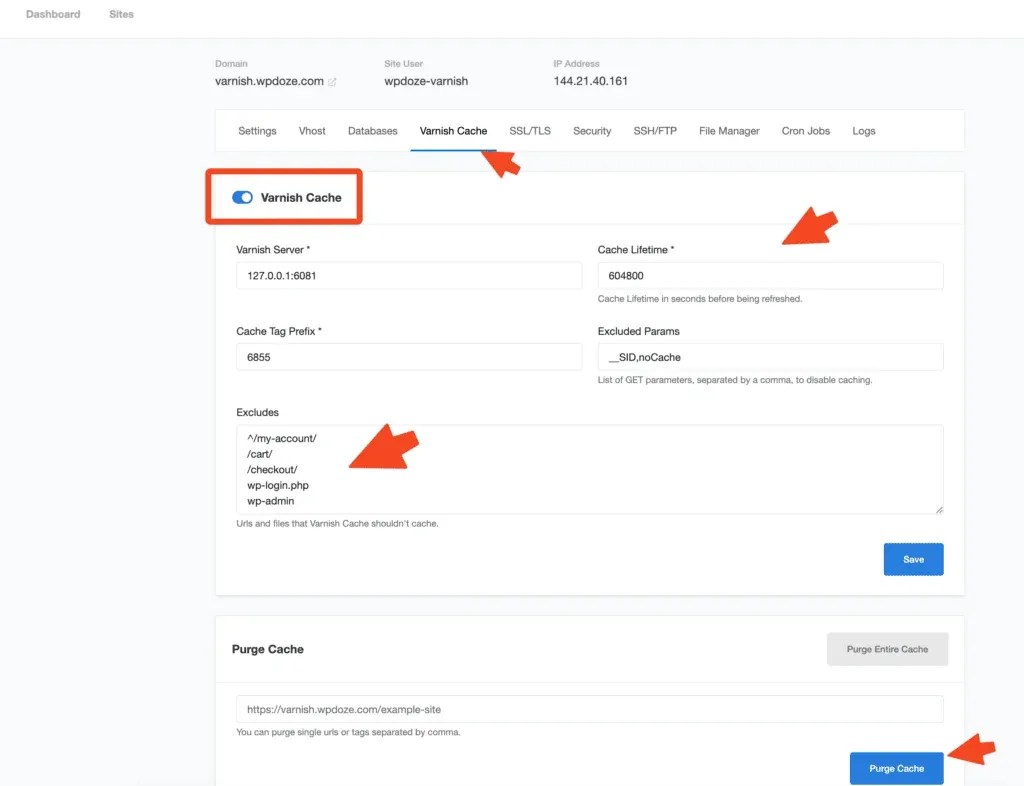
In the exclusions field, add any paths that should never be cached — cart, checkout, account pages, and anything that’s user-specific:
/wp-admin/
/cart/
/checkout/
/my-account/
/wp-login.php
Configuration details
Memory allocation: Varnish defaults to 512 MB. To increase it, edit:
/lib/systemd/system/varnish.serviceLook for the -s malloc parameter and change the value.
PHP controller (excludes specific pages from caching):
/home/<siteUser>/.varnish-cache/controller.phpLogs:
/home/<siteUser>/logs/varnish-cache/Cache lifetime
CloudPanel defaults to a 7-day cache lifetime. You can change this in the Varnish Cache settings panel. For sites that update frequently (news, daily posts), drop it to 1-2 days. For mostly static sites, 7-14 days is fine. The cache purges automatically when you use the WordPress plugin below.
CLP Varnish Cache WordPress plugin
Install the CLP Varnish Cache plugin in WordPress (current version 1.0.2, tested up to WordPress 6.7.4). It lets you purge the Varnish cache from the WordPress admin bar, which is useful after publishing new content or updating settings. No complex configuration needed; it connects WordPress to the CloudPanel Varnish setup automatically.
What gets cached vs what doesn’t
Varnish in CloudPanel automatically skips caching for:
- WordPress admin dashboard
- Login page
- Pages with active login cookies
- Cart and checkout pages
Everything else — posts, pages, archives — gets cached on first visit and served from memory on subsequent ones.
Combining Varnish with PageSpeed
CloudPanel also has a built-in PageSpeed module (mod_pagespeed) that compresses images, minifies CSS/JS, and optimizes delivery. You can enable it alongside Varnish for extra speed gains. Varnish handles the caching layer; PageSpeed handles asset optimization. They don’t conflict with each other.
Result
The practical effect is that a server that previously handled 50 concurrent visitors before slowing down can handle several hundred with Varnish in front. CPU and memory usage drop because PHP and MySQL only run for the first visitor on each page. CloudPanel’s documentation claims 100-250x faster page loads with Varnish enabled, which tracks with my testing on low-traffic sites where cached pages load in under 50ms.
This is one of the most effective speed improvements you can make to a WordPress site without changing hosting or adding hardware.