How to Install WordPress on Ubuntu ARM with CloudPanel
Step-by-step guide to install WordPress on an ARM VPS (Hetzner or Oracle free tier) using CloudPanel. Cheap, fast, and straightforward.

3 min read
ARM servers are cheaper than x86 at every tier. Hetzner’s entry ARM server (CAX11) is €4.49/month (rising to €5.49 from April 2026). Oracle’s free tier gives you a 4 vCPU / 24 GB ARM instance at no cost. Both run WordPress without issues. This guide covers installing WordPress on either using CloudPanel.
Get your ARM server
Option A: Hetzner Cloud
Sign up at Hetzner, Hostinger and create a new server:
- Image: Ubuntu 24.04 (or 22.04, both work)
- Type: CAX11 (ARM, 2 vCPU, 4 GB RAM, €4.49/month)
- Location: any available datacenter
- Enable IPv6, add your SSH key
VPS prices jumped across the board in 2026 — if you’re rethinking a rented box, see what changed and when a mini PC wins.
Option B: Oracle Cloud free tier
Sign up at Oracle Cloud. Create a compute instance:
- Image: Canonical Ubuntu 24.04 Minimal (or 22.04)
- Shape: VM.Standard.A1.Flex – set 4 cores, 24 GB RAM (free)
- Enable a public IP
Oracle extra step: Open ports 80, 443, and 8443 in your instance’s security list under Networking → Virtual Cloud Networks → Security Lists → Add Ingress Rules.
Also disable the Ubuntu firewall on Oracle (it conflicts with CloudPanel):
sudo iptables -FStep 1: Install CloudPanel
SSH into your server and update:
apt update && apt -y upgrade && apt -y install curl wget sudo
reboot
Check the CloudPanel install docs for the latest install script and checksum, as these change with new releases. At the time of writing:
Install on Hetzner:
curl -sS https://installer.cloudpanel.io/ce/v2/install.sh -o install.sh; \
echo "a3ba69a8102345127b4ae0e28cfe89daca675cbc63cd39225133cdd2fa02ad36 install.sh" | \
sha256sum -c && sudo CLOUD=hetzner DB_ENGINE=MARIADB_11.4 bash install.sh
Install on Oracle:
curl -sS https://installer.cloudpanel.io/ce/v2/install.sh -o install.sh; \
echo "a3ba69a8102345127b4ae0e28cfe89daca675cbc63cd39225133cdd2fa02ad36 install.sh" | \
sha256sum -c && sudo DB_ENGINE=MARIADB_11.4 bash install.sh
Note: CloudPanel now supports MariaDB 11.4 in addition to 10.11. Use
MARIADB_11.4for new installs. MySQL 8.0 is also available if you prefer it.
Once done, access the CloudPanel admin at https://YOUR_SERVER_IP:8443.
Step 2: Point your domain to the server
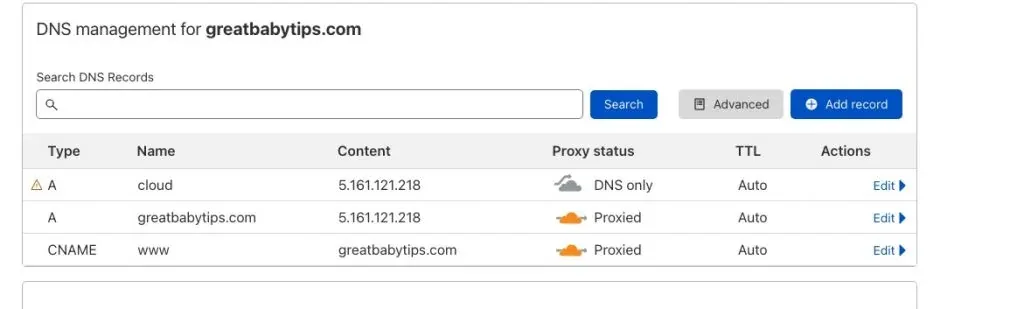
In your DNS provider (I use Cloudflare), create an A record pointing your domain to the server IP. Also create an admin subdomain (e.g., admin.yourdomain.com) for the CloudPanel interface.
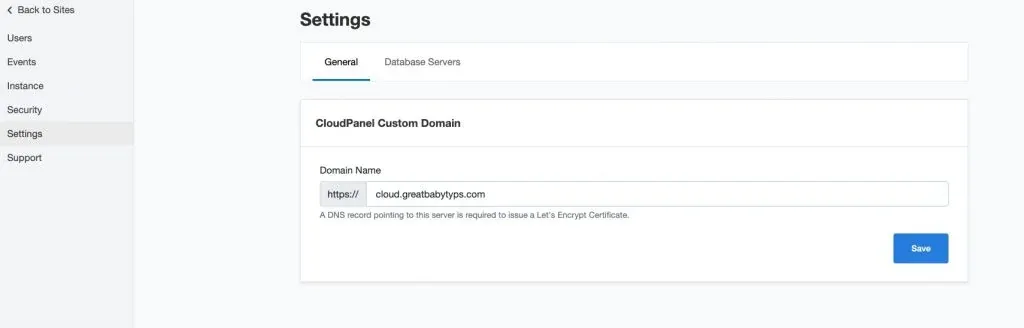
In CloudPanel → Settings, set the admin URL to your admin subdomain:
Step 3: Create a WordPress site
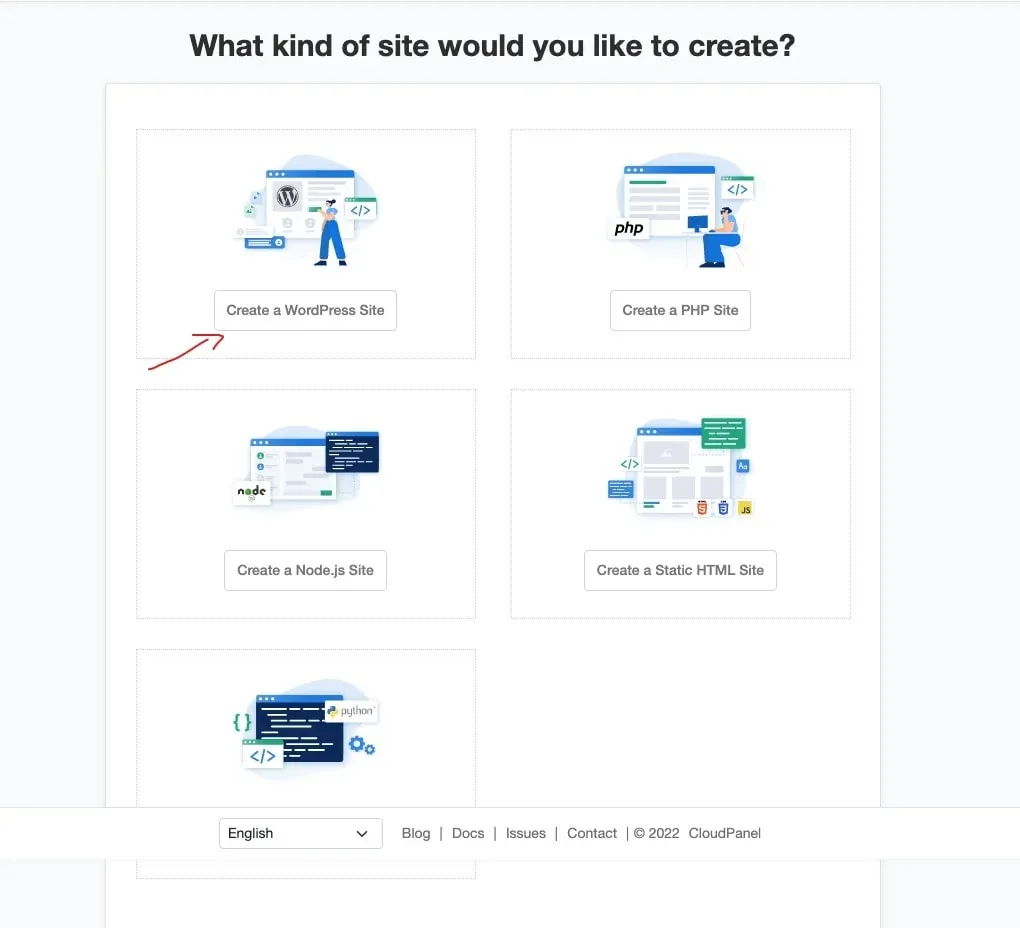
Go to Sites → Add Site → Create WordPress Website:
Enter your domain, username, password, and email:
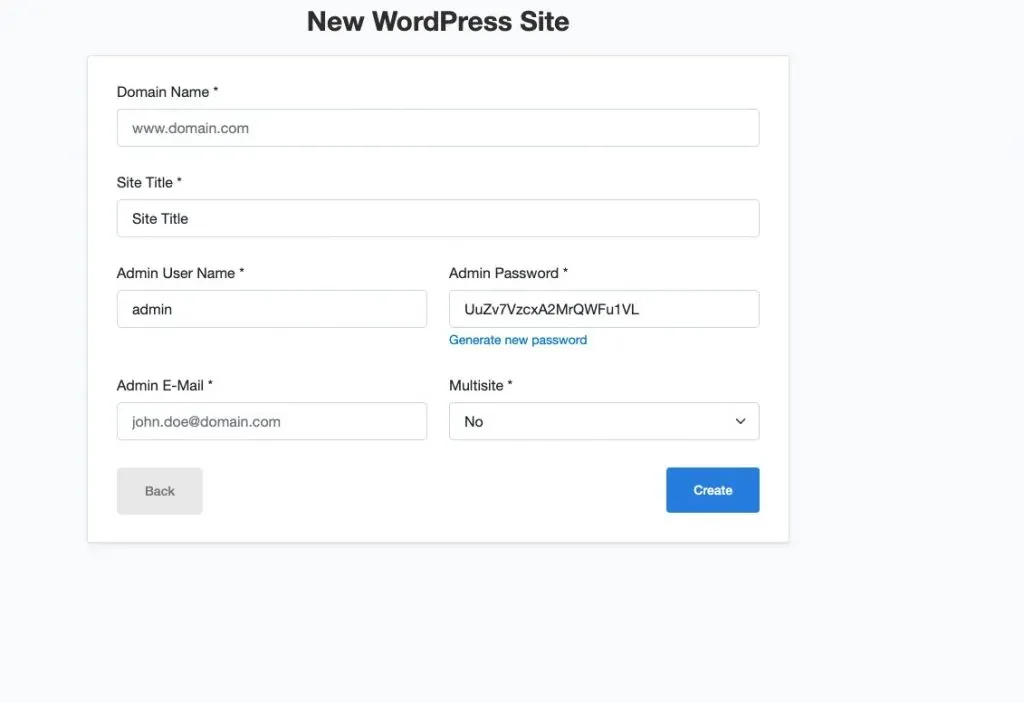
CloudPanel installs WordPress automatically and creates the database.
Step 4: Set PHP version
Click the site in CloudPanel and go to PHP Settings. Set the PHP version to 8.2 or 8.3:
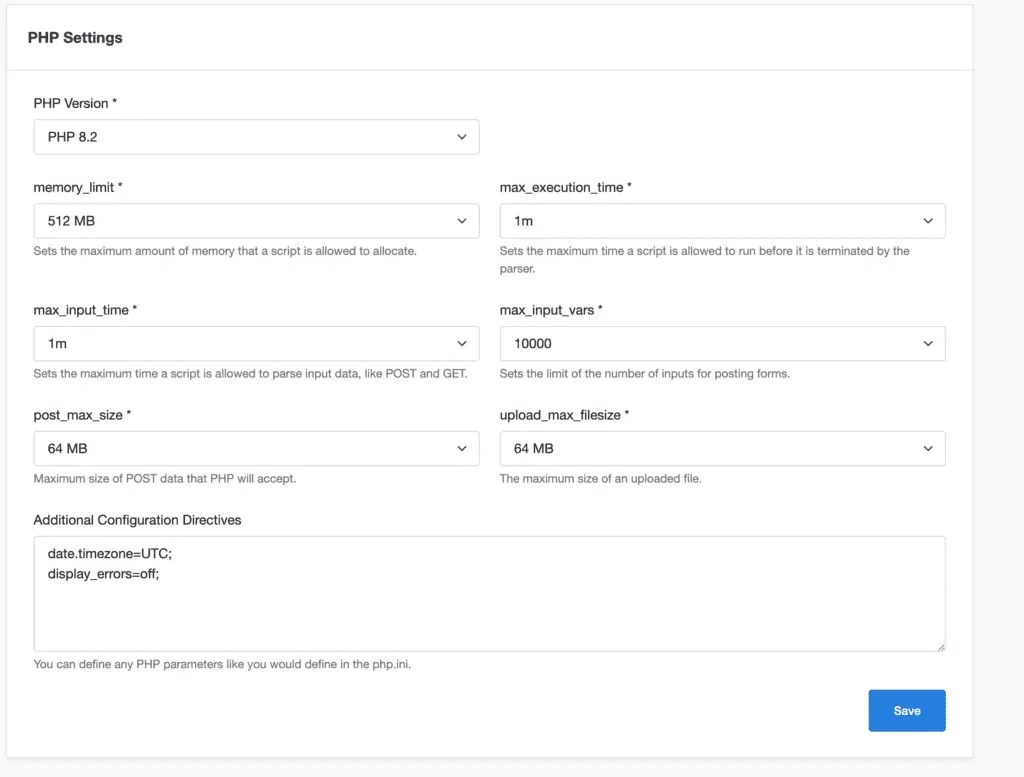
That’s the full setup. Your WordPress site is running on ARM with MariaDB and Nginx via CloudPanel. From here you can add an SSL certificate (CloudPanel does this in one click), enable Varnish Cache for speed, set up backups, and add more sites.
If you want to harden the server, check How To Secure CloudPanel for firewall rules, 2FA, and WAF setup.