How To Install Uptime Kuma Self Hosted Monitoring Tool
Install Uptime Kuma on a VPS with Docker and Nginx to monitor your websites uptime, SSL, domain expiry, and response time for free.

6 min read
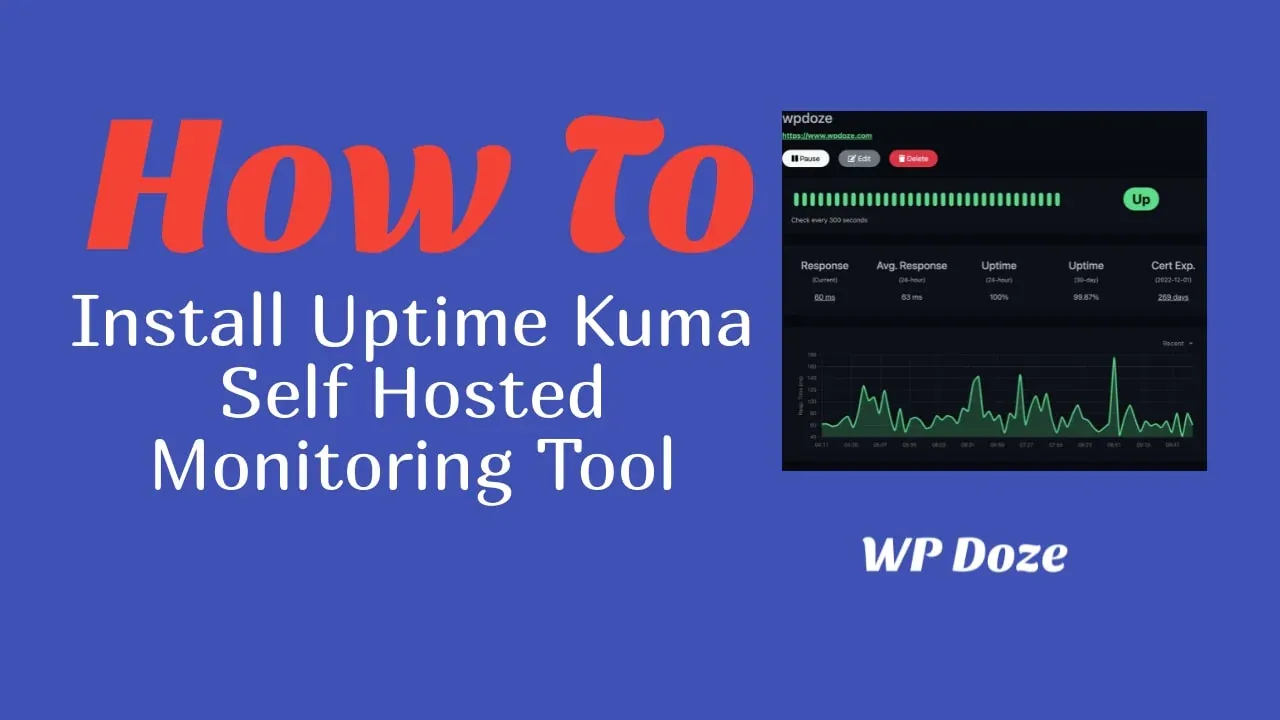
If you want to monitor your website’s uptime on your own VPS, Uptime Kuma is the tool I keep coming back to. It sends alerts via email, Slack, Discord, Telegram, and a bunch of other channels when something goes down, and it keeps a history of response times so you can spot what’s been slow.
The project is open source and has had major updates recently. Version 2.0 (October 2025) added MariaDB support for larger deployments, rootless Docker images for better security, and a refreshed UI. Version 2.1 (February 2026) added Globalping support for checks from worldwide probes, domain expiry monitoring, and new notification integrations like Jira Service Management and Google Sheets.
This guide walks through installing Uptime Kuma using Docker Compose with Nginx as a reverse proxy and a Let’s Encrypt SSL certificate.
1. Provision a VPS Server
You need a VPS to run this. I use:
Hetzner VPS Hostinger VPS DigitalOcean $100 Free Vultr $100 FreeVPS prices jumped across the board in 2026 — if you’re rethinking a rented box, see what changed and when a mini PC wins.
Uptime Kuma is lightweight. A 1 vCPU / 1 GB RAM server is enough to run it alongside other containers without problems.
2. Install Uptime Kuma on Ubuntu
2.1 Update the system and install Nginx
sudo apt update && sudo apt upgrade -y
sudo reboot
sudo apt install nginx git -y
2.2 Install Docker and Docker Compose
Follow the official Docker install guide or run:
curl -fsSL https://download.docker.com/linux/ubuntu/gpg | sudo gpg --dearmor -o /usr/share/keyrings/docker-archive-keyring.gpg
echo "deb [arch=$(dpkg --print-architecture) signed-by=/usr/share/keyrings/docker-archive-keyring.gpg] https://download.docker.com/linux/ubuntu $(lsb_release -cs) stable" | sudo tee /etc/apt/sources.list.d/docker.list > /dev/null
sudo apt update
sudo apt install docker-ce docker-ce-cli containerd.io docker-compose-plugin -y
Note: The current recommended way is the
docker-compose-plugin(v2). Usedocker compose(no hyphen) going forward.
2.3 Create directories and write a compose file
mkdir -p /docker-vol/uptime-kuma
mkdir -p /opt/uptime-kuma
cd /opt/uptime-kuma
Create docker-compose.yml:
services:
  uptime-kuma:
    image: louislam/uptime-kuma:2
    container_name: uptime-kuma
    volumes:
      - /docker-vol/uptime-kuma:/app/data
    ports:
      - 8001:3001
    restart: unless-stopped
    security_opt:
      - no-new-privileges:true
Tip: Use
louislam/uptime-kuma:2instead of:latestto stay on the v2 branch and avoid unexpected breaking changes when v3 eventually releases. Version 2.0+ also has rootless Docker images (louislam/uptime-kuma:2-rootless) if you want to run without root privileges.
Start the container:
docker compose up -d2.4 Open the firewall for Nginx
sudo ufw allow "Nginx Full"2.5 Configure Nginx as a reverse proxy
Create /etc/nginx/sites-available/uptime-kuma.conf and paste:
server {
    listen 80;
    server_name your_domain_here;

    location / {
        proxy_pass         http://localhost:8001;
        proxy_http_version 1.1;
        proxy_set_header   Upgrade $http_upgrade;
        proxy_set_header   Connection "upgrade";
        proxy_set_header   Host $host;
    }
}
Enable the site and reload Nginx:
sudo ln -s /etc/nginx/sites-available/uptime-kuma.conf /etc/nginx/sites-enabled/
sudo nginx -t
sudo systemctl reload nginx
3. Point Your Domain to the Server
Log in to your DNS provider and add an A record pointing your domain or subdomain to the VPS IP address.
4. Add an SSL Certificate with Let’s Encrypt
Install Certbot and generate a certificate:
sudo apt install certbot python3-certbot-nginx -y
sudo certbot --nginx -d your_domain_here
Certbot patches the Nginx config automatically and sets up auto-renewal. Your site will be available over HTTPS right away.
5. Set Up Your First Monitor
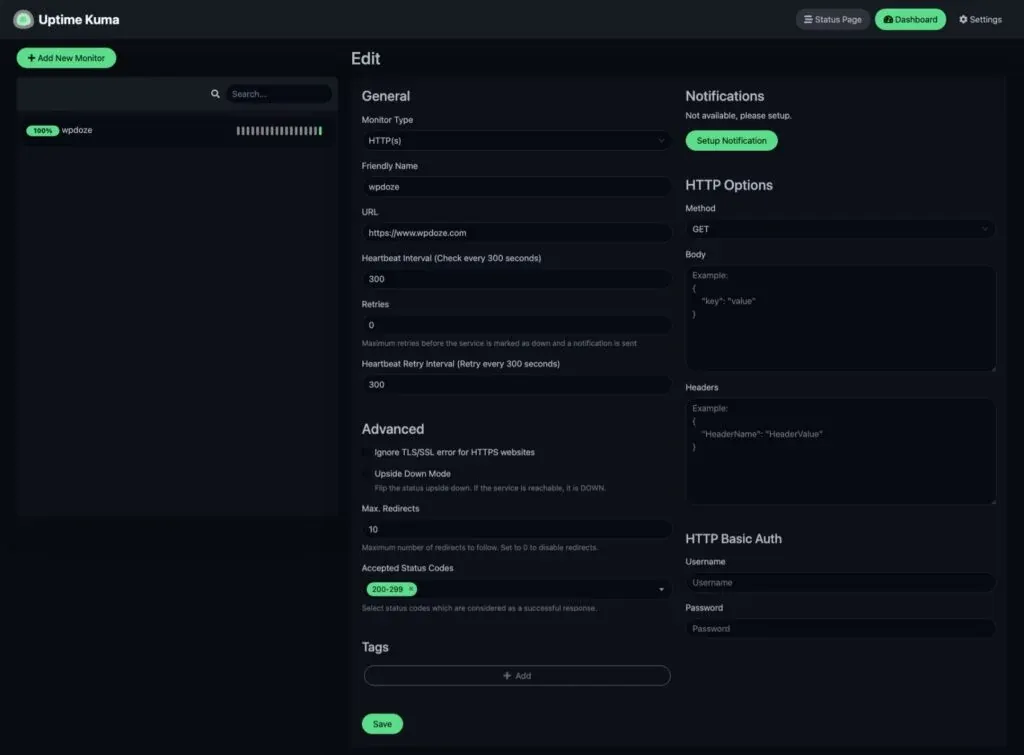
On first login you create an admin account. Then add a monitor — set the type to HTTP(s), give it a friendly name, and set the heartbeat interval to 300 seconds. Checking every 5 minutes is enough for most sites.
Configure email notifications
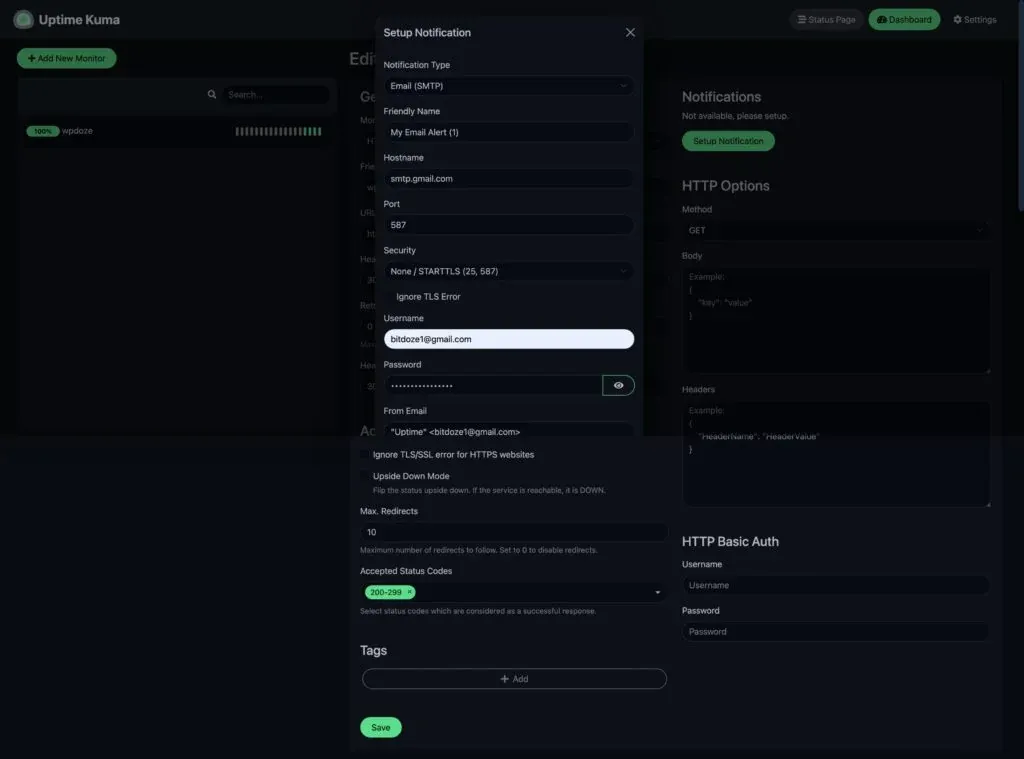
Go to Settings → Notifications and add an SMTP notification. For Gmail: hostname smtp.gmail.com, port 587, security STARTTLS, and your Gmail credentials. If you have 2FA on your account, generate an App Password instead of using your main password.
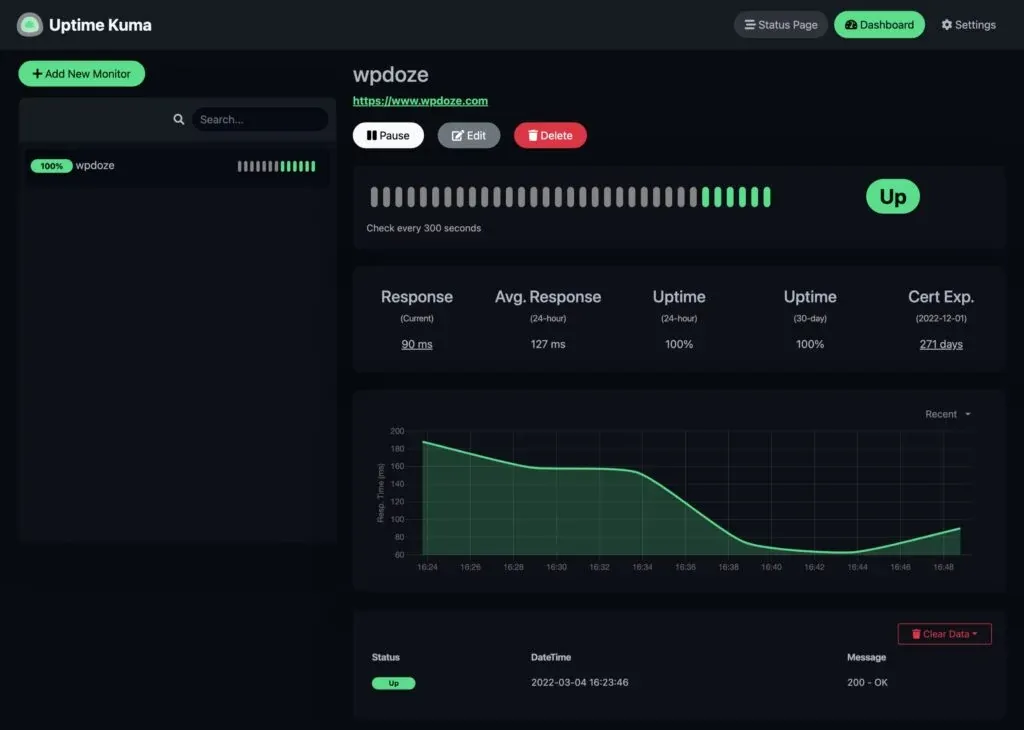
Once configured, the dashboard shows a green heartbeat for every healthy monitor:
When something goes down you receive an alert email, and another one when it recovers:

What’s new in version 2.x
If you’re upgrading from v1, here’s what changed:
- MariaDB support – You can now use MariaDB instead of the default SQLite for larger deployments with hundreds of monitors. SQLite still works fine for most setups.
- Domain expiry monitoring – Checks RDAP data and alerts you before domains expire. Useful if you manage multiple domains.
- Globalping integration – Run checks from probes around the world instead of just your VPS location. Helpful for confirming whether an outage is regional or global.
- Rootless Docker – The
2-rootlessimage runs without root privileges, which is better security practice for shared servers. - New notification providers – Jira Service Management, Google Sheets, Brevo, Nextcloud Talk, and several others.
- SNMPv3 support – Monitor network devices and infrastructure.
- Incident history – Track and document past incidents within the dashboard.
The backup/restore feature from v1 was removed in v2, so back up the /app/data volume manually before upgrading.
Conclusion
Uptime Kuma runs quietly in Docker, checks your sites, and messages you when something breaks. It handles SSL expiry, domain expiry, DNS, TCP ports, SNMP, and more. I’ve been running it for years without issues. Total cost on a shared VPS: basically nothing.