How to Deploy Uptime Kuma With One Click (Coolify 2026)
Learn how to deploy Uptime Kuma with one click on any VPS using Coolify. Covers Docker tags, SQLite vs MariaDB, v2.5.x security fixes, and upgrade tips.

16 min read

Uptime Kuma is the open source uptime monitor I default to on a single VPS. No SaaS account, no per-check pricing, and it emails or pings you the moment a site dies. It is now at v2.5.5 (released 2026-09-16), and the v2.5.x line is worth paying attention to: 2.5.4 shipped a security fix (CVE-2026-77415) and 2.5.5 fixed a memory leak in the TCP monitor. If you still run v1 or an early v2 tag, those are concrete reasons to redeploy this week.
The fastest way to deploy Uptime Kuma on a VPS is Coolify, a self-hosted Heroku/Netlify alternative that installs with one command and terminates TLS for you. Uptime Kuma has around 91,900 GitHub stars and roughly 186 million Docker pulls (as of 2026-09-29), so it is not a project that will disappear on you. Below we will install Uptime Kuma via the Coolify service template and have a working dashboard with SSL in a few minutes.
What you need before you start
- A VPS running Ubuntu 22.04 or 24.04 LTS with SSH access
- A domain or subdomain you can point at the VPS
- 2 vCPU / 2 GB RAM / 10 GB disk minimum (Coolify’s floor; Uptime Kuma adds little on top)
- Budget around €5-10/month for a suitable VPS
One sizing note: the v2 Docker image is roughly 602 MB unpacked on amd64, versus about 156 MB for the 1.x images. On a 10 GB disk that is fine, but on tiny volumes grab a -slim tag. A single 2 vCPU / 2 GB box runs Coolify plus Uptime Kuma for a handful of monitors without breaking a sweat. If you would rather not rent, a mini PC at home works just as well.
Deploy a VPS server for Uptime Kuma
To host Uptime Kuma in a Docker container you need a VPS. The usual suspects are DigitalOcean, Vultr, Hetzner, and Hostinger. I use Hetzner for this tutorial because the price/performance ratio is hard to beat in the EU, but any of them works. If you want numbers before you commit, run how to benchmark cloud servers before you commit against a trial instance.
VPS prices jumped across the board in 2026. If you’re rethinking a rented box, see what changed and when a mini PC wins.
DigitalOcean $100 Free Vultr $100 Free Hetzner €20 Free Hostinger VPSSize it at 2 vCPU / 2 GB RAM if you plan to run Coolify and Uptime Kuma together. If you are wondering whether Coolify is the right control plane at all, the Coolify vs Dokploy vs Kamal 2 comparison covers the trade-offs. Coolify is my pick here because the Uptime Kuma service template is literally one click.
Installing Coolify on your VPS
Coolify installs with a single command. Full walkthrough including the SSL certificate is in my Coolify install tutorial, and if you want the longer take on where the project is heading, read our Coolify v5 review.
SSH to the VPS and run:
curl -fsSL https://cdn.coollabs.io/coolify/install.sh | bashThis is the command from the current Coolify docs (verified 2026-09-29). Coolify is at v4.3.23 as of 2026-09-18. The installer sets up Docker, the Coolify stack, and a reverse proxy that will later give Uptime Kuma a real TLS certificate.
Clean host only
Do not run the install script on a server that already has Coolify or another service bound to ports 80/443/8000. The installer assumes a clean host. If something else owns those ports, the proxy setup fails and you get to untangle it by hand.
Verify it worked: open http://<server-ip>:8000 in a browser. You should get the Coolify registration page. Create the admin user and confirm the dashboard loads. If the page does not answer, ss -tlnp | grep 8000 on the box and check docker ps. Either Coolify is not running, or something else grabbed the port.
Failure mode: port 80/443 already taken by nginx or Apache. Stop and disable the conflicting service (sudo systemctl disable --now nginx) or move it, then re-run the installer.
If you are interested in monitoring CPU load and getting an automatic email when it spikes, have a look at Monitor CPU Usage and Send Email Alerts in Linux.
Uptime Kuma video with deployment
Video shows the v1-era UI
This was recorded in 2023. It shows Uptime Kuma v1 and the older Coolify screens. The steps are the same, but the dashboards look different today. Follow the written steps below if the screens confuse you.
Deploy the Uptime Kuma service with Coolify (one click)
How to deploy Uptime Kuma with one click, short version:
- Install Coolify on a 2 vCPU / 2 GB VPS.
- Point a DNS A record (DNS-only) at the VPS.
- In Coolify, open Create New Resource → Service → UptimeKuma.
- Set the Name, Docker image tag (
2or a pinned2.x.x), and FQDN. - Hit Save & Deploy and open the URL when the healthcheck goes green.
The Coolify service template pins louislam/uptime-kuma:2 and ships a built-in healthcheck, so you are not hand-editing a compose file to get started. Here is what the request path looks like once it is up:
Point a domain or subdomain to the VPS
You need a domain or subdomain to reach Uptime Kuma. I use Cloudflare and point a subdomain at the VPS with an A record. Leave the Cloudflare proxy off (DNS-only, grey cloud).
Why DNS-only: the orange-cloud proxy adds a websocket hop that can break Uptime Kuma’s live dashboard, and it complicates certificate issuance in Coolify. Get it working DNS-only first. You can experiment with the proxy later, once you know what “working” looks like.
Create a Coolify service
In Coolify, go to Create New Resource and select Service. From the template list, pick UptimeKuma.
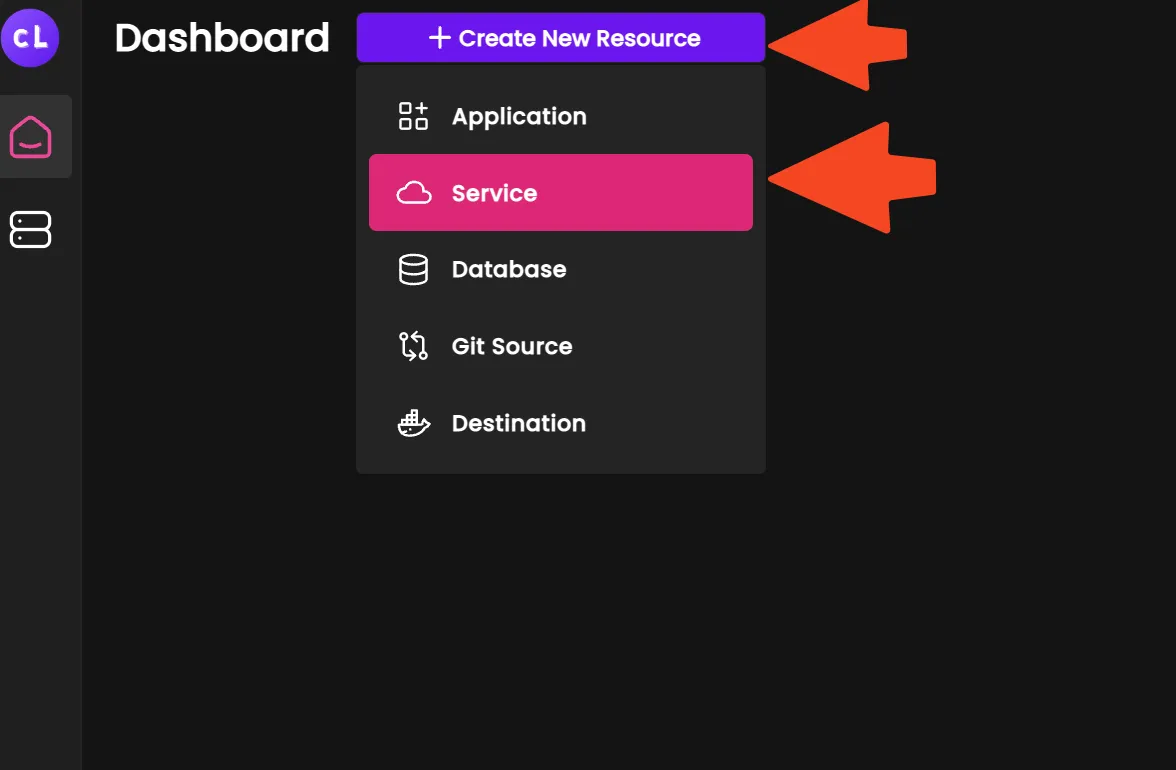
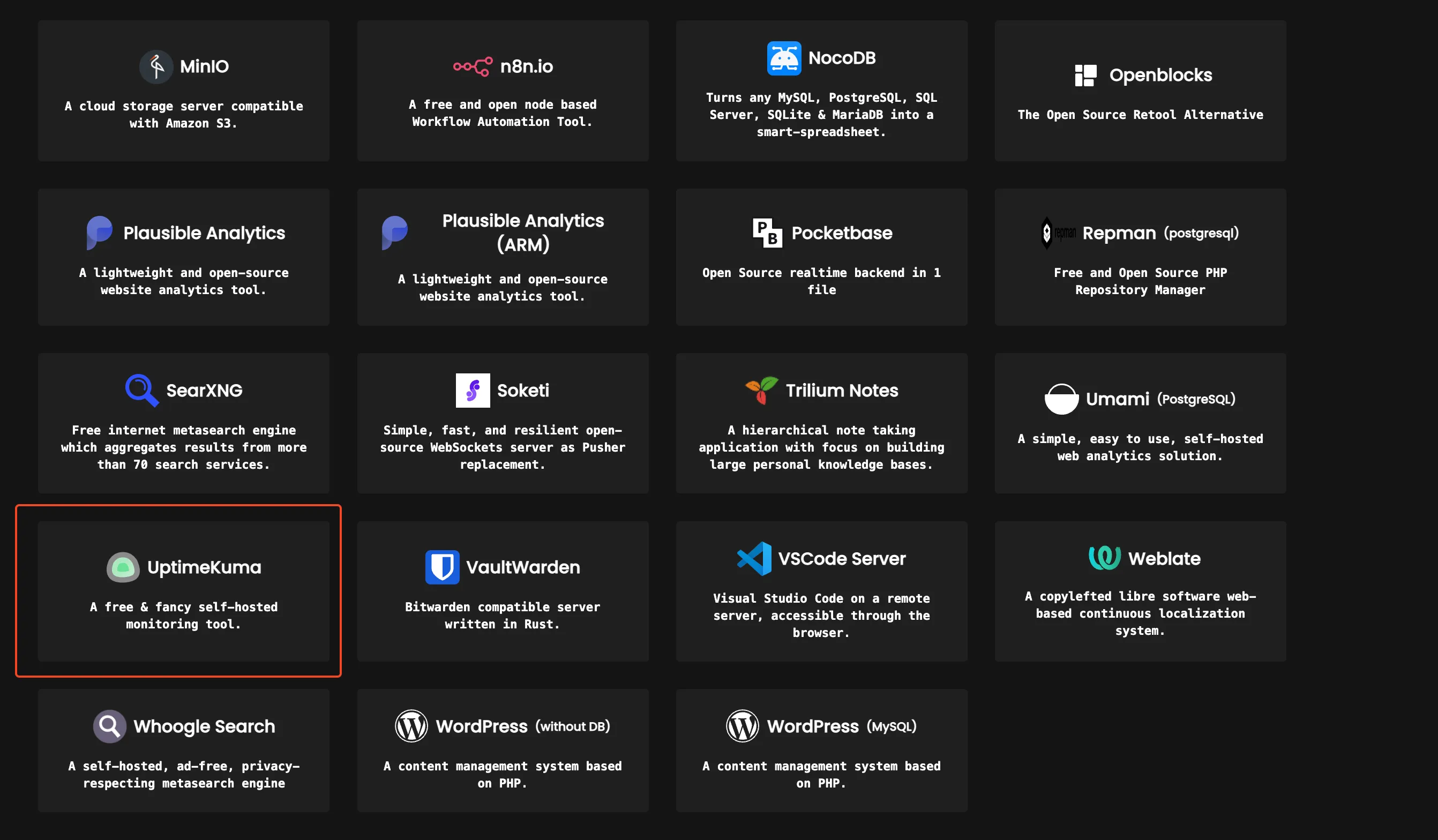
Screenshots are from March 2023; the UI has changed since, the steps are the same. One thing that did change: the template list now offers three Uptime Kuma entries. The default SQLite one, plus MariaDB and MySQL variants. The database choice is covered right after the config step.
Configure Coolify Uptime Kuma
Fill in three fields: a Name (whatever you want to call the deployment), the Version / Tag (the Docker image tag; more on this in a second, the template pins louislam/uptime-kuma:2), and the URL (FQDN) (the domain or subdomain from the DNS step).
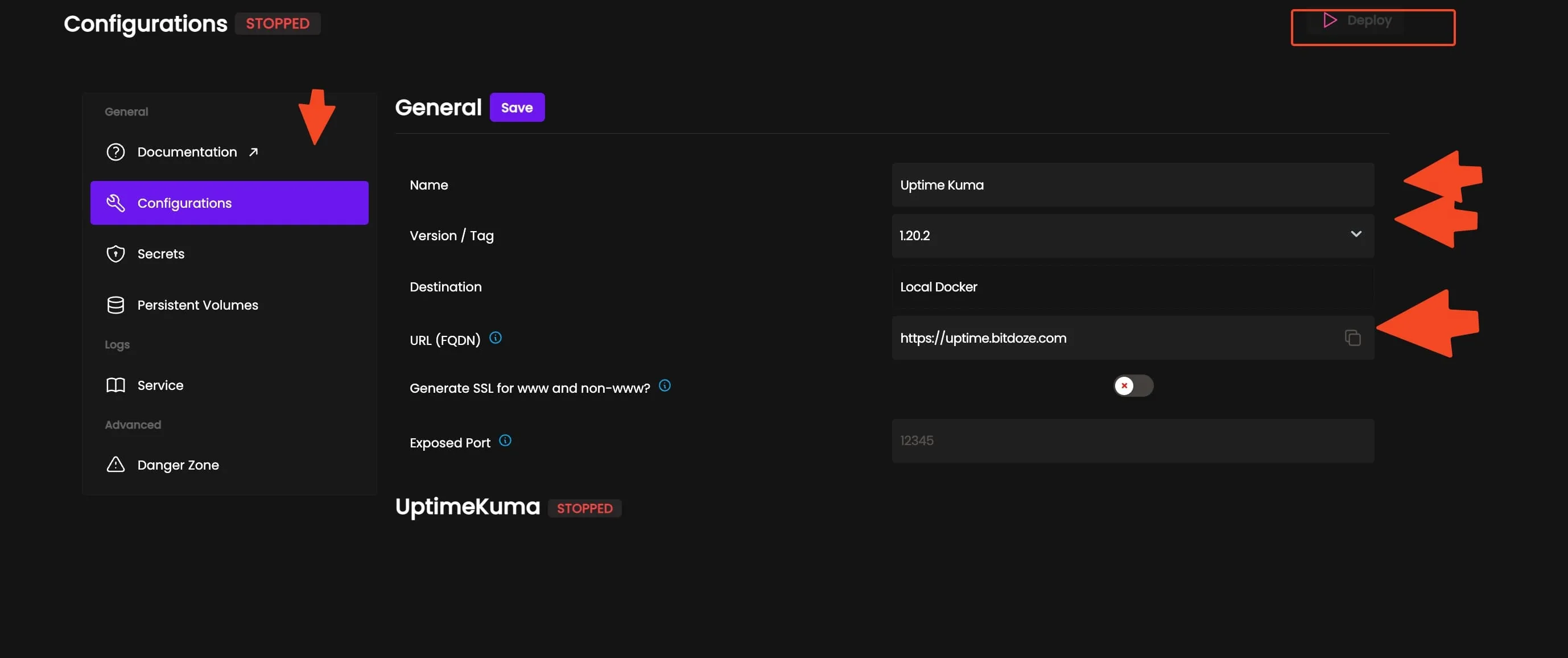
Under the hood the template writes something very close to this:
services:
  uptime-kuma:
    image: louislam/uptime-kuma:2
    environment:
      - SERVICE_URL_UPTIMEKUMA_3001
    volumes:
      - uptime-kuma-data:/app/data
    healthcheck:
      test: ["CMD-SHELL", "extra/healthcheck"]
      interval: 5s
      timeout: 5s
      retries: 10
Note the volume and the healthcheck. uptime-kuma-data:/app/data is where your monitors, users, and history live. That is what survives redeploys. Hit Save & Deploy when the fields look right.
Choosing the right Uptime Kuma Docker image tag
This is the single most common way people end up on the wrong Uptime Kuma version. Read it before you deploy.
Stop using :latest
louislam/uptime-kuma:latest is deprecated and always points to v1 (1.23.17). Its digest is identical to the 1 tag. If you deploy :latest, you never get v2, no matter when you pull.
The official Docker tags (from the project wiki, checked 2026-09-29):
Recommended tags
louislam/uptime-kuma:2: rolling latest v2. This is what Coolify’s template uses. Good default.louislam/uptime-kuma:2-slim: same code, smaller image. Use it when disk is tight.louislam/uptime-kuma:2.x.x(for example2.5.5): pinned to a specific patch. This is my pick for anything you depend on: reproducible deploys, and you decide when to upgrade.
Rootless & unstable
2-rootlessand2-slim-rootlessrun as non-root. The wiki warns they are not recommended for upgrading from v1 to v2 and that some features may not work as expected. Do not pick these for the v1 to v2 jump.next,next-slim,next-rootlessmirror the latest stable v2 build (2.5.0 addednext-rootless).beta*andnightly2are dev builds. Never point anything you monitor from at these.
Run without Coolify
Plain Docker, if you prefer your own reverse proxy:
docker run -d --restart=always -p 3001:3001 \
  -v uptime-kuma:/app/data \
  --name uptime-kuma louislam/uptime-kuma:2
Bind it to localhost only when something else terminates TLS:
docker run -d --restart=always -p 127.0.0.1:3001:3001 \
  -v uptime-kuma:/app/data \
  --name uptime-kuma louislam/uptime-kuma:2
Or the official compose quickstart:
mkdir uptime-kuma && cd uptime-kuma
curl -o compose.yaml https://raw.githubusercontent.com/louislam/uptime-kuma/master/compose.yaml
docker compose up -d
For a longer manual walkthrough, see our guide to install Uptime Kuma manually with Docker.
Failure mode: you deployed :latest, the dashboard works, but every v2 feature is missing. Fix: switch the tag to 2 (or a pinned 2.x.x) in Coolify and redeploy. Your data is fine, it lives in the volume.
SQLite vs MariaDB: picking a database template
Coolify’s templates repo ships three Uptime Kuma services. Which one you pick matters less than people expect, but here is the decision.
SQLite (default, recommended)
The uptime-kuma.yaml template. Data goes to uptime-kuma-data:/app/data, and SQLite keeps everything in one file.
- Zero extra services to run, patch, and back up
- One-file backup: archive the volume and you have a complete restore
- Plenty for a single-node VPS monitoring a few hundred checks
This is the right default. I would not move off it without a specific reason.
MariaDB template
The uptime-kuma-with-mariadb.yaml template adds a mariadb:11 service with Coolify-generated credentials and depends_on: service_healthy.
Relevant env vars (official, since 2.0.0 unless noted):
UPTIME_KUMA_DB_TYPE=mariadb
UPTIME_KUMA_DB_HOSTNAME / _PORT / _NAME / _USERNAME / _PASSWORD
UPTIME_KUMA_DB_SOCKET
UPTIME_KUMA_DB_POOL_MAX_CONNECTIONS   # default 10 (2.1.0)
UPTIME_KUMA_DB_SSL / _CA              # (2.1.0)
There are *_FILE variants for Docker secrets. Pick this template only if you already run MariaDB or expect heavy history retention. Official external-DB support is MariaDB, not Postgres.
MySQL template
The uptime-kuma-with-mysql.yaml template adds mysql:8. Be aware the project wiki documents only sqlite and mariadb for UPTIME_KUMA_DB_TYPE. Treat this variant as experimental; I would not run production monitoring on it.
Embedded MariaDB is dev-only
UPTIME_KUMA_ENABLE_EMBEDDED_MARIADB=1 exists, but the wiki lists it under development-only. Do not use it on Coolify or anywhere you care about.
Failure mode: SQLITE_BUSY errors in the logs, usually on a Raspberry Pi or another low-power box. Set UPTIME_KUMA_SQLITE_SINGLE_CONNECTION=true (the default since 2.3.2) and the errors stop.
Access Uptime Kuma and verify the deployment
Once the deploy finishes, open the FQDN you configured. The first visit prompts you to create an admin user and password.
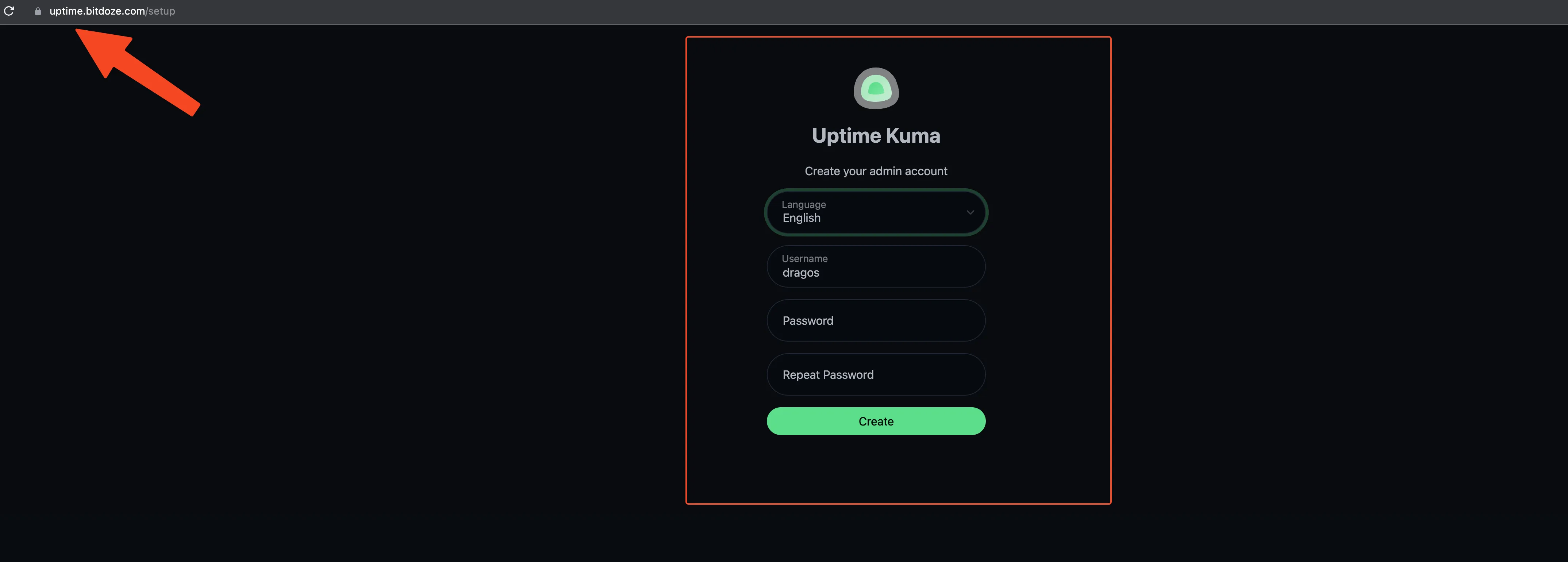
Do not stop at “the page loads”. Run this checklist:
- Coolify shows the service as healthy (the template healthcheck hits
extra/healthcheckevery 5s) curl -I https://<fqdn>returns 200 or 302 over TLS, not a certificate warning- Add a test HTTP monitor and watch the dashboard heartbeat update live (Uptime Kuma is websocket-heavy; the live beat is the real proof)
- Configure one notification channel and confirm it fires on a deliberate failure
Dashboard loads but never live-updates?
Websocket pass-through through the reverse proxy is the usual culprit. Confirm the FQDN proxy in Coolify forwards websockets. The last-resort knob is UPTIME_KUMA_WS_ORIGIN_CHECK (default cors-like).
Your config is stored in the uptime-kuma-data docker volume. Redeploy the service and you keep your monitors, users, and history, as long as that volume is attached (it is, on the default template).
What’s new in Uptime Kuma v2.x (2025-2026)
A note on dates first. The v2.0 GA was October 2025, and the rest of the timeline follows from there. Version history is reference material, but two releases in 2.5.x are critical for operators, so those lead the section below.
v2.0 to v2.4 at a glance (October 2025 to May 2026)
v2.0 (2025-10-20)
- Backend rewrite for faster monitoring at scale
- New notification providers: Nextcloud Talk, Brevo, Evolution API
NOTIFICATION_PROXYenv var for notifications behind a proxy- 2FA autofocus on the login form
- Mobile fix: buttons no longer run off-screen below 450px
v2.1 (2026-02-07)
- Globalping DNS support, which probes DNS resolution from distributed nodes worldwide
- Jira Service Management and Google Sheets notification providers
- Custom message templates for Discord and ntfy
- Bavarian German language support
v2.2 (2026-03-05)
- WhatsApp (360messenger) notification provider
- Signal message templating
- SOCKS proxy support for notifications
- Structured JSON logging (
UPTIME_KUMA_LOG_FORMAT=json) - Push-monitor and badge authorization fix (GHSA-c7hf-c5p5-5g6h: the ping badge endpoint leaked monitor ping times)
v2.3 (2026-05-01)
- WebSocket monitor authentication
- OracleDB monitor type
- Telnyx, VK, and MAX messenger providers
- Collapsible groups on status pages
UPTIME_KUMA_SQLITE_SINGLE_CONNECTIONenv var (since 2.3.2) forSQLITE_BUSYon low-power devices- Breaking: status-page sorting was reverted (it performed badly)
v2.4 (2026-05-31)
- VKTeams bot notification provider
- Incidents in RSS feeds
- EgoSMS provider (Uganda)
- Bearer token support for WebSocket upgrade monitors
- LiquidJS template RCE fix (GHSA-gf2q-c269-pqgc)
v2.5: latest (August-September 2026)
The short version of why to update now:
- v2.5.0 (2026-08-01) added the NTP monitor type, unlimited check interval (no longer capped at 24 days), Rybbit analytics on status pages, Plivo SMS with a voice call option, and the
next-rootlessDocker tag. - v2.5.1 to 2.5.3 (2026-08-22) added SMS Gateway, ClickUp, TurboSMTP and other notification providers. RADIUS Access-Challenge now counts as success. Housekeeping fixes.
- v2.5.4 (2026-09-11) added the SFTP monitor type (password and private key auth) plus security fixes: jsonata bumped to 2.2.2 for CVE-2026-77415 and a DoS weakness fixed per the release notes. Also a show/hide password toggle on login.
- v2.5.5 (2026-09-16) fixes a memory leak in the TCP monitor. Anyone running TCP checks on an older tag is slowly eating RAM.
Still on something older than 2.5.4?
You are missing the CVE-2026-77415 fix and the TCP monitor memory-leak fix. Update to 2.5.5 this week. Details on how to do it safely in the next section.
If you are weighing alternatives, how Uptime Kuma compares to Gatus is worth a read. Short version: Uptime Kuma wins on UI and status pages, Gatus wins on config-as-code.
Upgrading and backing up Uptime Kuma
Upgrading from v1?
Read the official Migration Guide before you touch anything, back up your data first, and do not switch straight to a rootless image for this migration. The wiki explicitly warns against it.
The old “data persists on volumes, just redeploy” advice is true, and still not enough for a major version jump. Here is the operator version.
The data format changed between v1 and v2. Follow the migration guide, take a backup, then switch the image tag from 1 (or latest) to 2. Jumping to 2-rootless in the same step is how people lose afternoons.
Before any Redeploy or Upgrade in Coolify, snapshot the uptime-kuma-data volume. With SQLite the entire dataset is effectively one file, so a volume archive is a complete backup and restore is trivial. This takes 30 seconds and pays for itself the first time a deploy goes sideways.
Point Coolify’s S3-compatible backup at the uptime-kuma-data volume. A few GB on any S3-compatible store is pennies per month, and it is the difference between an annoying morning and starting over.
If a new version misbehaves: restore the volume archive, pin the previous image tag (2.5.5 back to whatever you ran before) in Coolify, Redeploy. Write the previous tag down before you upgrade.
- Snapshot or archive the
uptime-kuma-datavolume - Confirm you are on tag
2or a pinned2.x.x, notlatest/1 - Skim the release notes between your current tag and the new one
- Write down the previous tag number for rollback
Ops caveats worth knowing:
- NFS is not supported for the data directory. Do not put
/app/dataon a network mount. - Stay current on patch releases. 2.5.4 (security) and 2.5.5 (memory leak) landed six weeks apart.
UPTIME_KUMA_LOG_FORMAT=json(2.2.0+) makes logs readable in Coolify’s log viewer and any log shipper.NOTIFICATION_PROXY(2.0.0+) accepts http/https/socks/socks4/socks5/socks5h URLs if your alerts need to leave through a proxy.UPTIME_KUMA_WS_ORIGIN_CHECK(defaultcors-like) is the knob when websockets misbehave behind unusual proxy chains.
Hardening checklist: keep the FQDN on DNS-only until the setup is stable, do not expose port 3001 publicly (let Coolify’s proxy terminate TLS and forward), and remember the v2 image is ~602 MB, so grab a -slim tag on a tiny disk. Once this box is your actual monitor, pair it with Beszel for full server monitoring so you also see CPU, RAM, and disk.
Troubleshooting common deployment failures
Deploy fails or the container restart-loops
Check the Coolify logs first. The two usual causes: something else already owns ports 80/443, or the host is below Coolify’s 2 vCPU / 2 GB floor and the box is OOMing (common on 1 GB VPSes that also run other services). Fix the port conflict or resize up.
The site opens but the dashboard never live-updates
Uptime Kuma is websocket-heavy. If the page loads but heartbeats stay frozen, websocket pass-through in the proxy chain is broken. Verify the FQDN proxy in Coolify forwards websockets, then try UPTIME_KUMA_WS_ORIGIN_CHECK as the last resort.
v2 features are missing after deploy
Your image tag is latest or 1. Remember: latest points to v1 forever. Switch the tag to 2 or a pinned 2.x.x and redeploy. See the Docker image tag section above.
TLS certificate is not issued
The DNS record is still proxied through Cloudflare (orange cloud) or has not propagated. Confirm it is a DNS-only A record, confirm port 80 is reachable from the internet, then wait for Coolify’s Let’s Encrypt run. dig +short your-subdomain.example.com should return the VPS IP.
SQLITE_BUSY errors in the logs
You are on a low-power device (Raspberry Pi class). Set UPTIME_KUMA_SQLITE_SINGLE_CONNECTION=true and redeploy. This is the default since 2.3.2 but older compose files may not carry it.
Data gone after a redeploy
The volume was not attached. A custom compose file without uptime-kuma-data:/app/data will happily throw your data away on every deploy. Restore from your volume archive or S3 backup. And never put the data directory on NFS. It is unsupported and will misbehave in confusing ways.
Logs are noisy and hard to read
Set UPTIME_KUMA_LOG_FORMAT=json and read them in Coolify’s log viewer. Structured logs have been available since 2.2.0.
Conclusions
That is the whole path to deploy Uptime Kuma: install Coolify, point DNS, click through the UptimeKuma service template, pick tag 2, deploy, verify. The Coolify template handles the compose wiring and TLS; the volume keeps your data across redeploys.
Operator defaults I would not argue about: SQLite on the Coolify volume for a single VPS, a pinned 2.x.x tag instead of a rolling one, and a volume backup before every upgrade. Stay on 2.5.5 or newer. The 2.5.4 security fix and the 2.5.5 TCP memory-leak fix are not optional.
From there, status pages, more monitors, and more notification channels are all cheap to add. If you want the complete manual install path instead, the full Coolify guide below covers the SSL and domain details.
Full Coolify Install Guide