Dockge Install - Docker Compose Manager for Self-Hosting
How to install Dockge with Docker Compose. A lightweight web UI for managing docker-compose stacks, with multi-agent support, interactive editor, and web terminal.
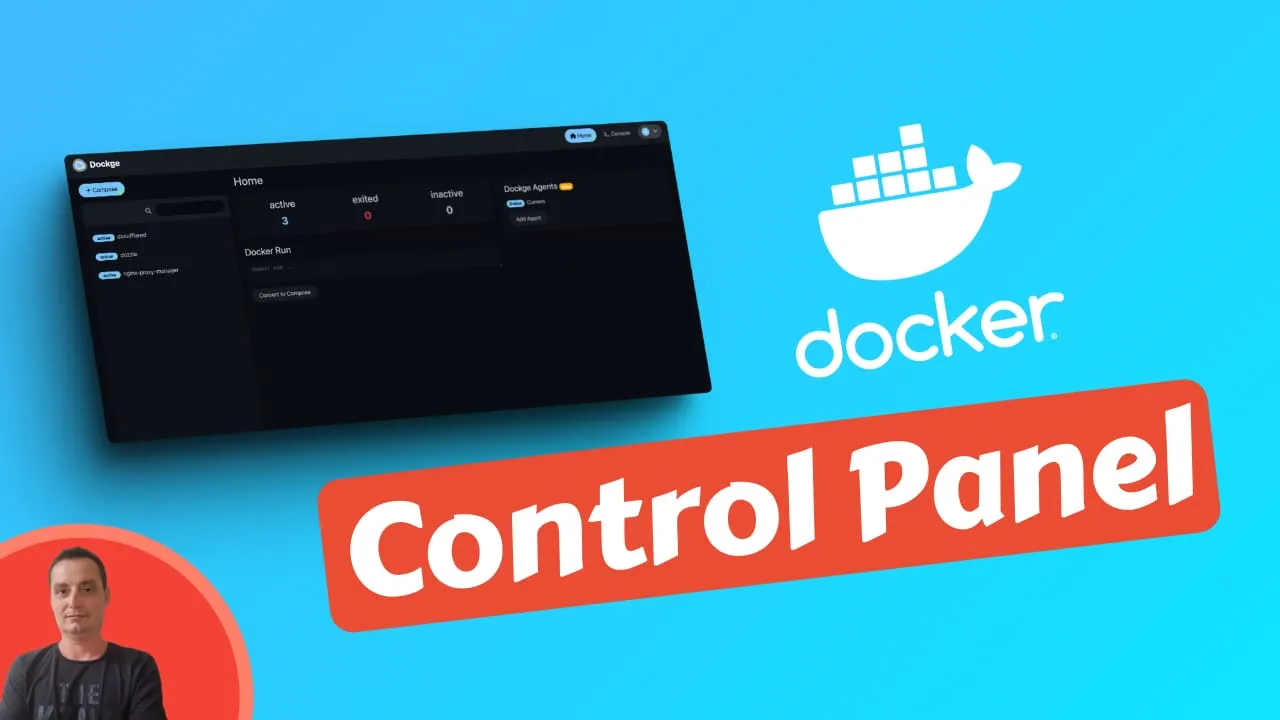
I first wrote about Dockge back in 2024, and two years later it’s still on every server I run. Where other Docker management tools keep adding features and complexity, Dockge stayed focused on one thing: making docker-compose stacks easy to manage from a browser.
Dockge was built by Louis Lam, the same developer behind Uptime Kuma. It has nearly 22,000 GitHub stars and a community that keeps growing. The project hit v1.5 with multi-agent support, and now you can manage stacks across multiple Docker hosts from one interface.
If you’re looking at Docker management UIs in general, I wrote a comparison of Portainer alternatives that covers Dockge alongside Arcane, Dockhand, UsulNet, and Komodo.
What Dockge does (and doesn’t do)
Dockge is a compose-file manager. You write or paste a docker-compose YAML, click deploy, and that’s it. All your compose files stay on disk in the directory you choose. Nothing gets locked in a database. You can still run docker compose up -d from the terminal and Dockge picks up the changes.

Here’s what you get:
- Create, edit, start, stop, restart, and delete compose stacks from a web UI
- Interactive compose.yaml editor with real-time validation
- Web terminal for exec-ing into running containers
- Real-time progress tracking for image pulls and stack operations
- Convert docker run commands into compose YAML
- Multi-agent support for managing stacks on remote Docker hosts
- File-based storage, your compose files live on disk in standard format
What Dockge doesn’t have: vulnerability scanning, RBAC, OIDC/SSO, REST API, GitOps, or auto-updates. If you need any of those, check out Arcane (GitOps + API), Dockhand (security scanning + auto-updates), or UsulNet (everything in one binary). My Arcane vs Dockhand comparison covers the differences between those two.

For monitoring your server resources alongside Dockge, take a look at server monitoring tools.
Prerequisites
Before you start:
- A Linux server (VPS or local). I use Hetzner for VPS hosting
- Docker 20+ and Docker Compose v2 installed
- Works on amd64, arm64, and armv7 (Raspberry Pi included)
Or use a Mini PC as home server.
Install Docker
If Docker isn’t installed yet:
sudo apt-get update
sudo apt-get install ca-certificates curl gnupg lsb-release
sudo mkdir -p /etc/apt/keyrings
curl -fsSL https://download.docker.com/linux/debian/gpg | sudo gpg --dearmor -o /etc/apt/keyrings/docker.gpg
echo \
  "deb [arch=$(dpkg --print-architecture) signed-by=/etc/apt/keyrings/docker.gpg] https://download.docker.com/linux/ubuntu \
  jammy stable" | sudo tee /etc/apt/sources.list.d/docker.list > /dev/null
sudo apt-get update
sudo apt-get install docker-ce docker-ce-cli containerd.io docker-compose-plugin docker-compose
Full walkthrough: Install Docker & Docker-compose for Ubuntu.
Install Dockge with Docker Compose
Quick install
The fastest way to get Dockge running:
mkdir -p /opt/stacks /opt/dockge
cd /opt/dockge

curl https://raw.githubusercontent.com/louislam/dockge/master/compose.yaml --output compose.yaml

docker compose up -d
That downloads the compose file, creates the stack directory, and starts Dockge. Open http://your-server-ip:5001 to set up your admin account.
Custom install
If you want to change the port or stacks directory, use the generator URL:
mkdir -p /opt/stacks /opt/dockge
cd /opt/dockge

curl "https://dockge.kuma.pet/compose.yaml?port=5001&stacksPath=/opt/stacks" --output compose.yaml

docker compose up -d
Change port and stacksPath to whatever you need. Or just create the compose file manually:
services:
  dockge:
    image: louislam/dockge:1
    restart: unless-stopped
    ports:
      - 5001:5001
    volumes:
      - /var/run/docker.sock:/var/run/docker.sock
      - ./data:/app/data
      - /opt/stacks:/opt/stacks
    environment:
      - DOCKGE_STACKS_DIR=/opt/stacks
Stacks path must match
The left and right side of the stacks volume mount must be identical. If your stacks live at /opt/stacks, mount it as /opt/stacks:/opt/stacks, not /opt/stacks:/some/other/path. Compose files use relative paths, and they break if the paths don’t match inside and outside the container.
First login
Open http://your-server-ip:5001 in your browser. Dockge prompts you to create your admin account on first visit. After that, you land on the main dashboard where you can start deploying compose stacks.

Updating Dockge
Pull the latest image and restart:
cd /opt/dockge
docker compose pull && docker compose up -d
Your data and stacks are preserved since they live in mounted volumes.
Reverse proxy setup
For SSL and a proper domain, put a reverse proxy in front of Dockge. WebSocket support is needed for the real-time updates and web terminal.
server {
    listen 443 ssl http2;
    server_name dockge.yourdomain.com;

    ssl_certificate /path/to/cert.pem;
    ssl_certificate_key /path/to/key.pem;

    location / {
        proxy_pass http://127.0.0.1:5001;
        proxy_http_version 1.1;
        proxy_set_header Upgrade $http_upgrade;
        proxy_set_header Connection "upgrade";
        proxy_set_header Host $host;
        proxy_set_header X-Real-IP $remote_addr;
        proxy_set_header X-Forwarded-For $proxy_add_x_forwarded_for;
        proxy_set_header X-Forwarded-Proto $scheme;
    }
}
Add labels to the Dockge service in your compose file:
labels:
  - "traefik.enable=true"
  - "traefik.http.routers.dockge.rule=Host(`dockge.yourdomain.com`)"
  - "traefik.http.routers.dockge.entrypoints=websecure"
  - "traefik.http.routers.dockge.tls.certresolver=letsencrypt"
  - "traefik.http.services.dockge.loadbalancer.server.port=5001"
Full Traefik setup: How to use Traefik as a reverse proxy in Docker. For wildcard SSL certificates with Dockge and Traefik, see Traefik wildcard certificate setup.
Point a tunnel at http://localhost:5001. SSL and WebSocket handling are automatic. No ports to open on your server. This is my preferred setup for homelab use.
I also have a guide on setting up Dockge with CloudPanel if you’re using that panel.
Multi-agent setup
Since v1.4, Dockge can manage stacks on remote Docker hosts. You run a Dockge agent on each remote machine, and they all show up in the main Dockge UI.
On the remote machine, deploy the agent:
services:
  dockge-agent:
    image: louislam/dockge:1
    restart: unless-stopped
    ports:
      - 5001:5001
    volumes:
      - /var/run/docker.sock:/var/run/docker.sock
      - ./data:/app/data
      - /opt/stacks:/opt/stacks
    environment:
      - DOCKGE_STACKS_DIR=/opt/stacks
Then in your main Dockge instance, go to the agents page and add the remote host by its address and port. Stacks from that host appear in your dashboard alongside your local stacks.
Dockge vs other Docker managers
I’ve tested a lot of Docker management tools. Here’s where Dockge fits:
| Dockge | Arcane | Dockhand | |
|---|---|---|---|
| Focus | Compose UI | Full Docker mgmt | Security-focused |
| Complexity | Minimal | Medium | Medium |
| Vuln scanning | No | No | Yes |
| OIDC/SSO | No | Yes | Yes |
| GitOps | No | Yes | Webhooks |
| Auto-updates | No | No | Yes + rollback |
| API | No | REST | REST |
| License | MIT | BSD-3-Clause | BSL 1.1 |
Dockge is the right tool when you don’t need all the extras. I use it on my homelab where I just want to see my stacks, check logs, and restart things when they break. On production servers where I need GitOps and API access, I run Arcane instead.
For a full comparison of all the options, see my Portainer alternatives article.
Troubleshooting
Dockge can't see existing compose stacks
Your stacks need to be in the directory you configured with DOCKGE_STACKS_DIR. Each stack should be in its own subdirectory with a compose.yaml file. The directory structure should look like:
/opt/stacks/
├── myapp/
│   └── compose.yaml
├── another-app/
│   └── compose.yaml
Also make sure the volume mount paths match on both sides, as mentioned in the install section.
WebSocket errors or UI not updating
Your reverse proxy isn’t forwarding WebSocket connections. For Nginx, you need:
proxy_http_version 1.1;
proxy_set_header Upgrade $http_upgrade;
proxy_set_header Connection "upgrade";
Permission denied on Docker socket
The container needs access to the Docker socket. Make sure the user running Docker has the right permissions:
sudo usermod -aG docker $USERThen log out and back in, or restart the Docker daemon.
Related articles
- Best Portainer alternatives in 2026 - five Docker management UIs compared
- Install Arcane - Docker manager with GitOps and REST API
- Install Dockhand - security-focused Docker manager with scanning
- Arcane vs Dockhand - side-by-side comparison
- Install UsulNet - all-in-one Docker management platform
- Dockge with CloudPanel - using both tools together
- Best Docker containers for home server - what to run with Dockge
- Best self-hosted panels - server management panels compared
- Traefik reverse proxy for Docker - reverse proxy setup
- Traefik wildcard certificate - wildcard SSL with Traefik and Dockge
- Server monitoring tools - monitoring your Docker host