LiteLLM Docker Compose Install: 2026 Self-Host Guide
LiteLLM Docker Compose install guide for 2026: pin a versioned image, add the required salt key, run Postgres for virtual keys, and publish it through Traefik.

25 min read
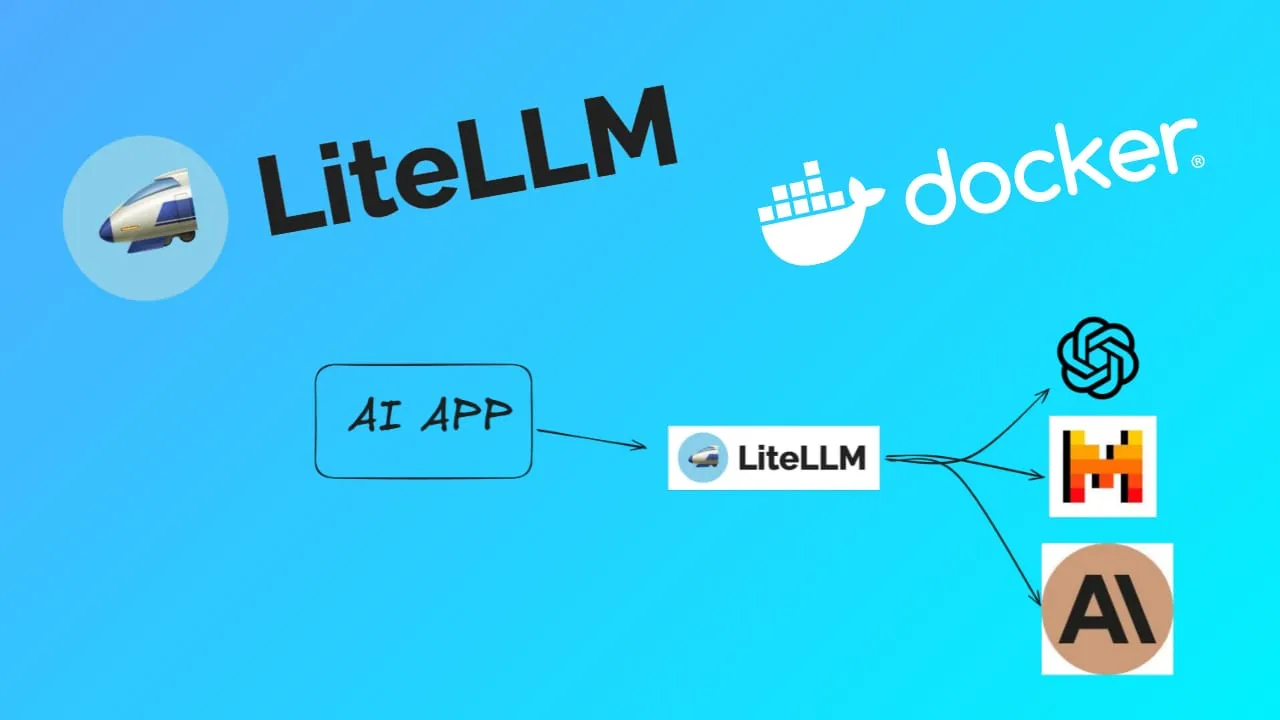
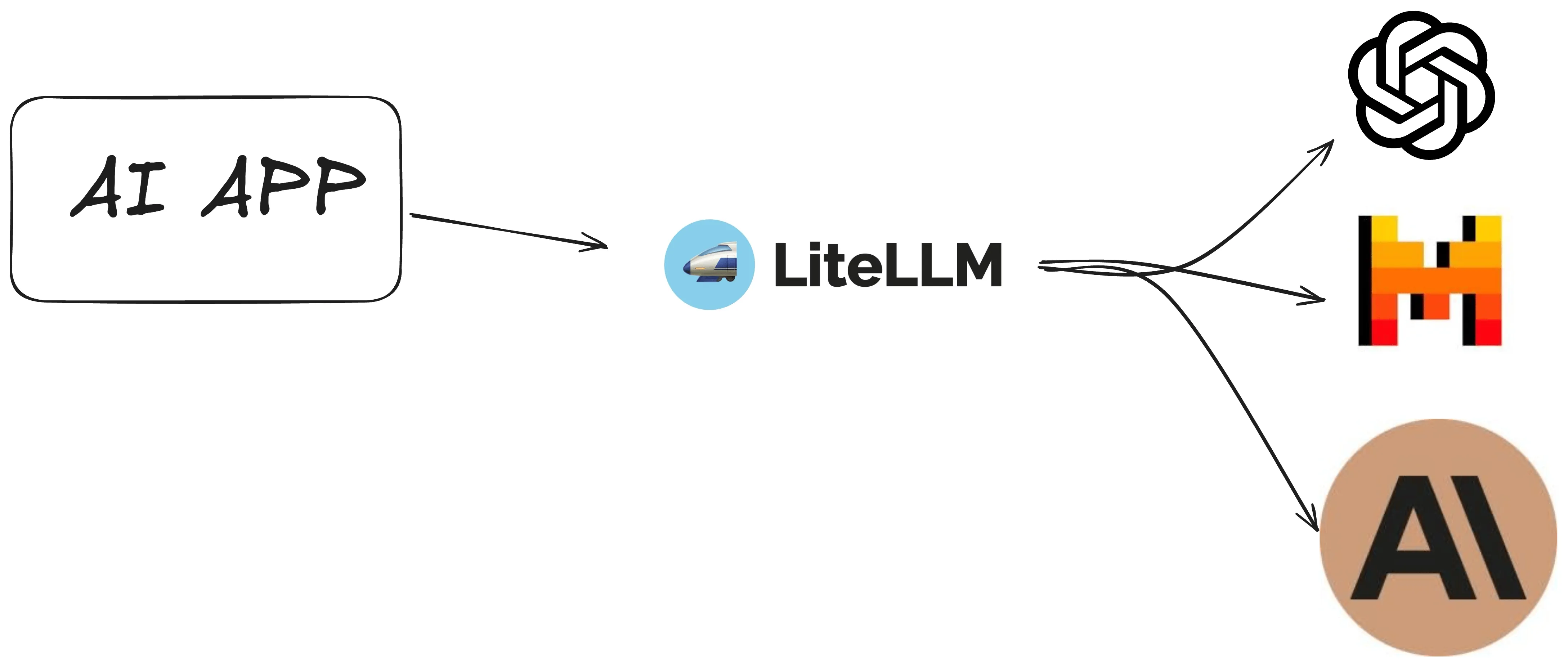
In this guide you’ll install LiteLLM with Docker Compose and turn it into a self-hosted LLM gateway: one OpenAI-compatible endpoint on port 4000 that fronts every model API you use. Apps get a single base URL and a key, LiteLLM handles routing, retries, budgets, and logging, and your provider keys never leave the server.
LiteLLM calls 100+ LLM APIs (OpenAI, Anthropic, Bedrock, TogetherAI, local Ollama, and more) using the OpenAI API spec. As of October 2026 the repo sits at around 61k GitHub stars, ships weekly releases, and the proxy runs on a Rust core with a Python SDK. MIT licensed core, enterprise features on top. No GPU needed for the gateway itself.
If you want a reverse proxy first, set up Traefik before you continue.
Set up Traefik as a reverse proxyIf you are interested to see some free cool open source self hosted apps you can check toolhunt.net self hosted section.
What Is LiteLLM? A Self-Hosted LLM Gateway
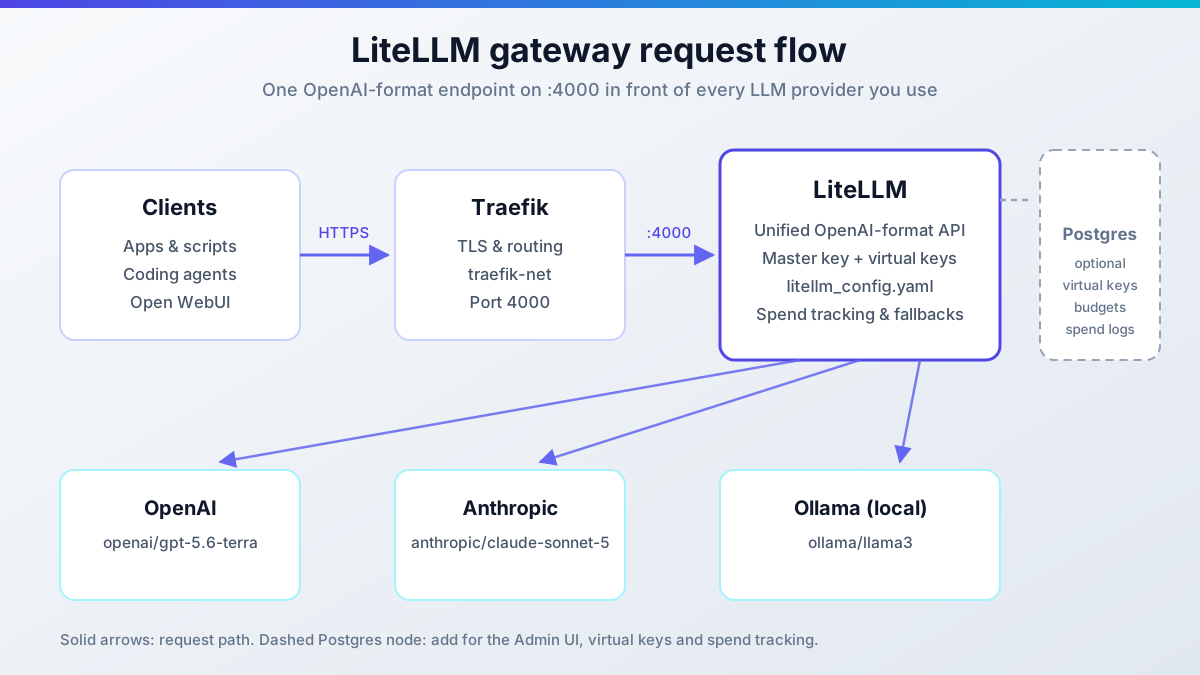
LiteLLM is a proxy and SDK that exposes every LLM provider you use through one OpenAI-format API. Point your apps at http://litellm:4000/v1 (or your Traefik hostname) and swap providers by editing a YAML file, not by touching application code.
That is the operator pitch. Without a gateway, every app holds raw provider keys, every app needs its own retry and fallback logic, and you find out about spend after the invoice. With LiteLLM in the middle, key rotation, usage logging, budgets, and model aliases all live in one place. Clients authenticate against your gateway, never against OpenAI or Anthropic directly.
One license note before you commit: the core is MIT, and the repo carries enterprise features under a separate license. The Docker image and everything in this guide works on the open path. Read the license files in the repo if you plan to embed it in a commercial product.
Key Features of LiteLLM
What you get once it is running:
- A unified OpenAI-format interface covers 100+ LLMs. One
model_listentry per model, and clients call them by whatever alias you choose. - Cost tracking, budgets, and spend logs per key and per model, with a UI to inspect them (needs Postgres).
- Fallbacks and load balancing across deployments. Mark one deployment down and traffic moves to the next.
- Virtual keys with their own budget, rate limit, and model allow-list. Hand apps a virtual key, never the master key.
- An Admin UI with a Playground: send a test message, then hit “Get Code” for copy-paste client snippets.
- Anything that speaks the OpenAI SDK works, plus first-class support for Anthropic, Mistral, LlamaIndex, and LangChain.
- Current routing targets in the docs include
openai/gpt-5.6-terraandanthropic/claude-sonnet-5, local models behind run local models with Ollama, and newer API providers like GLM/Z.ai models or MiniMax. If you want ideas for what to route through the gateway, see my pick of best open source LLMs.
On throughput I will not quote an RPS number. LiteLLM publishes load-test results in its docs, but what you get depends on your models and upstream latency, not on the proxy. Budget for the gateway being cheap to run and the provider calls being the expensive part.
LiteLLM Deploy Options: No Database vs Postgres
There are two ways to run the compose stack, and the choice matters more than it used to.
No database
Config-file mode. litellm_config.yaml on disk, one container, master key as the only credential. Fast to start, fine for evaluating the gateway or for a personal setup where you are the only client.
You give up the Admin UI, virtual keys, and spend tracking. Budgets are not enforced (see the warning below). Restart the container and nothing persists except your config file.
With Postgres
Production mode. Postgres stores models, virtual keys, budgets, and spend logs. STORE_MODEL_IN_DB: "True" is required so the Admin UI and the /config/update API write settings into the LiteLLM_Config table.
You get virtual keys with per-key limits, spend tracking, config persistence across restarts, and the Admin UI at /ui. This is the default I recommend for anything shared.
Budgets are not enforced without a database
In no-DB mode max_budget keeps serving requests past the limit. No per-request error, no budget alert, just a one-time warning in the logs at startup. Virtual keys also need a database: a request with a virtual key against a no-DB proxy fails with No connected db. If you care about spend caps, run the Postgres variant or bound spend upstream at the provider dashboard.
One more correction to the old guidance out there: the gateway does not need a GPU or a big box. It proxies API calls, it does not run inference. A 2 vCPU / 2-4 GB VPS is plenty for the proxy itself; GPU hardware only matters if you colocate Ollama next to it. If you go that route, check the best mini PC for local LLMs and Ollama, or a compact mini PC if you want something quiet under the desk.
VPS prices jumped across the board in 2026. If you’re rethinking a rented box, see what changed and when a mini PC wins.
Install LiteLLM with Docker Compose (No Database)
This is the path to get a working gateway tonight. The Prerequisites below apply to both install paths, so read them once and then come back here or jump to the Postgres section.
Video walkthrough
Recorded before the v1.83+ security changes. The compose files below are current.
Prerequisites
- Linux VPS with Docker and the Compose plugin. 2 vCPU / 2-4 GB RAM is enough for the proxy.
- A domain with DNS pointed at the server, and Traefik running in Docker (a wildcard certificate via Cloudflare makes the TLS part boring).
- Docker management tooling you like. I use Dockge for compose stacks.
- API keys for whatever providers you plan to route to (OpenAI, Anthropic, or a local Ollama).
For the VPS itself I use Hetzner for EU boxes and Hostinger when I want cheap NVMe elsewhere. Both handle a LiteLLM proxy without sweating.
In case you are interested to monitor server resources like CPU, memory, disk space you can check: How To Monitor Server and Docker Resources.
Security note (March 2026)
LiteLLM had a supply-chain incident in March 2026. Compromised packages were the PyPI releases litellm==1.82.7 and litellm==1.82.8, live for about 40 minutes on March 24 before PyPI quarantined them. The compromise came in through the Trivy dependency used in LiteLLM’s own CI scanning workflow.
Customers running the official LiteLLM Proxy Docker image were not impacted: that path pins dependencies in requirements.txt. If you installed LiteLLM from PyPI before March 2026, update immediately. The first clean release was v1.83.0 (March 30, 2026) on a rebuilt CI pipeline. Details and indicators of compromise are in the official security update. Current images are clean and cosign-signed, which is the next section.
LiteLLM Config File with Current Models
Create litellm_config.yaml. The full provider list lives at docs.litellm.ai/docs/providers (the old litellm.vercel.app link is stale).
model_list:
  - model_name: gpt-5.6-terra
    litellm_params:
      model: openai/gpt-5.6-terra
      api_key: os.environ/OPENAI_API_KEY
  - model_name: claude-sonnet-5
    litellm_params:
      model: anthropic/claude-sonnet-5
      api_key: os.environ/ANTHROPIC_API_KEY
Two fields, two jobs:
model_nameis what clients send in the"model"field of their request. It is your alias, pick anything memorable.litellm_params.modelis what LiteLLM sends upstream, and it takes a provider prefix:openai/...,anthropic/...,ollama/.... The prefix is what routes the request to the right provider.
api_key: os.environ/OPENAI_API_KEY is the documented indirection pattern. LiteLLM reads the key from the container environment instead of the config file, so your YAML holds no secrets and can live in Git.
Model IDs change
Pin the model strings your account has access to. Provider catalogs move fast, and an alias that worked last month can 404 upstream today. Check your provider’s model list before pasting examples.
No-Database Docker Compose File
services:
  litellm:
    image: docker.litellm.ai/berriai/litellm:v1.105.0   # pin! ghcr.io/berriai/litellm:v1.105.0 also fine
    restart: unless-stopped
    command:
      - "--config=/app/config.yaml"
      - "--detailed_debug"
    environment:
      LITELLM_MASTER_KEY: ${LITELLM_MASTER_KEY:?set in .env}
      OPENAI_API_KEY: ${OPENAI_API_KEY}
      ANTHROPIC_API_KEY: ${ANTHROPIC_API_KEY}
    volumes:
      - ./litellm_config.yaml:/app/config.yaml
    ports:
      - "127.0.0.1:4000:4000"
What matters in there:
- The image is pinned to
v1.105.0, the current stable (published 2026-10-11). Do not run a floating tag anywhere you care about. More on tags in the next section. - The command sets
--config=/app/config.yaml, which matches the docs mount convention.--detailed_debugis verbose logging; drop it once you are done troubleshooting. - The volume mount
./litellm_config.yaml:/app/config.yamlmatters. If you mount at a random path and forget to update--config, the proxy starts with an empty model list. - The port binding
127.0.0.1:4000:4000keeps the host side on localhost. Traefik reaches the container over the Docker network, so there is no reason to expose 4000 to the internet. - Environment variables carry provider keys via
os.environ/...and the master key.
.env file, next to the compose file:
LITELLM_MASTER_KEY=sk-REPLACE_ME
OPENAI_API_KEY=sk-...
ANTHROPIC_API_KEY=sk-...
Generate the whole file properly, never reuse sk-1234:
echo "LITELLM_MASTER_KEY=sk-$(openssl rand -hex 32)" > .env
echo "OPENAI_API_KEY=sk-REPLACE_ME" >> .env
echo "ANTHROPIC_API_KEY=sk-REPLACE_ME" >> .env
chmod 600 .env
The master key must start with sk-
The proxy refuses to start without LITELLM_MASTER_KEY, and the key must start with sk-. Missing prefix is the most common startup failure in this setup. The :? guards in the compose files below will catch a missing variable outright.
Bring it up and check the container:
docker compose up -d
docker compose ps
docker compose logs -f litellm | head -50
Failure modes worth knowing here:
- If port 4000 is already bound, another container (or a local dev server) holds the port. Change the host side to
127.0.0.1:4001:4000or stop the other service. - If the config is mounted at the wrong path, the container starts but every request 404s the model. Check with
docker compose exec litellm cat /app/config.yaml. - If the
sk-prefix is missing from the master key, startup fails with a refusal in the logs. Fix the.envand rundocker compose up -dagain.
Open WebUI + LiteLLM + Ollama Combined Stack
If you want a chat UI and local models behind the same gateway, this is the combined stack. I covered the Open WebUI + Ollama side in the Ollama Docker Compose setup guide and in running OpenClaw with Ollama; here LiteLLM sits in front so Open WebUI also sees your cloud models.
services:
  openWebUI:
    image: ghcr.io/open-webui/open-webui:main
    container_name: openwebui
    hostname: openwebui
    networks:
      - traefik-net
    restart: unless-stopped
    volumes:
      - ./open-webui-local:/app/backend/data
    labels:
      - traefik.enable=true
      - traefik.http.routers.openwebui.rule=Host(`openwebui.domain.com`)
      - traefik.http.routers.openwebui.entrypoints=https
      - traefik.http.services.openwebui.loadbalancer.server.port=8080
    environment:
      OLLAMA_BASE_URLS: http://ollama:11434
      OPENAI_API_KEY: ${LITELLM_MASTER_KEY}
      OPENAI_API_BASE_URL: http://litellm:4000/v1
  ollama:
    image: ollama/ollama:latest
    container_name: ollama
    hostname: ollama
    networks:
      - traefik-net
    volumes:
      - ./ollama-local:/root/.ollama
  litellm:
    image: docker.litellm.ai/berriai/litellm:v1.105.0
    container_name: litellm
    hostname: litellm
    networks:
      - traefik-net
    restart: unless-stopped
    command:
      - --config=/app/config.yaml
      - --detailed_debug
    environment:
      LITELLM_MASTER_KEY: ${LITELLM_MASTER_KEY}
      OPENAI_API_KEY: ${OPENAI_API_KEY}
      ANTHROPIC_API_KEY: ${ANTHROPIC_API_KEY}
    volumes:
      - ./litellm_config.yaml:/app/config.yaml
networks:
  traefik-net:
    external: true
OPENAI_API_BASE_URL points at the LiteLLM container, and OPENAI_API_KEY is the master key (or a virtual key, once you have Postgres). Open WebUI then lists every model from your litellm_config.yaml alongside the Ollama ones.
One honesty note: Open WebUI’s environment variable names drift between releases. The OPENAI_API_BASE_URL pattern above is the long-standing one and matches open-webui:main documentation as of October 2026, but if the UI cannot reach the gateway, check Open WebUI’s current docs for renamed variables before you debug LiteLLM.
Pin the LiteLLM Docker Image and Verify Signatures
This section exists because floating tags bit people during the March 2026 incident. Make pinning a habit.
The tag scheme since v1.84.0 is plain SemVer. The old -stable and -nightly suffixes are gone. Weekly releases bump MINOR, PATCH is reserved for hotfixes, and Docker publishes both bare (1.84.0) and v-prefixed (v1.84.0) tags of the same image. Old v1.83.x-stable names remain published forever, so nothing you already run breaks.
- Pin
v1.105.0(or whatever is current when you read this) for anything beyond local evaluation. main-stablefloats to the latest stable. Convenient for a homelab experiment, wrong for production. It will drift under you, usually at the worst time.
Registries: the official quickstart publishes on docker.litellm.ai/berriai/litellm, and the security guide verifies on ghcr.io/berriai/litellm. Both appear in official material. If you want the strictest path, pull and verify from GHCR.
docker.litellm.ai
docker pull docker.litellm.ai/berriai/litellm:v1.105.0ghcr.io (verified)
docker pull ghcr.io/berriai/litellm:v1.105.0

cosign verify \
  --key https://raw.githubusercontent.com/BerriAI/litellm/0112e53046018d726492c814b3644b7d376029d0/cosign.pub \
  ghcr.io/berriai/litellm:v1.105.0
Post-incident habit: pin and verify
All images published to ghcr.io/berriai/ are signed with cosign starting from v1.83.0, one key for every release. The public key is cosign.pub in the repo, and the command above pins the key fetch to the exact commit that introduced signing, so you are not trusting a mutable URL. cosign verify prints the signature payload on success and exits non-zero on a mismatch.
Image variants: litellm is the core proxy and now bundles the Prisma toolchain for Postgres, so it handles migrations on its own. litellm-database is a legacy alias for the same toolchain, entrypoint, and migrations. There is no longer a reason to choose between them. litellm-non_root is available if you want to drop root.
Install LiteLLM with Docker Compose and Postgres
This is the production path. Postgres unlocks the Admin UI, virtual keys, spend tracking, and config persistence. STORE_MODEL_IN_DB: "True" is the switch that tells the Admin UI and the /config/update API to write settings into the LiteLLM_Config table instead of only reading your YAML.
Required Environment Variables: Master Key and Salt Key
DB mode needs two keys, not one. The compose file below refuses to start without both.
LITELLM_MASTER_KEY: root credential. Authorizes every management API call and doubles as the Admin UI password.LITELLM_SALT_KEY: encrypts provider API keys stored in the database. New requirement, easy to miss.POSTGRES_PASSWORD: the database password, used inDATABASE_URLand by the Postgres container.- Optional legacy UI login:
UI_USERNAME/UI_PASSWORD. If unset, log in asadminwith the master key.
Generate all of it properly:
printf 'LITELLM_MASTER_KEY=sk-%s\nLITELLM_SALT_KEY=sk-%s\nPOSTGRES_PASSWORD=%s\n' \
  "$(openssl rand -hex 32)" \
  "$(openssl rand -hex 32)" \
  "$(openssl rand -hex 16)" > .env
chmod 600 .env
Back up the salt key with the database
There is no in-place rotation for LITELLM_SALT_KEY. Regenerating it makes every provider credential already stored in the database unreadable. A pg_dump alone cannot decrypt those keys either: your backup unit is the database dump plus the .env containing the salt key. Store them together. Lose one and the other is useless.
For UI hardening on shared installs, general_settings.disable_env_credential_login: true rejects UI_USERNAME/UI_PASSWORD/master-key logins on the UI page, so only database-backed users can sign in. Default flow is simpler: username admin, password = LITELLM_MASTER_KEY.
Docker Compose File with Postgres and Traefik
services:
  litellm:
    image: docker.litellm.ai/berriai/litellm:v1.105.0
    restart: unless-stopped
    depends_on:
      db:
        condition: service_healthy
    environment:
      LITELLM_MASTER_KEY: ${LITELLM_MASTER_KEY:?set in .env}
      LITELLM_SALT_KEY: ${LITELLM_SALT_KEY:?set in .env}
      DATABASE_URL: postgresql://litellm:${POSTGRES_PASSWORD}@db:5432/litellm
      STORE_MODEL_IN_DB: "True"
    labels:
      - traefik.enable=true
      - traefik.http.routers.litellm.rule=Host(`litellm.domain.com`)
      - traefik.http.routers.litellm.entrypoints=https
      - traefik.http.services.litellm.loadbalancer.server.port=4000
    networks:
      - traefik-net
  db:
    image: postgres:16
    restart: unless-stopped
    environment:
      POSTGRES_USER: litellm
      POSTGRES_PASSWORD: ${POSTGRES_PASSWORD}
      POSTGRES_DB: litellm
    healthcheck:
      test: ["CMD-SHELL", "pg_isready -U litellm"]
      interval: 5s
      timeout: 5s
      retries: 10
    volumes:
      - postgres_data:/var/lib/postgresql/data
    networks:
      - traefik-net
volumes:
  postgres_data:
networks:
  traefik-net:
    external: true
The important details:
depends_on: condition: service_healthywith apg_isreadyhealthcheck. Plaindepends_onraces: LiteLLM can start before Postgres accepts connections and then crash-loops. This pattern fixes that.- The
${VAR:?set in .env}guards. MissingLITELLM_MASTER_KEYorLITELLM_SALT_KEYstops compose before anything starts. - Traefik labels route
litellm.domain.comto port 4000 over thehttpsentrypoint. Bring your owntraefik-net. See Traefik in Docker and the wildcard certificate setup. postgres:16with a named volume. The official quickstart uses named volumes, and I agree for most people.
Named volume vs bind mount
Official pattern is the named volume postgres_data. If you prefer a browsable data directory for rsync or casual backups, bind mount ./litellm-db instead. Pick one in the tab below and adjust the volumes: block on the db service.
Named volume (official)
    volumes:
      - postgres_data:/var/lib/postgresql/data
volumes:
  postgres_data:
Bind mount (bitdoze variant)
    volumes:
      - ./litellm-db:/var/lib/postgresql/data:rw
Make the directory first: mkdir -p litellm-db. If Postgres complains about permissions on start, chown -R 999:999 litellm-db (the postgres user inside the image) and start again.
docker compose up -d
docker compose ps
Expected: db reports healthy and litellm reports running. If litellm is restarting, the DB healthcheck or DATABASE_URL password is the usual suspect. Check docker compose logs litellm.
Verify the Install and Send a Test Request
Do not trust docker compose up -d returning 0. Four checks, in order.
- 1. Container state:
docker compose psshows both services up,dbhealthy. - 2. Liveness:
curl -s http://localhost:4000/health/livelinessreturns HTTP 200./health/readinessis the deeper check if you want it. - 3. A real model call: the curl below returns an OpenAI-style JSON body with a reply.
- 4. UI (DB mode): open
https://litellm.domain.com/ui, log in asadminwith the master key, send a Playground message, then hit “Get Code” for client snippets.
# 1. container state
docker compose ps

# 2. liveness (from the host, or inside the container if 4000 is localhost-only)
curl -s -o /dev/null -w '%{http_code}\n' http://localhost:4000/health/liveliness

# 3. first real call through the gateway
curl http://localhost:4000/v1/chat/completions \
  -H 'Authorization: Bearer sk-REPLACE_WITH_MASTER_OR_VIRTUAL_KEY' \
  -H 'Content-Type: application/json' \
  -d '{
    "model": "gpt-5.6-terra",
    "messages": [{"role": "user", "content": "ping"}]
  }'
What “working” looks like: a JSON response with choices[0].message.content and a usage block. What “broken” looks like: 401 means the Bearer key is wrong or missing the sk- prefix; 400 with model-not-found means the "model" field does not match a model_name in your config; 500 with provider errors means the upstream key is invalid or the model string is not available to your account.
Health endpoint names are long-standing LiteLLM routes, but if /health/liveliness 404s on your pinned version, check that version’s OpenAPI schema before assuming the proxy is dead.
Create LiteLLM Virtual Keys in the Admin UI
This is the feature that justifies running Postgres. In the UI: Virtual Keys → Create New Key. The key is shown once at creation.
Copy the key at creation
LiteLLM displays a new virtual key exactly once. If you lose it, revoke and create a new one. Do not paste virtual keys into compose files or images; they belong in each client’s environment.
Configure each key with:
- Budget: a hard cap per key. This one is enforced because the database is there.
- Rate limit: requests per minute, so one client cannot starve the rest.
- Model allow-list: restrict the key to specific
model_namealiases. - Expiry: for temporary clients and experiments.
Golden rule: apps and agents get virtual keys, never the master key. The master key can rewrite your gateway config; a virtual key can only call models within its limits. If you run several AI coding tools and agents, give each one its own virtual key so a runaway agent eats its own budget and not yours. Tools like Agent Router can point multiple coding CLIs at the same gateway endpoint.
Even with per-key budgets, set spend caps upstream at the provider. Two limits are one limit, and the provider’s is the one that hits your card.
Troubleshooting: Common Failure Modes
Symptom, cause, fix
Each item below is a symptom you will see in docker compose logs or curl, not a theoretical list. Expand the one that matches your failure.
Proxy refuses to start: master key missing or not sk- prefixed
This happens when LITELLM_MASTER_KEY is empty or does not start with sk-. The proxy refuses to boot without it.
Fix it by setting LITELLM_MASTER_KEY=sk-$(openssl rand -hex 32) in .env, then docker compose up -d. Check with docker compose exec litellm printenv LITELLM_MASTER_KEY.
DB mode exits immediately: missing LITELLM_SALT_KEY
Either the ${LITELLM_SALT_KEY:?set in .env} guard aborted compose because the variable is unset, or LiteLLM cannot encrypt stored credentials without it.
Generate it with the printf/openssl one-liner above and restart. Never invent a short value: this key encrypts provider keys for the life of the database.
Virtual key request fails with 'No connected db.'
You are running no-DB mode. Virtual keys require Postgres.
That request is expected to fail. Either use the master key (fine for solo evaluation) or switch to the Postgres compose file.
Budget exceeded but requests keep serving
No-DB mode does not enforce max_budget. Requests keep going past the limit with no per-request error.
Run the Postgres variant for enforced budgets, and set a hard cap at the provider dashboard in the meantime.
LiteLLM restarts in a loop
Postgres is not accepting connections yet, or DATABASE_URL has the wrong password. Plain depends_on makes this worse with a startup race.
Use depends_on: db: condition: service_healthy, verify POSTGRES_PASSWORD matches on both services, and check docker compose logs db.
Every model request 404s / empty model list
The config file is mounted at a path the proxy is not reading. The proxy started with no model_list.
Mount ./litellm_config.yaml:/app/config.yaml and pass --config=/app/config.yaml. Confirm with docker compose exec litellm cat /app/config.yaml.
Port 4000 already in use
Something else on the host binds 4000.
Change the host port to 127.0.0.1:4001:4000, or stop the other service with docker ps | grep 4000 and docker compose down in the offending project.
Traefik returns 502 for litellm.domain.com
The litellm container is not on traefik-net, the hostname rule does not match your DNS, or the loadbalancer port label is wrong.
traefik-net must be external: true and created beforehand (docker network create traefik-net). The label traefik.http.services.litellm.loadbalancer.server.port=4000 must match the proxy port. Check the Traefik dashboard for the router status.
UI login rejected: admin + master key does not work
Either the password is not the master key, or general_settings.disable_env_credential_login: true is set, which rejects env-credential logins entirely.
Default login is username admin, password = LITELLM_MASTER_KEY. If env-credential login is disabled, create a UI user through the database-backed flow. Legacy UI_USERNAME/UI_PASSWORD still work when set and not disabled.
If the proxy misbehaves under load, watch CPU and RAM before you blame LiteLLM: How To Monitor Server and Docker Resources.
Backup, Upgrade, and Rollback
DB dump + salt key together = recoverable credentials
Back up pg_dump output and your .env (salt key + master key) as one unit. Schedule copies off the box, S3-compatible storage is fine. A database backup without the salt key restores a pile of ciphertext.
For backups (DB mode):
docker compose exec db pg_dump -U litellm litellm > backup-$(date +%F).sql
# pair every dump with a copy of .env (the salt key decrypts stored provider keys)
cp .env .env.backup-$(date +%F)
To upgrade:
- Read the release notes for the minor lines you are crossing. Releases are weekly, so “jump several minors” is normal and the notes are short.
- Take a fresh dump first. Since v1.103.3 (September 30, 2026) the DB migration check is enforced by default: upgrades hard-fail on schema drift instead of warning. That is a good thing, as long as you have the dump.
- Bump the image tag in compose, then
docker compose up -d. - Re-run the verify steps:
/health/livelinessand one real/v1/chat/completionscall.
To roll back, set the previous pinned tag in the compose file and docker compose up -d. If migrations already ran and the old version chokes on the new schema, restore the dump into Postgres first. Old v1.83.x-stable tag names still resolve if you ever need them; bare and v-prefixed tags are identical images.
Hardening recap:
- Keep port 4000 bound to
127.0.0.1and let Traefik own public traffic. - Secrets only in
.env,chmod 600, never in Git. - Use virtual keys for clients; reserve the master key for admin work.
- Consider
litellm-non_rootif your policy requires non-root containers.
What’s New in LiteLLM Since May 2026
The project did not sit still. Short list, details in the changelog:
- Rust core with Python SDK: the repo’s headline claim now, with load-test pages in the docs if you want curves.
- Decisions API: a
/v1/decisionsendpoint for decision models, included in v1.105.0. - MCP Gateway: governed tool access for agents, with the MCP catalog expanding.
- Auto Router and LiteLLM Lens: per-request model choice and trace/observability tooling appearing in the docs nav.
- DB migration check enforced (v1.103.3): upgrade behavior covered above.
If you want traces and spend dashboards beyond the built-in UI, pair the gateway with self-hosted Langfuse for LLM observability. Gateway handles routing, Langfuse handles the “why did this request cost $4” conversation.
Conclusions
The operator path in one line: pin and verify the image, evaluate with the no-DB compose, then move to Postgres with a salt key and virtual keys for anything real. Verify with a real /v1/chat/completions call instead of trusting a green docker compose ps, and back up the database dump with the salt key or you have backed up nothing.
LiteLLM earns its place in the stack by removing per-app provider keys and per-app retry logic. It is not glamorous, it is a small container and a YAML file that keeps your model spend and credentials in one boring place.
- Pin
v1.105.0(or current) and cosign-verify GHCR images. - Master key and salt key both start with
sk-, generated withopenssl rand. - No-DB for evaluation; Postgres for virtual keys, budgets, and the Admin UI.
- Apps get virtual keys, never the master key.
- Backup unit is
pg_dump+.env, always together.
For those interested in exploring more Docker containers for your self-hosted setup, the Best 125+ Docker Containers for Home Server in 2026 has the current list. LiteLLM sits next to OmniRoute, Langfuse, and the rest of the agent stack in top AI GitHub repos.