How To Secure CloudPanel
Ten practical steps to lock down CloudPanel: SSH keys, SSL, firewall rules, 2FA, backups, malware scanning, WAF, and more.

3 min read

A default CloudPanel install is functional but not hardened. These steps reduce the attack surface without much effort.
Hetzner VPS Hostinger VPS DigitalOcean $100 Free Vultr $100 FreeVPS prices jumped across the board in 2026 — if you’re rethinking a rented box, see what changed and when a mini PC wins.
1. Use SSH keys, not passwords
Passwords can be brute-forced. SSH keys can’t. Generate a key pair:
ssh-keygen -t rsa -b 4096Add your public key to the VPS when creating it (Hetzner lets you add SSH keys in the server creation UI). If the server is already running, add the key to ~/.ssh/authorized_keys on the server and disable password auth in /etc/ssh/sshd_config.
2. Add an SSL certificate to the admin area
Set up a subdomain for CloudPanel’s admin interface (e.g., admin.yourdomain.com) and add it under Admin Area → Settings → General. Point the DNS to your server IP and let CloudPanel generate a Let’s Encrypt cert for it.
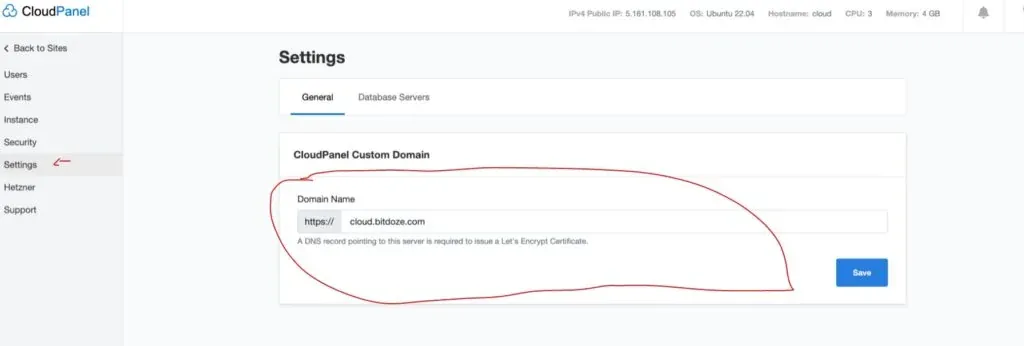
Once this is in place, you access the admin panel over HTTPS on port 443 using the subdomain — no need to expose port 8443 to the internet.
3. Lock down ports 22 and 8443
CloudPanel’s built-in firewall handles this. Restrict SSH (port 22) and the admin port (8443) so only your IP can reach them:
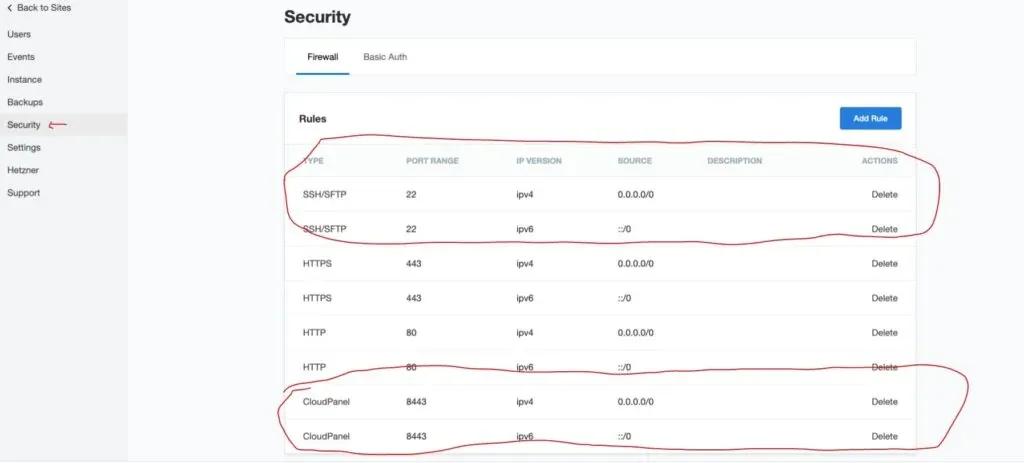
Use the My IP option to automatically add your current IP:
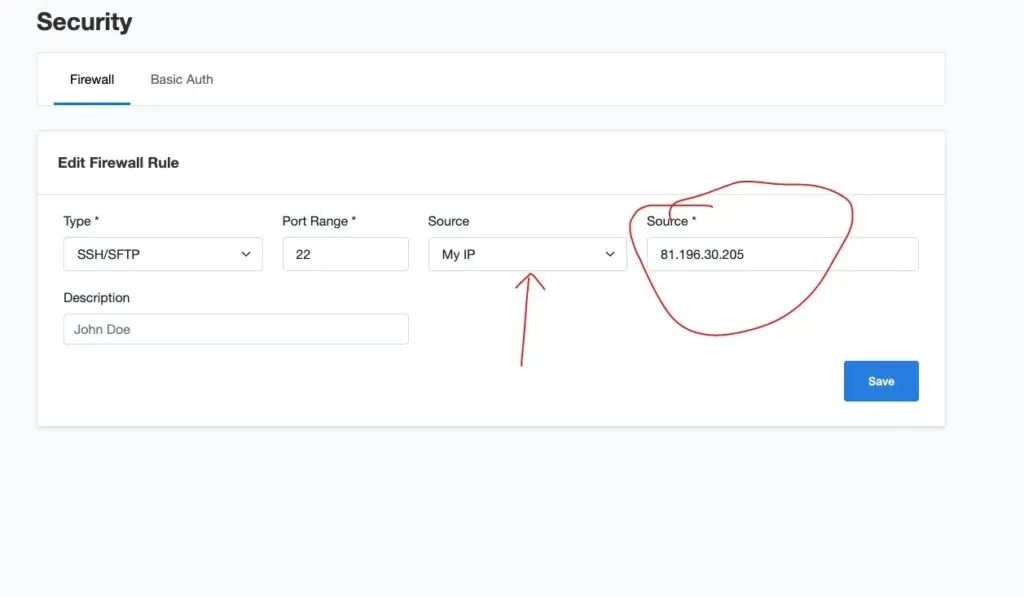
The downside: if your ISP changes your IP, you’ll be locked out until you update the rule. Keep an alternative access method ready (Hetzner has a console access via browser).
4. Enable two-factor authentication
In CloudPanel → Account settings, enable 2FA. Scan the QR code with Google Authenticator or Authy. From then on, every login requires a time-based code from your phone.
5. Set up backups
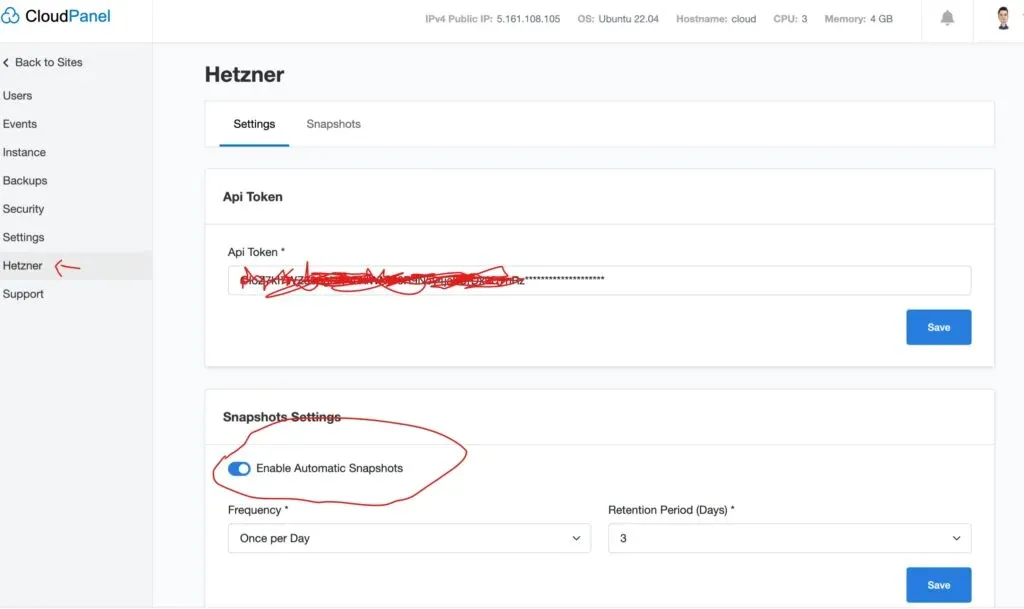
Snapshots (via Hetzner API): Go to CloudPanel → Snapshots, connect your Hetzner API key, and set automatic snapshot intervals and retention. Snapshots include the full disk — files, database, config.
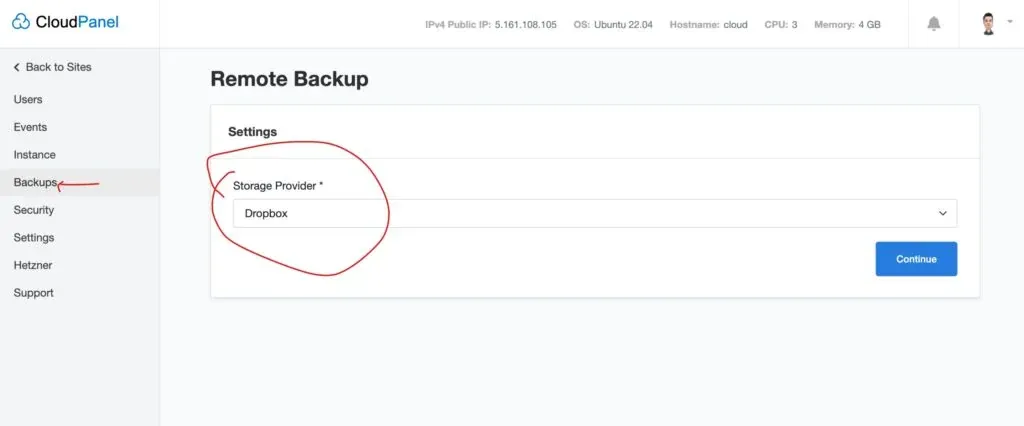
Remote backups (files to external storage): CloudPanel supports Dropbox, Google Drive, SFTP, and anything Rclone can reach. This backs up site files; for a full backup including databases, you’ll need a separate script.
6. Keep everything updated
Run Ubuntu package updates roughly every 3 months:
sudo apt update && sudo apt upgrade -yUpdate CloudPanel itself:
clp-updateAlways take a snapshot before any update. See How to Safely Update CloudPanel for the full process.
7. Scan for malware
Install LMD (Linux Malware Detect) and ClamAV, and schedule daily scans of the site directories. CloudPanel isolates each site under a separate OS user, so an infected site can’t spread to others — but it can still take down the server if not caught.
Malware scans add CPU load while running. Test on a staging server before enabling on production.
8. Add a WAF
Put your sites behind a Web Application Firewall to block DDOS, SQL injection, and XSS before they reach the server. Cloudflare’s free tier includes WAF rules now. CloudPanel has a native Cloudflare integration that restricts inbound traffic to Cloudflare IPs only:
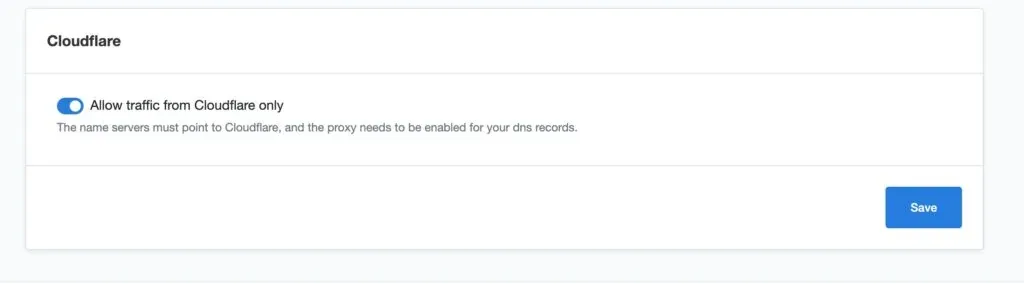
Enable this after pointing your domains to Cloudflare – it means direct requests to your server IP are blocked, and all traffic must go through Cloudflare’s network first.
9. Block access to sensitive files
Add Nginx rules to block access to files that should never be public. In your site’s Nginx vhost config (or via CloudPanel’s Nginx directives), add:
location ~ /\.(env|git|htaccess|htpasswd) {
    return 404;
}

location = /xmlrpc.php {
    return 403;
}

location ~ /\.user\.ini {
    return 404;
}
This blocks .env files (which often contain database passwords), .git directories, and WordPress’s xmlrpc.php (a common brute-force target that most sites don’t need).
10. Bind MySQL to localhost
Make sure MySQL/MariaDB only listens on 127.0.0.1 so it can’t be reached from outside the server. Check /etc/mysql/my.cnf or the MariaDB config for:
bind-address = 127.0.0.1CloudPanel does this by default, but worth verifying, especially after updates.