
Secure Your WordPress Website with Two-Factor Authentication (2FA)
How to add two-factor authentication to WordPress using the free WP 2FA plugin. Covers authenticator apps, email codes, and passkeys.

2 min read

Passwords alone aren’t enough for WordPress. They get phished, leaked in breaches, or cracked by bots. Adding a second factor means a stolen password isn’t enough to get into your site.
The easiest way to do this is with the WP 2FA plugin (free, by Melapress). It supports authenticator apps, email codes, and now passkeys for passwordless login. You can enforce 2FA for specific user roles.
Install WP 2FA
In your WordPress dashboard, go to Plugins → Add New, search for “WP 2FA”, and install the one by WP White Security. Activate it and follow the setup wizard. You can enforce 2FA for all users, admins only, or specific roles.
Configure 2FA with an authenticator app
This is the more reliable method. Email codes can get delayed or end up in spam; an app works offline.
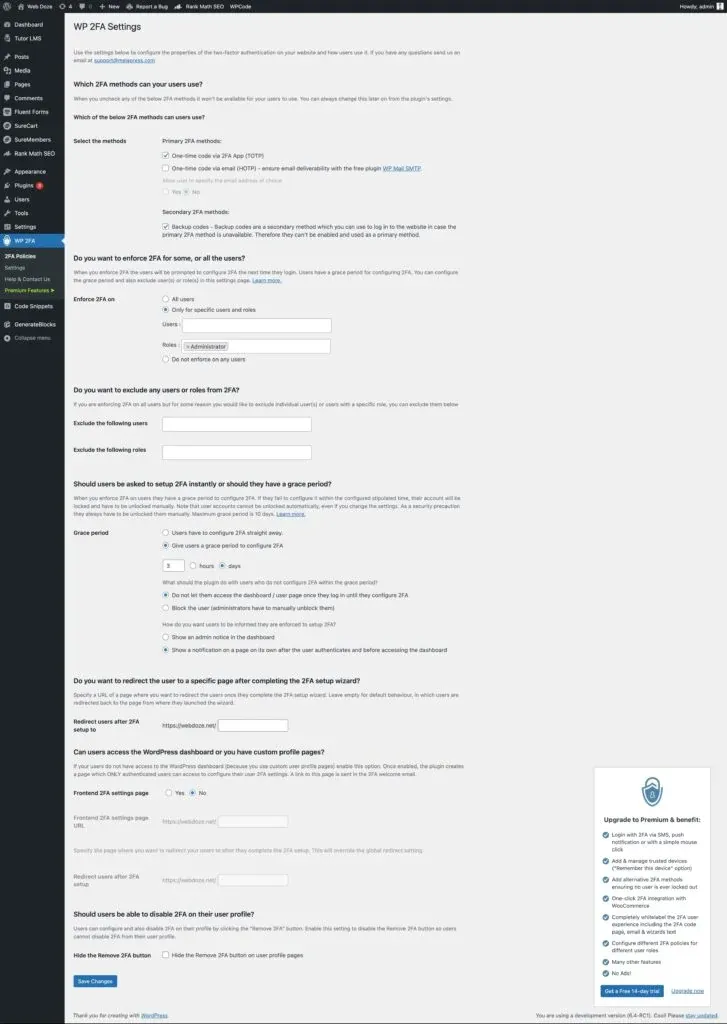
- Go to WP 2FA → 2FA Policies and enable One-time code via 2FA App (TOTP).
- Go to Users → Your Profile, scroll to the WP 2FA section, and click Set up two-factor authentication.
- Choose the phone app method and click Next.
- Install Google Authenticator or Authy on your phone.
- Scan the QR code shown by the plugin (or enter the secret key manually).
- Enter the 6-digit code your app generates to verify the link.
Done. Every login will now ask for a code from your phone.
Configure 2FA with email
Before using this method, make sure WordPress transactional email is working reliably. Install FluentSMTP to route email through a proper SMTP service first — otherwise codes may not arrive.
- Go to WP 2FA → 2FA Policies and enable One-time code via email (HOTP).
- Go to Users → Your Profile, scroll to WP 2FA, and click Set up two-factor authentication.
- Choose email, enter your address, and click Send code.
- Check your inbox for the code from WP 2FA and enter it to verify.
Enforce 2FA for other users
In WP 2FA settings you can require 2FA for all users or specific roles (editors, authors, etc.) and set a grace period before the requirement kicks in. New users get a prompt on first login.
I’d at minimum enforce it for admin and editor roles. Anyone who can publish content or change settings is a risk if their account gets compromised.
Passkeys (passwordless login)
WP 2FA now supports passkeys, which replace passwords entirely with a cryptographic key stored on your device (phone, laptop, or hardware key). You authenticate with Face ID, Touch ID, or a PIN instead of typing a password.
Passkeys are phishing-resistant because there’s no password to steal. If you use a modern browser and device, this is the strongest option available. To set it up, go to WP 2FA settings and enable the passkey method, then register your device under your user profile.
Alternatives to WP 2FA
WP 2FA is the plugin I use, but there are other options:
- Wordfence Login Security – free, lightweight, supports TOTP apps and reCAPTCHA. Good if you already use Wordfence for security.
- Two Factor Authentication by miniOrange – supports 15+ methods including SMS, push notifications, and hardware keys. Free tier covers basic TOTP.
- Two Factor (WordPress community plugin) – open source, supports TOTP, email, and U2F hardware keys. More developer-oriented.