How to Send Emails in WordPress Using Zoho SMTP With FluentSMTP
Step-by-step guide to routing WordPress emails through Zoho SMTP using the free FluentSMTP plugin.

2 min read
By default, WordPress sends emails through PHP’s mail() function, which most hosting providers either block or rate-limit. The result: password reset emails that never arrive, order confirmations that vanish, contact form submissions that disappear.
Connecting WordPress to a real SMTP account fixes this. I use Zoho Mail for several domains because it’s cheap and supports custom domains. The plugin I use is FluentSMTP (currently v2.2.95), which is free and logs every email sent so you can see what actually went out. It supports native API integrations for 10+ providers and can send failure alerts to Telegram, Slack, or Discord.
Setup steps
Hetzner VPS Hostinger VPS DigitalOcean $100 Free Vultr $100 FreeVPS prices jumped across the board in 2026 — if you’re rethinking a rented box, see what changed and when a mini PC wins.
1. Install FluentSMTP
In your WordPress dashboard, go to Plugins → Add New, search for “FluentSMTP”, install and activate it.
2. Create a Zoho application password
Log into your Zoho account and go to Account Security → App Passwords. Generate a password for WordPress. You need this because Zoho won’t accept your main account password for SMTP authentication.
3. Configure FluentSMTP
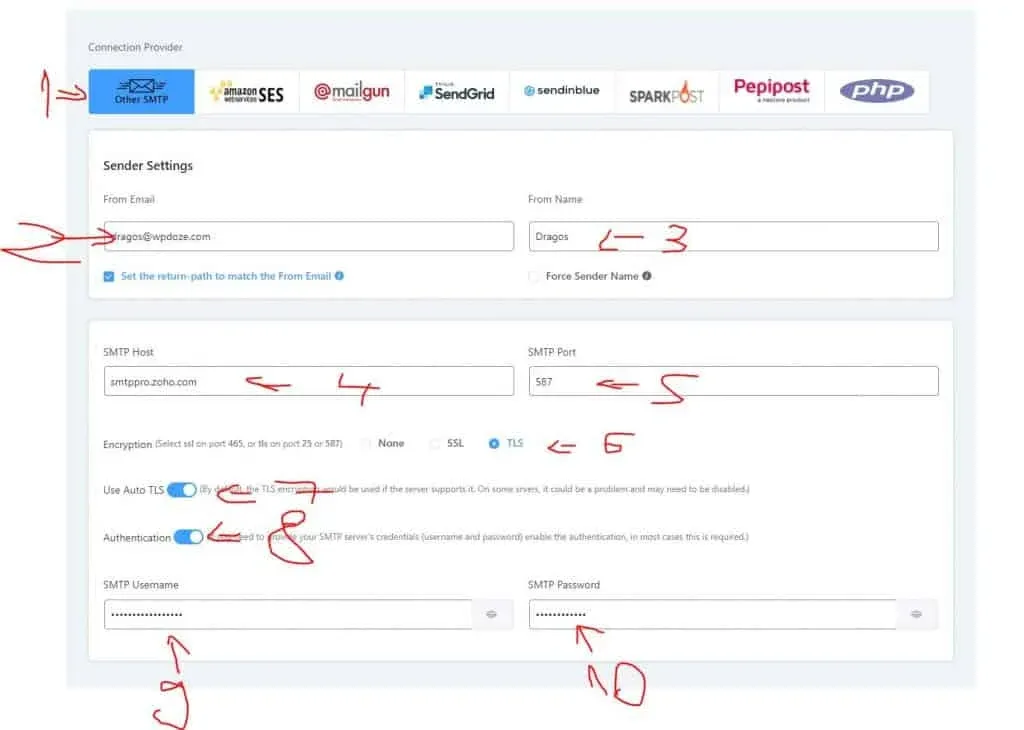
Go to FluentSMTP → Settings and choose “Other SMTP”. Fill in:
- From Email: the Zoho email address or alias you want to send from
- From Name: your site name or your name
For the SMTP details, use these settings based on your account type:
Personal Zoho accounts (yourname@zoho.com):
- Server:
smtp.zoho.com - Port:
465(SSL) or587(TLS)
Business/domain accounts (you@yourdomain.com):
- Server:
smtppro.zoho.com - Port:
465(SSL) or587(TLS)
Both require authentication. Use your Zoho email address as the SMTP username and the application password you created in step 2 as the SMTP password.
4. Send a test email
After saving, click Send Test Email in FluentSMTP to verify delivery. Check the email logs in FluentSMTP to confirm it shows as sent. If the test doesn’t arrive, double-check the application password and server/port combination.
Zoho’s free tier sends a limited number of emails per day (the limit varies by plan). For a personal blog or small site, that’s plenty.
Fallback connections
FluentSMTP supports multiple SMTP connections with automatic fallback. If Zoho is down or rejects a send, it can retry through a second provider (like Gmail or Amazon SES). Set this up under FluentSMTP → Settings → Add Another Connection. For most small sites this isn’t necessary, but if you run a WooCommerce store where order emails are critical, it’s worth configuring.
Tip: store credentials in wp-config.php
Instead of saving your SMTP password in the WordPress database, you can define it in wp-config.php for better security:
define('FLUENTMAIL_SMTP_PASSWORD', 'your-app-password-here');FluentSMTP picks this up automatically. This keeps credentials out of the database and away from plugins that might expose them.