
How To Upload vCard (VCF) Files to WordPress
Two methods to enable vCard (.vcf) file uploads in WordPress: using a dedicated plugin or a small code snippet in functions.php.

2 min read
WordPress blocks vCard (.vcf) file uploads by default. You’ll get a “Sorry, this file type is not permitted for security reasons” error when trying to upload one through the media library.
There are two ways to fix this.
Security note
vCard files can contain executable code. Only enable uploads from trusted sources, and consider who has access to your WordPress media library before opening this up.
Method 1: Plugin
Install the Enable virtual card upload – vcf,vcard plugin (free, 5,000+ active installs, tested up to WordPress 6.6 and PHP 8.3). After activating it, go to Media → Add New and vCard files will upload without errors. You can upload multiple files at once.
This is the easier option if you don’t want to touch code.
Method 2: Code snippet
Add this to your functions.php file (or use FluentSnippets to manage it without editing theme files directly):
function allow_vcard_upload($mime_types) {
    $mime_types['vcf']   = 'text/vcard';
    $mime_types['vcard'] = 'text/vcard';
    return $mime_types;
}
add_filter('upload_mimes', 'allow_vcard_upload');
If you’re using FluentSnippets, set the snippet to run in the admin area only because that’s where WordPress checks MIME types during upload.
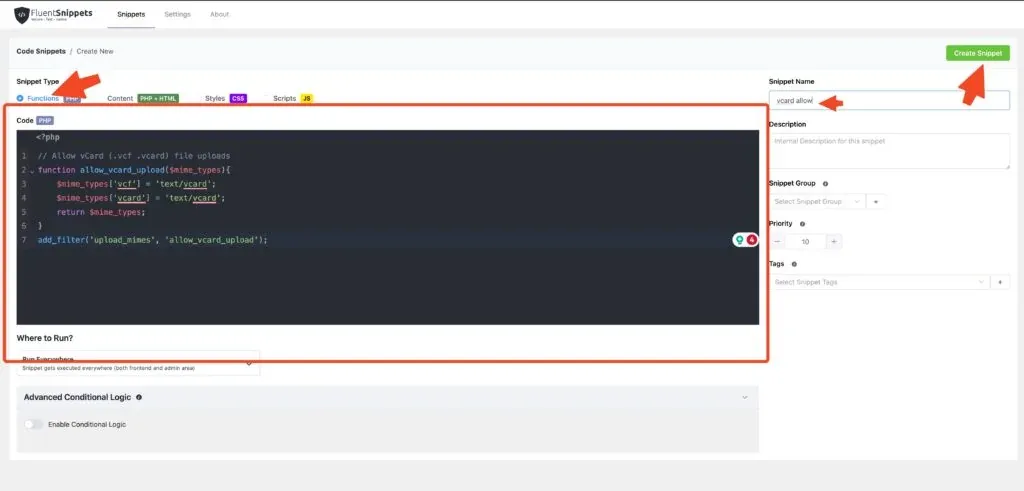
After adding the code, go to Media → Add New and upload your .vcf file.
Displaying the vCard download link
Once uploaded, get the file URL from the media library (click the file, copy the URL from the File URL field), then create a download link:
<a href="https://example.com/wp-content/uploads/2024/01/contact.vcf">Download contact card</a>Or as a button:
<button onclick="window.location.href='https://example.com/wp-content/uploads/2024/01/contact.vcf'">Download vCard</button>In Gutenberg you can also add the file directly using the File block, which generates a download button automatically.
Troubleshooting
If uploads still fail after enabling vCard support, check these:
- Hosting restrictions: Some managed WordPress hosts (like WP Engine or Kinsta) override MIME type settings at the server level. Contact their support to allow
text/vcard. - Security plugins: Plugins like Wordfence or Sucuri may block file types they consider risky. Check their file upload settings.
- WordPress multisite: On multisite, the network admin controls allowed file types under Network Admin → Settings → Upload file types. Add
vcfto the list. - PHP MIME detection: WordPress uses PHP’s
finfo_file()to verify MIME types. If your server’s MIME database doesn’t recognize.vcffiles, you may need to adddefine('ALLOW_UNFILTERED_UPLOADS', true);towp-config.phptemporarily (remove it after uploading, as it disables all file type checks).