Carrd Dark Mode: How to Add a Theme Toggle (2026 Guide)
Add a Carrd dark mode toggle with copy-paste CSS and JS. Prevent the white flash, follow the system theme, and remember user choice. Step-by-step guide.

Updated Published 55 min read
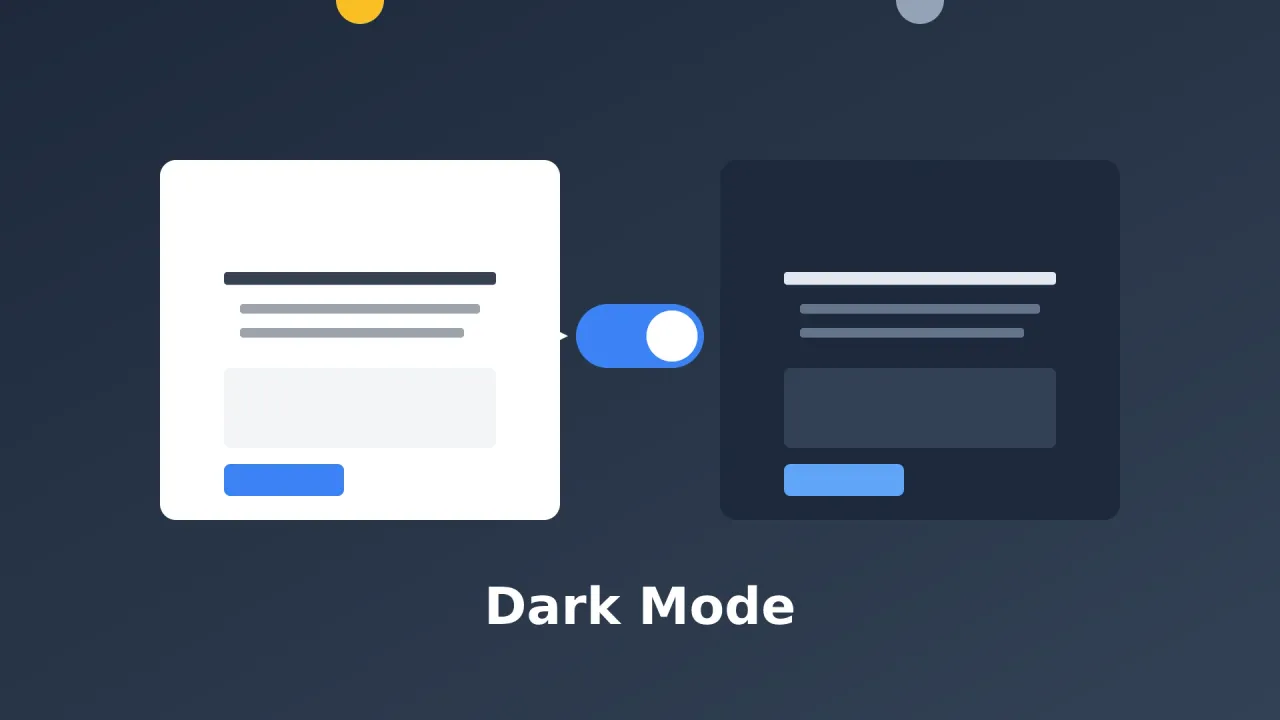
Dark mode went from niche preference to mainstream expectation. Many visitors browse at night with their phones already on dark mode, and a bright white website hits them like a flashlight to the face.
Adding a Carrd dark mode toggle gives visitors control over their experience. They switch to whatever is easier on their eyes, and the site remembers their choice for next time. This guide ships copy-paste CSS and JS that also prevents the white flash on load and follows the system theme until the visitor picks a side.
Carrd.coSome Carrd Tutorials:
- Add Popup Modal to Carrd
- Add Smooth Scroll to Carrd
- Add Testimonial Slider to Carrd
- Add Floating Menu to Carrd
- Add Sidebar Menu to Carrd
- Carrd.co Review
You can find the complete list of Carrd plugins, themes and tutorials on my carrdme.com website, including a ready-made tabs widget and an accordion widget.
Why Add Dark Mode to Your Carrd Site
Five reasons, one line each:
- Reduced eye strain: dark interfaces are easier in low light.
- Battery savings: on OLED screens dark pixels draw less power.
- User preference: a lot of people simply prefer dark UI. The option is cheap respect.
- Light sensitivity: some visitors genuinely need darker interfaces, and for them dark mode is an accessibility feature.
- Modern expectation: every major app ships a dark theme now.
Dark mode is not a novelty anymore. Visitors look for the switch, and when it is missing they bounce to a site that has it.
Prerequisites: You Need Carrd Pro Standard for Embeds
This whole tutorial runs on Carrd’s Embed element. Two things sort that out before you paste any code.
- Carrd Pro Standard account or higher (Embeds are not on the free or Pro Lite plans)
- A published site, or one ready to publish (embeds do not render in the builder)
- About 10 minutes
- No other tools, no build step, no external files
Embeds need Carrd Pro Standard or higher
The Embed element requires Pro Standard or above. Pro Lite is $9/yr for 3 sites and does not include embeds. Pro Standard is $19/yr for 10 sites ($39/yr for 25 sites) and adds embeds, forms, custom domains, and analytics. Pro Plus is $49/yr for 25 sites with advanced settings. If you just want to follow along, start the 7-day Pro trial. No credit card. Prices checked on carrd.co/pro in September 2026; re-check before you buy.
Embeds don't appear in the builder
Carrd’s docs say it plainly: the embed element will not output anything in the builder, so you need to publish the site to see it in action. If your editor looks empty after pasting the code below, nothing is broken. Publish, then test.
To add an embed, click the + sign and pick Embed. On a crowded page you can also use the Elements Panel (More Actions → Elements…), added in August 2026, to find and manage elements without hunting through the layout.
This is the same custom-code embed pattern used in the guide to add a cookie notice to your Carrd site. Once you have done one embed, the rest are copy-paste jobs.
How Dark Mode Works on Carrd
Carrd has no built-in dark mode. I re-checked the docs and the changelog in September 2026: there is still no theme-switch feature. Custom code is the only path.
The approach here is the standard one:
- A
data-themeattribute on the page root (lightordark) - CSS variables for colors, swapped by
[data-theme="dark"] - A toggle button that flips the attribute
localStorageso the choice survives reloadsprefers-color-schemeas the default before the visitor picks anything
The upgrade over a naive snippet is the two-embed pattern. Embed #1 is a tiny bootstrap in a Hidden → Head embed that sets data-theme before the page paints. Embed #2 holds the toggle UI and the click handler (Inline or Hidden → Body End).
Why two embeds?
An all-in-one Inline embed applies the theme from JavaScript after the first paint. Dark-system users see a white flash on every load. The head bootstrap runs before paint, so the first frame is already the right theme.
Two timelines compared. Row A is the single-embed approach. Row B is the two-embed approach used in this guide:
Theme resolution order, highest priority first:
- A saved choice in
localStorageunder the keytheme(the visitor clicked the toggle at some point) - The OS/browser preference via
prefers-color-scheme: dark - Light mode as the hard default
Bigger pages hold up fine. Multi-section sites built with Carrd’s Page element keep the theme automatically. It is all one document, so data-theme and localStorage persist across sections.
Head scripts run before paint by spec, so the fix is sound in principle. Carrd’s exact injection order is still worth one confirmation on your own published site. See the testing checklist below.
How to Add Dark Mode to Carrd (Step-by-Step)
Two embeds, then pick one of three toggle styles. Every block below is copy-pasteable.
Step 1: Add a Head Embed to Prevent the White Flash
Click the + sign (or More Actions → Elements…) and add an Embed element. Set Type to Code, Style to Hidden, and Location to Head.
Style: Hidden, Location: Head (not Inline)
The white-flash fix needs a Hidden embed targeted at the Head. An Inline-only setup makes it impossible, because Inline code renders in the page body after paint. We will use both styles: Hidden → Head for the bootstrap, Inline (or Hidden → Body End) for the toggle.
Paste this into the Code field:
<script>
(function () {
  var t;
  try { t = localStorage.getItem('theme'); } catch (e) {}
  if (!t) t = window.matchMedia('(prefers-color-scheme: dark)').matches ? 'dark' : 'light';
  document.documentElement.setAttribute('data-theme', t);
})();
</script>
<style>
  :root { color-scheme: light; }
  [data-theme="dark"] { color-scheme: dark; }
</style>
What it does:
- Reads
localStorage.themeinsidetry/catch, so private modes that throw on storage access do not break the page - Falls back to
prefers-color-scheme: darkwhen the visitor never picked a theme - Sets
data-themeon the document root before first paint - Emits
color-scheme: light|darkso native form controls, scrollbars, and autofill follow the theme (color-schemeis supported in Chrome/Edge 81+, Firefox 96+, Safari 13+)
Carrd does not inject any color-scheme hint on published sites. I checked the raw HTML of a published sample in September 2026: nothing there. The snippet sets it itself. Do not assume the platform does it for you.
Verify: publish, open the site in an incognito window on a machine or phone set to dark mode. The page should come up dark with no white flash. If you still get a flash, the head embed is missing, mis-located, or you are looking at a cached page (hard refresh).
Step 2: Add the Dark Mode Toggle Embed
Add a second Embed element. Set Type to Code. For Style, pick Inline (so you can see where it sits in the layout) or Hidden with Location: Body End (the toggle is position: fixed, so it lands in the same place anyway).
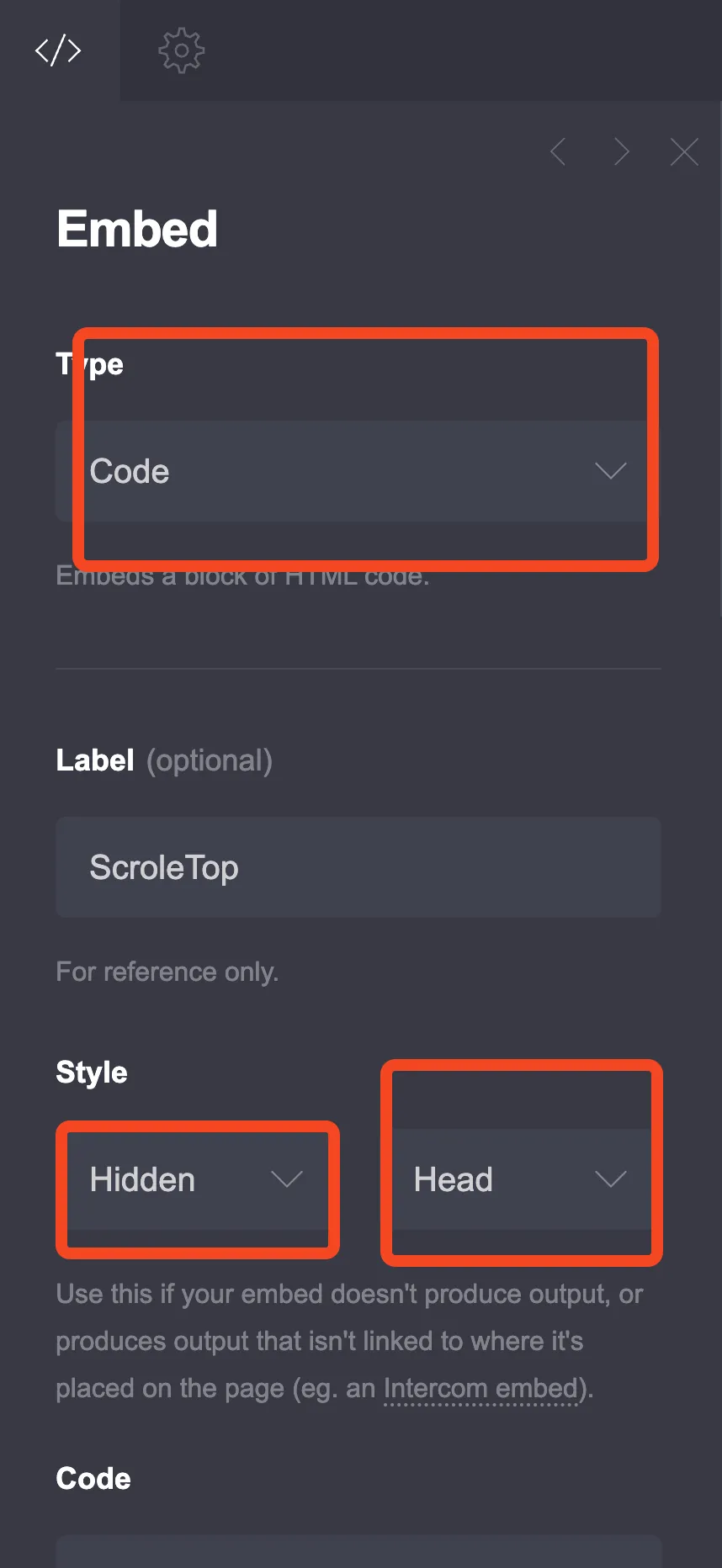
The screenshot shows the Head location from Step 1. For this second embed, pick Inline, or keep Hidden and switch the location to Body End.
In the builder the embed stays invisible. Publish to see it. Then pick one of the three toggle styles below and paste it into this second embed.
Each option’s <style> block carries the dark colors, and it loads with this second embed in the body. If you still catch a brief light frame on a slow connection, cut the <style>…</style> part out of your chosen option and paste it into the Step 1 Head embed, below the existing code. The button and <script> stay here.
Option 1: Floating Toggle Button
My default pick. A small fixed button in the corner, works with any layout, stays out of the way. This version swaps a single sun/moon emoji, keeps aria-pressed in sync, scopes transitions so first paint stays instant, respects prefers-reduced-motion, survives private-mode storage errors, follows live system theme changes, and adds a view-transition cross-fade where the browser supports it.
<style>
  /* Light mode (default) colors */
  :root {
    --dm-bg-primary: #ffffff;
    --dm-bg-secondary: #f8fafc;
    --dm-text-primary: #1e293b;
    --dm-text-secondary: #64748b;
    --dm-border: #e2e8f0;
    --dm-accent: #3b82f6;
  }

  /* Dark mode colors */
  [data-theme="dark"] {
    --dm-bg-primary: #0f172a;
    --dm-bg-secondary: #1e293b;
    --dm-text-primary: #f1f5f9;
    --dm-text-secondary: #94a3b8;
    --dm-border: #334155;
    --dm-accent: #60a5fa;
  }

  /* Apply colors to Carrd elements */
  [data-theme="dark"] body,
  [data-theme="dark"] #wrapper,
  [data-theme="dark"] #main,
  [data-theme="dark"] section {
    background-color: var(--dm-bg-primary) !important;
  }

  [data-theme="dark"] h1,
  [data-theme="dark"] h2,
  [data-theme="dark"] h3,
  [data-theme="dark"] h4,
  [data-theme="dark"] p,
  [data-theme="dark"] span,
  [data-theme="dark"] li,
  [data-theme="dark"] a:not(.button) {
    color: var(--dm-text-primary) !important;
  }

  /* Style form inputs */
  [data-theme="dark"] input,
  [data-theme="dark"] textarea,
  [data-theme="dark"] select {
    background-color: var(--dm-bg-secondary) !important;
    color: var(--dm-text-primary) !important;
    border-color: var(--dm-border) !important;
  }

  /* Smooth transitions, scoped so the first paint is instant */
  @media (prefers-reduced-motion: no-preference) {
    [data-theme-ready] body,
    [data-theme-ready] #wrapper,
    [data-theme-ready] #main,
    [data-theme-ready] section,
    [data-theme-ready] h1,
    [data-theme-ready] h2,
    [data-theme-ready] h3,
    [data-theme-ready] h4,
    [data-theme-ready] p,
    [data-theme-ready] span,
    [data-theme-ready] li,
    [data-theme-ready] a:not(.button),
    [data-theme-ready] input,
    [data-theme-ready] textarea {
      transition: background-color 0.3s ease, color 0.3s ease, border-color 0.3s ease;
    }
  }

  /* Toggle button */
  .theme-toggle {
    position: fixed;
    bottom: 25px;
    left: 25px;
    width: 50px;
    height: 50px;
    border-radius: 50%;
    border: none;
    cursor: pointer;
    display: flex;
    align-items: center;
    justify-content: center;
    font-size: 24px;
    z-index: 9999;
    background: var(--dm-bg-secondary);
    box-shadow: 0 4px 15px rgba(0, 0, 0, 0.15);
    transition: transform 0.2s, background-color 0.3s;
  }

  .theme-toggle:hover {
    transform: scale(1.1);
  }

  .theme-toggle:focus-visible {
    outline: 2px solid var(--dm-accent);
    outline-offset: 2px;
  }
</style>

<button class="theme-toggle" id="themeToggle" aria-label="Toggle dark mode" aria-pressed="false">
  <span aria-hidden="true">☀️</span>
</button>

<script>
(function () {
  var toggle = document.getElementById('themeToggle');

  function apply(theme) {
    document.documentElement.setAttribute('data-theme', theme);
    document.documentElement.setAttribute('data-theme-ready', '');
    toggle.setAttribute('aria-pressed', theme === 'dark' ? 'true' : 'false');
    toggle.firstElementChild.textContent = theme === 'dark' ? '🌙' : '☀️';
  }

  function current() {
    return document.documentElement.getAttribute('data-theme') || 'light';
  }

  apply(current());

  toggle.addEventListener('click', function () {
    var next = current() === 'dark' ? 'light' : 'dark';
    try { localStorage.setItem('theme', next); } catch (e) {}
    if (document.startViewTransition) {
      document.startViewTransition(function () { apply(next); });
    } else {
      apply(next);
    }
  });

  window.matchMedia('(prefers-color-scheme: dark)')
    .addEventListener('change', function (e) {
      var saved = null;
      try { saved = localStorage.getItem('theme'); } catch (err) {}
      if (!saved) apply(e.matches ? 'dark' : 'light');
    });
})();
</script>
Notes on the moving parts:
- Transitions only apply after
data-theme-readyis set on the root, so the initial theme does not animate in. document.startViewTransitionis progressive enhancement (Chrome/Edge 111+, Firefox 144+, Safari 18+). Unsupported browsers just swap instantly.- The system-change listener only runs when the visitor has no saved choice. Once they click the toggle, their pick wins until they clear it.
- Emoji render differently on Windows and older Android. If you want pixel-consistent icons, replace the
☀️/🌙characters with inline SVG sun and moon shapes.
Verify: click the toggle and colors should cross-fade. Reload and the theme should stick (localStorage.theme holds light or dark). Tab to the button and you should see the focus ring, with aria-pressed flipping in DevTools → Elements.
Option 2: Header Toggle Switch
A switch pill you can drop near the header. Same shared fixes as Option 1: a:not(.button) text handling, transitions scoped to [data-theme-ready], try/catch around storage, and a system-change listener.
One common footgun in older snippets of this pattern: *, *::before, *::after { transition: … }. That animates the entire page on first paint and drags on heavy layouts. The rule below is scoped on purpose. If your whole page animates on load, you kept the global transition rule.
<style>
  /* Light mode colors */
  :root {
    --dm-bg: #ffffff;
    --dm-bg-alt: #f3f4f6;
    --dm-text: #111827;
    --dm-text-muted: #6b7280;
    --dm-border: #e5e7eb;
  }

  /* Dark mode colors */
  [data-theme="dark"] {
    --dm-bg: #111827;
    --dm-bg-alt: #1f2937;
    --dm-text: #f9fafb;
    --dm-text-muted: #9ca3af;
    --dm-border: #374151;
  }

  /* Apply to page */
  [data-theme="dark"] body,
  [data-theme="dark"] #wrapper,
  [data-theme="dark"] #main,
  [data-theme="dark"] section {
    background-color: var(--dm-bg) !important;
  }

  [data-theme="dark"] h1,
  [data-theme="dark"] h2,
  [data-theme="dark"] h3,
  [data-theme="dark"] h4,
  [data-theme="dark"] p,
  [data-theme="dark"] span,
  [data-theme="dark"] li,
  [data-theme="dark"] a:not(.button) {
    color: var(--dm-text) !important;
  }

  [data-theme="dark"] input,
  [data-theme="dark"] textarea {
    background-color: var(--dm-bg-alt) !important;
    color: var(--dm-text) !important;
    border-color: var(--dm-border) !important;
  }

  /* Transitions scoped to post-load state */
  @media (prefers-reduced-motion: no-preference) {
    [data-theme-ready] body,
    [data-theme-ready] #wrapper,
    [data-theme-ready] #main,
    [data-theme-ready] section,
    [data-theme-ready] h1,
    [data-theme-ready] h2,
    [data-theme-ready] h3,
    [data-theme-ready] h4,
    [data-theme-ready] p,
    [data-theme-ready] span,
    [data-theme-ready] li,
    [data-theme-ready] a:not(.button),
    [data-theme-ready] input,
    [data-theme-ready] textarea {
      transition: background-color 0.3s ease, color 0.3s ease, border-color 0.3s ease;
    }
  }

  /* Toggle switch container */
  .switch-container {
    position: fixed;
    top: 20px;
    right: 20px;
    display: flex;
    align-items: center;
    gap: 10px;
    z-index: 9999;
    background: var(--dm-bg-alt);
    padding: 8px 15px;
    border-radius: 50px;
    box-shadow: 0 2px 10px rgba(0, 0, 0, 0.1);
  }

  .switch-label {
    font-size: 18px;
  }

  .switch {
    position: relative;
    width: 56px;
    height: 28px;
  }

  .switch input {
    opacity: 0;
    width: 0;
    height: 0;
  }

  .switch input:focus-visible + .switch-slider {
    outline: 2px solid #3b82f6;
    outline-offset: 2px;
  }

  .switch-slider {
    position: absolute;
    cursor: pointer;
    top: 0;
    left: 0;
    right: 0;
    bottom: 0;
    background-color: #e5e7eb;
    border-radius: 28px;
    transition: 0.3s;
  }

  .switch-slider:before {
    position: absolute;
    content: "";
    height: 22px;
    width: 22px;
    left: 3px;
    bottom: 3px;
    background-color: white;
    border-radius: 50%;
    transition: 0.3s;
    box-shadow: 0 2px 5px rgba(0, 0, 0, 0.2);
  }

  input:checked + .switch-slider {
    background-color: #3b82f6;
  }

  input:checked + .switch-slider:before {
    transform: translateX(28px);
  }
</style>

<div class="switch-container">
  <span class="switch-label" aria-hidden="true">☀️</span>
  <label class="switch">
    <input type="checkbox" id="themeSwitch" role="switch" aria-label="Toggle dark mode">
    <span class="switch-slider"></span>
  </label>
  <span class="switch-label" aria-hidden="true">🌙</span>
</div>

<script>
(function () {
  var themeSwitch = document.getElementById('themeSwitch');

  function apply(theme) {
    document.documentElement.setAttribute('data-theme', theme);
    document.documentElement.setAttribute('data-theme-ready', '');
    themeSwitch.checked = (theme === 'dark');
    themeSwitch.setAttribute('aria-checked', theme === 'dark' ? 'true' : 'false');
  }

  function current() {
    return document.documentElement.getAttribute('data-theme') || 'light';
  }

  apply(current());

  themeSwitch.addEventListener('change', function () {
    var next = themeSwitch.checked ? 'dark' : 'light';
    try { localStorage.setItem('theme', next); } catch (e) {}
    apply(next);
  });

  window.matchMedia('(prefers-color-scheme: dark)')
    .addEventListener('change', function (e) {
      var saved = null;
      try { saved = localStorage.getItem('theme'); } catch (err) {}
      if (!saved) apply(e.matches ? 'dark' : 'light');
    });
})();
</script>
The hidden checkbox gets role="switch" and aria-label="Toggle dark mode", with aria-checked kept in sync. Without that label it has no accessible name.
Option 3: Minimal Icon Toggle
A small bordered circle that swaps sun and moon. Lighter palette variables if you prefer that naming. Same shared fixes as the other two.
<style>
  /* Theme colors */
  :root {
    --page-bg: #ffffff;
    --page-bg-alt: #f9fafb;
    --page-text: #18181b;
    --page-text-muted: #71717a;
  }

  [data-theme="dark"] {
    --page-bg: #18181b;
    --page-bg-alt: #27272a;
    --page-text: #fafafa;
    --page-text-muted: #a1a1aa;
  }

  [data-theme="dark"] body,
  [data-theme="dark"] #wrapper,
  [data-theme="dark"] #main,
  [data-theme="dark"] section {
    background-color: var(--page-bg) !important;
  }

  [data-theme="dark"] h1,
  [data-theme="dark"] h2,
  [data-theme="dark"] h3,
  [data-theme="dark"] h4,
  [data-theme="dark"] p,
  [data-theme="dark"] span,
  [data-theme="dark"] li,
  [data-theme="dark"] a:not(.button) {
    color: var(--page-text) !important;
  }

  [data-theme="dark"] input,
  [data-theme="dark"] textarea {
    background-color: var(--page-bg-alt) !important;
    color: var(--page-text) !important;
    border-color: var(--page-text-muted) !important;
  }

  @media (prefers-reduced-motion: no-preference) {
    [data-theme-ready] body,
    [data-theme-ready] #wrapper,
    [data-theme-ready] #main,
    [data-theme-ready] section,
    [data-theme-ready] h1,
    [data-theme-ready] h2,
    [data-theme-ready] h3,
    [data-theme-ready] h4,
    [data-theme-ready] p,
    [data-theme-ready] span,
    [data-theme-ready] li,
    [data-theme-ready] a:not(.button),
    [data-theme-ready] input,
    [data-theme-ready] textarea {
      transition: background-color 0.25s ease, color 0.25s ease;
    }
  }

  /* Minimal toggle */
  .minimal-toggle {
    position: fixed;
    top: 20px;
    right: 20px;
    width: 44px;
    height: 44px;
    border: 2px solid var(--page-text);
    border-radius: 50%;
    background: transparent;
    cursor: pointer;
    display: flex;
    align-items: center;
    justify-content: center;
    font-size: 20px;
    z-index: 9999;
    transition: transform 0.3s, background-color 0.3s;
  }

  .minimal-toggle:hover {
    background: var(--page-bg-alt);
    transform: rotate(20deg);
  }

  .minimal-toggle:focus-visible {
    outline: 2px solid var(--page-text-muted);
    outline-offset: 2px;
  }

  .minimal-toggle .sun-icon {
    display: block;
  }

  .minimal-toggle .moon-icon {
    display: none;
  }

  [data-theme="dark"] .minimal-toggle .sun-icon {
    display: none;
  }

  [data-theme="dark"] .minimal-toggle .moon-icon {
    display: block;
  }
</style>

<button class="minimal-toggle" id="minimalToggle" aria-label="Toggle dark mode" aria-pressed="false">
  <span class="sun-icon" aria-hidden="true">☀️</span>
  <span class="moon-icon" aria-hidden="true">🌙</span>
</button>

<script>
(function () {
  var minimalToggle = document.getElementById('minimalToggle');

  function apply(theme) {
    document.documentElement.setAttribute('data-theme', theme);
    document.documentElement.setAttribute('data-theme-ready', '');
    minimalToggle.setAttribute('aria-pressed', theme === 'dark' ? 'true' : 'false');
  }

  function current() {
    return document.documentElement.getAttribute('data-theme') || 'light';
  }

  apply(current());

  minimalToggle.addEventListener('click', function () {
    var next = current() === 'dark' ? 'light' : 'dark';
    try { localStorage.setItem('theme', next); } catch (e) {}
    if (document.startViewTransition) {
      document.startViewTransition(function () { apply(next); });
    } else {
      apply(next);
    }
  });

  window.matchMedia('(prefers-color-scheme: dark)')
    .addEventListener('change', function (e) {
      var saved = null;
      try { saved = localStorage.getItem('theme'); } catch (err) {}
      if (!saved) apply(e.matches ? 'dark' : 'light');
    });
})();
</script>
Verify (all three options): keyboard Tab should land on the toggle with a visible focus ring. That is the part most snippets skip and the part that makes the control usable without a mouse.
Customizing Your Carrd Dark Mode Colors
The CSS variables at the top of Option 1 (and the --page-* set in Option 3) are the only colors you need to touch.
CSS variables (used in this guide)
Two blocks. Light values in :root, dark values in [data-theme="dark"]:
:root {
  --dm-bg-primary: #ffffff;     /* Main background */
  --dm-bg-secondary: #f8fafc;   /* Secondary background (cards, inputs) */
  --dm-text-primary: #1e293b;   /* Main text color */
  --dm-text-secondary: #64748b; /* Muted text */
  --dm-border: #e2e8f0;         /* Border color */
  --dm-accent: #3b82f6;         /* Accent/link color */
}

[data-theme="dark"] {
  --dm-bg-primary: #0f172a;     /* Dark background */
  --dm-bg-secondary: #1e293b;   /* Slightly lighter dark */
  --dm-text-primary: #f1f5f9;   /* Light text */
  --dm-text-secondary: #94a3b8; /* Muted light text */
  --dm-border: #334155;         /* Dark border */
  --dm-accent: #60a5fa;         /* Lighter accent for contrast */
}
It works everywhere and gives you full control over each theme. The rest of the guide assumes this setup.
light-dark() alternative
Define each color once and let color-scheme pick the winner:
:root {
  --dm-bg-primary: light-dark(#ffffff, #0f172a);
  --dm-bg-secondary: light-dark(#f8fafc, #1e293b);
  --dm-text-primary: light-dark(#1e293b, #f1f5f9);
  --dm-accent: light-dark(#3b82f6, #60a5fa);
}
Less CSS, but only on newer browsers. The toggle still has to flip color-scheme (Step 1 already sets it). Use this if you do not care about older Safari.
light-dark() browser support
Chrome 123+, Firefox 120+, Safari 17.5+ (Baseline 2024, checked September 2026). Fine to use now that Step 1 sets color-scheme. Keep the CSS-variables version if you need older Safari.
For more copy-paste CSS customization on Carrd, see the custom Carrd countdown timer designs.
Dark Mode Design Tips
Test contrast. Text must stay readable on the dark background. Run the palette through a contrast checker when unsure.
Don’t go pure black. #000000 is harsh. Use dark grays like #0f172a or #1e293b instead.
Lighten your accent color. Colors that work on white often look muddy on dark. #3b82f6 becomes #60a5fa in the palette above for exactly this reason.
Check every section. Walk the whole page in both themes. Some elements will need extra selectors (next section).
Consider images. Logos and graphics designed for white backgrounds may need a second version, a filter, or a subtle frame.
Handling Carrd-Specific Elements and Images
Carrd generates stable structural selectors: #wrapper, #main, and .inner are present on published sites (verified in the raw HTML of a published sample in September 2026). Template-specific class names vary, so stubborn elements need extra targeting.
/* Target specific Carrd elements */
[data-theme="dark"] .inner,
[data-theme="dark"] .container,
[data-theme="dark"] [class*="style1"],
[data-theme="dark"] [class*="style2"] {
  background-color: var(--dm-bg-primary) !important;
  color: var(--dm-text-primary) !important;
}

/* Target Carrd buttons (ul.buttons > li > a.button); a:not(.button) above only covers text links */
[data-theme="dark"] .buttons .button {
  background-color: var(--dm-accent) !important;
}

/* Target Carrd icons (ul.icons > li > a > svg) */
[data-theme="dark"] .icons svg {
  filter: brightness(0) invert(1);
}
Template variance
The style1…style5 class names differ per template, and tricks like [data-theme="dark"] .inner > * { background: transparent !important } can wipe button and card backgrounds on some templates. Test on yours. If buttons lose their background in dark mode, remove that rule first. Nothing here is universal. Verify every override on your published page.
Background images do not respond to background-color overrides. If a section refuses to darken, the culprit is probably a background image. Swap it, or dim it with an overlay:
[data-theme="dark"] img {
  opacity: 0.9;
  filter: brightness(0.95);
}

/* Or give images a subtle frame */
[data-theme="dark"] img {
  border: 1px solid var(--dm-border);
  border-radius: 8px;
}
If you run a sticky header, expect one clash: a still-light header bar on an otherwise dark page. The sticky header for Carrd guide shows which selectors to hit so the bar darkens with the rest.
Positioning the Toggle Button
Change the position by editing these CSS properties on your toggle class:
Bottom left (default in Option 1):
bottom: 25px;
left: 25px;
Top right:
top: 25px;
right: 25px;
Bottom right:
bottom: 25px;
right: 25px;
On z-index: the snippets use z-index: 9999 so the toggle floats above content. That can collide with Carrd’s mobile menu button and social icons. If the toggle covers something tappable, lower the z-index or move the button to the opposite corner. Same story if you also run a fixed back-to-top control. Check our guide to adding a back to top button on Carrd and keep the two from stacking in one corner. On mobile layouts in particular, double-check nothing sits under the toggle after you create a mobile responsive navbar in Carrd.
Testing and Troubleshooting Your Carrd Dark Mode Toggle
Embeds render nothing in the builder, so every check below happens on the published site.
- Publish, then open the site in an incognito window on a system set to dark: theme applies with no white flash
- Click the toggle, reload: the choice persists in
localStorage(keytheme) - DevTools console is clean (no
Uncaught SecurityErrorfromlocalStoragein private mode) - Keyboard Tab reaches the toggle and the focus ring is visible
aria-pressed(oraria-checkedon Option 2) flips in the Elements panel when you toggle- With no saved choice, switch the OS theme live: the page follows
If something misbehaves:
White flash still appears
The head bootstrap is missing, set to the wrong location (it must be Style: Hidden, Location: Head), or you are looking at a cached copy. Confirm the embed exists with the right style and location, then hard-refresh or test in a private window. Also verify once on your own published site that the head code runs before paint. Carrd’s injection order is worth a single end-to-end check since the builder will not show you. If the head embed is fine and a short flash remains, move the toggle’s <style> block into the head embed too (see Step 2).
Toggle clicks but nothing changes
Three usual suspects: a script error in the console (paste the whole code block again, unclosed tags are the common cause), the dark CSS selectors not matching your template, or the site not actually published after your edit. Check the console first, then inspect the <html> element. data-theme should flip when you click.
Buttons or cards lost their background in dark mode
That is the [data-theme="dark"] .inner > * { background: transparent !important } rule biting. It is template-dependent and often too aggressive. Remove it and give .button and card containers their own background overrides instead.
Toggle covers the mobile menu or social icons
z-index: 9999 plus a corner position will overlap Carrd’s chrome on small screens. Lower the z-index, or reposition the toggle to a free corner (see the positioning section). Test at phone width, not just desktop.
Some sections never change color
Either the template uses styleN classes your selectors miss, or the section background is an image. Inspect the element, add its class to the dark CSS block, and swap or dim background images. Inline SVG icons also ignore color overrides. Recolor them with fill/stroke rules or a filter.
Preference not saving or Uncaught SecurityError in console
Private browsing modes can block localStorage. The code wraps every read/write in try/catch, so the toggle still works for the session. It just cannot remember the choice. Nothing to fix; it degrades on purpose.
Rollback
Nothing outside the two embeds is modified. Delete both Embed elements and publish: the site is back to stock. To clear one visitor’s stuck preference, open DevTools → Application → Local Storage and remove the theme key.
FAQ: Carrd Dark Mode Questions
Does Carrd have built-in dark mode?
No. As of September 2026 there is no theme-switch feature in Carrd. I checked the docs and the changelog. A custom code embed is the way, and this guide is the copy-paste path.
Why does my Carrd site flash white before dark mode loads?
That is FOUC (flash of unstyled content), in this case a flash of the wrong theme. An all-in-one Inline embed applies dark mode from JavaScript after the first paint, so dark-mode users see white first. The Hidden → Head bootstrap from Step 1 sets data-theme before paint and removes the flash.
Which Carrd plan do I need for dark mode?
Pro Standard ($19/yr for 10 sites) or higher, because Embeds are the delivery mechanism. Pro Lite ($9/yr) has no embeds at all. Pro Plus ($49/yr) is only worth it if you need its advanced settings. Carrd runs a 7-day free Pro trial with no credit card if you just want to build this once. Prices are from September 2026; re-check on carrd.co/pro.
Will the dark mode toggle work on a multi-section Carrd site?
Yes. Sections made with Carrd’s Page element share one document, so data-theme and localStorage persist as visitors move around. One Carrd dark mode theme switcher covers the whole site. If you also want a floating action in the same family of fixed buttons, add a WhatsApp chat button to Carrd.
Conclusion
Dark mode is expected at this point, especially from visitors browsing at night. The full setup is two embeds and one toggle snippet. Roughly 10 minutes if you paste carefully. Start with Option 1 (the floating button) if you are unsure which style fits. It works with any layout and stays out of the way.
A couple of next steps once the toggle is live:
- Connect a custom domain to your Carrd site and stop shipping the
*.carrd.coURL - Add a pricing table to Carrd if the page is selling something
- Walk the rest of the Carrd tutorial list at the top of this post. Popups, smooth scroll, floating and sidebar menus all follow the same embed pattern