How To Add Accordion FAQs Drop-Down to Carrd.co (Free Code)
Learn how to add a free accordion FAQ drop-down to Carrd.co with a code embed. Step-by-step setup, color styling, mobile fixes, and no-code alternatives.

28 min read
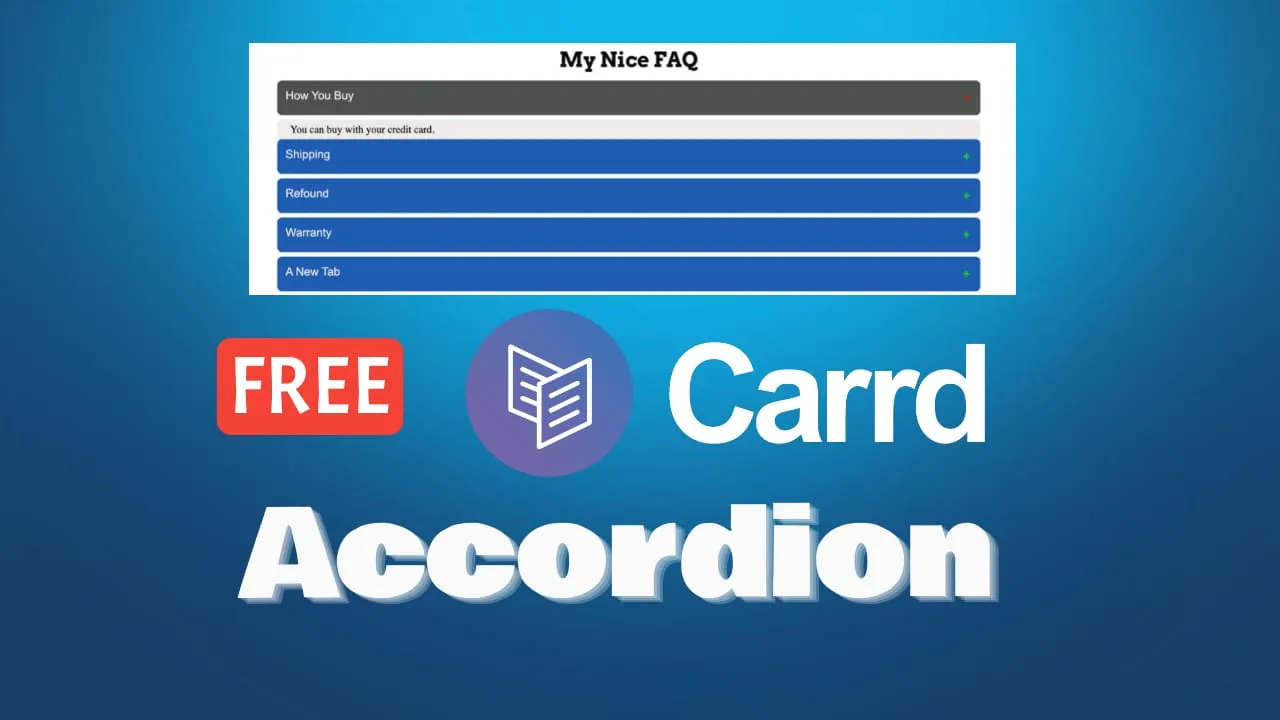
Carrd doesn’t have a built-in accordion element. If you want an accordion FAQ drop-down on your site, you embed a few lines of code. The plugin used in this guide is free. The only cost is Carrd Pro Standard at $19/year, the lowest plan that includes the Embed element. Setup takes about 5 minutes.
One housekeeping note: carrd.co now redirects to carrd.com. Old links still work, but the docs and login live at carrd.com from now on. If you are still deciding what the whole site should cost, the FAQ accordion pattern in this guide is a staple of how to build a one-page website on a budget.
Carrd accordion pluginMore Carrd tutorials:
- Add a sticky header to Carrd
- Add Carrd cookie notice
- How to add a pricing table to Carrd.co
- Carrd.co review
- Carrd testimonial slider
- Back to top button on Carrd
- Carrd smooth scroll anchor links
- Carrd dark mode toggle
The complete list of Carrd plugins, themes, and tutorials is on carrdme.com.
What the Carrd accordion plugin gives you
- You can change the background, text, and hover colors to match your site’s design.
- You can add as many FAQ items as you need by duplicating a simple HTML block.
- The accordion looks good on both desktop and mobile screens.
- Opening and closing animates smoothly, with a plus icon that rotates into an x.
The plugin is plain HTML, CSS, and a few lines of vanilla JavaScript in a single embed block. No framework, no external script loads, no third-party branding. That vanilla-JS point matters more than it sounds: some alternatives pull an entire framework from a CDN just to open and close a div (more on that in the alternatives section).
The same Inline Embed technique powers other interactive elements on Carrd. Once this works you can also add a popup modal to Carrd with the same approach.
What you need before you start
Everything after this section assumes the following are in place:
- A Carrd account on Pro Standard ($19/year) or higher. The Embed element is Pro-gated; the free plan does not have it.
- The free accordion code from CarrdMe. Enter “$0” at checkout (goodwill optional).
- A published Carrd site to test on. The builder does not render embedded JavaScript, so publishing is part of the loop.
Carrd runs a 7-day Pro trial if you just want to try the embed before paying. For what each plan includes beyond embeds, see the Carrd.co review.
Get Carrd ProHow to add an accordion FAQ to Carrd
Five steps, all inside the Carrd editor plus a quick test on the live site.
1. Download the free Carrd accordion code
Grab the free code from carrdme.com. It’s a single block of HTML, CSS, and JavaScript that you’ll paste into Carrd. The download is genuinely free: enter “$0” and you get the same file (a goodwill amount is optional).
If the download link shows a Cloudflare interstitial, open it in a normal browser. It blocks automated tools but loads fine for humans.
Download the free accordion code2. Add an Embed element in Carrd
Open your Carrd site in the editor. In the section where you want the FAQ, click Add Element and select Embed. Set the following:
Set Type to Code and Style to Inline. Inline places the accordion exactly where the Embed element sits in your layout, since the accordion is visible content. Hidden would inject it into the page’s head or body edges instead.
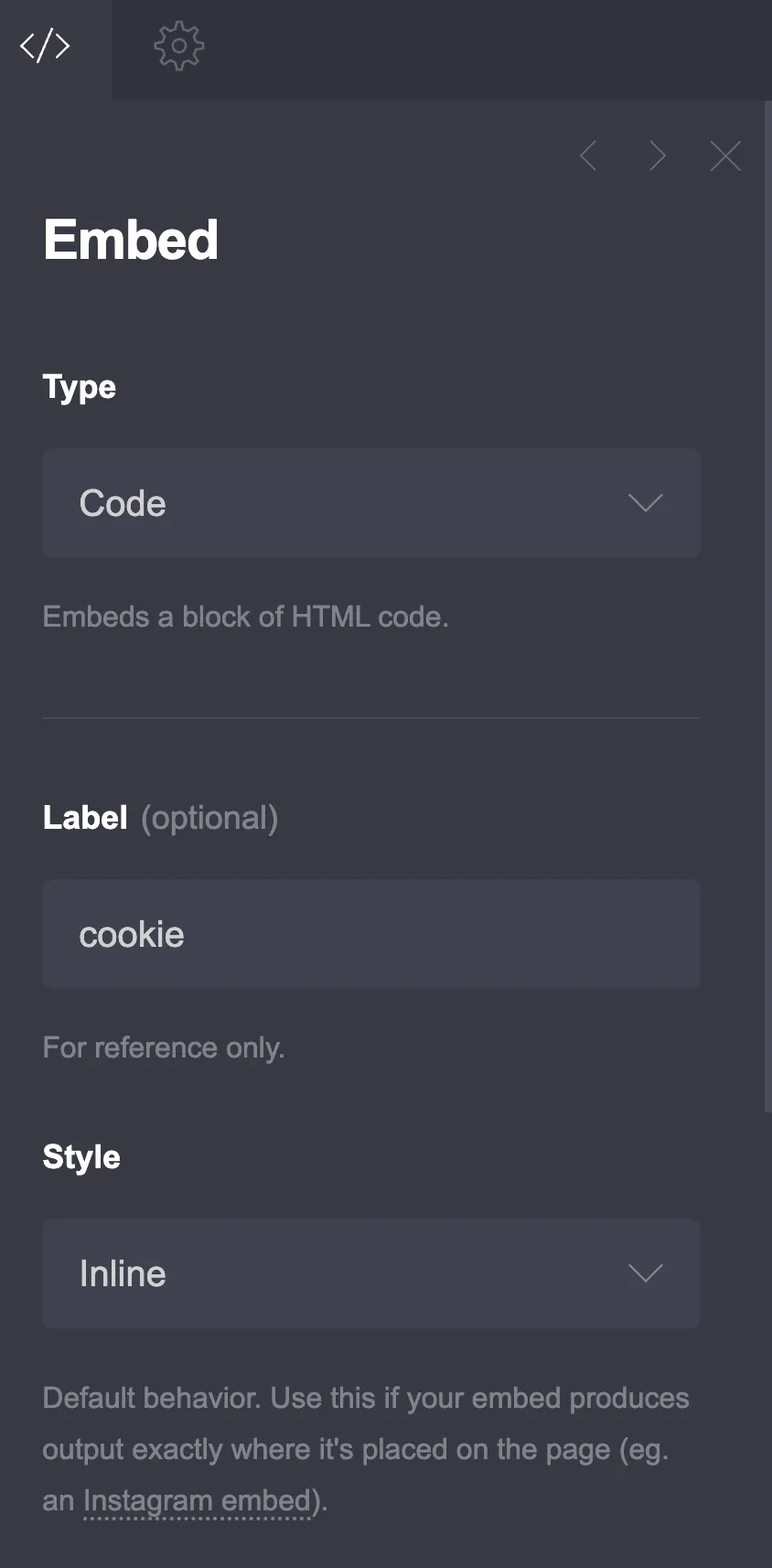
For more details on how Carrd’s embed system works, see the official Carrd embed documentation. (That URL used to live on carrd.co; the old link still redirects.)
On a long page, use More Actions → Elements to open the Elements Panel. That’s the fast way to jump back to the accordion embed after you’ve scrolled around. It shipped in the August 2026 builder update.
Pro Standard or higher required
If you don’t see an Embed element in the Add Element menu, your plan is below Pro Standard. Embeds are Pro-gated; upgrade or start the 7-day trial first.
3. Paste the code and customize your FAQ items
Paste the full code into the Embed element’s Code field. Then edit the FAQ content. Each accordion item follows this pattern:
<button class="accordion" aria-expanded="false">Your question here?</button>
<div class="panel">
  <p>Your answer goes here. You can include multiple paragraphs, lists, or inline HTML.</p>
</div>
The aria-expanded="false" attribute is part of the accessibility setup covered further down. Adding it now costs nothing and keeps the markup ready.
The button and its panel must stay adjacent: the script opens the element that immediately follows the clicked button.
Add more items by repeating the same block:
<button class="accordion" aria-expanded="false">What is your refund policy?</button>
<div class="panel">
  <p>We offer a full refund within 30 days of purchase. Contact support@example.com to start the process.</p>
</div>

<button class="accordion" aria-expanded="false">How do I contact support?</button>
<div class="panel">
  <p>Email us at support@example.com or use the contact form on our website. We respond within 24 hours.</p>
</div>

<button class="accordion" aria-expanded="false">Do you offer custom plans?</button>
<div class="panel">
  <p>Yes. Reach out with your requirements and we'll put together a tailored package.</p>
</div>
Replace the Lorem ipsum placeholder text with your actual questions and answers. Duplicate or remove blocks to match your FAQ count.
4. Customize the accordion colors
The code includes a <style> section at the top with a comment next to each color. You can replace that whole <style> block with this one:
<style>
  /* Accordion styles */
  .accordion {
    background-color: #868e99; /* Accordion color */
    color: #eeebeb; /* Accordion text color */
    cursor: pointer;
    padding: 18px;
    width: 100%;
    border: none;
    text-align: left;
    outline: none;
    transition: 0.4s;
    border-radius: 10px;
    margin-bottom: 10px;
    font-size: 2.1rem;
  }
  .accordion:before {
    content: "\002B";
    color: #4d514d; /* Plus sign color */
    font-weight: bold;
    float: right;
    margin-left: 5px;
    border-radius: 50%;
    padding: 5px;
    transition: transform 0.3s ease-in-out;
  }
  .accordion.active:before {
    transform: rotate(45deg);
    background-color: #4d514d; /* Close (x) icon background */
    color: #d91a1a; /* Close (x) icon color */
  }
  .accordion.active,
  .accordion:hover {
    background-color: #4d514d; /* Hover and open tab color */
    border-radius: 10px;
  }
  .panel {
    padding: 0 18px;
    background-color: #eeebeb; /* Answer panel background */
    max-height: 0;
    overflow: hidden;
    transition: max-height 0.2s ease-out;
    border-radius: 10px;
  }
  .panel p {
    margin: 0;
    padding: 10px 10px;
    font-size: 2.1rem;
  }
</style>
Change the hex color values to match your site’s palette. The comments in the code make it straightforward to find each property.
Check the .active selector
If your downloaded copy has a rule that starts with .active, .accordion:hover, change it to .accordion.active, .accordion:hover as shown above. Carrd puts an active class on the section currently on screen, so a bare .active selector paints your whole section in the accordion’s hover color. Scoped to .accordion.active, it only styles the open item.
5. Publish and test
Save your changes and publish the site. You can only preview the accordion after publishing. Carrd’s editor doesn’t render embedded JavaScript in the builder, and their docs say the same thing.
Run this checklist on the live site:
- Click each FAQ item. It should expand and collapse smoothly.
- Tab through the page with the keyboard. Each question is a real
<button>, so it should be focusable and openable with Enter or Space. - Open the site on your phone. The text should be readable and the tap targets large enough.
- Check the colors against the rest of your design.
- Open the browser console. No red JavaScript errors.
If the FAQ sits below the fold, link a menu item straight to it with Carrd smooth scroll anchor links. Saves visitors the scroll hunt on a long one-pager.
CarrdMake the accordion accessible (aria-expanded)
The markup already uses real <button> elements, so keyboard support comes for free. What’s missing is state: screen readers can’t tell whether a question is open. Two lines fix that.
The click handler currently does this.classList.toggle("active") and ignores the result. Capture the new state and mirror it into aria-expanded:
Base script
<script>
  // Accordion script
  var acc = document.getElementsByClassName("accordion");
  for (var i = 0; i < acc.length; i++) {
    acc[i].addEventListener("click", function () {
      this.classList.toggle("active");
      var panel = this.nextElementSibling;
      if (panel.style.maxHeight) {
        panel.style.maxHeight = null;
      } else {
        panel.style.maxHeight = panel.scrollHeight + "px";
      }
    });
  }
</script>
Accessible (aria-expanded)
<script>
  // Accordion script (accessible)
  var acc = document.getElementsByClassName("accordion");
  for (var i = 0; i < acc.length; i++) {
    acc[i].addEventListener("click", function () {
      var open = this.classList.toggle("active");
      this.setAttribute("aria-expanded", open);
      var panel = this.nextElementSibling;
      panel.style.maxHeight = open ? panel.scrollHeight + "px" : null;
    });
  }
</script>
Multi-embed safe
<script>
  // Accordion script (multi-embed safe)
  var acc = document.getElementsByClassName("accordion");
  for (var i = 0; i < acc.length; i++) {
    if (acc[i].dataset.bound) continue; // already wired by another copy
    acc[i].dataset.bound = "1";
    acc[i].addEventListener("click", function () {
      this.classList.toggle("active");
      var panel = this.nextElementSibling;
      if (panel.style.maxHeight) {
        panel.style.maxHeight = null;
      } else {
        panel.style.maxHeight = panel.scrollHeight + "px";
      }
    });
  }
</script>
With the accessible script, each <button class="accordion"> also needs aria-expanded="false" in the markup (already added in step 3). classList.toggle returns the new state, so the same click that opens the panel flips the attribute to true, and the next click flips it back.
Not live-tested
This two-line variant has not been through a live Carrd publish as of October 2026. It’s a small change to the base script, so verify on your published site: click a question and inspect the button in devtools to confirm aria-expanded flips between false and true.
Embedding multiple accordion sections on the same page
If you need two or more separate FAQ groups on one Carrd site, add one Inline Embed per group. There’s one catch: the plugin’s script attaches a click handler to every .accordion button on the page, not just the ones in its own embed. With the full code pasted twice, the first group’s buttons get two handlers. Each click opens the panel and immediately closes it again, so that group looks dead.
The fix is to use this version of the <script> block in every copy. It skips buttons that another copy already wired up. If you also want the aria-expanded behavior, the guard stays at the top of the loop and the two aria lines slot inside the listener, like this:
<script>
  // Accordion script (multi-embed safe + accessible)
  var acc = document.getElementsByClassName("accordion");
  for (var i = 0; i < acc.length; i++) {
    if (acc[i].dataset.bound) continue; // already wired by another copy
    acc[i].dataset.bound = "1";
    acc[i].addEventListener("click", function () {
      var open = this.classList.toggle("active");
      this.setAttribute("aria-expanded", open);
      var panel = this.nextElementSibling;
      panel.style.maxHeight = open ? panel.scrollHeight + "px" : null;
    });
  }
</script>
The <style> block can stay duplicated in each embed; identical CSS rules don’t conflict. Every button still needs its <div class="panel"> directly after it, because the script opens the element that immediately follows the clicked button.
Troubleshooting: Carrd accordion not working
If your Carrd accordion is not working after publish, the cause is almost always one of these.
If the accordion doesn’t appear after publishing, check that the Embed element’s Type is Code and its Style is Inline, and that it sits in the section where you expect it. Also confirm your Carrd plan supports embeds (Pro Standard or higher).
If you don’t see the Embed element in Add Element, the plan is below Pro Standard. The free tier caps at 3 sites and excludes embeds entirely. Upgrade, or use the 7-day Pro trial to test first.
If the accordion looks broken or unstyled, make sure you pasted the full code, including the <style> block at the top, into the Code field.
If the whole section turns grey, your copy uses a bare .active selector that matches Carrd’s active section. Change it to .accordion.active (see step 4).
If clicking a question does nothing, open your browser console and look for JavaScript errors. If you pasted the full code into two embeds, the first group’s buttons get two click handlers that cancel each other out. Use the script from the multiple-accordion section above.
If the text is too small on mobile, add a font-size override in the style section of the code. For example: .accordion { font-size: 16px; } and .panel p { font-size: 15px; }.
If the download link shows a Cloudflare or interstitial page, open it in a normal browser. The link sits behind a bot challenge for automated tools; the plugin page itself is live and reachable by hand.
To undo everything: delete the Embed element and republish. Nothing else in Carrd is touched, so rollback is as simple as that.
Alternatives to the code embed approach
If you’d rather not manage raw code, or you want a different visual style, there are three other routes. My default is still the CarrdMe snippet above: free, no branding, fully editable, and the smallest page-weight hit.
No-JavaScript option: <details>/<summary>
Since the Inline Embed accepts arbitrary HTML, native <details>/<summary> gives you a working accordion with zero JavaScript. The browser handles open and close:
<details class="faq">
  <summary>What is your refund policy?</summary>
  <p>Full refund within 30 days. Contact support@example.com to start the process.</p>
</details>

<details class="faq">
  <summary>How do I contact support?</summary>
  <p>Email us at support@example.com. We respond within 24 hours.</p>
</details>
Style summary like the .accordion bar (background, padding, border-radius, cursor) and swap the plus icon for a summary::before rule. The tradeoff is animation: there’s no smooth max-height transition by default. The newer interpolate-size and transition-behavior: allow-discrete CSS can animate it, but browser support is still patchy as of October 2026, so I’d skip animation here.
The JS version is animated and takes the aria upgrade. <details>/<summary> is bulletproof but unanimated.
Not live-tested
This variant has not been through a live Carrd publish as of October 2026. The embed accepts arbitrary HTML so it should render, but check it on your published site before shipping it to visitors.
Common Ninja accordion widget
A hosted widget service that generates the accordion for you and gives you an embed snippet. Pricing as of October 2026:
- Free tier: $0, free forever, no credit card required
- Essentials: $24/year ($2/month billed annually)
- Pro: $38.40/year ($3.20/month billed annually)
- Ultimate: $62.40/year ($5.20/month billed annually)
All tiers bill annually; list prices exclude VAT. The free tier has historically run with Common Ninja branding, and the paid tiers are what remove it. Keep in mind this is a hosted widget: a third-party script loads on your page and you have less control over the output than with the CarrdMe snippet.
Pricing checked Oct 2026
Widget pricing ages fast. Check commoninja.com/pricing before you commit.
Jason’s Plugins for Carrd
plugins.carrd.co hosts two accordion variants, and both are free (“key in $0, or any goodwill amount you wish”):
- Accordion FAQs drop-down: light and minimal with animated chevron icons. Demo: accordionfaqs.carrd.co.
- Animated accordion FAQs drop-down: the same drop-down with a bounce animation instead of the chevron. Demo: animatedaccordionfaqs.carrd.co.
Two things change the workflow here. First, these ship as Carrd templates: after download you go to the Carrd dashboard, choose New site, open the My Templates tab, and select the template. Then copy the code out of that template site and merge it into yours. Second, the animated variant loads Vue.js from a CDN. On a one-page site where you’re counting kilobytes, that’s noticeably heavier than the CarrdMe vanilla-JS snippet.
Template-based install
Jason’s plugins arrive as template sites, not paste-ready code blocks. Budget an extra step to import the template and copy the pieces you need.
If you like the CarrdMe approach and want the same technique for tabbed content, the Carrd tabs plugin works the same way: one Inline Embed, no framework.
Will Google show my FAQ accordion as a rich result?
Short answer: probably not. As of October 2026, Google shows FAQ rich results only for well-known, authoritative government and health websites, and How-to rich results are gone entirely.
The schema itself is harmless and still useful for semantics and other search engines. Just don’t add FAQPage JSON-LD (via a Hidden → Head embed) expecting expandable FAQ listings in Google’s SERP.
Don't expect rich snippets
Google restricted FAQ rich results to authoritative government and health sites. See Google’s FAQPage structured data docs for the current policy before you bother with the markup.
Wrapping up
Total cost recap: $19/year for Carrd Pro Standard is the only cost, and the accordion code is free. Grab the plugin, paste it into an Inline Embed, publish, and you have a working FAQ drop-down. To remove it later, delete the Embed element and republish; nothing else in Carrd is touched.
Get Carrd Pro Download the free accordion codeNext on your Carrd site: a sticky header, a pricing table, and smooth scroll anchor links that jump straight to the FAQ.
Quick answers
Does Carrd have a native accordion?
No. As of October 2026 the Carrd changelog has no accordion, FAQ, or collapse element. You embed custom code (this guide) or use a third-party widget.
Is the Carrd accordion plugin really free?
Yes. CarrdMe lists it as free to download: enter “$0” at checkout and you get the full source, with no branding and no upsell baked into the code. A goodwill amount is optional.
Do I need a paid Carrd plan?
Yes. Pro Standard at $19/year is the minimum, because the Embed element is Pro-gated. Carrd runs a 7-day Pro trial if you want to test before paying for a year.