Carrd Popup Modal: How to Add One to Your Site (2026)
Add a Carrd popup modal with free copy-paste code: timed email capture, click-triggered, and exit-intent popups using modern dialog and popover examples.

Updated Published 82 min read
Popups get a bad reputation, mostly because people abuse them. But a well-timed modal can capture emails, announce sales, or surface something urgent without cluttering your main page. Timing and restraint matter more than the code.
Adding a popup modal to a Carrd website takes one Embed element and some copy-paste code. Carrd has no built-in popup feature (nothing popup-related in the visible changelog through September 2026), so this Carrd popup modal guide gives you three working versions (timed email capture, click-triggered, and exit-intent) built on the modern <dialog> element and the Popover API instead of the div-and-z-index hacks from a few years ago.
Carrd keeps things simple on purpose. That’s fine. An Embed element is all you need here.
Build on CarrdSome Carrd tutorials:
- Add Smooth Scroll to Carrd
- Add Testimonial Slider to Carrd
- Add Dark Mode Toggle to Carrd
- Add Floating Menu to Carrd
- Add Sidebar Menu to Carrd
- Add a Sticky Header to Carrd
The complete list with Carrd plugins, themes and tutorials you can find on my carrdme.com website.
Why add popups to your Carrd site
Popups work for specific jobs:
- Email capture. Grow your newsletter list without dedicating prime page space to signup forms.
- Announcements. Tell visitors about sales, new products, or updates worth knowing.
- Image lightboxes. Show larger versions of portfolio images or product photos.
- Exit intent. Catch visitors before they leave with a final offer.
- Welcome messages. Greet first-time visitors or flag something urgent.
Use them thoughtfully. Don’t pop up the second someone lands on your page. Give them a few seconds to look around first.
Frequency capping matters as much as timing. All the code below uses sessionStorage, so a visitor sees the popup once per browser session. Swap in localStorage (with an expiry timestamp) if you want once per week instead. That decision lives in the code. You don’t need a plugin for it.
Which Carrd plan do you need?
You need Carrd Pro Standard ($19/yr) or higher
Embeds (the element that makes any Carrd popup modal possible) require Pro Standard ($19/yr, 10 sites) or higher. Free and Pro Lite ($9/yr) accounts cannot add custom code at all, so if you’re on those tiers, nothing in this tutorial will render. Pro Plus ($49/yr, 25 sites) adds Advanced Settings: custom IDs and attributes plus Button On Click events, which give you cleaner trigger buttons for Option 2.
Pricing checked against Carrd’s Pro page in September 2026. Site-count variants exist if you run more sites: Standard is $39/yr for 25 sites, $69/yr for 50, $119/yr for 100. The $19/yr tier is enough for most solo operators.
This is the main cost of the whole setup. The popup code itself is free; $19/year is the entry ticket for Carrd Pro Standard embeds. I break down every Carrd plan in my Carrd review.
If you only need a signup form or a confirmation overlay and the price feels like overkill for custom code, jump to “Do you even need custom code?” below. There are paths that skip the Embed element entirely.
See Carrd plansHow to add a popup modal to Carrd
The setup is the same for all three options. One Embed element holds your HTML, CSS, and a little JavaScript. Then you pick the popup type that matches your goal.
Step 1: Add an Embed element
In the Carrd editor, hit the + sign and add an Embed element anywhere on the page (placement in the visual editor doesn’t matter; we’ll set the real placement in the settings). Configure it like this:
- Type: Code
- Style: Hidden, Body End
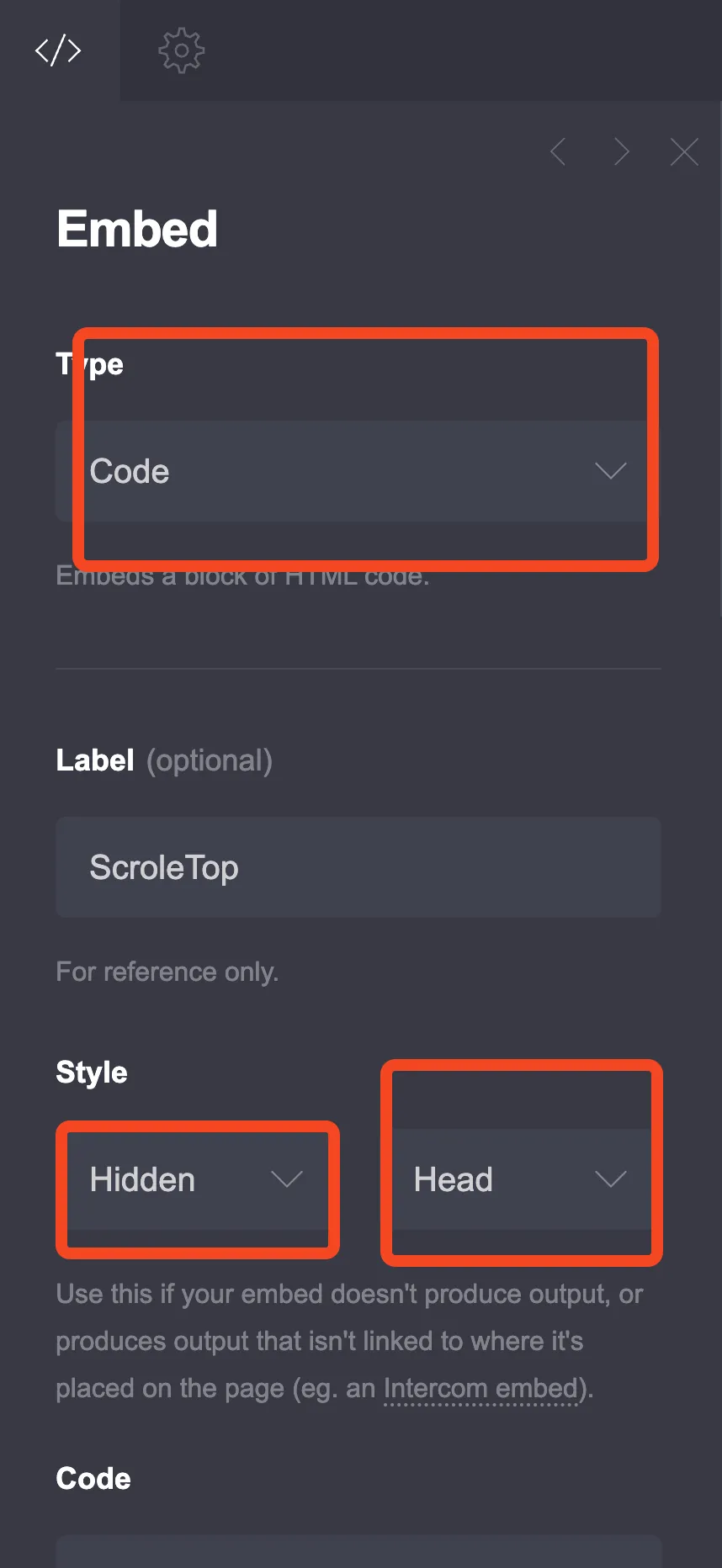
The screenshot shows the location dropdown on Head. Switch it to Body End for Options 1 and 3. Option 2 is the exception: its trigger button is visible on the page, so that embed uses Style: Inline (details in Option 2).
Type must be Code
Set Type to Code, not Iframe. The popup markup, styles, and script all live in this one embed. Carrd explicitly allows <style> and <script> tags here.
Hidden embeds can go in the Head, Body Top, or Body End. Head works, but injecting <div> markup into <head> only functions because the HTML parser force-moves it into <body>. Fragile and confusing when you’re debugging. Body End gives you deterministic DOM order: your markup lands before the script that queries it, no parser tricks. That’s the default I recommend for every Carrd embed popup.
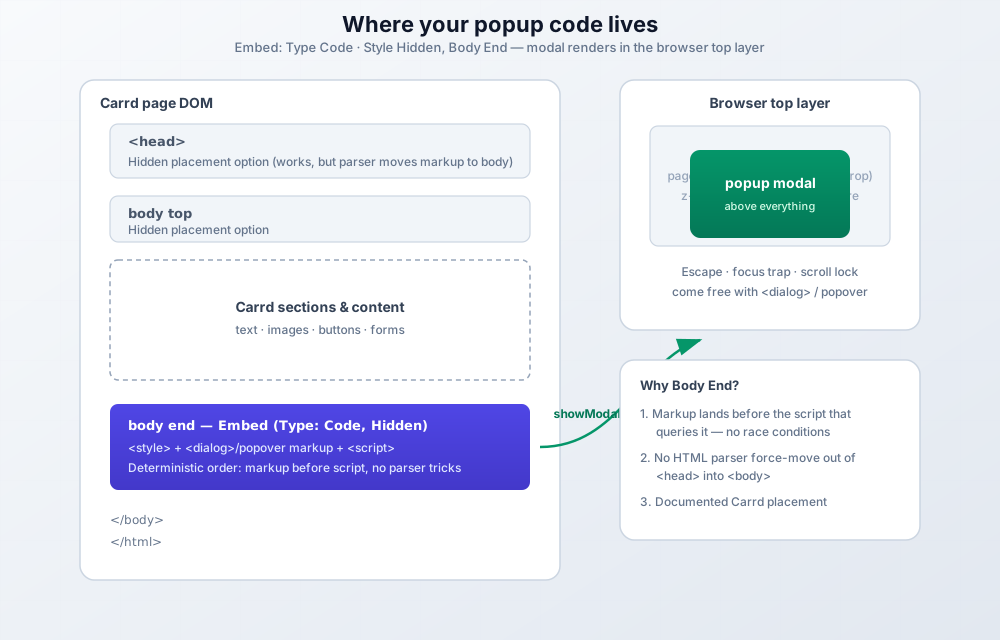
Once you paste the code (next step), publish and check the live URL. That’s where the real Carrd popup code testing happens. More on that in the verify section.
Step 2: Choose your popup type
Three versions, three jobs. Pick one per page.
- Grow a newsletter → Option 1, timed email capture popup (shows after a delay)
- Show details, terms, or an offer on demand → Option 2, click-triggered popup
- Last-chance desktop offer → Option 3, exit intent popup (with a mobile scroll fallback)
Don't mix options blindly
Each option ships with its own element IDs (emailModal, svcModal, exitModal), so two different options can share a site. Pasting the same option twice (to get two timed popups, say) will break both. If you really want a second copy, rename every ID, class, variable, and function in the second block first.
Option 1: Timed email capture popup
This popup appears after a delay and includes an email signup form. It’s the right default for newsletter growth. It’s the classic Carrd email popup.
The version below uses the native <dialog> element and showModal(). That buys you a lot for free: Escape closes it, the page behind it can’t be clicked or tabbed into while it’s open, and it renders in the browser’s top layer so no z-index fighting with Carrd’s markup. One thing showModal() does not do is stop the page behind it from scrolling, so the CSS includes a one-line :has() rule that locks scrolling while the dialog is open. Browser support is universal since Firefox 98 and Safari 15.4 (March 2022) per MDN’s compat data, checked September 2026.
<style>
  :root {
    --popup-bg: #ffffff;
    --popup-overlay: rgba(0, 0, 0, 0.6);
    --popup-accent: #4f46e5;
    --popup-text: #1f2937;
    --popup-secondary: #6b7280;
    --popup-radius: 16px;
    --popup-width: 450px;
    --popup-delay: 3000; /* ms before the popup shows; keep in sync with setTimeout() */
  }

  dialog#emailModal {
    border: 0;
    border-radius: var(--popup-radius);
    padding: 0;
    max-width: var(--popup-width);
    width: 90%;
    background: var(--popup-bg);
    color: var(--popup-text);
    box-shadow: 0 25px 50px -12px rgba(0, 0, 0, 0.25);
  }

  dialog#emailModal::backdrop {
    background: var(--popup-overlay);
  }

  body:has(dialog#emailModal[open]) {
    overflow: hidden;
  }

  @media (prefers-reduced-motion: no-preference) {
    dialog#emailModal[open] {
      animation: modalIn 0.3s ease;
    }

    @keyframes modalIn {
      from {
        opacity: 0;
        transform: scale(0.8);
      }
      to {
        opacity: 1;
        transform: scale(1);
      }
    }
  }

  .modal-inner {
    padding: 40px;
    position: relative;
  }

  .modal-close {
    position: absolute;
    top: 15px;
    right: 15px;
    width: 32px;
    height: 32px;
    border: none;
    background: #f3f4f6;
    border-radius: 50%;
    cursor: pointer;
    font-size: 20px;
    color: var(--popup-secondary);
    display: flex;
    align-items: center;
    justify-content: center;
    transition: background 0.2s;
  }

  .modal-close:hover {
    background: #e5e7eb;
  }

  .modal-title {
    font-size: 24px;
    font-weight: 700;
    color: var(--popup-text);
    margin: 0 0 10px 0;
    text-align: center;
  }

  .modal-description {
    font-size: 16px;
    color: var(--popup-secondary);
    margin: 0 0 25px 0;
    text-align: center;
    line-height: 1.5;
  }

  .modal-form {
    display: flex;
    flex-direction: column;
    gap: 15px;
  }

  /* The #emailModal prefix outranks Carrd's own form input styles */
  #emailModal .modal-input {
    padding: 14px 18px;
    border: 2px solid #e5e7eb;
    border-radius: 10px;
    font-size: 16px;
    transition: border-color 0.2s;
    outline: none;
  }

  #emailModal .modal-input:focus {
    border-color: var(--popup-accent);
  }

  .modal-button {
    padding: 14px 24px;
    background: var(--popup-accent);
    color: white;
    border: none;
    border-radius: 10px;
    font-size: 16px;
    font-weight: 600;
    cursor: pointer;
    transition: background 0.2s, transform 0.1s;
  }

  .modal-button:hover {
    background: #4338ca;
    transform: translateY(-1px);
  }

  .modal-note {
    font-size: 13px;
    color: var(--popup-secondary);
    text-align: center;
    margin: 15px 0 0 0;
  }

  /* Honeypot: real visitors never see or fill this field */
  .modal-hp {
    position: absolute;
    left: -9999px;
  }

  @media (max-width: 480px) {
    .modal-inner {
      padding: 30px 20px;
    }

    .modal-title {
      font-size: 20px;
    }
  }
</style>

<dialog id="emailModal" aria-labelledby="emailModalTitle">
  <div class="modal-inner">
    <button class="modal-close" aria-label="Close"
            onclick="document.getElementById('emailModal').close()">×</button>
    <h2 class="modal-title" id="emailModalTitle">Get Weekly Tips</h2>
    <p class="modal-description">Practical advice for your site, delivered to your inbox every week.</p>
    <form class="modal-form" action="YOUR_FORM_ENDPOINT" method="POST" target="_blank">
      <input type="text" name="website" class="modal-hp" tabindex="-1" autocomplete="off" aria-hidden="true">
      <input type="email" name="email" class="modal-input" placeholder="Enter your email" required>
      <button type="submit" class="modal-button">Subscribe</button>
    </form>
    <p class="modal-note">No spam. Unsubscribe anytime.</p>
  </div>
</dialog>

<script>
  const dlg = document.getElementById('emailModal');

  // Show once per session. The flag is set when the popup is SHOWN,
  // not when it closes, so a visitor who navigates away mid-popup
  // doesn't get ambushed again on the next page.
  if (!sessionStorage.getItem('modalShown')) {
    setTimeout(function () {
      dlg.showModal();
      sessionStorage.setItem('modalShown', 'true');
    }, 3000); /* keep in sync with --popup-delay */
  }

  // Backdrop click closes. The click target is the <dialog> element itself
  // (the .modal-inner wrapper covers the dialog box, so only true backdrop
  // clicks land here).
  dlg.addEventListener('click', function (e) {
    if (e.target === dlg) dlg.close();
  });

  // Bots fill the hidden honeypot field; real visitors never see it.
  dlg.querySelector('form').addEventListener('submit', function (e) {
    if (this.elements.website.value) e.preventDefault();
  });

  // Escape handling is native with <dialog>. No keydown handler needed.
</script>
Customization options
To change the delay, update both --popup-delay (documentation) and the setTimeout(..., 3000) call. 3000 = 3 seconds. On mobile, 4 to 5 seconds converts better than 1 to 2; people are still orienting.
Everything runs off the CSS variables at the top for colors: --popup-accent is the button, --popup-bg the card, --popup-text the heading, --popup-secondary the supporting text.
To connect your email service, replace YOUR_FORM_ENDPOINT with the form action URL from your email provider. Then match the email input’s name to what that provider expects: email works for Buttondown, Kit uses email_address, and Mailchimp uses EMAIL. Copy it from the provider’s own form HTML if in doubt; a wrong field name means the signup silently fails. The form opens the provider’s confirmation page in a new tab (target="_blank") so visitors don’t get yanked off your site. If your provider’s endpoint supports CORS, you can fetch() it and show an inline thank-you instead. That path is provider-specific. Verify it before shipping. One field to leave alone: website is a honeypot. Bots fill it, humans don’t, and the script cancels any submit where it’s non-empty.
Troubleshooting
- Popup doesn’t show in the editor. Expected. Carrd doesn’t run embed code in the builder. Always test the published URL in a fresh incognito window.
- Nothing renders at all. Three checks: Type is Code (not Iframe), Style is Hidden, and your plan is Pro Standard or higher. Free and Pro Lite accounts silently drop custom code.
- Popup repeats on every page. The
sessionStorage.setItem('modalShown', 'true')line must run in the show path (right aftershowModal()). Running it in a close handler alone is not enough. The code above does this correctly. If you edited it, check you didn’t move it. - Form posts but nothing arrives in your ESP. The action URL is wrong or incomplete. Compare it character-by-character with the endpoint your provider gives you, and check the provider’s submission log before assuming the popup is broken.
- Background still scrolls behind the popup.
showModal()doesn’t lock scrolling on its own. Check that thebody:has(dialog#emailModal[open])rule is still in your CSS and that the ID in it matches your dialog.
Need a legacy div-based version for ancient browsers?
<dialog> is supported in every browser released since March 2022. Unless you have analytics showing a meaningful share of pre-2022 browsers, don’t bother.
If you must support them, build the overlay with two nested div elements and a .active class toggle, like earlier versions of this guide used. Three things to add so it stays usable:
1. Accessibility: role=“dialog”, aria-modal=“true”, and aria-labelledby pointing at the title; move focus to the close button on open and restore it on close.
2. Scroll lock: document.body.style.overflow = ‘hidden’ fails on iOS Safari. Use the position: fixed body pattern there instead.
3. Animations: wrap every transition and keyframe in @media (prefers-reduced-motion: no-preference) and add z-index: 9999 so the overlay clears Carrd’s markup.
Option 2: Click-triggered popup
This popup opens when the visitor clicks a button. Better for product details, terms, pricing tables, or anything too long for the main page. If you’ve used a floating WhatsApp chat button on Carrd, the interaction model is the same: a persistent trigger the visitor chooses to press.
The rewrite below uses the Popover API. The result is a Carrd popup without JavaScript: the trigger button talks to the popover through the popovertarget attribute, light-dismiss (click outside) is native, Escape works natively, and the panel renders in the top layer. Browser support: Chrome/Edge 114+, Safari 17+, Firefox 125+ (MDN compat data, checked September 2026). Safe on any evergreen browser.
This embed uses Style: Inline
The code below includes a visible “Learn More” button, so set this Embed element to Type: Code, Style: Inline and drag it to the spot where the button should appear. A Hidden, Body End embed would push the button below your whole site. The popover itself still opens centered over the page.
<style>
  :root {
    --click-popup-bg: #ffffff;
    --click-popup-overlay: rgba(0, 0, 0, 0.7);
    --click-popup-accent: #10b981;
    --click-popup-text: #111827;
    --click-popup-radius: 20px;
  }

  [popover]#svcModal {
    /* Carrd's CSS reset zeroes div margins; auto re-centers the popover */
    margin: auto;
    text-align: left;
    border: 0;
    border-radius: var(--click-popup-radius);
    max-width: 600px;
    width: 100%;
    max-height: 80vh;
    overflow-y: auto;
    padding: 0;
    background: var(--click-popup-bg);
    color: var(--click-popup-text);
  }

  [popover]#svcModal::backdrop {
    background: var(--click-popup-overlay);
  }

  @media (prefers-reduced-motion: no-preference) {
    [popover]#svcModal:popover-open {
      animation: slideUp 0.3s ease;
    }

    @keyframes slideUp {
      from {
        opacity: 0;
        transform: translateY(30px);
      }
      to {
        opacity: 1;
        transform: translateY(0);
      }
    }
  }

  .click-modal-header {
    padding: 25px 30px;
    border-bottom: 1px solid #e5e7eb;
    display: flex;
    justify-content: space-between;
    align-items: center;
  }

  .click-modal-title {
    font-size: 22px;
    font-weight: 700;
    color: var(--click-popup-text);
    margin: 0;
  }

  .click-modal-close {
    width: 36px;
    height: 36px;
    border: none;
    background: #f3f4f6;
    border-radius: 50%;
    cursor: pointer;
    font-size: 22px;
    color: #6b7280;
    display: flex;
    align-items: center;
    justify-content: center;
  }

  .click-modal-close:hover {
    background: #e5e7eb;
  }

  .click-modal-body {
    padding: 30px;
    color: #4b5563;
    line-height: 1.7;
  }

  .click-modal-body h3 {
    color: var(--click-popup-text);
    margin: 0 0 15px 0;
    font-size: 18px;
    font-weight: 600;
  }

  .click-modal-body p {
    margin: 0 0 20px 0;
  }

  .click-modal-body ul {
    margin: 0 0 20px 0;
    padding-left: 20px;
    list-style: disc;
  }

  .click-modal-body li {
    margin-bottom: 10px;
  }

  .click-modal-footer {
    padding: 20px 30px;
    border-top: 1px solid #e5e7eb;
    text-align: right;
  }

  .click-modal-btn {
    padding: 12px 28px;
    background: var(--click-popup-accent);
    color: white;
    border: none;
    border-radius: 10px;
    font-size: 16px;
    font-weight: 600;
    cursor: pointer;
  }

  .click-modal-btn:hover {
    opacity: 0.9;
  }

  /* Trigger button: used when the trigger lives inside the embed */
  .popup-trigger {
    padding: 14px 28px;
    background: var(--click-popup-accent);
    color: white;
    border: none;
    border-radius: 10px;
    font-size: 16px;
    font-weight: 600;
    cursor: pointer;
    transition: transform 0.2s;
  }

  .popup-trigger:hover {
    transform: translateY(-2px);
  }
</style>

<!-- Trigger: popovertarget must match the popover id exactly -->
<button class="popup-trigger" type="button" popovertarget="svcModal">Learn More</button>

<div id="svcModal" popover aria-label="Service details">
  <div class="click-modal-header">
    <h2 class="click-modal-title">Service Details</h2>
    <button class="click-modal-close" aria-label="Close"
            popovertarget="svcModal" popovertargetaction="hide">×</button>
  </div>
  <div class="click-modal-body">
    <h3>What's Included</h3>
    <ul>
      <li>Full website design and development</li>
      <li>Mobile-responsive layout</li>
      <li>SEO optimization</li>
      <li>2 rounds of revisions</li>
      <li>30 days of support after launch</li>
    </ul>
    <p>Turnaround time is typically 2-3 weeks depending on project complexity. We'll discuss your specific needs during our initial consultation.</p>
  </div>
  <div class="click-modal-footer">
    <button class="click-modal-btn" popovertarget="svcModal" popovertargetaction="hide">Got It</button>
  </div>
</div>
No <script> block. The default popover behavior (popover="auto") gives you light-dismiss, Escape, and top-layer rendering on its own. This is as lean as a Carrd dialog gets.
Adding the trigger button
Three ways to wire the trigger, ordered by how much I trust them:
1. Trigger button inside the embed (Pro Standard, works everywhere). The <button popovertarget="svcModal"> in the code above is part of the embed markup. Paste the whole block into an Inline embed placed where the button should sit, publish, done. Zero JavaScript, zero Pro Plus requirement.
2. Native Carrd button + Events (Pro Plus). Want Carrd’s own button styling? On Pro Plus, add a native Button element, set its URL to browser:none, then open Settings → Events → On Click and run:
document.getElementById('svcModal').showPopover();For this path, delete the <button class="popup-trigger" ...> line from the embed. With no visible markup left, switch the embed to Hidden, Body End so the popover isn’t tied to one section. Skip the idea of adding popovertarget to the native button as a custom attribute: Carrd renders buttons as <a> links, and popovertarget only works on <button> and <input> elements. The On Click event is the documented Carrd path and the clean one if you have the plan.
3. javascript: URLs, undocumented. Use at your own risk. Putting javascript:document.getElementById('svcModal').showPopover() in a button’s URL field can work, but javascript: is not one of Carrd’s documented URL types (the documented list covers site/email/phone/sms/skype/browser/section/scroll-point/clipboard/copy as of September 2026).
javascript: URLs are undocumented
Carrd can drop or block javascript: URLs without warning or a changelog entry. If you use this trick, test it on the live site before sharing the link, and re-test after every Carrd update. Prefer path 1 or 2.
If the trigger does nothing, popovertarget and the popover id must match exactly, including case. popovertarget="svcModal" pairs with id="svcModal". One typo and the button is inert.
Option 3: Exit intent popup
This popup fires when a desktop visitor moves the cursor toward the browser chrome. The last chance to capture their attention before the tab closes. Good for a discount or a lead magnet.
Detection uses mouseleave on the document element with a clientY <= 0 guard (the old mouseout + e.toElement approach leaned on a deprecated property). The offer card keeps its gradient design. The exitModalShown flag is set when the popup is shown and checked before showing, so it fires at most once per session.
<style>
  :root {
    --exit-popup-bg: linear-gradient(135deg, #667eea 0%, #764ba2 100%);
    --exit-popup-card: #ffffff;
    --exit-popup-text: #1f2937;
  }

  .exit-modal-overlay {
    position: fixed;
    top: 0;
    left: 0;
    width: 100%;
    height: 100%;
    background: rgba(0, 0, 0, 0.8);
    display: none;
    justify-content: center;
    align-items: center;
    z-index: 9999;
    padding: 20px;
  }

  .exit-modal-overlay.active {
    display: flex;
  }

  .exit-modal-content {
    background: var(--exit-popup-bg);
    border-radius: 24px;
    max-width: 500px;
    width: 100%;
    padding: 50px 40px;
    position: relative;
    text-align: center;
  }

  @media (prefers-reduced-motion: no-preference) {
    .exit-modal-overlay.active .exit-modal-content {
      animation: bounceIn 0.4s ease;
    }

    @keyframes bounceIn {
      0% {
        opacity: 0;
        transform: scale(0.5);
      }
      70% {
        transform: scale(1.05);
      }
      100% {
        opacity: 1;
        transform: scale(1);
      }
    }
  }

  .exit-modal-close {
    position: absolute;
    top: 15px;
    right: 15px;
    width: 36px;
    height: 36px;
    border: none;
    background: rgba(255, 255, 255, 0.2);
    border-radius: 50%;
    cursor: pointer;
    font-size: 20px;
    color: white;
  }

  .exit-modal-close:hover {
    background: rgba(255, 255, 255, 0.3);
  }

  .exit-modal-emoji {
    font-size: 60px;
    margin-bottom: 20px;
  }

  .exit-modal-title {
    font-size: 28px;
    font-weight: 700;
    color: white;
    margin: 0 0 15px 0;
  }

  .exit-modal-description {
    font-size: 18px;
    color: rgba(255, 255, 255, 0.9);
    margin: 0 0 30px 0;
    line-height: 1.6;
  }

  .exit-modal-cta {
    padding: 16px 40px;
    background: white;
    color: #667eea;
    border: none;
    border-radius: 12px;
    font-size: 18px;
    font-weight: 700;
    cursor: pointer;
    transition: transform 0.2s;
    margin-bottom: 15px;
  }

  .exit-modal-cta:hover {
    transform: scale(1.05);
  }

  .exit-modal-skip {
    background: none;
    border: none;
    color: rgba(255, 255, 255, 0.7);
    font-size: 14px;
    cursor: pointer;
    text-decoration: underline;
  }

  .exit-modal-skip:hover {
    color: white;
  }

  @media (max-width: 480px) {
    .exit-modal-content {
      padding: 40px 25px;
    }

    .exit-modal-title {
      font-size: 24px;
    }
  }
</style>

<div class="exit-modal-overlay" id="exitModal" role="dialog" aria-modal="true" aria-labelledby="exitModalTitle">
  <div class="exit-modal-content">
    <button class="exit-modal-close" id="exitModalClose" aria-label="Close" onclick="closeExitModal()">×</button>
    <div class="exit-modal-emoji" aria-hidden="true">👋</div>
    <h2 class="exit-modal-title" id="exitModalTitle">Wait! Before You Go...</h2>
    <p class="exit-modal-description">Get 20% off your first order when you sign up for our newsletter.</p>
    <button class="exit-modal-cta" onclick="closeExitModal(); window.location.href='#signup'">Claim My Discount</button>
    <br>
    <button class="exit-modal-skip" onclick="closeExitModal()">No thanks, I'll pay full price</button>
  </div>
</div>

<script>
  let exitShown = false;

  function showExitModal() {
    var overlay = document.getElementById('exitModal');
    overlay.classList.add('active');
    document.body.style.overflow = 'hidden';
    sessionStorage.setItem('exitModalShown', 'true'); // set on SHOW
    exitShown = true;
    document.getElementById('exitModalClose').focus();
  }

  function closeExitModal() {
    document.getElementById('exitModal').classList.remove('active');
    document.body.style.overflow = '';
  }

  // Click on the overlay backdrop closes
  document.getElementById('exitModal').addEventListener('click', function (e) {
    if (e.target === this) closeExitModal();
  });

  // Escape only acts when the modal is open
  document.addEventListener('keydown', function (e) {
    if (e.key === 'Escape' && document.getElementById('exitModal').classList.contains('active')) {
      closeExitModal();
    }
  });

  // Exit intent: cursor leaves through the top of the viewport (desktop only)
  document.documentElement.addEventListener('mouseleave', function (e) {
    if (e.clientY <= 0 && !e.relatedTarget && !exitShown && !sessionStorage.getItem('exitModalShown')) {
      showExitModal();
    }
  });
</script>
The “Claim My Discount” button closes the popup and jumps to #signup. Change that to the name of your signup section or scroll point (a section named offer is linked as #offer).
This is a desktop-only trick. Phones and tablets have no mouse-leave event, so a pure Carrd exit intent popup is dead code on mobile. That’s fine for desktop-first offers. If mobile traffic matters, add the fallback below.
Mobile fallback: Scroll-depth trigger
For mobile visitors, intent shows up as scrolling, not hovering near the close button. Paste this block into the same embed, below the existing closing </script> tag (it has its own <script> tags, so don’t nest it inside the first one). It fires once when the visitor passes 50% of the page and respects the same exitModalShown flag:
<script>
  // Mobile fallback: show once at 50% scroll depth
  window.addEventListener('scroll', function () {
    if (exitShown || sessionStorage.getItem('exitModalShown')) return;
    var scrolled = window.scrollY / (document.body.scrollHeight - window.innerHeight);
    if (scrolled > 0.5) {
      showExitModal();
    }
  }, { passive: true });
</script>
Tune the 0.5 threshold to your page length. On a long sales page, 0.7 is often less annoying; on a short one-page site, 0.4. The { passive: true } flag keeps the scroll handler from hurting scroll performance.
Verify it: open the site on a desktop and a real phone. On desktop, moving the cursor out through the top of the window fires the popup exactly once. On mobile, scrolling past the halfway mark fires it exactly once. Neither fires again in the same session.
Do you even need custom code?
Before pasting anything, be honest about what you need. A “popup” in the loose sense (content that appears over the page) doesn’t always require an Embed element.
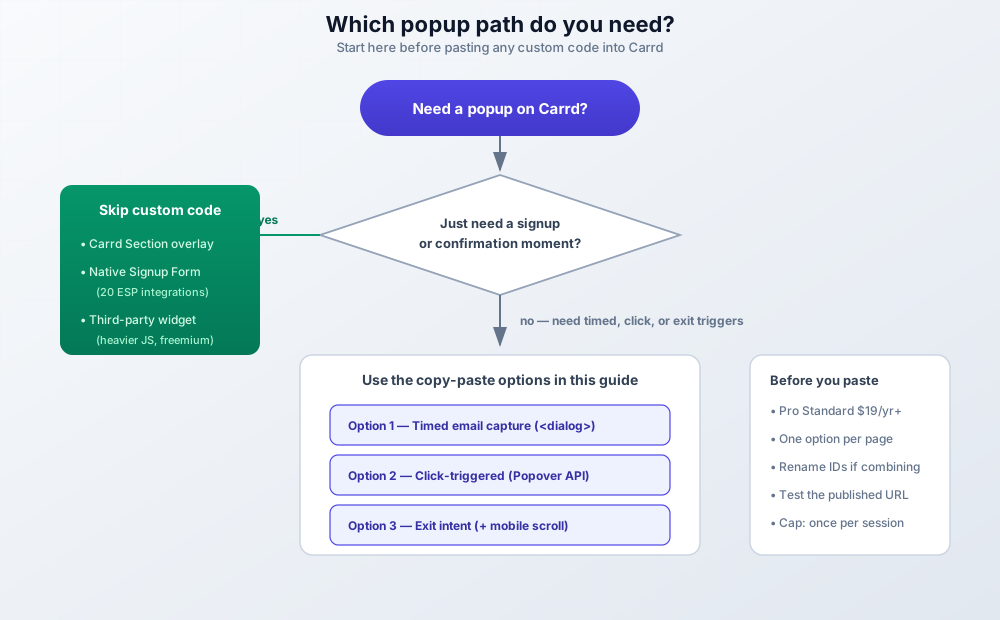
- Carrd Sections for full-screen overlays and modal-style confirmations with zero custom code (worth confirming free-plan availability in your account before betting on it)
- Carrd Signup Forms (Pro Standard+) with native integrations to 20 email platforms, so a CTA button linking to a form section beats wrangling form endpoints
- Third-party popup widgets (Common Ninja, Smartarget and similar) inserted through the same Embed element. Zero coding, heavier JavaScript, usually freemium
For FAQ-style content specifically, a full modal is often the wrong tool. A disclosure pattern is lighter and better for SEO. See how to add accordion FAQs to Carrd, or grab the Carrd accordion plugin or Carrd tabs plugin if you want the widget without the code.
My default: if you want timing, click, or exit-intent control, the code in this article is still the leanest path: one embed, no third-party script, no monthly widget fee. If you just need a signup moment or a confirmation overlay, use a Section or a native Signup Form and skip custom code entirely.
Connecting to email services
Option 1 posts to YOUR_FORM_ENDPOINT. Replace it with the real form action URL from your provider. Here’s the current state of the three I get asked about most, plus the native shortcut.
Kit
Kit (formerly ConvertKit, rebranded in 2024) takes form posts at a plain action URL. convertkit.com redirects to kit.com, and the app lives at app.kit.com. HTML embed form action URLs follow this pattern:
https://app.kit.com/forms/FORM_ID/subscriptionsGrab the form HTML from your Kit dashboard (Grow → Landing Pages & Forms → your form → Embed → HTML) and copy the action value. The exact click path moves around occasionally. If the menu doesn’t match, search Kit’s docs for “embed form”. One thing I couldn’t confirm: whether the raw HTML embed is available on Kit’s free plan or only on paid tiers. Check your account before you build around it.
Buttondown
Use the current domain. buttondown.email still redirects, but don’t build on a redirect:
https://buttondown.com/api/emails/embed-subscribe/USERNAMESwap USERNAME for your Buttondown username. That’s the whole integration; no API key in the form.
Mailchimp
Audience → Signup forms → Create embedded form. Copy the form HTML and take the action attribute from it. Mailchimp now supports email plus SMS fields on embedded forms.
One caveat worth repeating from Mailchimp’s own docs: if you start seeing fake signups, regenerate the embedded form code and replace it on your site. Fresh embed code carries a working reCAPTCHA token; stale code can be farmed.
Carrd-native Signup Form
You can skip endpoints entirely. Carrd’s built-in Signup Form element (Pro Standard+) posts directly to 20 platforms: Kit, Buttondown, Mailchimp, MailerLite, EmailOctopus, Brevo, beehiiv, Ghost, HubSpot, Klaviyo, Loops, Mailjet, Omnisend, Resend, Sender, SendFox, SendGrid, Sendy, ActiveCampaign, and GetResponse. No action URL wrangling, no field-name guessing.
If you go this route, the popup becomes a CTA that opens or links to a signup form section. Pair Option 2 with a form instead of Option 1.
Budget ESP options Carrd integrates with natively: EmailOctopus, MailerLite, and Sender (free plan has included 15,000 emails/month; confirm on their site).
Cost note: the popup code is free; the ESP is where cost appears. Sender’s free tier has covered 15k emails/month (re-check their pricing page). EmailOctopus and MailerLite charge roughly in the $10 to $20/month range once you outgrow free tiers. Check their pricing pages at publish time, these move.
If you’d rather have a plain contact form than an email list, the same embed mechanics power that too. See adding a contact form to a static website for endpoint options that work with Carrd.
GDPR note (not legal advice): a plain email-capture form with a clear purpose is generally fine under EU rules. The consent picture changes once you add analytics scripts or tracking pixels alongside the popup. That’s where cookie and consent obligations kick in. If you serve EU visitors and run any tracking, add a cookie notice to your Carrd site and keep the popup itself free of third-party trackers.
Verify, failure modes and rollback
Test on the published site
Carrd doesn’t run embed code in the builder preview, so only the live URL tells you anything. Every check below runs against the published site, in an incognito window (fresh sessionStorage), on both desktop and a real phone.
After publishing, walk this checklist:
- Open the live URL in incognito and confirm the right popup fires for its trigger (delay, click, exit, or scroll depth)
- Press Escape. The popup should close (Options 1 and 2 do this natively)
- Click outside the card. A backdrop click should dismiss it
- Close and reload in the same tab. It should NOT reappear (session capping works)
- Submit the form with a real address and confirm it lands in your ESP dashboard
- Repeat the trigger test on a real phone, especially the scroll fallback for Option 3
- If you used a
javascript:URL trigger, re-test it on the live site before sharing the link
Things that break, and the fix:
- Preview and live site disagree. Always trust the live URL. Re-publish if the editor shows edits the live site doesn’t have.
- Embed not rendering. Type is not Code, Style is wrong (Hidden, Body End for Options 1 and 3; Inline for Option 2), or your plan is below Pro Standard. In that order.
- Popup appears behind page content. Only a problem for the legacy div versions. They need
z-index: 9999. The<dialog>and popover versions live in the top layer and skip this whole class of bugs. - Same option pasted twice, both broken. ID collisions. Rename every ID, class, variable, and function name in the second block, or keep one popup per page.
- Exit popup never fires on phones. Expected. No mouse. Add the scroll-depth fallback.
- Background scrolls behind a div-based popup on iOS. The
overflow: hiddenbody lock doesn’t always hold on iOS Safari. Use theposition: fixedbody pattern in legacy code, and test on a real iPhone. - Mailchimp fake signups. Regenerate the embedded form code so reCAPTCHA works, then replace the endpoint.
- A trigger button does nothing. For popovers,
popovertargetmust match theidexactly. Forjavascript:URLs, assume Carrd ignored it. Use an in-embed button or Pro Plus Events instead.
To remove the popup (rollback), delete the Embed element in the Carrd builder and republish. There are no theme files, no sitewide JavaScript, nothing else to clean up. That’s the beauty of the embed approach. If you were testing locally, note that sessionStorage keys like modalShown and exitModalShown persist per tab; use incognito for clean tests or clear them from DevTools → Application → Session Storage. Only reverse ESP wiring if you created a dedicated list for the popup.
Tips for effective popups
Don’t be annoying. Show the popup once per session, not every page load. All the code above uses sessionStorage to prevent repeat popups.
Frequency cap smartly. sessionStorage = once per session (what the code uses). For stubborn offers, localStorage plus a 7-day expiry timestamp gives you once per week. Fewer impressions, less irritation, similar conversion.
Make closing easy. The close button should be obvious. Let people click outside to dismiss. Support the Escape key. Options 1 and 2 get all three for free.
Provide value. Nobody wants to sign up for “updates.” Offer something specific: a discount, a free guide, exclusive content.
Pair offers with urgency. A discount converts better with a deadline next to it. Drop a styled countdown timer into the popup body or the section it links to.
Test on mobile. Some popup styles don’t work well on small screens. Check your design on actual phones, not just the editor’s responsive preview.
Consider timing. Immediate popups feel aggressive. Waiting 3-5 seconds or triggering on scroll often works better.
Respect accessibility defaults. Keep prefers-reduced-motion wrappers around animations (already in the code) and always support Escape plus click-outside. The <dialog> and popover versions handle the focus behavior natively.
Frequently asked questions
Does Carrd have popups built in?
No. Carrd ships no native popup or modal element. The visible changelog through September 2026 (Elements Panel, iframe Framing, copy: URLs, templates, fonts, icons) has nothing popup-related. The Embed element is the way to get one. For simple signup or confirmation moments, Carrd Sections and native Signup Forms cover the ground without code.
What Carrd plan do I need for popups?
Pro Standard ($19/yr, 10 sites) is the minimum. That’s the first tier with Embeds (custom code). Free and Pro Lite ($9/yr) accounts cannot add custom code at all. Pro Plus ($49/yr, 25 sites) adds Advanced Settings: Button On Click events, custom IDs and attributes, per-element visibility. Prices verified September 2026; higher site-count variants cost more.
Do Carrd popups work on mobile?
The timed and click-triggered popups work fine on mobile. A delay is a delay, a tap is a click. Exit intent is desktop-only, because phones have no mouse-leave event. Use the scroll-depth fallback in Option 3 to catch mobile visitors at 50% scroll instead.
Is javascript: in a Carrd button URL safe?
It is undocumented and therefore not safe to rely on. Carrd’s documented URL types cover site, email, phone, sms, skype, browser actions, sections, scroll points, clipboard, and copy. javascript: is not among them (checked September 2026). It may work today and break silently tomorrow. Use a trigger button inside the embed (works on Pro Standard), or Pro Plus Events → On Click. If you still want the javascript: trick, verify it on your live site first and re-test after every Carrd update.
Conclusion
Popups aren’t evil. They’re just often used poorly. A well-designed modal that appears at the right time and offers real value can grow your email list without annoying visitors.
You now have three popup types: timed email capture on <dialog>, click-triggered on the Popover API, and exit intent with a mobile scroll fallback. All free copy-paste code, all well under the size of the old div-based versions. Pick one, customize the colors and copy, and remember: less is more. One thoughtful popup beats three aggressive ones.
Once the popup is live, keep going with more Carrd custom-code upgrades like adding a back-to-top button to Carrd, or browse the full plugin and tutorial catalog on carrdme.com.
Build your Carrd site