Upgrade Your Carrd.co Website With A Cookie Notice in Minutes
Enhance your website's functionality and legal compliance in just a few minutes with our easy-to-implement cookie notice code for Carrd.co.

Updated Published 9 min read
If your Carrd site uses Google Analytics, Facebook Pixel, embedded YouTube videos, or any other third-party scripts, you need a cookie notice. Privacy laws like GDPR (EU) and CCPA (California) require websites to inform visitors about cookie use and, in many cases, get consent before setting non-essential cookies.
This tutorial shows you how to add a simple, responsive cookie notice to your Carrd site using the Embed element. The code is free, lightweight, and mobile-friendly.
When do you need a cookie notice on Carrd?
Carrd itself doesn’t set tracking cookies. But if you add any of these to your site, you likely need a cookie notice:
- Google Analytics — sets
_ga,_gidtracking cookies - Facebook Pixel — tracks visitors across sites for ad targeting
- Embedded YouTube videos — YouTube sets cookies when videos load
- Embedded social widgets — Twitter, Instagram embeds can set tracking cookies
- Third-party form tools — Typeform, Stripe embeds may set cookies
If your Carrd site is purely static content with no third-party scripts, you probably don’t need a cookie notice. But if you’re unsure, adding one is the safer choice.
Carrd Plugins and ThemesWhat you need
- Carrd Pro Standard plan ($19/year) or higher — the Embed element is not available on Free or Pro Lite plans
- A few minutes to paste code and customize
Carrd Pro Standard unlocks custom code embeds, custom domains, forms, and Google Analytics integration. At $19/year (about $1.58/month), it’s the plan most Carrd users need.
Video walkthrough
Cookie notice code for Carrd
Here’s the complete code. Copy it as-is, then customize the colors, text, and cookie duration to match your site.
<div id="cookie-notice">
  <p>This website uses cookies to ensure you get the best experience. By continuing to browse, you agree to our use of cookies.</p>
  <button id="cookie-accept" onclick="acceptCookie()">Got it!</button>
  <button id="cookie-reject" onclick="rejectCookie()">No thanks</button>
</div>

<style>
  #cookie-notice {
    font-family: inherit;
    color: #fff;
    background: #596cd5;
    padding: 20px;
    position: fixed;
    bottom: 10px;
    left: 10px;
    max-width: 320px;
    box-shadow: 0 10px 20px rgba(0, 0, 0, 0.2);
    border-radius: 5px;
    margin: 0;
    display: none;
    z-index: 1000000;
    box-sizing: border-box;
  }
  #cookie-notice p {
    margin: 0 0 12px 0;
    font-size: 14px;
    line-height: 1.5;
  }
  #cookie-notice button {
    font-family: inherit;
    color: #fff;
    border: 0;
    padding: 10px 16px;
    margin-right: 8px;
    margin-top: 4px;
    cursor: pointer;
    border-radius: 3px;
    font-size: 14px;
  }
  #cookie-accept {
    background: #3842c7;
  }
  #cookie-reject {
    background: transparent;
    border: 1px solid rgba(255,255,255,0.4) !important;
  }
  @media only screen and (max-width: 600px) {
    #cookie-notice {
      max-width: 100%;
      bottom: 0;
      left: 0;
      border-radius: 0;
    }
  }
</style>

<script>
  function setCookie(name, value, days) {
    var expires = "";
    if (days) {
      var date = new Date();
      date.setTime(date.getTime() + days * 86400000);
      expires = "; expires=" + date.toUTCString();
    }
    document.cookie = name + "=" + (value || "") + expires + "; path=/";
  }
  function getCookie(name) {
    var nameEQ = name + "=";
    var ca = document.cookie.split(";");
    for (var i = 0; i < ca.length; i++) {
      var c = ca[i].trim();
      if (c.indexOf(nameEQ) === 0) return c.substring(nameEQ.length);
    }
    return null;
  }
  function acceptCookie() {
    setCookie("cookie_consent", "accepted", 365);
    document.getElementById("cookie-notice").style.display = "none";
  }
  function rejectCookie() {
    setCookie("cookie_consent", "rejected", 365);
    document.getElementById("cookie-notice").style.display = "none";
  }
  if (!getCookie("cookie_consent")) {
    document.getElementById("cookie-notice").style.display = "block";
  }
</script>
What this code does
The notice appears as a fixed banner in the bottom-left corner. On mobile (under 600px), it stretches to full width at the bottom of the screen. It has two buttons:
- Got it! — sets a cookie named
cookie_consentwith valueacceptedthat lasts 365 days - No thanks — sets the same cookie with value
rejected
Once the user clicks either button, the banner disappears and won’t show again for a year. The notice uses display: none by default, so it only appears for visitors who haven’t made a choice yet.
Customization options
- Background color — change
#596cd5to your brand color - Button color — change
#3842c7for the accept button - Cookie duration — change
365in thesetCookiecalls (365 = 1 year, 30 = 1 month) - Text — edit the
<p>content to match your site’s tone - Position — change
bottom: 10px; left: 10pxto position elsewhere (e.g.,bottom: 0; left: 0; right: 0; max-width: none; border-radius: 0for a full-width footer bar; withoutmax-width: nonethe box stays capped at 320px)
How to add the cookie notice to Carrd
Step 1: Add an Embed element
In the Carrd editor, click Add Element and select Embed. Set the Type to Code and the Style to Hidden, with the location set to Body End. Give it a label like “Cookie Notice” so you can identify it later.
The notice floats over the page with position: fixed, so it doesn’t need a spot in your layout. Body End also keeps it working on sites with multiple Sections: an Inline embed lives inside one section, and Carrd hides that section (and your notice with it) whenever a visitor switches to another one.
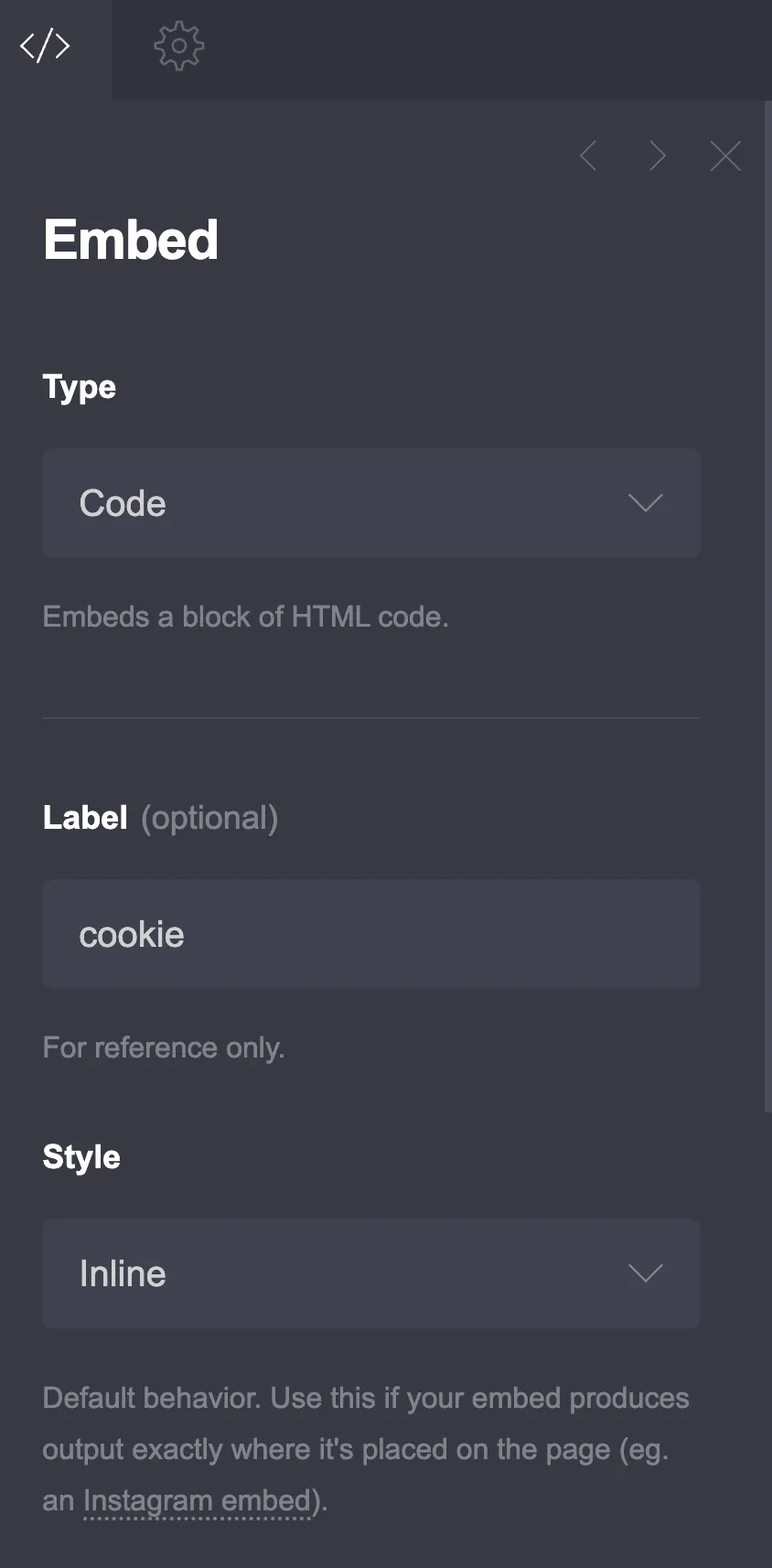
The Embed element requires Carrd Pro Standard ($19/year) or higher. It’s not available on Free or Pro Lite plans.
Step 2: Paste the code
In the Code field, paste the entire code block from above. You can customize the colors, text, and cookie duration before pasting, or edit it after.
Step 3: Publish and test
Carrd doesn’t preview embed code in the editor. You need to publish the site to see the cookie notice. After publishing:
- Open your site in an incognito/private browser window
- The cookie notice should appear
- Click “Got it!” or “No thanks” — the banner should disappear
- Refresh the page — the banner should stay hidden
- Clear your cookies and refresh — the banner should reappear
Limitations of this approach
This is a simple cookie notice, not a full consent management platform (CMP). Here’s what it does and doesn’t do:
What it does:
- Informs visitors that your site uses cookies
- Records whether they accepted or rejected
- Hides the banner after they make a choice
What it doesn’t do:
- Block third-party scripts before consent (Google Analytics still loads)
- Provide granular cookie category controls
- Log consent records for audit purposes
- Auto-scan your site for cookies
For most Carrd sites, a simple notice is enough. If you run advertising campaigns in the EU or process large amounts of user data, consider a dedicated CMP like Cookiebot, CookieYes, or CookieScript — some have free tiers.
Strict GDPR compliance
Under strict GDPR interpretation, you should block non-essential cookies until the user accepts. This is difficult to do on Carrd because the Embed element loads scripts immediately. If strict compliance matters to your business, consider:
- Using a third-party CMP that handles script blocking
- Switching to cookieless analytics like Plausible or Fathom (no consent needed)
- Consulting a privacy professional for your specific situation
Related Carrd tutorials
- Add a Sticky Header to Carrd
- Add a Pricing Table to Carrd
- Carrd.co Review
- Add Accordion FAQs to Carrd
- Add a Custom Domain to Carrd
- Carrd Mobile Responsive Navbar